
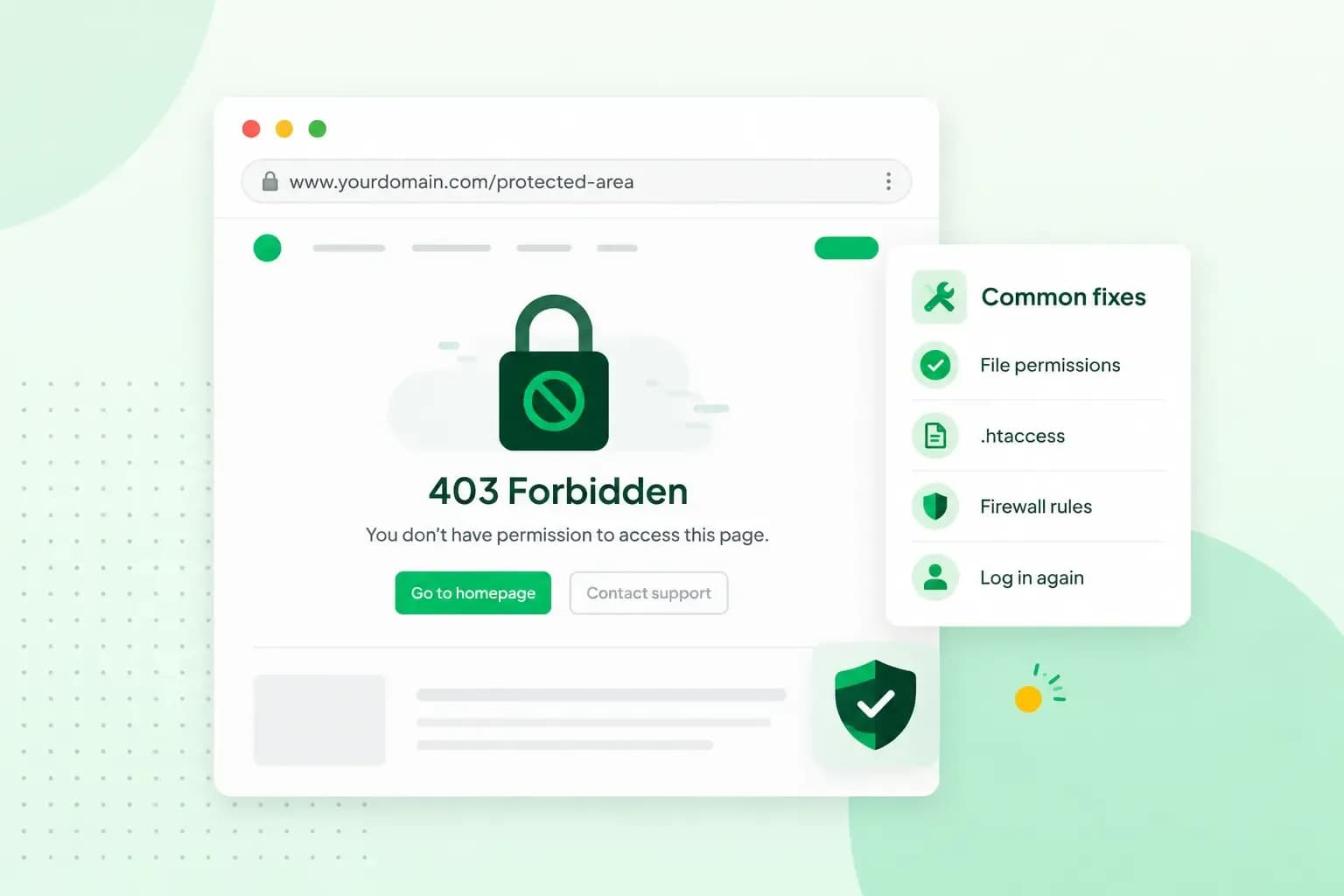
A 403 error, also shown as HTTP 403 or 403 Forbidden, means the server received the request for a page and understood it, but refuses to show it to you. On your own website, the cause can be a setting you can change yourself: a missing homepage file, file permissions that are too strict, a rule in the .htaccess file or a plugin that blocks visitors.
What does 403 Forbidden mean?
403 Forbidden is one of the three-digit HTTP status codes a server sends back whenever a browser asks for a page: the one that says access is refused. A 200 means the request succeeded and the page loads. A 403 means the server has decided you're not allowed to see the page, even though the page isn't missing. If you're logged in and still get a 403, your login isn't enough for that page.
Your browser may show it as "403 Forbidden", though the website's server decides the exact wording of the error page. The server can add the reason to its response, so the error page may also describe why access was forbidden.
How is a 403 status code different from a 401 or a 404?
A 403 means you're not allowed in, a 401 means the server doesn't know who you are yet, and a 404 means there's nothing at that address.
| Status code | What the server says | What you can do |
|---|---|---|
| 401 Unauthorized | The request lacks valid login details for the page | Log in, or check your username and password |
| 403 Forbidden | The server understood the request and refuses it | As a visitor, contact the website; as the owner, check the causes below |
| 404 Not Found | The server found nothing at this address | Check the address for typos, or fix or redirect the link |
Is the problem on your side or the website's?
Usually the website's server refuses the page, though an outdated browser cache on your side can also trigger a 403. To rule out your side, reload the page and check the address for typos. If the page is behind a login, sign in first, and if the error stays, clear your browser's cache and cookies so it loads a fresh copy. When none of that helps, the block is on the website's side and only its owner can lift it, so let them know.
What causes a 403 Forbidden error on your website?
On your own site, the server usually refuses a page because of one of four settings.
- A missing homepage file. If a folder has no
index.htmlorindex.phpfile, the server has no page to show and can refuse access instead. - Wrong file permissions. If a file's permissions are too strict, the server blocks access to it for security reasons.
- A rule in the .htaccess file. A damaged
.htaccessfile or a wrong rule in it can block access to your pages. - A plugin that blocks access. A security plugin can block your own IP address, so you see the error while others can open the site. Plugins that conflict with each other can block access too.
How to fix a 403 error on your website
Try the fixes in this order, starting with the files on your web space. If others can open your site and only you get the error, start with the last one, the plugins.
Check that your homepage file is in place
Your homepage file, index.html or index.php, is the file the server shows when someone asks for a folder, such as your domain, without naming a file, so it needs to be in your website's root folder. On our new servers you connect with SFTP, while older servers still allow FTP, and our guide shows how to connect with SFTP and find your root folder. Open the root folder in an SFTP or FTP program such as FileZilla and check that the file is there and named index.html or index.php in lowercase, as a homepage file with another name can also cause the error. If it's missing, upload it to the root folder.
Set the right file permissions
Every folder and file of your website has permissions. They decide who can read, change and run each file, and they're written as a three-digit number, one digit each for you, your group and everyone else. With 644, you can read and change a file, while everyone else, the web server included, can only read it. 755 also lets others open a folder. If the permissions are so strict that the web server can't read a file, it can't show the page. Set files to 644 and folders to 755, the values our guide uses and WordPress recommends for WordPress websites. In FileZilla, you set them like this:
- If your site is hosted with us, make sure SFTP access is switched on in your control panel, where you also find your connection details.
- Open FileZilla, enter your connection details (Host, Username, Password and Port) and click Quickconnect.
- Select the files and folders you want to change.
- Right-click the selection and choose File permissions.
- Type
644in the Numeric value field, tick Recurse into subdirectories and select Apply to files only. - Do the same for the folders with
755: tick Recurse into subdirectories and select Apply to directories only.
Reset the .htaccess file
If your website runs on an Apache server, the .htaccess file holds settings for the folder it sits in and every folder below it, and one wrong rule can lock visitors out. Make a backup of your website before you change the file. Its name starts with a dot, and many programs hide such files, so if you can't see the file, turn on the option to show hidden files in your SFTP program or file manager. On a WordPress site, you can restore a damaged .htaccess file with WordPress's basic rules, shown below.
# BEGIN WordPress
RewriteEngine On
RewriteRule .* - [E=HTTP_AUTHORIZATION:%{HTTP:Authorization}]
RewriteBase /
RewriteRule ^index\.php$ - [L]
RewriteCond %{REQUEST_FILENAME} !-f
RewriteCond %{REQUEST_FILENAME} !-d
RewriteRule . /index.php [L]
# END WordPress
If a rule in the .htaccess file of your WordPress site may be causing the error, reset the file in four steps.
- Download the .htaccess file from your WordPress folder with your SFTP program or file manager and save a second copy of it under another name, so you have a copy to put back.
- Replace the file's contents with WordPress's basic rules, from
# BEGIN WordPressto# END WordPress. - Upload the edited file to the WordPress folder on your web space, the same folder you downloaded it from, in place of the old one.
- Reload the page that showed the 403 error.
Replacing the contents also removes every other rule the old file held, such as a redirect to https. Once the page loads again, copy any rule you know you need from your saved copy back into the file. If the error stays, put your saved copy back in place of the edited file, since the old rules weren't the cause, and go on to the plugins.
If your website doesn't run on WordPress, open the .htaccess file in a plain text editor such as Notepad++ and look for a rule you added recently or a rule that denies access, such as one that blocks IP addresses. Remove or correct that rule, save the file and upload it back in place of the old one, and keep your original copy until the page loads again.
Find the plugin that blocks access
If the WordPress dashboard still opens, deactivate all plugins there, then reactivate them individually and reload the blocked page after each. That way you also find a security plugin that has blocked your IP address. If the dashboard is blocked too, you can turn the plugins off from your files instead:
- Open the
wp-contentfolder of your WordPress site with an SFTP program such as FileZilla, or with your host's file manager. - Rename the
pluginsfolder toplugins.hold, which switches every plugin off. - Log in to WordPress and open the Plugins page (
/wp-admin/plugins.php). WordPress shows a message that the plugins are missing and switches them off. - Rename
plugins.holdback toplugins. The plugins stay switched off. - Switch the plugins back on one at a time on the Plugins page.
If the error returns right after you reactivate a particular plugin, that plugin is the cause. Leave it deactivated and look for an alternative that does the same job, or ask its developer for a fix. If none of these steps helps, or a firewall on the server blocks your address, contact your host. If your site is hosted with us, get in touch with our customer service.
Does a 403 error affect your site in Google?
Yes, if it stays. Google doesn't index pages that return an error in the 4xx group, and when a page already in its index starts returning one, Google stops using it over time. So it's worth fixing a 403 on an important page straight away, before it drops out of search results.
How to stop the error coming back
Keep a copy of a file before you edit it, so you can put the old version back if your site stops loading. When you upload new files, check that they have the same permissions as the rest of your site: 644 for files and 755 for folders.
Keep a recent backup, so you can put your site back as it was if a change ever locks visitors out again. All our web hosting plans include a daily backup, which you can restore yourself from the Professional plan up.
Recommended reading
 Hosting4 Aug 2026
What is cache?
What does cache mean? And how to clear your cache? Read the importance of cache and why it's necessary to clear your cache once in a while. Hosting4 Aug 2026
What is SSH?
How does SSH work & what does it do? Learn about the history of Secure Shell's predecessor Telnet and how SSH improved our internet security in this article. Hosting4 Aug 2026
What is a CMS (content management system)?
You can easily create and manage your website with a content management system (CMS). Want to know more? Learn all about CMS in this complete guide!