
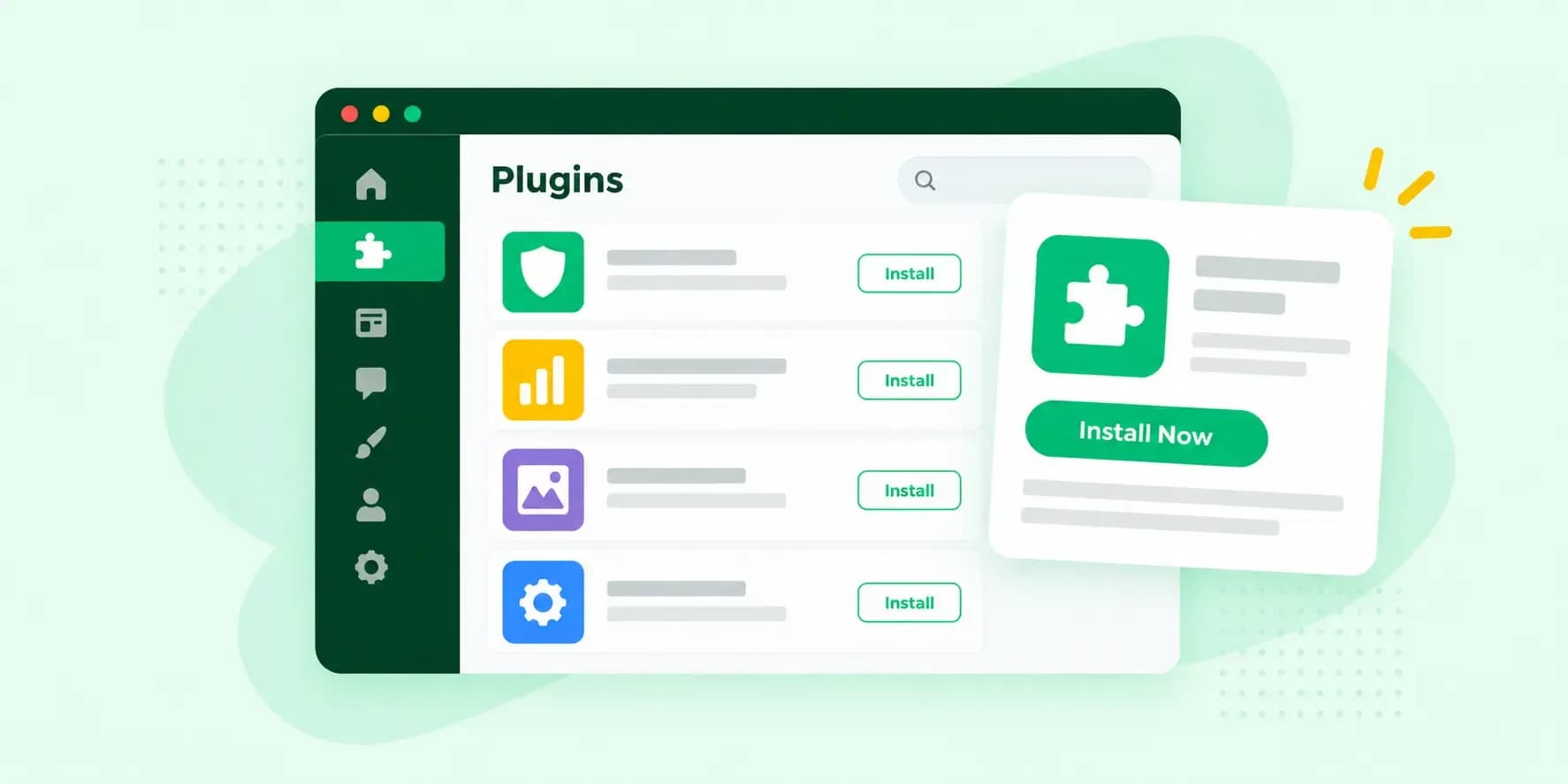
A WordPress plugin is a package of code you add to your WordPress site to give it a feature it doesn't have on its own. A contact form, a way to sell products from your site and extra SEO settings are typical examples. You install a plugin from your WordPress dashboard and activate it there, and you can delete it there too.
What does a WordPress plugin do?
WordPress itself, often called WordPress core, handles the basics: publishing your content and managing users. Plugins extend what it can do with the rest, so core doesn't have to include everything for everyone and your site gets the features you choose. A plugin is PHP code that can include images, CSS and JavaScript. You don't need to read any of it, or have any programming skills, to use one.
Plugins add all kinds of features. With the right ones, you can:
- keep spam out of your comments and contact forms, so you don't have to sort through it by hand
- get SEO suggestions in your editor as you write, for example with Rank Math
- add a basket and payments, so customers can buy from you online
- protect your site with a firewall that tries to filter attacks as WordPress loads, before it has fully processed them
- cache your site: the plugin saves your posts and pages as static files, ready-made copies it serves to visitors, which takes load off your server
- move content into or out of your site, for example when you switch from another platform
Start from what your site has to do: if customers should be able to get in touch, you need a contact form. Our list of the best WordPress plugins names useful ones for each job.
Plugins and themes: what's the difference?
A theme decides how your site looks, while a plugin adds what your site does. Add a feature your site can't do without as a plugin rather than through your theme, so you can change the design later and keep the feature. If you're still choosing a design, pick your WordPress theme first and add plugins for the features it lacks.
Where do you find plugins?
You find them in the WordPress Plugin Directory, which lists thousands of free plugins. You can browse it on WordPress.org or search it straight from your dashboard, so you don't have to leave your site to find one.
Free or paid plugins?
The plugins in the directory are free. Some developers also sell a premium version outside the directory. Rank Math, for example, has a free version, and its paid Rank Math PRO adds features the free one lacks. When your needs are simple, the free version is the better choice. Pay for an upgrade when you need a feature only the paid version has, especially for something your business depends on.
Are plugins safe to install?
Plugins in the WordPress Plugin Directory are tested and considered safe to use. Even so, WordPress.org notes that their quality varies and that many are still in development, so it's worth checking a plugin before you rely on it. Before you install, read the plugin's details in the directory and look at:
- Last updated: if the developer hasn't updated the plugin since the latest WordPress release, it may not work with that release.
- Active installations: the plugin's details list its number of active installations.
- Tested up to: the WordPress version the developer has tested the plugin against. Your dashboard also tells you whether a plugin is compatible with your version of WordPress.
- Reviews: what other users say about the plugin. Each review is one person's experience of it.
- Support: the plugin's support forum on WordPress.org, where you can see whether questions get answered.
WordPress's own security advice is to only install plugins from sources you trust, keep them updated and delete the ones you don't use. Your plugins are only one part of keeping your WordPress site secure: WordPress core and your theme need the same care.
How do you install, update and delete a WordPress plugin?
You do all three in your WordPress dashboard, most of it under Plugins.
Install a plugin
You install plugins yourself when WordPress runs on your own hosting, such as Hosting for WordPress. If WordPress isn't on it yet, you can install WordPress with one click.
- In your WordPress dashboard, go to Plugins and choose Add New.
- Search for the plugin by keyword, author or tag.
- Open the plugin's details to read about it before you install it.
- Click Install Now.
- When the installation is complete, click Activate. The plugin only works once it is active.
Bought a plugin elsewhere and have it as a zip file? You upload it on the same screen with Upload Plugin, then install and activate it.
Update your plugins
Developers update their plugins to add features, improve the code and keep them secure, so it's worth installing updates when they come out. WordPress tells you in your dashboard when an update is ready.
- Back up your site first, in case an update goes wrong.
- In your dashboard, open Updates, where WordPress lists the plugins that have a new version.
- Scroll down to the Plugins section.
- Tick the plugins you want to update and click Update Plugins.
Try bigger updates on a staging site first, a copy of your site that your visitors don't see.
You can also let WordPress update a plugin by itself. Since WordPress 5.5, you switch on automatic updates plugin by plugin:
- Make sure you can roll back: keep regular backups of your site.
- Go to the Plugins screen.
- Click Enable auto-updates next to each plugin you want WordPress to keep updated.
By default, WordPress then runs automatic updates twice a day and emails you when plugins have been updated or an update has failed.
On Hosting for WordPress, you look after your plugin updates yourself, while Managed Hosting for WordPress, an add-on to your hosting plan, leaves them to us.
With Managed Hosting for WordPress, we update WordPress core, your themes and your plugins for you. After each update, we check your site visually and roll it back if something is off.
See Managed Hosting for WordPressDelete a plugin you no longer use
A plugin you deactivate stops working but stays in your list of installed plugins. If you no longer use a plugin, delete it, so you have one less plugin to keep updated.
- Make a backup of your site first.
- Go to Plugins in your dashboard and find the plugin.
- Click Deactivate.
- Once it is deactivated, click Delete.
How many plugins should your site have?
There's no set number that suits every site. What counts is that each plugin does a job your site needs and comes from a developer who keeps it updated. Every plugin is more code to keep up to date, and a badly made one can slow your site down or cause problems on it, so a short list you look after serves you better than a long one. If your site feels slow, our tips to speed up your WordPress site can help.
If your site breaks after you install or update a plugin, you can find the plugin behind it by switching your plugins off one by one. If a broken plugin keeps you out of your dashboard, rename the wp-content/plugins folder, for example to plugins.hold, with your host's file manager or an SFTP program instead, or ask your host to help. This switches off all your plugins but keeps their settings. Once you've logged in, open the Plugins page, rename the folder back to plugins and activate your plugins one at a time, so you can see which one causes the problem. Otherwise, start with the plugin you just installed or updated:
- Deactivate your plugins one at a time and check your site after each one: when the problem goes away, the plugin you just deactivated is the cause.
- Try activating that plugin again to see whether the problem comes back, and if it doesn't, activate your other plugins again too.
- If it still causes the problem, leave it deactivated, activate your other plugins again and look for a similar plugin in the directory instead.
- If the problem doesn't go away even with every plugin deactivated, a plugin isn't the cause: activate them all again.
To add plugins to a site of your own, start with Hosting for WordPress: you set up WordPress in one go and add the plugins you choose.
Recommended reading
 WordPress6 Nov 2026
How to find your WordPress login page (wp-admin)
Your WordPress login page is your site's address with /wp-admin at the end. Here's how to log in, why wp-admin may redirect and how to reset a lost password. WordPress6 Aug 2026
What is WooCommerce?
Do you want to start your online shop? Get to know WooCommerce in this guide: an e-commerce solution to build your shop. WordPress5 Aug 2026
Why is my WordPress site so slow?
Slow WordPress site? We look at the most common reasons and share how to speed up your WordPress website in this practical guide.