
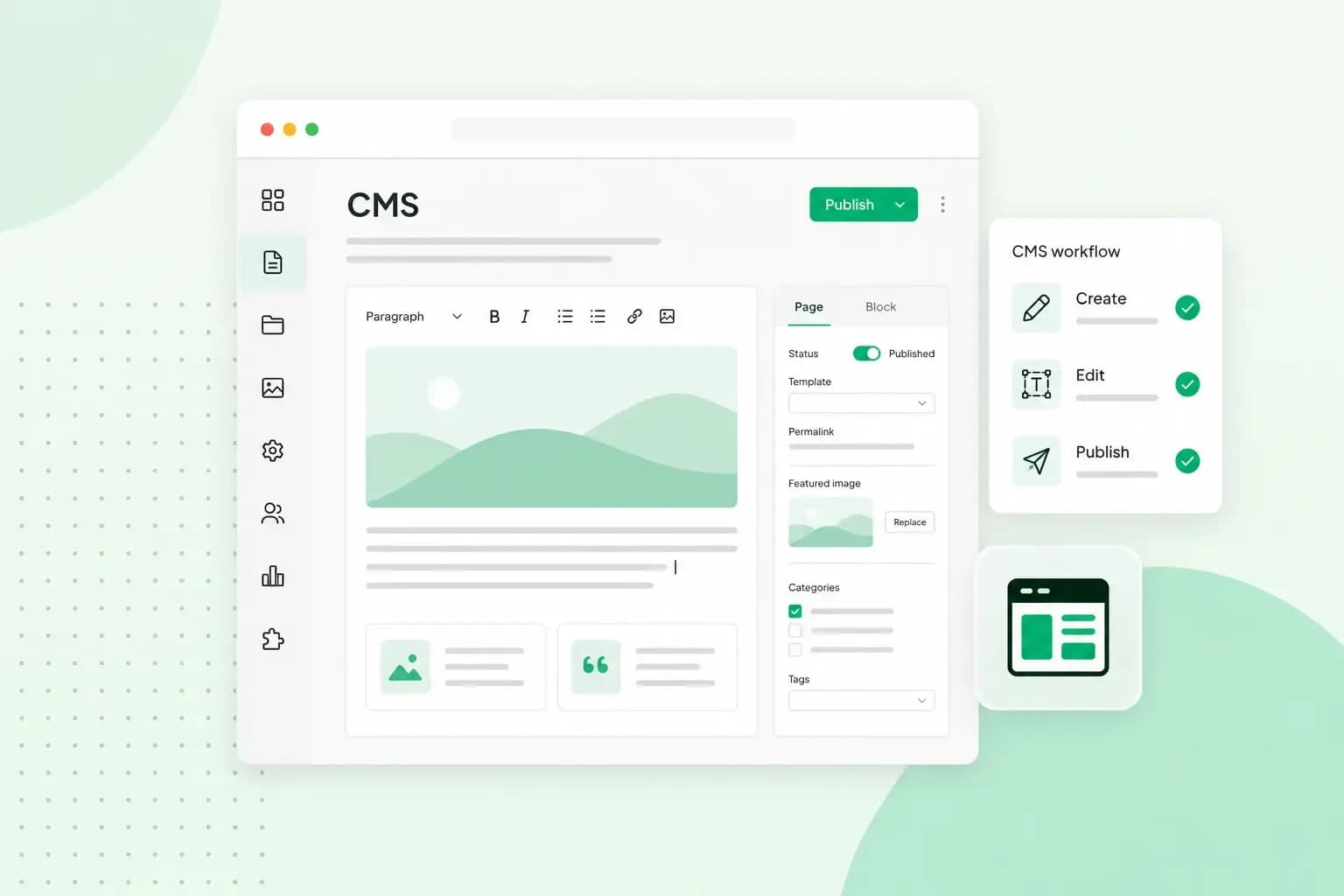
A CMS is software that lets you build and update a website without writing code. You write text, add images and create pages in an editor that works much like a word processor. When you press publish, the CMS turns your work into the pages your visitors see. WordPress, Drupal and online website builders are all examples of a CMS.
CMS meaning
CMS stands for content management system, and each of the three words names part of the job. Content is everything on your website, from text and photos to products and blog posts. Management is adding, changing and organising that content. The system is the software that stores it all and turns it into web pages.
It helps to tell the CMS and the website apart. Your visitors see the finished website. You see the CMS: a dashboard you log in to whenever you want to change something on it. Without a CMS, every change means editing code such as HTML and CSS and uploading the files to the server yourself.
How does a CMS work?
A CMS stores your content in a database and lays it out with a template, so you only deal with the words and pictures. Every CMS has two parts that work together.
The content management application is the editor you work in. It hides the code, so you add and change content while seeing roughly what visitors will see. The content delivery application is the part your visitors never see: it stores what you enter in the editor and, when you press publish, turns it into the live pages of your website.
What can you build with a CMS?
Almost any kind of website runs on a CMS, though which kinds you can build depends on the CMS you choose:
- A business website, where you edit and publish your services, opening hours and contact details yourself.
- A blog: WordPress is a popular platform to start a blog and publish posts as often as you like.
- A shop, where you create an online shop with products, a basket and a checkout.
- A portfolio, where you create an online portfolio to show your photos, designs or projects.
- A personal website or an online CV: build a CV website and send its address with your job applications.
- A forum or community, where members sign up and post themselves.
- A learning environment with courses, lessons and student accounts.
Advantages and disadvantages of a CMS
A CMS lets you run a website without advanced IT skills, but it comes with some work and costs of its own.
Advantages
- No code needed. You edit in a WYSIWYG editor, short for "what you see is what you get", so you see what a page will look like while you work on it.
- Quicker updates. Changing a price or adding a photo is quick, and you publish without waiting for a developer.
- Room to grow. You start with a basic website and add designs and features when you need them, through themes, plugins or extensions.
- Tools for search engines. You can install an add-on for SEO, for example one that sets the meta tags of every page, such as the short summary of a page that search engines can show in their results.
- A consistent look. Your logo, colours and layout come from one template, so every page matches. You can still change the layout of a single page.
- Easy teamwork. Many systems give each person their own login and a role, such as administrator or editor, so a colleague can write posts without being able to change your settings.
Disadvantages
- Time to learn. Plan some time to learn your CMS, especially a system that can do a lot.
- Too many choices. The big CMS systems offer thousands of add-ons, so even picking a contact form can take a while.
- Limits on custom features. A CMS does what it was built to do. If you need something unusual, check first that the system can do it.
- Updates and security. A CMS and its add-ons need regular updates, because attackers look for websites that run old versions. On a CMS you install yourself, keeping it updated is your job unless your host does it for you.
- Costs on top of the software. The software itself is often free: WordPress, Drupal and Joomla cost nothing to download. You still pay for hosting and a domain, and premium themes and add-ons often cost extra.
Types of CMS
CMSs differ in who owns the software, where it runs and what it's built for.
- Open-source CMS. The source code is public, so anyone may use it, change it and share it. WordPress, Drupal and Joomla are open source. You install the software on your own hosting and look after it there.
- Proprietary CMS. The software belongs to a company, and you use it under its licence, without access to the code. Only that company can change how the system works, so you rely on it for new features and fixes.
- SaaS CMS. SaaS stands for software as a service. Instead of installing anything, you use the CMS online, and the provider looks after the servers, the updates and the security. Website builders such as ours work this way. Because it all runs online, you can manage your website from different devices, wherever you're online.
- Headless CMS. A headless CMS stores your content separately from the design and sends it to websites, apps or other screens through an API, a connection other software can read from. It suits businesses that publish the same content in many places.
- E-commerce CMS. The system is built to run an online shop, with your products, catalogue, orders and customers in one place. PrestaShop is an example.
Popular CMS examples
WordPress
WordPress is a free, open-source CMS, and according to WordPress.org it's the platform of choice for over 43% of all websites. You install it on your hosting, then choose one of the many WordPress themes for the design and add WordPress plugins for extra features. WordPress is more complex than a website builder, so expect to spend some time learning how to use WordPress. Once your site is live, WordPress, your theme and your plugins all need to be kept up to date.
With Hosting for WordPress, you install WordPress with our one-click installer. If you'd rather we took care of those updates, choose Managed Hosting for WordPress: we update WordPress, your theme and your plugins automatically, check your website after each update and roll the update back if something looks wrong. You can also let our AI, Aida, create your WordPress website for you from a description of your business.
Drupal
Drupal is a free, open-source CMS built for flexibility. You extend it with modules for features and themes for the design, and you can connect it to other systems your business uses. Drupal is the better choice when developers or an agency build a large or complex website; for a small business website it's usually more than you need. You download Drupal and install it on your own web hosting.
Joomla
Joomla! is a free, open-source CMS for websites and online applications, with thousands of extensions to add features. Its makers describe it as easy to install and set up, and as a good fit for agencies that build websites for their customers. Going beyond a simple website, though, takes some technical knowledge.
PrestaShop
PrestaShop is an open-source platform for building an online shop. You download it for free and install your shop on your own hosting, where you also keep it updated and secure.
Aida AI Website Builder
Our Aida AI Website Builder is a CMS you can use without coding or design experience. Instead of starting from an empty page, you describe your business and Aida generates a complete website from it. You then change anything you like on that website, by chat or by hand, and publish when you're happy.
Which CMS should you choose?
Choose the CMS that matches how much technical work you're happy to do and what your website has to do.
| Aida AI Website Builder | WordPress | Drupal | Joomla | PrestaShop | |
|---|---|---|---|---|---|
| Good for | Anyone, with no IT skills needed | Beginners, and more technical users who want to customise | Large or complex websites built by developers or an agency | Agencies building websites for clients | Larger online shops |
| Where it runs | Our servers, included in the plan | Your own hosting | Your own hosting | Your own hosting | Your own hosting |
| Who keeps it updated | We do | You, or we do with Managed Hosting for WordPress | You | You | You |
Our advice: if you want a website online quickly and don't want to touch code, choose a website builder. That goes for a small online shop too, as you can run a shop with our website builder on its Commerce plan. If you want more freedom over design and features and you're happy to learn, choose WordPress, and add the WooCommerce plugin when you want to sell online. We can handle the updates for you with Managed Hosting for WordPress if you'd rather not do them yourself. Choose Drupal or Joomla when you or your developer already know them, and PrestaShop when your shop is large, with many products and stock to manage. If you're still torn between a website builder and WordPress, our guide on how WordPress and a website builder compare sets out the difference in time and freedom.
What do you need to use a CMS?
You need a domain name and hosting if you install a CMS yourself. Your domain name is your website's address, such as yourbusiness.co.uk. If your customers are mainly in the UK, a .co.uk is the better choice, and you can register a domain name with us.
Hosting is where your website lives: your CMS and your website's files are stored on a server that's connected to the internet, so visitors can reach your site. How much hosting you need depends on the CMS you choose and how busy your website gets, and our guide on which type of hosting you need helps you decide. With our website builder you don't arrange either separately: hosting and email come with the builder plans, and the domain is free for the first year on selected domain extensions, after which you renew it like any other domain.
If you install a CMS yourself, choose a hosting plan that suits your CMS and add your domain name to it, then install the CMS on your hosting. With us, you install WordPress in one click.
Recommended reading
 Hosting4 Aug 2026
What is cache?
What does cache mean? And how to clear your cache? Read the importance of cache and why it's necessary to clear your cache once in a while. Hosting4 Aug 2026
What is SSH?
How does SSH work & what does it do? Learn about the history of Secure Shell's predecessor Telnet and how SSH improved our internet security in this article. Hosting7 Nov 2025
What do status codes HTTP 100, 101, 102 and 103 mean?
HTTP status codes 100–103 may be rare, but they’re worth knowing. Learn what each code means and how they can help improve your website’s performance.