
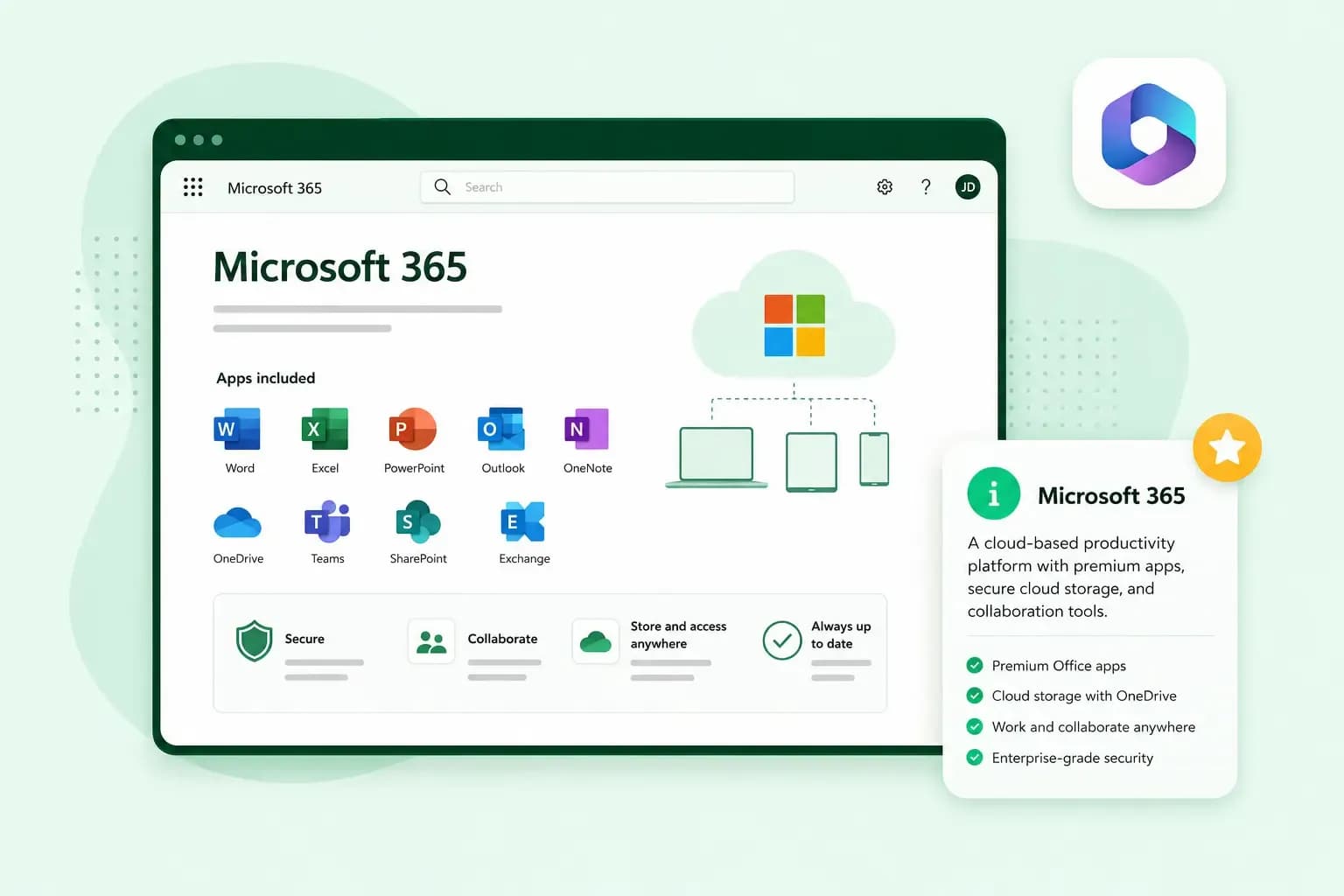
Microsoft 365 is Microsoft's subscription for Word, Excel, PowerPoint, Outlook, Teams and OneDrive, and it's the newer name for Office 365. Instead of buying the apps once, you pay for a subscription and always have the latest versions. Which plan you need depends on whether you want a business mailbox, the apps, or both.
Is Office 365 the same as Microsoft 365?
Yes. On 21 April 2020 Microsoft gave its Office 365 plans for small and medium-sized businesses new names, and nothing but the name changed. Prices and features stayed the same at the time, so an Office 365 Business plan simply became a Microsoft 365 plan. Office 365 Enterprise kept its name, which is why you'll still see Office 365 next to Microsoft 365. For use at home, Microsoft has its own subscriptions under the new name, Microsoft 365 Personal and Microsoft 365 Family.
How does a Microsoft 365 subscription work?
A Microsoft 365 subscription keeps your apps up to date for as long as you pay for it, with new features, security updates and bug fixes arriving automatically.
The alternative is a one-time purchase such as Office 2024. You pay once for the apps on one computer, but there's no upgrade: when the next major version comes out, you buy it again at full price.
If you only need to write the odd document, there's also a free version of Microsoft 365 that runs in a web browser, and all you need for it is a Microsoft account. It has fewer features than the desktop apps, though, and for email on your own domain you'll want one of our paid plans.
What’s included in Microsoft 365?
Besides the Office apps, a subscription gives you services for meetings, storage and teamwork. Which Microsoft 365 apps you get depends on your plan, but these are the ones you'll come across:
- Word for writing and formatting documents.
- Excel for spreadsheets and charts.
- PowerPoint for designing and giving presentations.
- Outlook for your email and calendar.
- OneNote for notes and ideas.
- Teams for video meetings, calls and chat with your colleagues.
- OneDrive, cloud storage where you keep your files and share them with others.
- SharePoint, shared team sites where your colleagues store and work on files together.
- Exchange Online, the email service behind a business mailbox and calendar on your own domain.
Publisher is no longer included. Microsoft has retired it for subscribers, and Microsoft 365 subscribers can't access Publisher after 1 October 2026. Many of the things people used it for, such as labels, envelopes and business cards, now work in Word and PowerPoint.
Can you use Microsoft 365 on your phone and offline?
Yes. You can use your email, files and apps on your computer, tablet and phone. Say you need to write a quick draft on the train without your laptop: you open Word on your phone, write it, and later pick it up on your computer, because the file is saved in OneDrive. You can also share the draft so colleagues can add comments or changes.
Once you've installed and activated the apps, you can use them offline, but they still need the internet now and then. If your computer doesn't connect at least once a month, the apps go into reduced functionality mode, and they work fully again once you're back online and signed in to Microsoft 365.
Which Microsoft 365 plan should you choose?
Our business plans differ in whether you get email, the online apps, the desktop apps, or a mix.
| Plan | Email and calendar | Word, Excel and PowerPoint | Storage per user |
|---|---|---|---|
| Exchange Online | Yes, on your own domain | Not included | 50 GB for email |
| Business Basic | Yes, on your own domain | Web and mobile versions | 50 GB for email and 1 TB of OneDrive |
| Business Standard | Yes, on your own domain | Desktop apps you can use offline, plus web and mobile | 50 GB for email and 1 TB of OneDrive |
| Apps for Business | Not included | Desktop apps you can use offline, plus web and mobile | 1 TB of OneDrive |
Our advice: go by the apps you actually use. If you want your email and calendar to run on Microsoft, Exchange Online gives you a mailbox on your own domain. If you need a business email address but not Microsoft's apps or services, our email plans are the simpler choice. Microsoft 365 Business Basic is enough if you work in a browser or on your phone, while Microsoft 365 Business Standard suits you if you work in the desktop apps on your computer. And if you already have email elsewhere and only want the apps, Apps for Business is the one to pick.
Prices depend on the plan, and you'll find the current ones on our Microsoft 365 page.
What to know before you buy Microsoft 365
Our Microsoft 365 plans are self-managed: you set them up and run them yourself in Microsoft's admin centre. Before you buy, it's worth checking how that fits with your domain, your current email and your data.
- To use email on your own domain, you update the domain's DNS records so they point to Microsoft.
- If your domain has Basic Mail accounts with us, such as
info@yourbusiness.co.uk, move those mailboxes before you activate Microsoft 365 on the same domain. Once Microsoft 365 handles the domain's email, Basic Mail addresses stop receiving email. If the domain already has an Exchange setup, for example an Exchange product you bought earlier, your email settings may need to change, so check them before you buy. - There's no automatic backup or restore in the plans, so keep your own copy of anything important.
- If your subscription with us is cancelled or suspended, Microsoft may delete your data after a grace period, so export what you need before you cancel.
- The plans are made for businesses of up to 300 employees.
How to set up Microsoft 365 for your business
Setting up Microsoft 365 mainly means connecting it to your domain and adding your users. If you get stuck at any step, we're there to help, and most customers are up and running the same day.
Your email switches over at your domain's MX record, the DNS record that tells other mail servers where to deliver your email. During setup you replace your existing MX record with the one Microsoft 365 gives you. From then on, all new email to your domain arrives in Microsoft 365, and the email you already have stays with your previous provider unless you migrate it. Do that migration once you've created your users in step 5, and change the MX record in step 6 only when it's finished: Microsoft's guide to migrating IMAP mailboxes to Microsoft 365 shows how. An IMAP migration moves email only, so contacts and calendars have to be moved separately, for example by importing them in Outlook. Keep your old email account until you've moved everything you want to keep.
Once you've picked a plan, you set it up in this order:
- Choose your Microsoft 365 plan and complete the purchase.
- Accept Microsoft's standard terms in your control panel.
- Sign in to the Microsoft 365 admin centre with the access details we email you, and set a new password.
- Add your domain to Microsoft 365 and verify it with the DNS record Microsoft gives you, or register a domain first if you don't have one. Leave the email records until step 6.
- Create your users and assign their licences.
- Once your users exist and any old email is moved, set up your email routing. Note down your domain's current MX record first, so you can put it back if you need to, then replace it with the MX record Microsoft gives you and add the other email records, so Microsoft 365 can send and receive email for your domain.
See what each plan includes and what it costs, from email and OneDrive to the full desktop apps.
Compare Microsoft 365 plans