
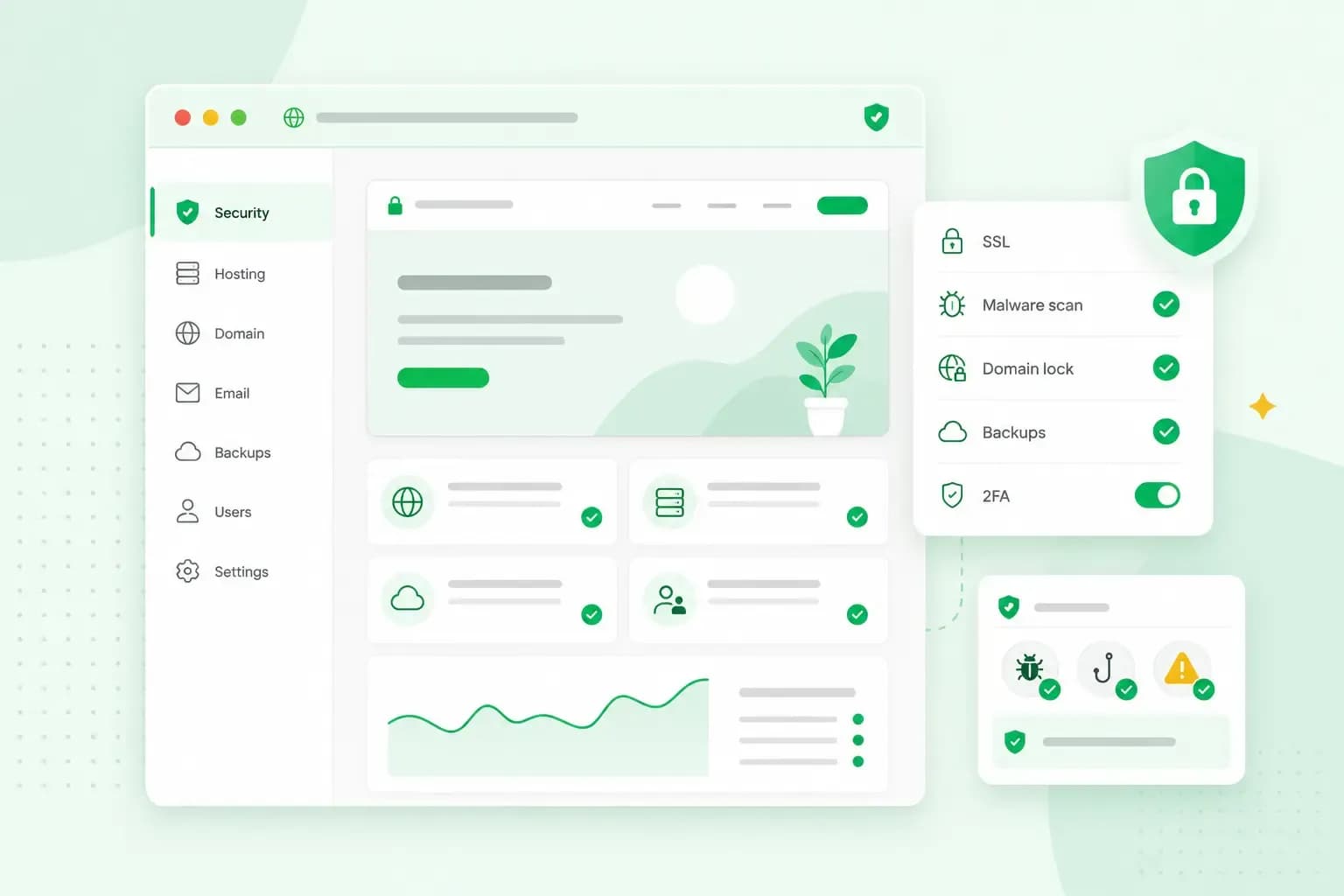
Website security means keeping attackers out of your website, your visitors' data and your domain. A few habits cover most of it: use HTTPS, strong passwords with two-factor authentication and up-to-date software. Transfer files securely, back up regularly and lock your domain. Your host covers the servers, and the rest is yours to look after.
What threatens a small business website
Five website security threats matter most to a small business.
- Attacks on security holes: attackers send specially made requests to your website to exploit known weak spots in its software. Old versions of plugins and other software are one of the most common ways they get into a WordPress website.
- Harmful software: malware can steal, delete or encrypt your data once it runs.
- Unencrypted connections: on a connection without encryption, passwords and other sensitive information can be intercepted on the way. This is called a man-in-the-middle attack.
- Guessed passwords: attackers try to get in by guessing your password, which is why a weak one is an open door.
- An expired domain: when a domain expires, the website and the email addresses on it stop working.
Who is responsible for website security?
Website security is shared between you and your host. Your host makes sure its servers and network aren't compromised by attackers. Your logins, the software you install, the content you upload and the customer data you keep are yours to look after.
With our web hosting, every plan includes an SSL certificate. We also run regular malware scans, protect against DDoS attacks and back up your content automatically. That still leaves your passwords, your updates and your domain with you, so the measures below matter whichever host you use.
How to protect your website
Good website protection comes from these measures together.
Use HTTPS with an SSL certificate
An SSL certificate encrypts the connection between your website and your visitors' browsers. What they type, such as passwords and card details, is then protected on the way. With it, browsers can connect to your site over HTTPS. All our hosting plans include an SSL certificate, so you don't need to buy one separately.
Use strong passwords and two-factor authentication
A strong password is hard for other people to guess and hard to crack by trying every combination. Use a different one for your control panel, your CMS and your email. A password manager can create and remember them for you.
Two-factor authentication, or 2FA, asks for a second step after the password, such as a code from an app on your phone. A stolen password on its own is then not enough to log in. Switch it on wherever it's offered, starting with the accounts that control your site and domain. In our control panel, you can turn on two-step verification for your login.
Keep your CMS, themes and plugins up to date
Website security updates fix security holes in the software your site runs on. Closing those holes is one of the main reasons to keep WordPress, or whichever CMS you use, up to date. Keep your themes and plugins updated too, and delete any plugin you don't use.
On Managed Hosting for WordPress, WordPress core, themes and plugins update automatically, so you don't have to do it yourself.
Transfer files with SFTP
FTP is a common way to move files between your computer and your website. SFTP does the same job, but it encrypts your password and other data on the way. So use SFTP rather than plain FTP. On our new servers, FTP is no longer available and SFTP is the way to connect. On older servers, FTP still works, but SFTP remains the safer choice. For a quick change, you can also upload files through the File Manager in the control panel.
Back up your website
If an attack or a mistake breaks your site, a backup lets you restore an earlier version and your data. Every one of our hosting plans makes a daily backup, and backups are kept for up to 14 days. With Backup & Restore, you can restore one yourself from the Professional plan up. On the Starter plan, you can see your backups but need to upgrade to restore them.
It's still worth downloading a copy of your own now and then, for example before a big change.
If your site is hacked anyway, change your passwords first: your SFTP password, then your database password. Put the new database password in your CMS's configuration file as well, since the old one there causes errors. Then, if you don't have a recent backup, make one of your site as it is now, so you still have all your files and content if something goes wrong. If you have a backup from before the attack and your plan lets you restore it, restore the most recent one. Your site may have been hacked before that backup was made, so use the list of infected files in your control panel to remove any malware that's still there. Then update your CMS, themes and plugins to the latest versions and check for other security holes. If we've taken your site offline, you can ask us to reopen it from the control panel once the malware is gone and your WordPress site is up to date.
Scan for malware
The other measures keep attackers out. A scan finds harmful code that has already got in, so you can remove it before it does more damage. On our hosting, we run regular malware scans for you.
Collect only the data you need
Every piece of personal data you keep is data you have to protect. Only collect the personal data you actually need for your purpose, such as a name and email address for a contact form. Don't hold on to more of it than that purpose needs, and delete it once you no longer need it. UK GDPR asks the same of every business that handles personal data.
How to check whether your website is secure
You can check the basics yourself, without a paid tool:
- Open your site and look to the left of the web address. In Chrome, for example, the symbol there shows the site's security status, and "Not secure" or "Dangerous" is a warning.
- Log in to your CMS and look for updates. In WordPress, the dashboard tells you when updates are available.
- Make sure two-factor authentication is on for every login that controls your site or domain.
- Check that a recent backup exists and that your plan lets you restore it.
- Check when your domain renews and whether it's locked against transfers.
How to protect your domain
Your domain is the address of your website and your email. Whoever controls it controls where both go, so domain security needs measures of its own.
Lock your domain against unauthorised transfers
Our Domain Lock, part of the Domain Protection add-on, prevents anyone from transferring your domain to another registrar without your approval. Once it's on, an intruder would need both your control panel password and your Auth-ID password to transfer your domain. The Auth-ID is the transfer code that authorises a move of your domain to a new registrar.
Domain Protection is a paid add-on for most domains registered with us, so a domain doesn't have it until you add it. If your domain is with another registrar, you can add Domain Protection as part of a domain transfer to us. It starts working once the transfer is complete.
Keep your domain renewed
You register a domain for a set period, and you renew it to keep it. Keep your payment details up to date and check the renewal date.
Domain Protection helps here as well. If a payment is delayed, we automatically renew your domain for one more year, so you have time to sort it out without losing it. The add-on also lets you download a Domain Registration Confirmation, a PDF that shows who is listed as the domain's registrant on the day it's issued.
Next step: put your site on secure hosting
The measures in this guide are yours, whichever host you use. For the rest, ask your current host whether it includes SSL, malware scans, DDoS protection and daily backups, and whether your domain can be locked against transfers. If it leaves gaps in SSL, malware scans, DDoS protection or backups, move your website to a hosting plan that covers them. For a new site, register your domain with us and add the Domain Protection add-on, available for most domain extensions, from the start.
Recommended reading
 Website Security6 Nov 2026
"Your connection is not private": what it means and how to fix it
"Your connection is not private" means your browser couldn't trust a site's certificate. See when it's safe to continue and how visitors and site owners fix it. Website Security11 Aug 2026
Does your website need a cookie banner?
Find out when a cookie banner is required, the legal requirements that apply, and how you can easily make your website GDPR-compliant.- Website Security13 Jul 2026
What is domain theft and how do you protect your domain?
Learn what domain theft and domain hijacking means and how to protect your domain from external threats.