
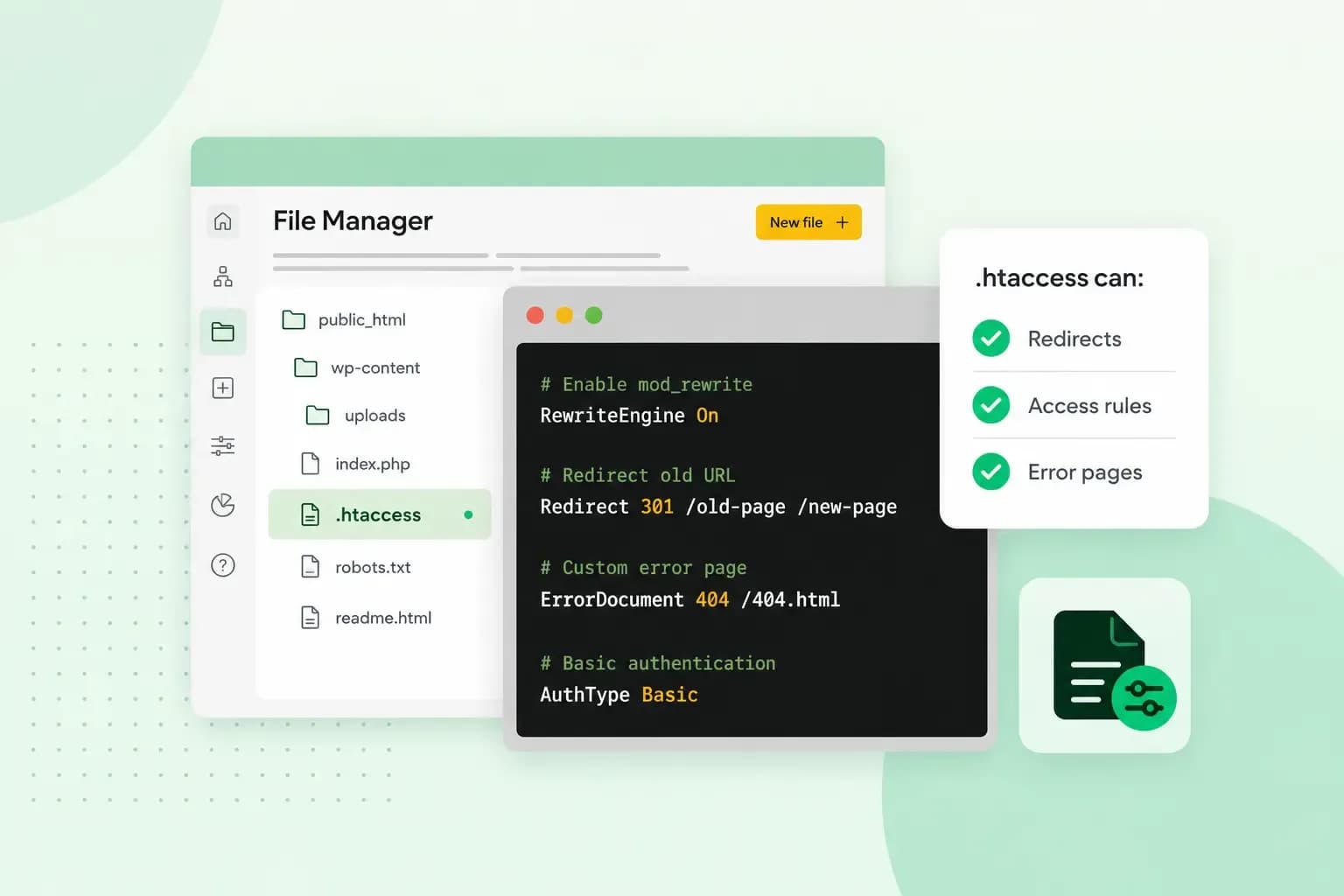
.htaccess is a small configuration file that tells an Apache web server how to handle the folder it sits in. With a few lines of text, you change how your website behaves without touching the server's main settings. For example, one line sends visitors from an old page to a new one, and a few lines make every visit use HTTPS once your site has an SSL certificate.
The name is short for hypertext access. Apache is the web server software that sends your pages to each visitor's browser, and the file works on websites that run on it. You can use it on our web hosting too. On a server that runs Nginx instead, the file has no effect, and your host can tell you where to make these changes.
How a .htaccess file works
A .htaccess file holds rules that the server follows, usually one per line. The rules apply to the folder the file is in and to every folder below it. So a file in your website's root folder affects the whole website. A file in a subfolder affects that folder and the ones below it.
A line that starts with # is a comment. The server skips it, so you can use comments to note what a rule is for, as in this small file:
# Show our own page when a page isn't found
ErrorDocument 404 /notfound.html
Apache looks for .htaccess files in every folder and loads them each time someone requests a page, which slows your website down. If you have access to the main server configuration, Apache's own documentation tells you to put your rules there instead. The .htaccess file is meant for the other case: you change your own folders without root access to the server.
What you can use .htaccess for
You can use .htaccess for jobs like these:
- Redirects: send visitors and search engines from an old address to a new one.
- HTTPS: make every visit use a secure connection once your site has an SSL certificate.
- Error pages: show a page of your own instead of the server's plain error message.
- Password protection: ask for a username and password before anyone can open a folder.
- Blocking visitors: keep out an IP address that sends spam or attacks your website.
- Start page: choose which file opens when someone visits a folder.
- Character set: if special characters such as £, é or ü show up wrong on your pages, the line
AddDefaultCharset UTF-8may fix them. - Caching: on our web hosting, our Varnish cache keeps copies of your pages, so a change may not show up straight away. While you work on a folder, switch the cache off for it with the line
Header add "Cache-Control" "no-cache", and remove the line when you're done.
Where to find the .htaccess file
The .htaccess file usually sits in your website's root folder, the folder that holds your homepage. On our new servers, each domain and subdomain has its own root folder under /webroots/. Our help centre's SFTP guide shows how to find the root folder for each domain.
The name .htaccess starts with a dot, and some FTP programs hide files like that. So if you can't see the file, check that your program shows hidden files before you create a new one. On our web hosting, the File Manager in your control panel shows it, and it's the tool we recommend for .htaccess. You can also use an FTP program such as FileZilla. On our new servers you connect with SFTP, as FTP only works on older servers. If you're not sure which server your website is on, try SFTP first.
On a VPS, you have full root access to the server. If it runs Apache, you can still use .htaccess there, or put the same rules in Apache's main configuration instead.
How to create or edit a .htaccess file
On our web hosting, you create and edit .htaccess in the File Manager, straight from your browser. If you built your website with our classic Website Builder, keep a copy of your rules. The builder overwrites a manually changed .htaccess file every time you republish. To create the file or change it:
- Open the File Manager from your control panel and go to your website's root folder.
- If the file is already there, make a backup copy of it first, for example by copying it within the File Manager.
- If there is no .htaccess file yet, create a new file and name it .htaccess, starting with the dot.
- Open the file for editing, add your rules and save it.
- Open your website in a browser and check that it works. If it shows an error, restore the backup copy and check the new rule for a typing mistake.
With another host, create the file in a plain text editor such as Notepad++ and save it as .htaccess. Then upload it to your root folder with an SFTP or FTP program.
.htaccess examples you can copy
Copy each .htaccess file example below as it stands, and change only the example addresses to your own. Add one change at a time, so you know which rule caused a problem if your website stops working.
Redirect an old page to a new one
A 301 redirect tells browsers and search engines that a page has moved for good. This .htaccess redirect takes visitors from /old-page.html to its new address:
Redirect 301 /old-page.html https://bluefinch-joinery.co.uk/new-page.htmlThe rule names the old path on your website first, without the domain, and then the full new address. Keep the whole rule on one line.
Send every visitor to HTTPS
Once your website has an SSL certificate, this .htaccess rule forces every visit over HTTPS, so visitors only use the secure connection:
RewriteEngine On
RewriteCond %{HTTPS} !=on
RewriteRule ^(.*)$ https://%{HTTP_HOST}%{REQUEST_URI} [L,R=301]
On our web hosting, we issue and activate the SSL certificate for domains that use our name servers.
Our web hosting comes with an SSL certificate and a daily backup, on fast NVMe SSD storage.
See hosting plansUse one version of your domain, with or without www
Your website can usually be opened at www.bluefinch-joinery.co.uk and at bluefinch-joinery.co.uk. Search engines see these as two different pages, so it's better to send every visitor to one of them. Pick the rule for the version you want and leave out the other.
Both rules read your domain from the address the visitor opened, so you can copy them as they stand. If your domain ends in .co.uk, .me.uk or .org.uk, use the rule without www. The rule with www doesn't work for these endings: it leaves the address as it is, so visitors aren't sent to the www version. You can use either rule together with the HTTPS rule above:
#Rewrite to domain with www
RewriteEngine On
RewriteCond %{HTTP_HOST} !^(.+\.)([a-zA-Z0-9-]+\.([a-z]{2,4})|co\.uk|me\.uk|org\.uk|priv\.no)$
RewriteCond %{HTTP_HOST} ([a-zA-Z0-9-]+\.([a-z]{2,4})|co\.uk|me\.uk|org\.uk|priv\.no)$
RewriteRule ^(.*)$ https://www.%1/$1 [L,QSA,R=301]
#Rewrite to domain without www
RewriteEngine On
RewriteCond %{HTTP_HOST} ^www\.(.*)
RewriteRule ^(.*) https://%1/$1 [QSA,L,R=301]Show your own error page
When a visitor asks for a page that doesn't exist, the server shows its plain 404 error message. The ErrorDocument rule shows your own 404 error page instead, when you point it to the page's path on your website:
ErrorDocument 404 /notfound.htmlUse a path that starts with a slash, not a full address. With a full address that starts with http, Apache sends the visitor a redirect instead, so browsers and search engines no longer get the original error status. The same rule works for other error codes too, and it can show a short message in quotes instead of a page.
Password-protect a folder
A .htaccess file with these rules asks for a username and password before anyone can open its folder. Put it in the folder you want to protect:
AuthType Basic
AuthName "Restricted area"
AuthUserFile /full/path/to/.htpasswd
Require valid-user
Apache's htpasswd program creates a separate password file for the usernames and passwords, often called .htpasswd. Without access to that program, an online .htpasswd generator writes the same lines for you to paste into the file. Use a password there that you don't use anywhere else. AuthUserFile gives the full path to that file on the server, not its address on your website. On our web hosting, that path starts with the File System Path of your web space. You'll find it in your control panel. Keep the password file in a folder outside your website's root folder, where visitors can't reach it from the web, so nobody can download it.
Block an IP address
This .htaccess rule blocks one IP address, for example one that keeps sending spam through a form. Put the address you want to keep out in place of the example:
<RequireAll>
Require all granted
Require not ip 203.0.113.45
</RequireAll>
Older guides use Order, Allow and Deny lines for this. Apache 2.2 used those directives for access control, and Apache 2.4 uses Require instead, so use the Require lines above.
Set the start page of a folder
When someone visits a folder without naming a file, the server opens its index file, such as index.html or index.php. DirectoryIndex sets which files it tries, and in what order:
DirectoryIndex home.html index.html index.htm index.phpWith this rule, visitors see home.html first. If that file isn't there, the server tries the next one in the list.
The .htaccess file in WordPress
WordPress uses .htaccess too. When you save your permalink settings, it writes its own rules into the file, mainly so that pretty permalinks work: readable page addresses such as /contact/ instead of a page number. Add your own rules above or below those, never in the middle, because WordPress writes its part again whenever you save those settings.
Put WordPress's basic .htaccess rules back
A rule in .htaccess can break your WordPress site, for example when many pages suddenly show a 404 error. You can then let WordPress write its default .htaccess rules again:
- Back up the file first: copy it within our File Manager or download a copy and leave it unchanged.
- In your WordPress dashboard, go to Settings and open the Permalinks screen.
- Click Save Changes without changing anything, so WordPress writes its permalink rules again.
- If you use a caching plugin, clear its cache, then reload the page that showed the error. If the error is still there, put the backup back in place of the file.
If WordPress can't write to the file, the Permalinks screen shows the rules instead, so you can paste them into .htaccess yourself.
Why your .htaccess file isn't working
When a rule does nothing, or your website stops working after a change, check these first:
- A typing mistake: a line the server doesn't understand stops your website working and shows a 500 error. Put your backup back, then check the new rule.
- The file must be called exactly
.htaccess, with the dot and no extension, but on your computer you may have to rename it, for example tohtaccess.txt, before you can edit it. Give it its full name again before it goes on the server, or, if your computer won't accept the dot, upload it as it is and rename it to.htaccessin your FTP program. - The rules work in the folder the file is in and the folders below it, so check that the file is in the right one.
- On our web hosting, we've disabled certain .htaccess functions to stop a rule from breaking your website by accident. If a rule does nothing, our support team can tell you whether the one you need is available.
- If you built your site with our classic Website Builder, republishing it overwrites your changes, so add your rules again from your copy.
Redirects, HTTPS and your own error pages all fit in one .htaccess file, though our classic Website Builder overwrites it each time you republish. You can add these rules yourself, straight from your browser. See our web hosting plans and add your first rule.
Recommended reading
 HostingNov 6, 2026
504 Gateway Timeout: what it means and how to fix it
A 504 Gateway Timeout means a server in between got no answer from the website in time. See whose fault a 504 error is and how to fix it, WordPress included. HostingAug 4, 2026
What is website cache?
What does cache mean? And how to clear your cache? Read the importance of cache and why it's necessary to clear your cache once in a while. HostingAug 4, 2026
What is SSH?
How does SSH work & what does it do? Learn about the history of Secure Shell's predecessor Telnet and how SSH improved our internet security in this article.