
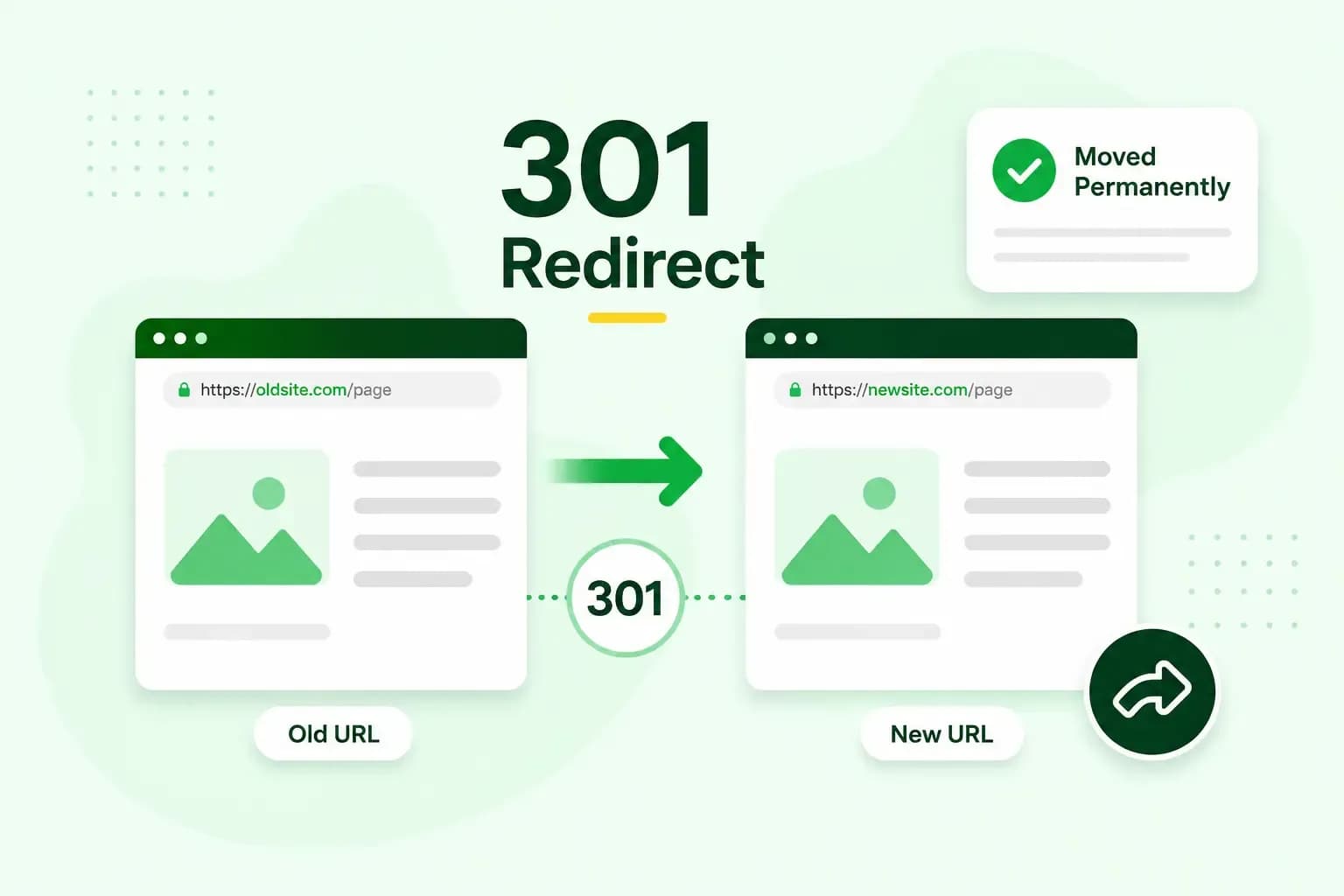
A 301 redirect is a permanent redirect: it sends visitors and search engines from an old web address to a new one. The 301 is an HTTP status code that means "Moved Permanently". You set one up when a page or your whole website moves. Anyone who follows an old link or bookmark then still lands on the right page, and the links pointing to the old page count for the new address.
What does the 301 redirect code mean?
The code 301 is the server's way of telling your browser that a page now lives at a new address, for good. Every time a browser asks a web server for a page, the server answers with a three-digit status code. With a 301 redirect in place, the server answers the old address with the code 301 and sends the new address along in a header called Location. Your browser then loads the new address straight away. Visitors rarely notice anything apart from the new address in the address bar.
Search engines read the code too, and from then on they use the new address instead of the old one.
301 vs 302 redirect
A 301 redirect is permanent and a 302 redirect is temporary. For visitors they work the same way, but search engines treat them differently. After a 301, they swap the old address for the new one, and the page's SEO value moves with it. After a 302, they keep the old address, because you plan to use it again.
| Status code | Permanent or temporary | Address search engines keep | Typical use |
|---|---|---|---|
| 301 Moved Permanently | Permanent | The new address | A page or a website that has moved for good |
| 308 Permanent Redirect | Permanent | The new address | A permanent move of a page that receives form data, such as a contact or checkout form, so the browser still sends that data the same way |
| 302 Found | Temporary | The old address | A page that is unavailable for a while |
| 307 Temporary Redirect | Temporary | The old address | A temporary move of a page that receives form data, so the browser still sends that data the same way |
When a product is sold out for a while, a temporary redirect can send visitors to a similar one. Remove the redirect when your stock is back. For a page that has really moved, use a 301.
When should you use a 301 redirect?
Use a 301 redirect whenever a page gets a new permanent address and the old one still gets visits from links, bookmarks or search results. That happens when you make one of these changes:
- A new site structure: you restructure your website and its URLs change, so each old address points to its new one.
- A new domain: you move your website to a new domain name, and every page of the old domain points to the same page on the new one.
- Merged content: you consolidate several pages into a single new page, and the older addresses point to that page.
- A deleted page with a replacement: instead of a 404 error, visitors land on the page that took its place.
- One preferred address: your site opens both with and without www, or on both http and https, and you send everyone to one version.
- A spelling error in the URL: you correct the address and redirect the misspelt one to the correct one.
When you set up redirects, avoid chains and loops. A redirect chain sends visitors through several redirects before they arrive, so point each old address straight at the final page. A redirect loop sends them round in circles, and the page never loads at all. Also avoid sending lots of old addresses to one page that has nothing to do with them, such as your home page. Your visitors then don't find what the old link promised them.
How do you set up a 301 redirect?
You set up a 301 redirect on the server wherever you can. With a server-side redirect, your web server sends the redirect code itself. Google recommends server-side permanent redirects, such as redirect rules in the .htaccess file on an Apache server. In your own code you can do the same with PHP. A meta refresh and JavaScript also send visitors on, but from inside the page rather than from the server. Neither sends a 301 status code. Search engines may also take longer to notice them than a server-side redirect.
You can redirect an old address to a new one in these six ways:
- .htaccess Redirect line: one line in the .htaccess file sends one old page to its new address.
- .htaccess RewriteRule: once SSL is active on your web space, one rule rewrites all traffic to HTTPS, instead of one line per page. It suits moving a whole site to HTTPS, unless you built your site with our classic Website Builder.
- PHP: for a site that runs on PHP, a line of code at the top of the old page does the redirect.
- A WordPress plugin: for a WordPress site, a WordPress plugin sets up redirects from your dashboard.
- An HTML meta refresh: a tag in the old page's HTML, for when you have no access to the server.
- JavaScript: a line of script in the old page, for when neither of the ways above works for you.
Our advice: use the .htaccess file if your hosting lets you edit it and you did not build your site with our classic Website Builder. If your site runs on WordPress, use a redirect plugin instead. Keep a meta refresh or JavaScript as the last resort, for pages where you cannot change anything on the server.
In the .htaccess file
The .htaccess file holds settings for Apache web servers, and a redirect is one line in it. If you built your site with our classic Website Builder, set up the redirect in its editor instead. Then publish your site to make it live. Our classic Website Builder overwrites changes to the .htaccess file every time you republish. The builder's redirect setting is for pages on the same Website Builder site. To send your whole website to another domain, we recommend DNS rather than the .htaccess file.
The line starts with Redirect and the code 301, then the old page's path, then the full new address:
Redirect 301 /old-page.html https://www.yourdomain.co.uk/new-page.htmlThe 301 in that line matters: without it, Apache sends a temporary redirect. To add the line on our web hosting, for a site you did not build with our classic Website Builder:
- Back up the .htaccess file before you change it: download it to your computer or make a copy in the File Manager.
- Open the .htaccess file in your website's root folder in the File Manager. If there isn't one yet, create a new .htaccess file first.
- Add your redirect on a line of its own, with the old page's path first and the full new address after it, all on one line.
- Save the file.
- Check that your website still works. If something breaks, restore the backup copy.
Our hosting plans include an SSL certificate. Unless you built your site with our classic Website Builder, you manage your .htaccess file and its redirects yourself in our File Manager.
See hosting plansMove a whole site to HTTPS or www
To send every address of your site to HTTPS, you add a rewrite rule to the .htaccess file instead of one line per page. This rule comes from our help centre, and it works once SSL is active on your web space. Unless you built your site with our classic Website Builder, follow the steps above, from the backup to the check. In step 3, add these three lines, each on a line of its own:
RewriteEngine On
RewriteCond %{HTTPS} !=on
RewriteRule ^(.*)$ https://%{HTTP_HOST}%{REQUEST_URI} [L,R=301]
The R=301 at the end makes it a permanent redirect. A similar rewrite rule sends visitors to the www version of your domain, or away from it. Like the HTTPS rule, it is for a site you did not build with our classic Website Builder.
With PHP
If your site runs on PHP, the old page can send the redirect itself with the header function. Put this at the very top of the page's PHP file, before any HTML or blank line is sent to the browser:
<?php
header("Location: https://www.yourdomain.co.uk/new-page.php", true, 301);
exit;
The 301 at the end of the header line sets the status code. With a Location header alone, PHP sends a 302, a temporary redirect.
With a WordPress plugin
A WordPress plugin lets you manage redirects without editing files. Redirection is a free plugin that manages 301 redirects. Once you've installed and enabled it, you set it up and add your redirects on its Redirection page under Tools in your WordPress dashboard. You can also set it to add a redirect by itself when the address of a post or page changes.
With an HTML meta refresh
If you cannot change anything on the server, a meta refresh in the head of the old page sends visitors on:
<meta http-equiv="refresh" content="0; url=https://www.yourdomain.co.uk/new-page.html">A meta refresh sits inside the HTML page, so it only works for pages, not for images or other files. Set the delay to 0, as above: a delay before the redirect is bad for accessibility.
With JavaScript
JavaScript can also send a visitor to a new address:
window.location.href = "https://www.yourdomain.co.uk/new-page.html";It only works in browsers that run JavaScript. Use it only when neither a server-side redirect nor a meta refresh is possible.
Do 301 redirects affect SEO?
Yes, and mostly in a good way. According to Google, a permanent redirect such as a 301 loses none of the old page's PageRank, the value a page gets from the links pointing to it. So the page keeps its SEO value at its new address.
Every redirect adds an extra round trip between the browser and the server. One is hardly noticeable, but several in a row slow the page down. To improve site speed, keep redirects to the ones you need.
How do you check a 301 redirect?
Test your redirect as soon as it is live. A 301 redirect checker such as redirect-checker.org shows the status code and every step from the old address to the new one. A good result is one 301 redirect straight to the right page. If you see a temporary redirect, a chain of several redirects or an error, check the line you added and the addresses in it. After a site move, test a few of your old addresses, not just one.
Can you undo a 301 redirect?
Yes: take out the redirect line or the plugin rule you added, and the old address loads again, as long as the old page still exists. Browsers can store a 301, though, so visitors who followed it before may still be sent on for a while. Search engines will have swapped the old address for the new one too, and it might be a while before their results are updated again. So if the move might not last, use a 302 from the start. A permanent redirect you mean to keep should stay in place for a long time. For a site move, Google advises keeping redirects for as long as possible, generally at least a year.
Next step
Once your redirects work, your old links, bookmarks and search results keep sending visitors to the right pages. If your addresses change with a move to a new domain, host your website with us. Then set up each redirect as soon as your new pages are live.
Recommended reading
 HostingAug 4, 2026
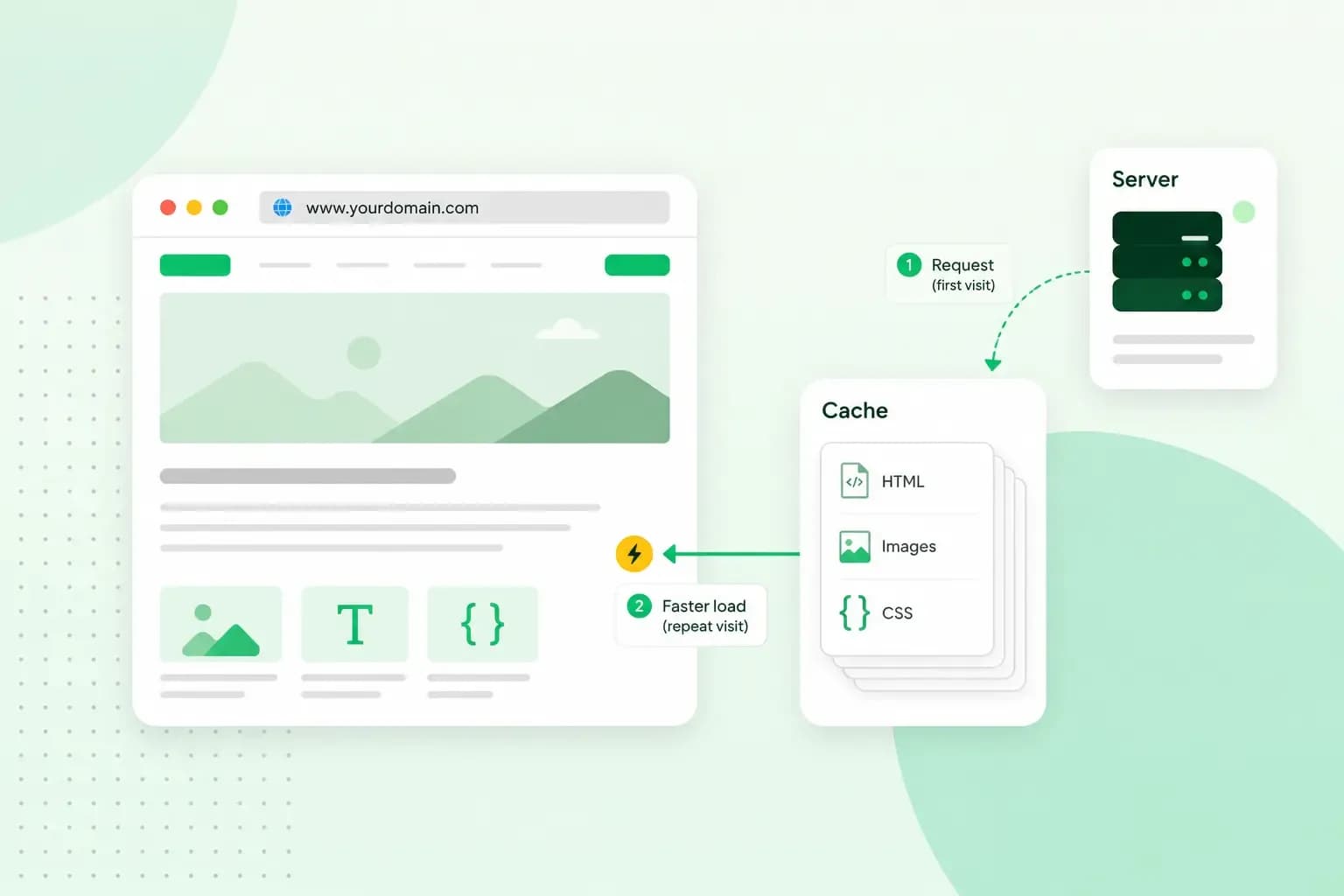
What is cache?
What does cache mean? And how to clear your cache? Read the importance of cache and why it's necessary to clear your cache once in a while.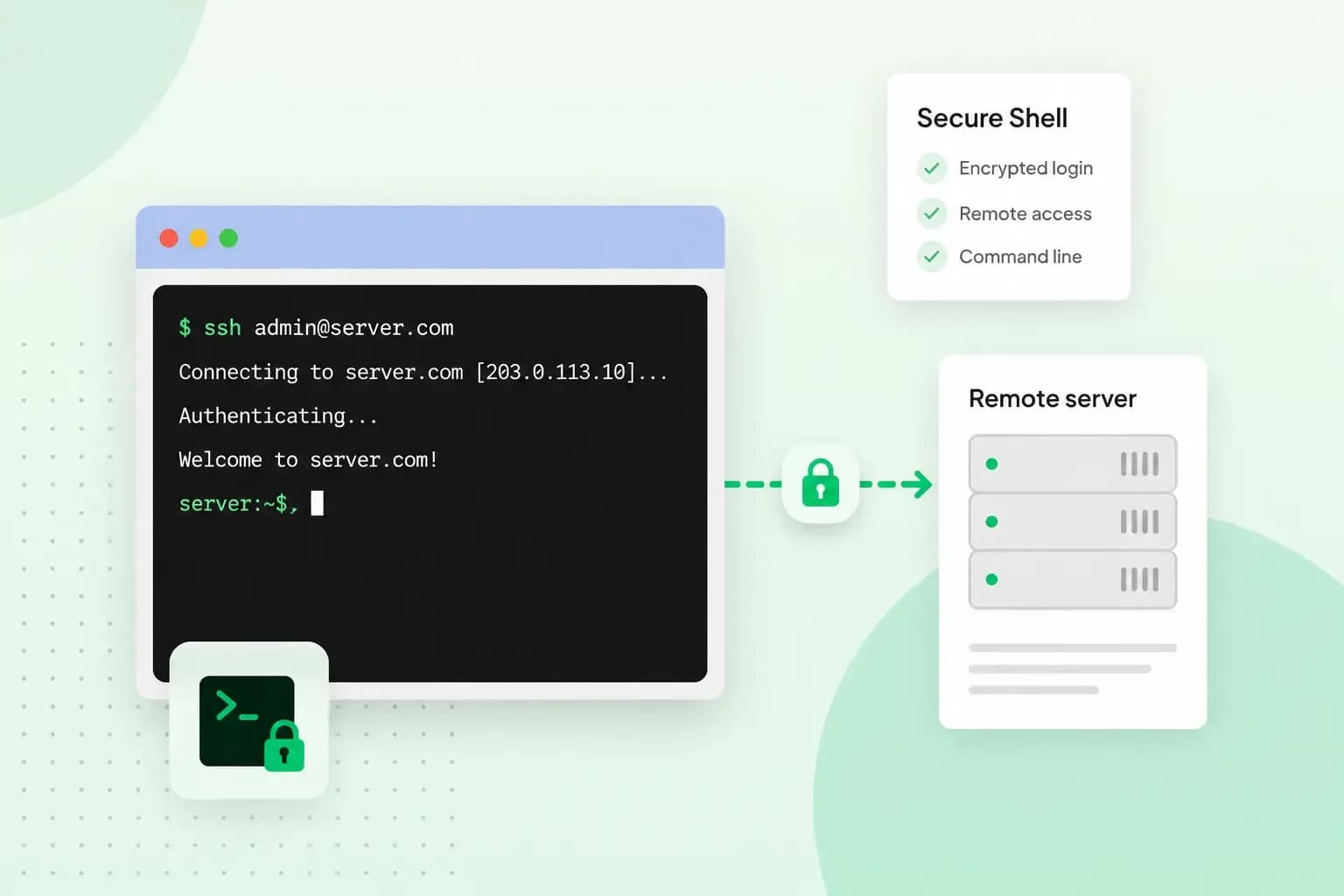 HostingAug 4, 2026
What is SSH?
How does SSH work & what does it do? Learn about the history of Secure Shell's predecessor Telnet and how SSH improved our internet security in this article.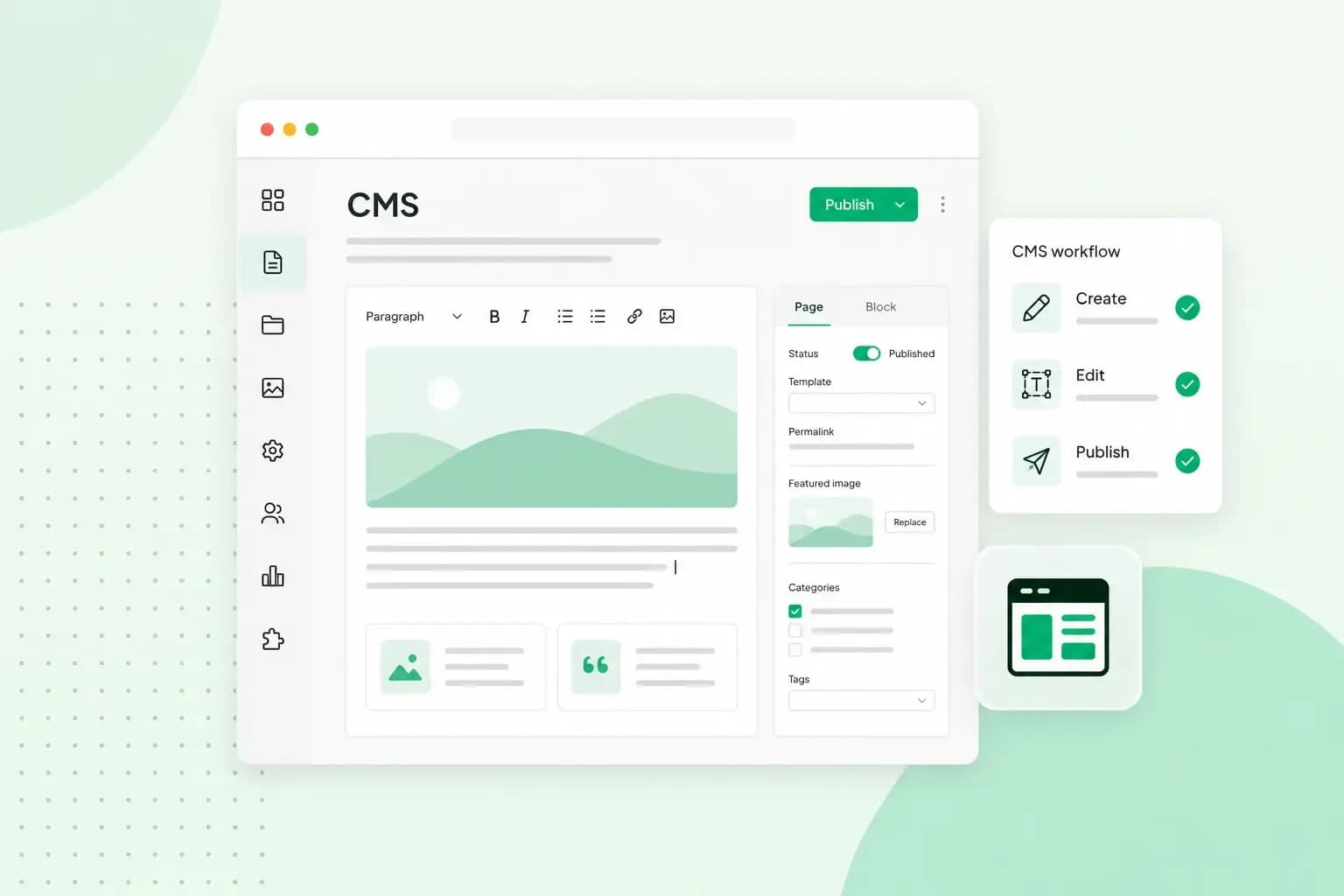 HostingAug 4, 2026
What is a CMS (content management system)?
You can easily create and manage your website with a content management system (CMS). Want to know more? Learn all about CMS in this complete guide!