
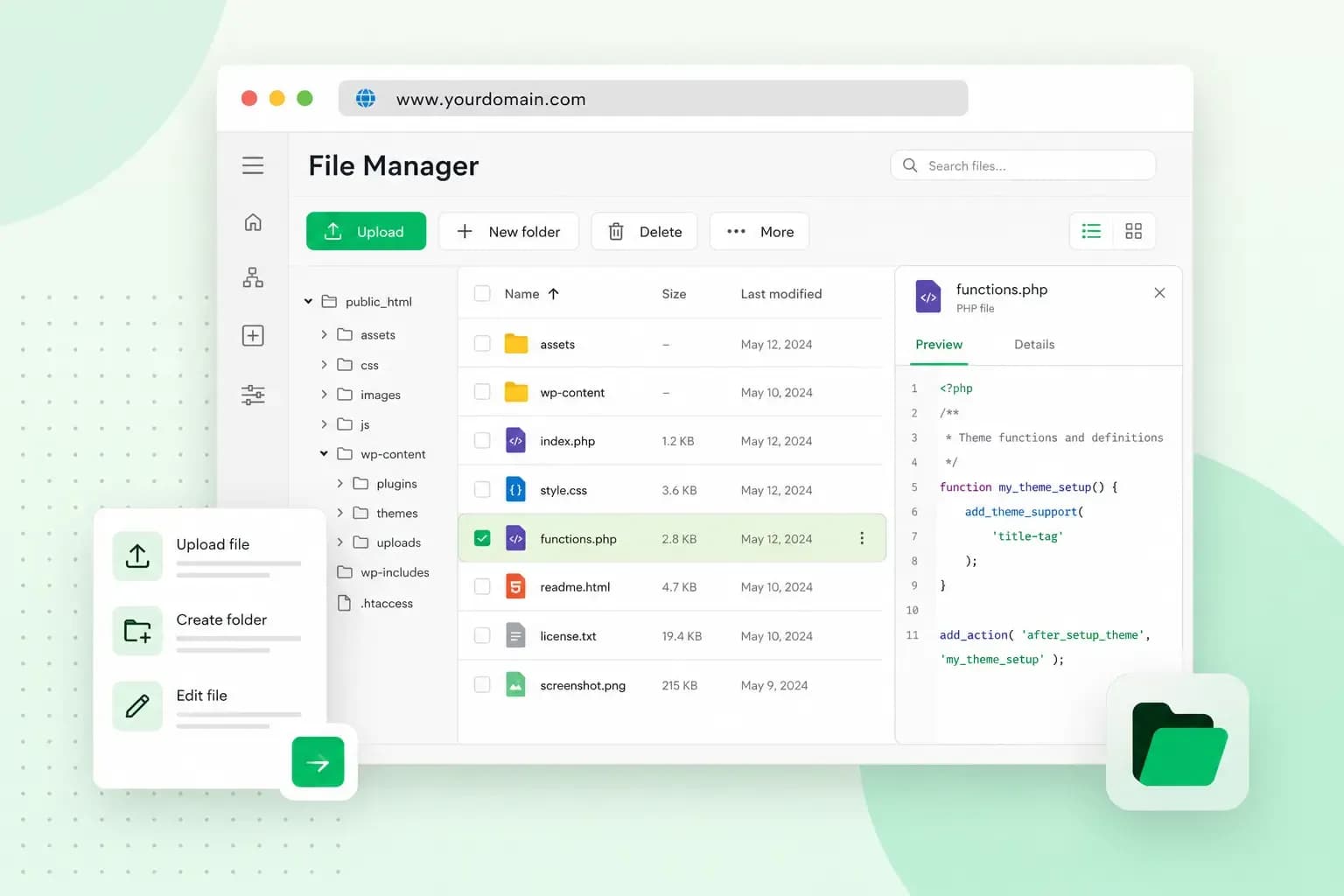
File Manager is the tool you use to work on your website's files in your browser. Your web space is the storage on our servers that holds those files. With File Manager, you can upload, download, rename, move and edit them there, with nothing to install.
What is File Manager?
File Manager is our tool for managing files and folders: it lists them and lets you open, copy, move and delete them. It does this for your website: the pages, images and scripts on your web space. Files are listed in alphabetical order. Each file type has its own icon, so you can tell an image from a script at a glance.
It's part of the control panel of your web hosting subscription, so there's no program to set up before you start.
How to open File Manager
Log in to our control panel and open File Manager from your hosting settings. You can also go straight to filemanager.one.com in your browser.
What you can do in File Manager
Upload and download files and folders
To upload, open the folder where the files should go and choose them from your computer, or drag them straight into File Manager. If a file or folder with the same name is already there, File Manager warns you, and you rename the new one. To replace a file, rename the old version and then upload the new one. That way you can switch back if the new version doesn't work.
Downloading works the other way round: you select one or more files and save them to your computer. Many actions, such as downloading and moving, work on several files at once. That saves time when you have a lot of them.
Edit files in your browser
File Manager has a built-in editor for every file that opens as text, such as .html, .css, .js, .php, .txt and .htaccess files. It highlights the syntax, so tags and commands stand out from the text around them, and it numbers the lines. That helps when an error message names the line it's about.
You're changing the files your visitors see, so download a copy of a file before you edit it. If the change breaks something, rename the broken file and upload the copy again.
If you built your website with our classic Website Builder, File Manager warns you when you try to edit its files. We recommend that you leave them as they are. Our classic Website Builder also overwrites a changed .htaccess file every time you republish the site.
Create, rename, copy and move files
You can create new folders, rename files, copy them and move them to another folder. The easiest way to move a file is to drag it to its new place.
When you clean up your web space, download a copy of any file you might need again before you delete it.
View files and images
You can open a preview of a file before you use it. That's handy for checking that you picked the right image for a page. If your browser can't show a file, File Manager downloads it instead.
Unzip files on your web space
File Manager can unzip a ZIP file right on your web space. You don't have to unzip it on your computer first and upload every file one by one. That helps when you install a CMS you downloaded or put back files from a ZIP backup. Before you start, check that your ZIP file stays within these limits:
- The files you extract can be up to 3 GB of data in total.
- A ZIP file can hold up to 40,000 files to extract.
- You cannot unzip password-protected ZIP files.
- You unzip one ZIP file at a time: if you select several, File Manager doesn't offer to unzip them.
- File Manager unzips
.zipfiles only, not other archives such as.rar,.taror.gz.
How to back up your web space with File Manager
A File Manager backup is a copy of all your website's files on your own computer. To make one:
- Log in to the control panel and open File Manager.
- Select all the files and folders on your web space.
- Download them. They're saved to your computer in one ZIP file.
Keep the ZIP file somewhere safe, such as an external drive. To put the files back, upload the ZIP file to your web space and unzip it in File Manager. A backup of more than 3 GB of data or more than 40,000 files is too big for that. An SFTP client then does the job: you unzip the backup on your computer and upload the files with it.
The download holds the files of your web space but not your database. If your website runs on a CMS such as WordPress, it keeps its content in a database. Export that as well and save the copy on your computer. Our help centre shows how to back up your database.
We also make a daily backup of your website on all our hosting plans. On our Starter plan, you can see these backups, but you need to upgrade to restore one yourself with Backup & Restore.
From our Professional plan up, you can restore a daily backup of your website yourself.
See hosting plansFile Manager or an SFTP client: which should you use?
Use File Manager for a quick job on a handful of files: it opens in your browser and there's nothing to set up. For bigger jobs, such as uploading a whole website or moving many large files, you'll probably want a program on your computer instead. An SFTP client such as FileZilla connects to your web space and transfers your files securely.
On our new servers, you connect with SFTP, because FTP is an outdated protocol and no longer available there. Only older servers still use it. Our help centre shows how to connect to an SFTP server with FileZilla.
A good first job for File Manager is a backup of your whole web space, before you change anything. If you don't have a web space yet, choose a hosting plan and you'll find File Manager in your control panel.
Recommended reading
 HostingAug 4, 2026
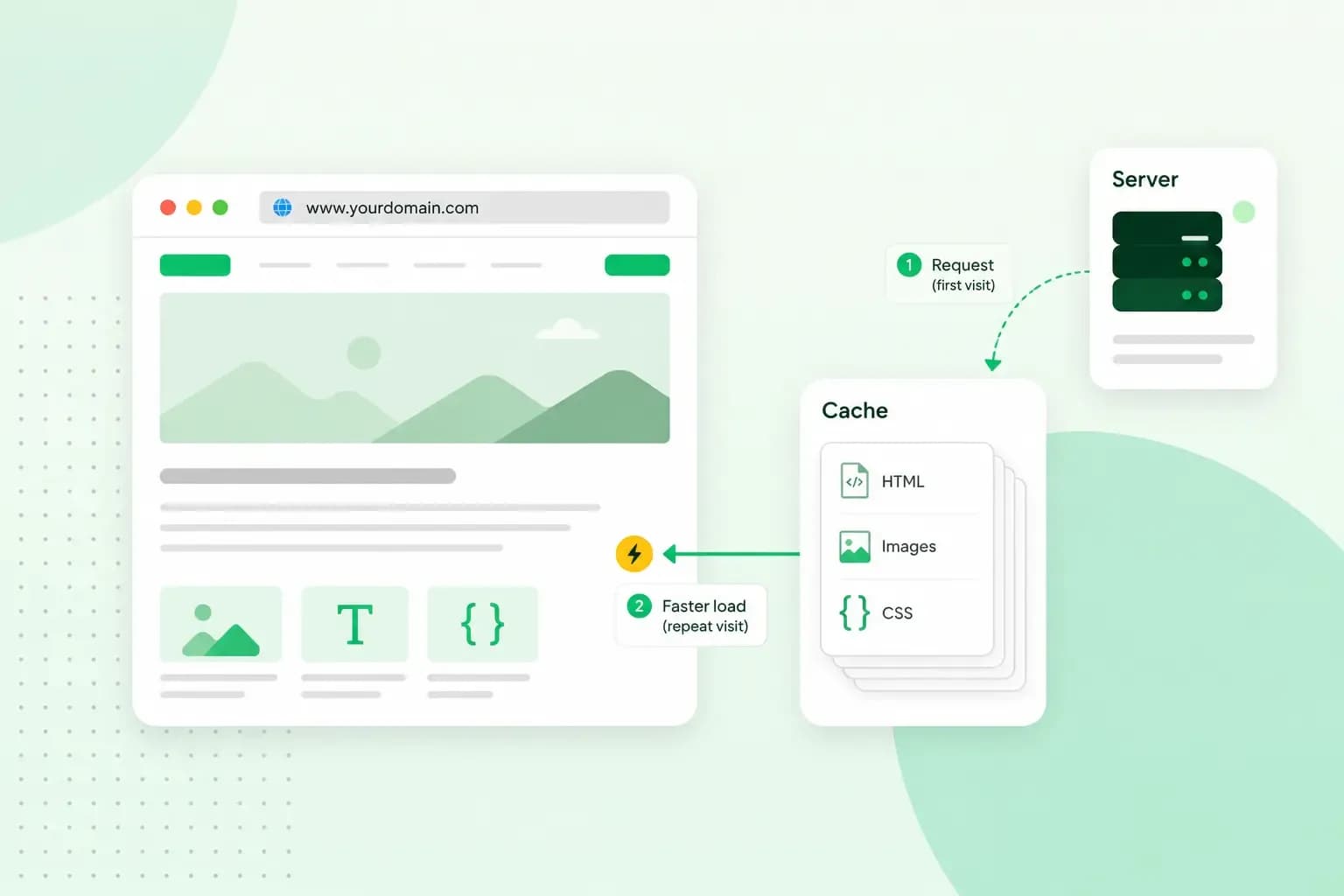
What is cache?
What does cache mean? And how to clear your cache? Read the importance of cache and why it's necessary to clear your cache once in a while.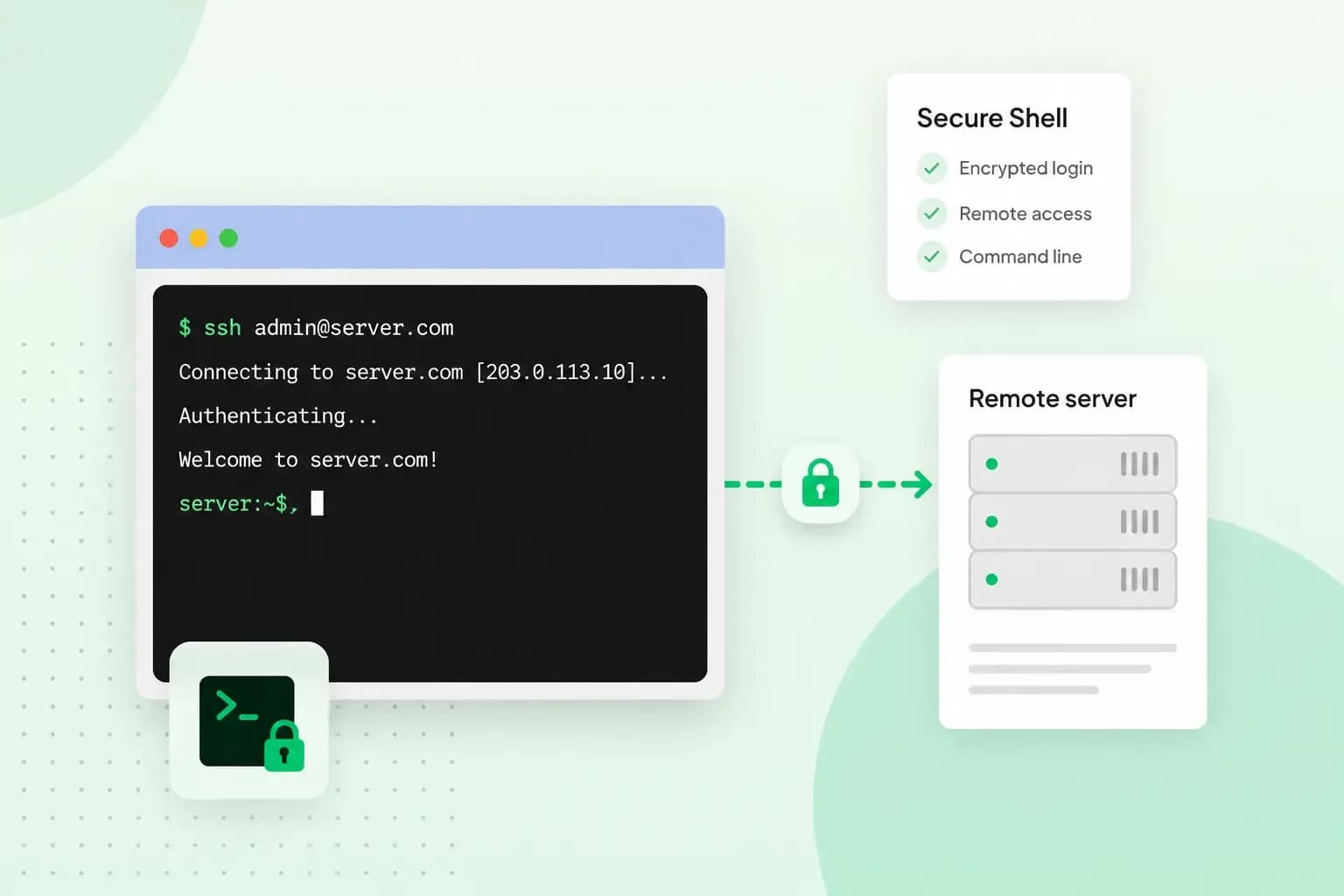 HostingAug 4, 2026
What is SSH?
How does SSH work & what does it do? Learn about the history of Secure Shell's predecessor Telnet and how SSH improved our internet security in this article.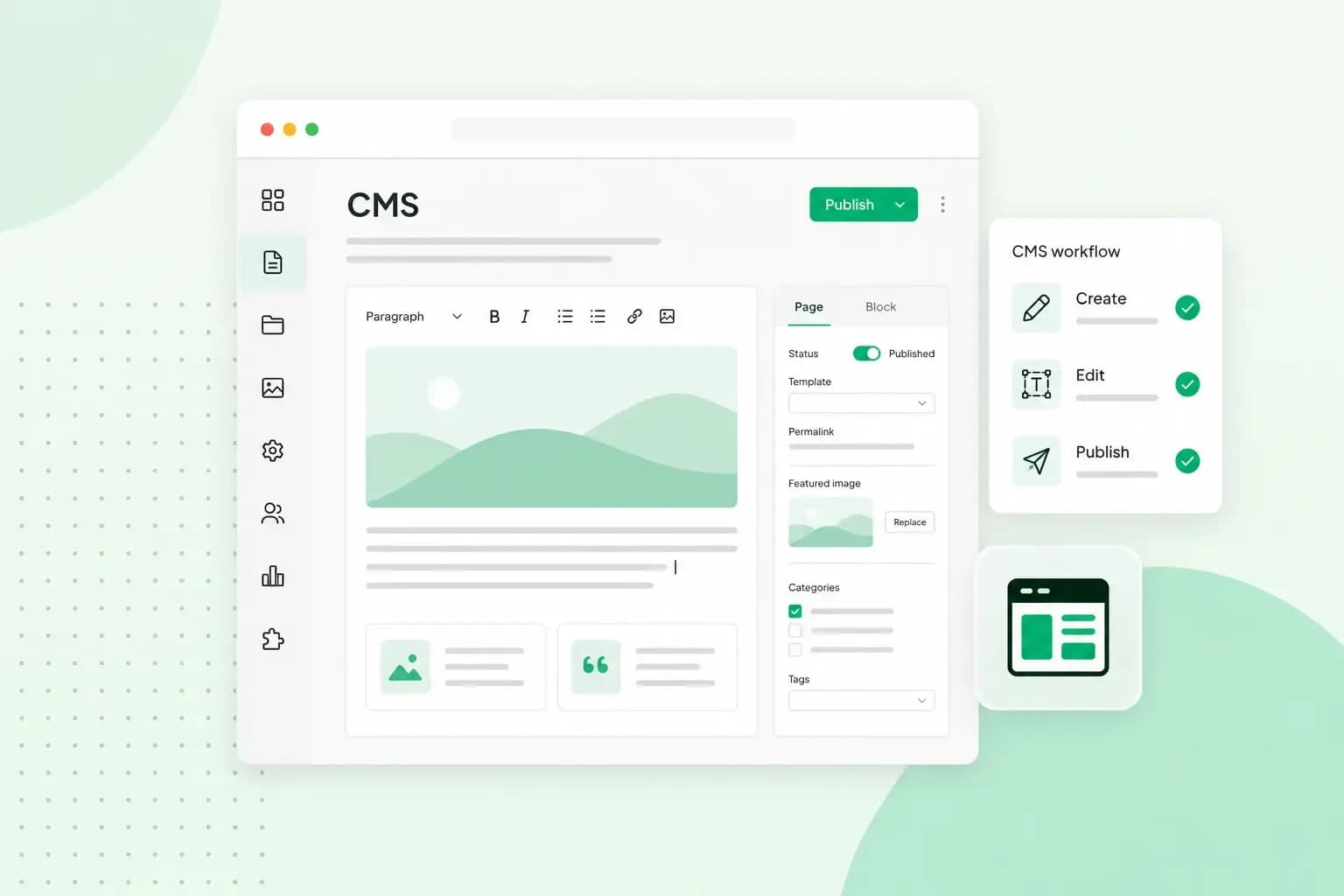 HostingAug 4, 2026
What is a CMS (content management system)?
You can easily create and manage your website with a content management system (CMS). Want to know more? Learn all about CMS in this complete guide!