
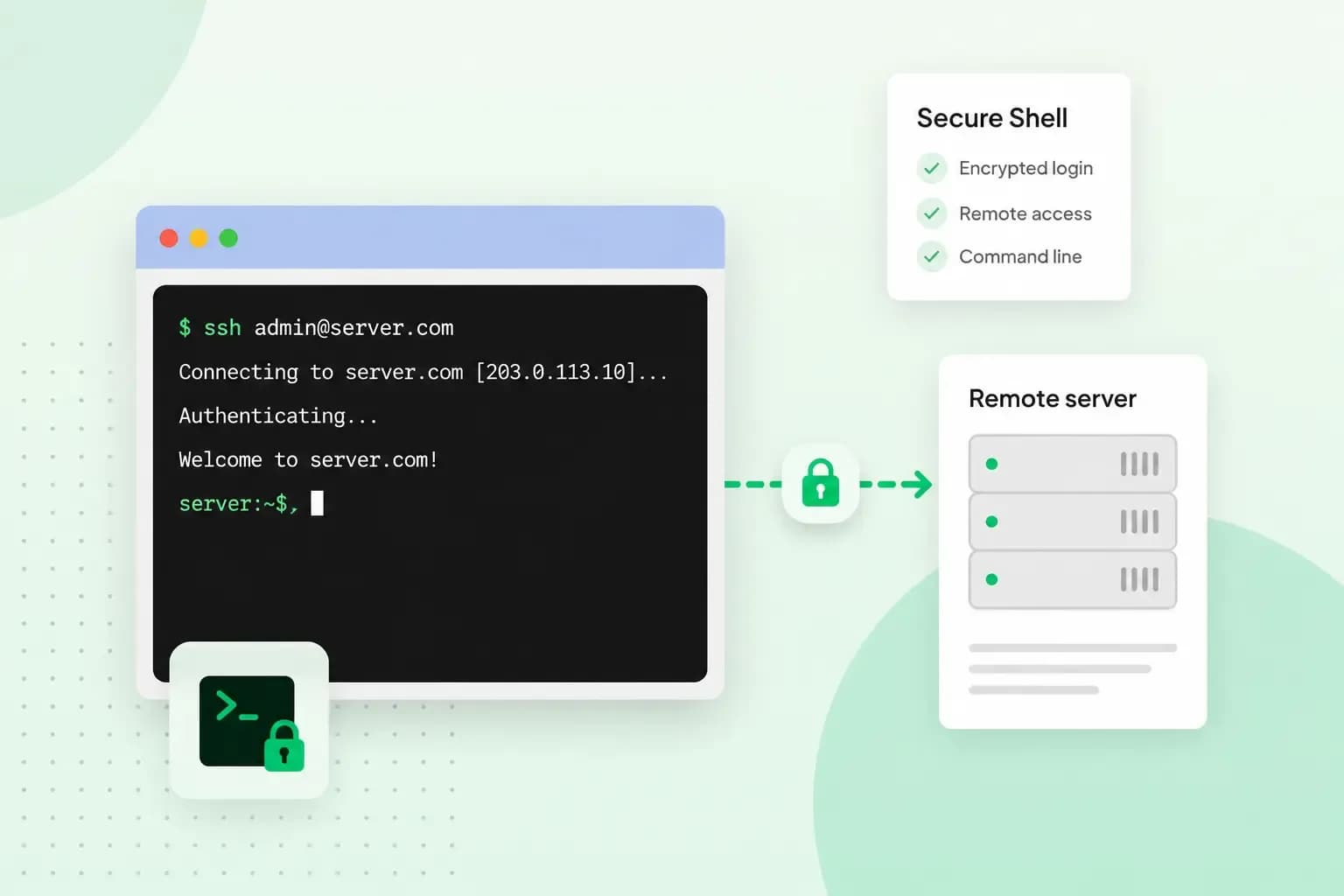
SSH, short for Secure Shell, is a way to log in to another computer, such as a server, and control it from your own machine. Everything you send, from your password to every command you type, travels encrypted. Someone watching the network can't read your data on the way, and they can't change it without it showing.
What SSH stands for and what it is used for
The shell in Secure Shell is a command interpreter: the program that runs the commands you type on a computer's command line, the place where you type instructions. SSH gives you that command line on a remote machine, over a connection nobody else can read. Developers, system administrators and website owners use it for jobs like these:
- Running commands on a server: you set up software on the server, check logs or restart a service as if you were sitting at the machine.
- Managing files and code: you copy, move and edit files, or update a project directly in your web hosting account.
- Transferring files securely: SFTP and SCP move files over an SSH connection, so your files travel encrypted, unlike with plain FTP. Here's more on the difference between FTP and SFTP.
SSH explained: what happens when you connect
SSH works on a client and server model: the client is the program on the computer you work on, and the server is the remote machine you want to manage. Before you can type a single command, the two go through a few steps.
First, your client contacts the server and both sides agree which version of the protocol to use. Both sides also agree on how to encrypt the connection and create a shared key for this session only. The server then proves its identity with its host key, so you know you've reached the right machine and not an impostor. This is the key your client may ask you to confirm the first time you connect.
Only then do you log in, with a password or an SSH key. From that moment, every command you type and every reply the server sends goes through the encrypted connection.
How SSH keeps your data secure
SSH is considered secure against cryptographic attacks on the network, as long as the keys and login details are managed properly. For you, that means a strong SSH password and a private key nobody else can get hold of.
SSH relies on three techniques, and each one has its own job.
| Technique | What it uses | What it does in SSH |
|---|---|---|
| Symmetric encryption | A shared key | Encrypts the data sent between your client and the server once the connection is set up, using a key they create together during that setup |
| Asymmetric encryption | A key pair: a public key and a private key | Checks identities: the server proves who it is, and you can log in with your own key pair |
| Hashing | A hash algorithm, such as SHA-2 | Checks the integrity of the data, so the other side can tell if anything was changed on the way |
Hashing works a bit like the check digit on a barcode. If one number in the code changes, the check digit no longer matches, so a computer checking it can see the code was altered.
What is an SSH key?
An SSH key is a pair of linked keys you can use to log in instead of a password. You put the public key on the server, where it works like a lock. The private key stays on your computer, and it's the only key that opens that lock.
When you connect, your computer proves it holds the private key, and the server checks the matching public key it holds for your account. Guard the private key well, because anyone with a copy of it can log in as you.
Keys suit you if you log in often, because you don't have to type a password every time. Scripts and backup tools can also use them to log in on their own. If you only connect now and then, a strong password does the job.
You create a key pair by running ssh-keygen on your own computer. Then you copy the public key to the file ~/.ssh/authorized_keys in your home directory on the server you want to reach.
The history of SSH: from Telnet to Secure Shell
Before SSH, people logged in to remote computers with Telnet, a protocol released in 1969. A Telnet session isn't encrypted. Anyone with access to the traffic between the computers can read it, including the usernames and passwords people log in with.
In 1995, a password sniffer was found on a server in the Finnish university network. That's a program that secretly records the passwords sent over a network, and this one had collected thousands of usernames and passwords. The incident led Tatu Ylönen to develop a tool he could use himself to log in to remote computers safely over the internet. He published the first version in July 1995 and called it SSH.
Once SSH became popular, Ylönen took it to the IETF, the body that develops internet standards, and SSH is now an internet standard. Today it has practically replaced Telnet. Telnet is only used in rare cases on old equipment that doesn't support newer protocols.
How to use SSH on Windows, Mac and Linux
To use SSH, you need an SSH client on your own computer. On a Mac, you can connect to a server with ssh from Terminal. On Linux, add the OpenSSH client if your system doesn't have it yet: on Ubuntu, you install it with sudo apt install openssh-client.
On Windows, OpenSSH has been available as an optional feature since Windows 10 build 1809, so you can add it and use the ssh client. To add it, select Start, type Optional Features in the search box, check whether OpenSSH Client is already installed and add it from there if it isn't, as Microsoft's guide to installing OpenSSH describes. You can also use PuTTY, a free SSH client for Windows.
How to connect to your web space with SSH
To connect to your web space:
- You need one of our web hosting plans, which all include SSH access.
- Switch on SSH access for your web space in the control panel.
- Create your SSH password: ask for the password email in the control panel, then open the link we send to your contact email address and choose the password on the page it opens.
- Open your SSH client, such as Terminal or PuTTY, and enter the connection details the control panel shows for your domain.
- Log in with the SSH password you created, which may not appear as you type it. The first time you connect, you may be asked to confirm the server's host key.
- Once you're logged in, you have the server's command line and can start typing commands.
Manage your website's files and run commands securely over SSH or SFTP.
See hosting plansOur guide to using SSH shows where to find the connection details and how to reset your SSH password. It also lists the commands you can use, from moving and editing files to Git and working with your databases.
With SSH switched on, you can transfer files securely or connect straight to your web space from a terminal. Compare our web hosting plans, which come with SSH access, and choose the one that suits your site.
Questions about SSH
What port does SSH use?
SSH uses port 22 by default. That number sits between the ports for FTP (21) and Telnet (23), the older protocols Tatu Ylönen designed SSH to replace.
What is OpenSSH?
OpenSSH is the open-source version of the SSH tools, managed by developers at the OpenBSD project. It's the version Windows offers as an optional feature.
Recommended reading
 HostingNov 6, 2026
504 Gateway Timeout: what it means and how to fix it
A 504 Gateway Timeout means a server in between got no answer from the website in time. See whose fault a 504 error is and how to fix it, WordPress included. HostingAug 4, 2026
What is website cache?
What does cache mean? And how to clear your cache? Read the importance of cache and why it's necessary to clear your cache once in a while. HostingAug 4, 2026
What is a CMS (content management system)?
You can easily create and manage your website with a content management system (CMS). Want to know more? Learn all about CMS in this complete guide!