
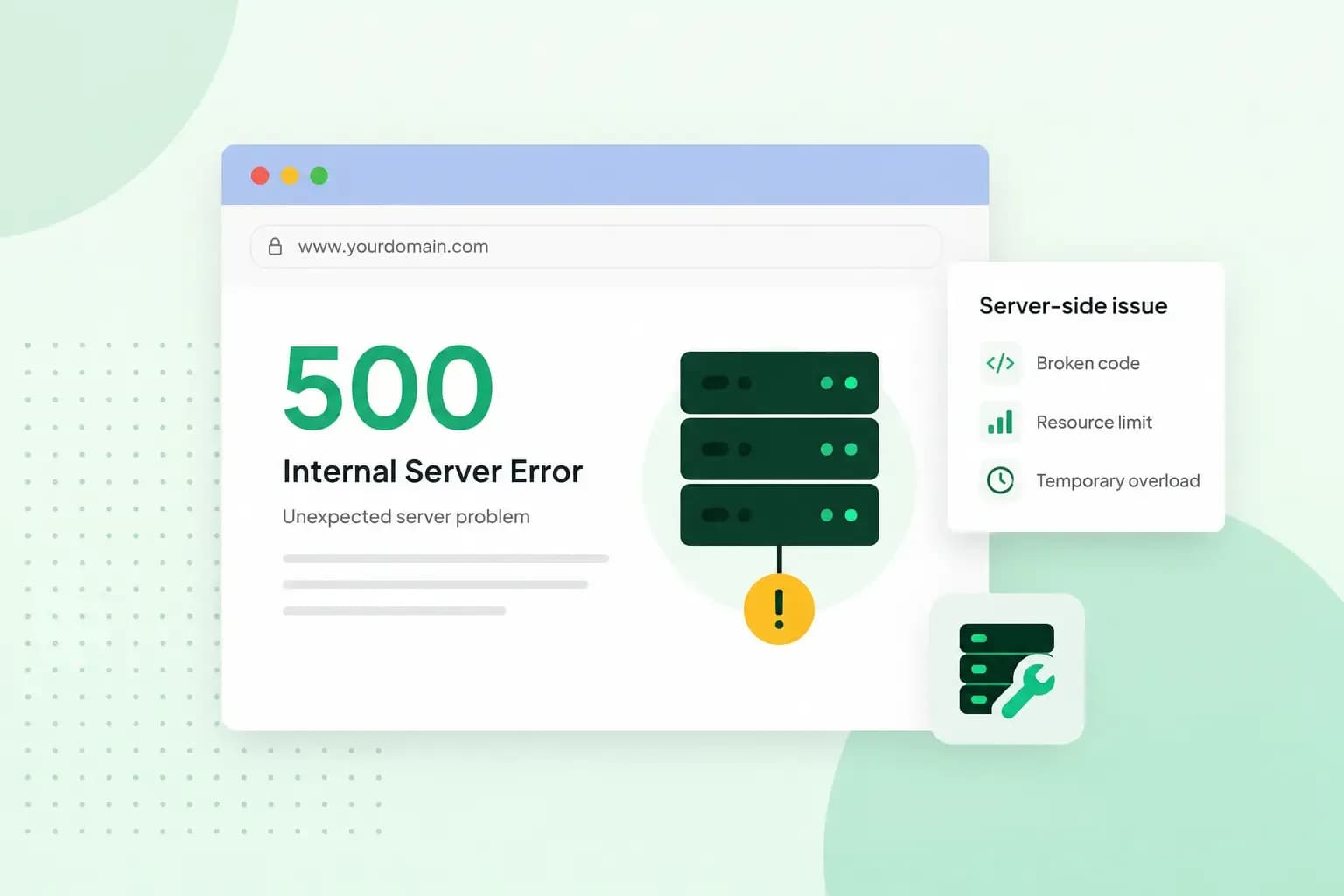
A 500 internal server error (HTTP error 500, or simply error 500) means the server behind a website ran into an unexpected problem and couldn't deliver the page. If you're visiting someone else's website, wait a moment and reload the page later. If it's your own website, making the server show a more specific error can help you find the cause.
Where does an HTTP error 500 come from?
The error comes from the server itself. It's one of the server errors, the 5xx codes: the server reports that it has failed, not that the visitor did something wrong. If it's your website, the fix is up to you or your hosting provider.
On screen it can also read "HTTP 500", and the page rarely tells you more, because this is a generic error that gives no details in itself. Other error codes point to a narrower problem:
- A 403 error means the server understood the request but refuses it.
- A 404 error means the server can't find the page you asked for.
- A 502 bad gateway error means a server passing on your request got an invalid answer from the server behind it.
- A 503 error means the server can't handle the request right now, because of an overload or maintenance.
What causes a 500 error?
On your own website, the error can point to something in the site's files or settings. Possible causes include:
- An error in the site's code: a problem in the site's PHP code can stop the page from being built.
- A faulty .htaccess file: a mistake in this server file, or a wrongly named one, can make the site malfunction.
- A plugin or theme: on a WordPress site, an outdated or faulty WordPress plugin or theme can be behind it.
- The PHP memory limit: the site needs more memory than its PHP limit allows.
Does a 500 error affect your Google rankings?
A 500 error that lasts can cost you visibility. According to Google, server errors make it crawl your site more slowly. Pages already in Google's index stay there at first, but are eventually dropped if the error continues. Once your server responds normally, Google gradually crawls your site faster again. That makes a quick fix worth it for your search engine optimisation (SEO).
How to fix a 500 internal server error
Start with the quick checks, then make the server tell you what's wrong before you change anything. Make a backup of your website before you edit files, so you can go back.
Reload the page
A server error may be temporary and go away by itself, so wait a moment and reload the page (F5 on Windows or Linux, Cmd + R on a Mac). If it keeps coming back, try the page on another device or network: if the error shows there too, the problem is on the server.
Clear your browser cache
Your browser keeps copies of pages it has visited in its cache, and a stored page can stay there until it expires or you clear it. That means your browser can go on showing the error page after the problem is gone. Empty your browser's cache and reload the page now, and do the same after each fix below before you decide whether it worked.
Turn on PHP error messages
With PHP error messages switched on, the browser shows what actually went wrong in your site's PHP code instead of the generic error page.
- Log in to your control panel, switch on PHP error messages for the domain or subdomain that shows the error and save the change.
- Reload the page that showed the error: the browser now shows a file name, a line number and a description of the error. If the page still shows only the generic error, switch the messages off again and go on to the .htaccess file.
- Once the message shows you the cause, switch PHP error messages off again.
If the file path in the message holds /plugins/ or /themes/, the plugin or theme named after it is the cause, and the WordPress fixes below deal with it. If the message says the allowed memory size is exhausted, your site has run out of PHP memory. On a WordPress site you can raise the limit by adding a line such as define( 'WP_MEMORY_LIMIT', '96M' ); to the wp-config.php file; if your host does not allow that, ask it to raise the PHP memory limit.
Check the .htaccess file
The .htaccess file holds rules that tell the server how to handle your website, for example a 301 redirect from an old page to a new one. One mistake in it can make your site malfunction, so if you edited it recently, check those lines first. On a WordPress site where a rule in the .htaccess file may be the cause, you can restore WordPress's basic .htaccess rules:
- Open our File Manager, go to your website's root folder and back up the
.htaccessfile: download it and leave that copy unchanged, or copy it within the File Manager. - Open the
.htaccessfile for editing in our File Manager. - Replace its contents with the Basic WP block on WordPress's .htaccess page, from
# BEGIN WordPressto# END WordPress(for a single site; a Multisite network takes the Multisite block on that page). - Save the file.
- Reload the page that showed the error.
- If the error is still there, put the backup back in place of the edited file: the old rules were not the cause.
The basic rules leave out any rules of your own, such as redirects. If the site works again, add those back from your backup copy one at a time, and reload after each one: if the error comes back, the rule you added last is the cause, so take it out of the file again before you add the rest.
Contact your hosting provider
If your site runs WordPress, try the WordPress fixes below before you get in touch. If none of the fixes helps, contact your hosting provider. If your website is hosted with us, our customer service team can help you find the problem. Send the address of the page, the time the error appeared and any error message you found.
How to fix HTTP error 500 in WordPress
In WordPress, turn on debugging first, then test your plugins and your theme.
Turn on debugging in WordPress
Debug mode is a WordPress setting that shows PHP errors on the page where they occur. The message often names the plugin or theme folder that caused the error, so you can see what went wrong. It’s a second way to find the cause if the PHP error messages in your control panel showed nothing. To switch debug mode on, edit WordPress’s settings file:
- Back up your site, or at least the
wp-config.phpfile, before you change it. - Open the wp-config.php file in the folder where you installed WordPress. If you download it to edit it, upload it back to your server in place of the old one each time you save a change, before you reload the page.
- Set the line
define( 'WP_DEBUG', true );. Where the line already exists, changefalsetotrue; otherwise add the line above/* That's all, stop editing! Happy blogging. */. - Save the file and reload the page with the error: WordPress now shows the PHP errors instead of the blank 500 page. If no error appears, set debugging back to false and go on to the plugins.
- Once the error shows you the cause, set the line back to
define( 'WP_DEBUG', false );and save the file, since debugging is not meant for a live site.
Switch off your plugins
- If you can still log in, open the Plugins page and switch your plugins off one at a time, reloading the page that showed the error after each one, until the error is gone: the plugin you switched off last is the cause.
- Leave that plugin off until it is updated or replaced by a similar plugin, and turn the others you switched off on again.
- If the error is still there with every plugin switched off, a plugin is not the cause: turn them all on again.
A 500 error often locks you out of the dashboard, though. If the dashboard doesn't open, so you can't switch the plugins off there, use their folder instead:
- Open the
wp-contentfolder of your WordPress site with your hosting provider's file manager (our File Manager if your site is hosted with us) or an SFTP program such as FileZilla. - Rename the
pluginsfolder toplugins.hold; this switches every plugin off. - Log in to WordPress and open the Plugins page (
/wp-admin/plugins.php): WordPress shows that the plugins are missing and switches them off. If you still cannot log in, renameplugins.holdback toplugins: a plugin is not the cause. - Once you are logged in, rename
plugins.holdback toplugins; the plugins stay switched off. - Switch the plugins back on one at a time on the Plugins page and check the site after each one: the plugin that brings the error back is the cause. When the error comes back, switch that plugin off again and leave it off until it is replaced or fixed.
Switch to a default theme
A WordPress theme can cause the error too.
- Check that a default WordPress theme is installed on your site: you can only switch to a theme that is installed.
- Back up your files and database before you change the theme.
- To test it, switch to the default theme on the Themes screen of your WordPress dashboard. If WordPress locks you out, you can change your WordPress theme from the database, and after that you can log in again.
- Reload the page that showed the error: if the error disappears, your own theme is the cause. If the error stays, your theme is not the cause, so switch back to it.
- Update your theme first, then switch back to it and check the site.
- If you can't update it or the error comes back, switch to the default theme again: it's best to remove your theme, or ask its developer to look at it.
How to prevent 500 errors
Keep your WordPress website up to date, WordPress itself as well as your plugins and your themes, since outdated plugins and themes are among the causes of the error. For each update:
- Before the update, back up your files and database, so you can undo a change that breaks your site.
- Update one thing at a time.
- Check your site after each update: if the error appears, you know which update caused it.
All our hosting plans include a daily backup, and from the Professional plan up (Professional, Business and Max) you can easily restore one yourself. If you want to undo a broken update yourself, compare our hosting plans and choose Professional or higher.
Recommended reading
 Hosting4 Aug 2026
What is cache?
What does cache mean? And how to clear your cache? Read the importance of cache and why it's necessary to clear your cache once in a while. Hosting4 Aug 2026
What is SSH?
How does SSH work & what does it do? Learn about the history of Secure Shell's predecessor Telnet and how SSH improved our internet security in this article. Hosting4 Aug 2026
What is a CMS (content management system)?
You can easily create and manage your website with a content management system (CMS). Want to know more? Learn all about CMS in this complete guide!