
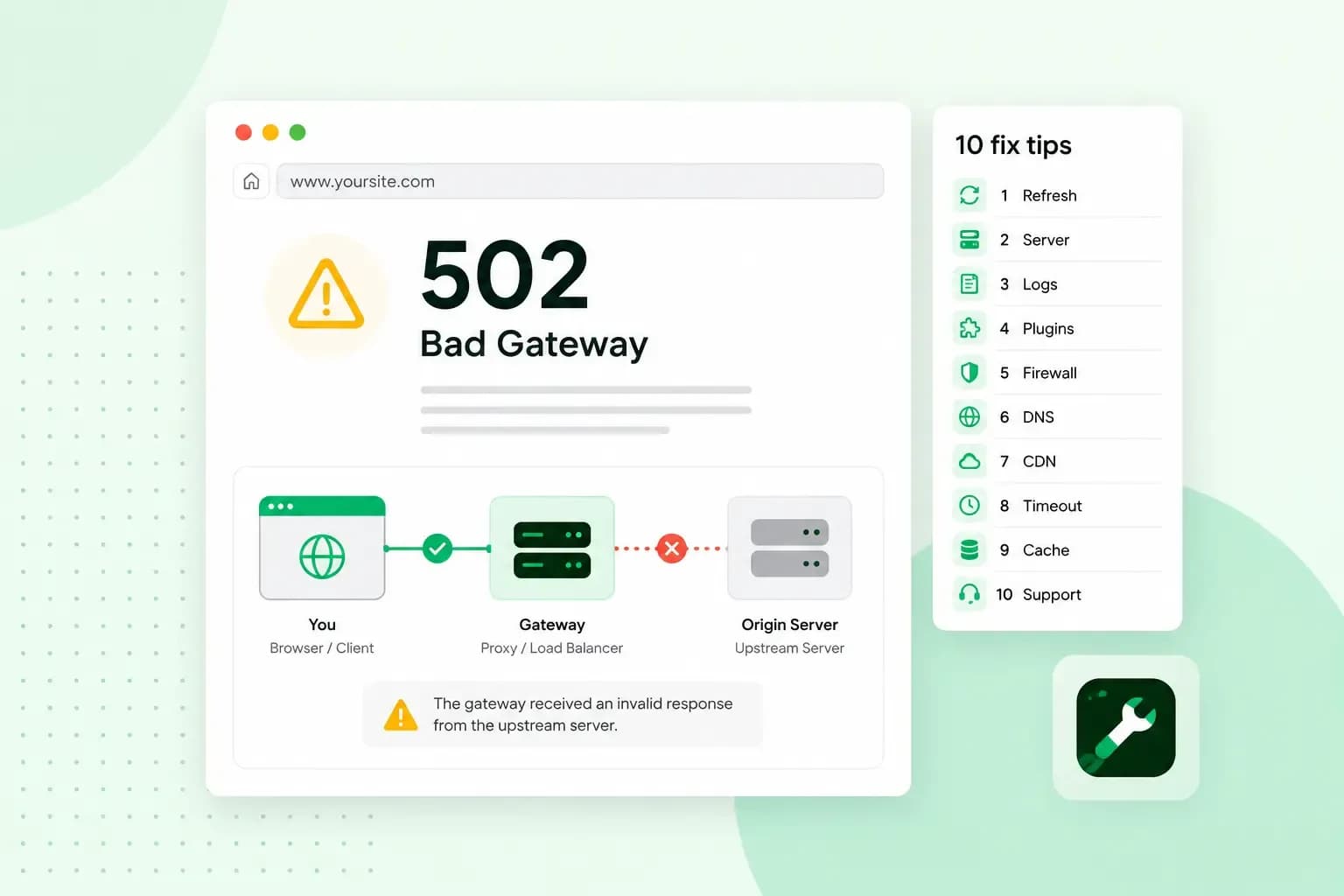
A 502 Bad Gateway means that a server passing your request on, acting as a gateway or proxy, got an invalid response from the server behind it. It's a server error, so in most cases the problem sits with the website's servers rather than with your device or your internet connection. The page works again once the server behind the gateway sends a proper response. Your browser and your computer can still hold on to an old copy of a page or an old address for a while, though, so a few quick checks on your side are worth a try.
502 Bad Gateway meaning
When you open a web page, your browser doesn't always reach the website's own server directly. Many websites sit behind a proxy server or gateway, such as a content delivery network, which takes your request and forwards it to the server the website runs on. A 502 error is that server in the middle telling you the answer it got back was unusable.
Websites word the message in their own way, so you may see "Error 502", "502 Proxy Error", "HTTP Error 502" or just "Bad Gateway" instead, and each one points to the same problem.
A 504 Gateway Timeout is close to a 502, except that the gateway got no answer in time rather than an invalid one. A 503 Service Unavailable means the server can't handle requests for the moment, usually because it's overloaded or down for maintenance.
What causes a 502 Bad Gateway error?
A 502 Bad Gateway error usually comes from one of four problems on the way between the gateway and the website's server:
- An overloaded or crashed server. When a site gets more traffic than its server can handle, or a process on the server crashes, the server can't send a proper answer.
- A script that runs too long. If a page depends on a script that doesn't finish within its time limit, the script is stopped and the gateway gets an error back instead of the page.
- A proxy, CDN or firewall in between. A service between your visitors and the server, such as a content delivery network or a firewall, can have the wrong settings or block the request, so what it passes on isn't the page.
- A DNS problem. DNS, the Domain Name System, turns a domain name into the address of a server. If that lookup fails or returns an old address, the request goes to the wrong place.
Does a 502 error hurt your website and SEO?
Yes, if it lasts. While the error is there, visitors can't see your pages, buy from your shop or fill in your forms. It affects your SEO too, because server errors like this one make Google's crawlers slow down for a while. Pages that are already in Google's index stay there for a while, but if the errors go on, Google eventually drops them. So fix the error quickly rather than wait for it to pass.
How to fix a 502 Bad Gateway as a visitor
Start with these quick checks. It's worth running them on your own website too, before you change anything on the server.
Reload the page
Wait and reload the page. If the server was only overloaded for a moment, the site may already be back.
Check whether the site is down for everyone
Enter the address on a status checker such as downforeveryoneorjustme.com, or ask a friend to open it on their own connection. If it fails for them too, the website itself is down, so wait a while or let the website owner know.
Try a private window, another browser or another device
Next, open the page in a private window. If the page works there, the problem is in your usual browser, and clearing its cache is the next step. Each browser maker's guide shows how to open a private window:
- Incognito mode in Chrome
- private browsing in Firefox
- Private Browsing in Safari
- InPrivate browsing in Edge
- a private window in Opera
If the private window shows the error as well, try another browser, or another device on another network, for example your phone on mobile data instead of your home Wi-Fi. When the site opens there, the website is working and the problem lies with your own device or network.
Clear your browser cache
Your browser keeps a cache, its own store of copies of pages and files it has loaded, so it may show you a stored copy instead of asking the website again. Clearing the cache makes your browser load everything fresh from the website. Each browser's help page has the steps:
Flush the DNS cache in Windows
Your computer also keeps a cache of DNS lookups: the addresses it has recently found for the websites you visit. If a website has just moved to a new host, its DNS entry has changed, and your computer may keep using the old one until you reset the cache and it asks a DNS server again. To flush the DNS cache in Windows:
- Select Search on the taskbar and type
command prompt. - To the right of Command Prompt, select Run as administrator, then Yes.
- Type
ipconfig /flushdnsand select Enter. - Reload the page in your browser. If it still shows the error, the cause isn't your computer's DNS cache.
Reset the DNS cache on a Mac
A Mac can hold on to an old address in the same way, and the simplest fix is to restart it, which updates its cached DNS information. To reset the cache without a restart, use Terminal:
- Use an administrator account: only administrator users can use
sudo. - Open Terminal: click Spotlight in the menu bar, type Terminal in the search field and click Terminal, or in the Finder open the Applications folder, then the Utilities folder, and double-click Terminal.
- Type
sudo killall -HUP mDNSResponderand press Return. - Type your administrator account password at the prompt and press Return: the characters aren't displayed as you type.
- Reload the page. If it still shows the error, the cause isn't your Mac's DNS cache.
How to fix a 502 Bad Gateway on your own website
If the visitor checks rule out your own device, the cause is on the server side. Start with the services that sit between your visitors and your server, then look at the site itself.
Pause your CDN and firewall for a test
If your site uses a content delivery network (CDN) or a firewall service, the 502 can come from there. With Cloudflare, for example, if the error page doesn't mention Cloudflare, it's your hosting provider who needs to look into it.
To test it, pause the service briefly. In Cloudflare, you'll find Pause Cloudflare on Site under Advanced Actions on your domain's Overview page. The pause can take up to five minutes, so wait that long before you load your site again.
Whatever the result, switch the service back on as soon as you've tested, so your site isn't left unprotected. If your site worked without it, ask the CDN or firewall provider to help you fix the setting.
Give slow PHP scripts more time
If your website runs on PHP, each script has a time limit. max_execution_time is the setting that holds it: the number of seconds a script may run before PHP stops it. When a heavy page or an import needs longer, the script is stopped before the page is ready, and the gateway gets an error instead of a page. Raise that limit in your hosting settings, or ask your host to do it.
Switch off your WordPress plugins
A buggy or incompatible plugin can stop your site from working. If you can still log in, deactivate your WordPress plugins one at a time on the Plugins page and check your site after each one. If the dashboard doesn't open, switch them all off through your files instead, with your host's file manager or an SFTP program:
- Open the
wp-contentfolder of your WordPress site with your hosting provider's file manager (our File Manager if your site is hosted with us) or an SFTP program such as FileZilla. - Rename the
pluginsfolder toplugins.hold; this switches every plugin off. - Log in to WordPress and open the Plugins page (
/wp-admin/plugins.php): WordPress shows that the plugins are missing and switches them off. If you still can't get into the dashboard, renameplugins.holdback topluginsand look for the cause elsewhere. - Once you are logged in, rename
plugins.holdback toplugins; the plugins stay switched off. - Switch the plugins back on one at a time on the Plugins page and check the site after each one: the plugin that brings the error back is the cause. When the error comes back, switch that plugin off again and leave it off until it is replaced or fixed. If the error locks you out of the dashboard as well, repeat steps 2 to 4, then switch on every plugin except that one.
Contact your hosting provider
If none of this helps, the cause is most likely on the server itself, and your hosting provider can check that for you. Tell them when the error started, which pages show it and what you've already tried. If your website is hosted with us, send those details to our customer service team.
How to prevent 502 errors
Malfunctioning plugins, themes and scripts often cause WordPress to crash, so keep WordPress, your themes and your plugins up to date. If you can't update a plugin and it keeps causing errors, it's best to remove or replace it. On any site, a script that keeps hitting PHP's time limit is worth a closer look: find out why it's so slow rather than only raising the limit.
If the error keeps coming back at busy times, your site is probably getting more traffic than its server can handle. A plan with more room is then the lasting fix. Compare our web hosting plans to find one that fits your site.
Recommended reading
 Hosting6 Nov 2026
504 Gateway Timeout: what it means and how to fix it
A 504 Gateway Timeout means a server in between got no answer from the website in time. See whose fault a 504 error is and how to fix it, WordPress included. Hosting4 Aug 2026
What is website cache?
What does cache mean? And how to clear your cache? Read the importance of cache and why it's necessary to clear your cache once in a while. Hosting4 Aug 2026
What is SSH?
How does SSH work & what does it do? Learn about the history of Secure Shell's predecessor Telnet and how SSH improved our internet security in this article.