
A 504 Gateway Timeout means the website's server took too long to answer. A server in between gave up waiting and showed you an error instead of the page. It's a server error, so in most cases it isn't caused by your device. As a visitor, you can reload the page a little later. If it's your own website, the cause is usually slow work on your site or an overloaded server, and you can track down which.
What does 504 Gateway Timeout mean?
It means the gateway stopped waiting for the website to answer. The gateway is a server between you and the website, such as a proxy server or a content delivery network, that passes your request on. The server the website runs on is called the upstream server: it builds the page you asked for. The gateway hands your request on and waits for the page, but only for a set time. When that time runs out, it sends your browser a 504.
The wording depends on the server, your browser and your operating system, so you may also see "504 Gateway Time-out" or "HTTP Error 504".
Is a 504 error your fault?
No, in most cases a 504 isn't your fault. The gateway couldn't get an answer from the website's server in time, so fixing it is a job for whoever runs the site.
Wait a moment and reload the page, because a 504 caused by a busy moment often clears quickly. To see whether the site is down for everyone or only for you, open it on another network, such as your phone on mobile data. If it works there, look at your own connection: restart your router and switch off any VPN or proxy you browse through.
502 vs 504: how the 5xx errors differ
A 502 and a 504 differ in what the gateway got back. With a 502, the answer it got was invalid. With a 504, no answer came at all within its time limit. A 500 and a 503, by contrast, come from the website's server itself and report a problem with it.
| Error | What the error says | Who sends it |
|---|---|---|
| 500 Internal Server Error | Something unexpected stopped the server from handling the request | The server itself |
| 502 Bad Gateway | The gateway got an invalid answer from the upstream server | A gateway or proxy |
| 503 Service Unavailable | The server isn't ready for the request, often because of maintenance or overload | The server itself |
| 504 Gateway Timeout | The gateway got no answer from the upstream server in time | A gateway or proxy |
What causes a 504 Gateway Timeout?
A 504 happens when the website's server can't finish its work in the time the gateway allows, for one of these reasons:
- An overloaded server. When a site gets more visitors than its server can handle, some requests aren't answered in time.
- Work that runs too long. A heavy script, a large import or a slow database query can keep the server busy for longer than the gateway waits.
- A CDN or firewall in between. A service between your visitors and your server has its own time limit and gives up when your server is slow.
- A short time limit. On a server you manage yourself, such as a VPS, you set how long the gateway waits in your web server software. Raising the limit only helps when a task is slow by nature, such as a large import, so speed up slow pages first.
How to fix a 504 Gateway Timeout on your website
Start by opening the page from another network, as a visitor would, so you know the error isn't on your side. Then work through these checks in order: your CDN, the slow part of your site, your WordPress plugins and, last, your hosting provider.
Test your site without the CDN
If your site runs behind a content delivery network (CDN) such as Cloudflare, look at the error page first. Cloudflare shows its own error 524 when it reaches your server but gets no answer within 125 seconds, its default time limit. If a 504 page carries Cloudflare's branding, Cloudflare is only passing on an error from your own server. The cause lies there rather than with Cloudflare. To see whether the CDN plays a part at all, pause it for a moment:
- Log in to the Cloudflare dashboard and go to its Account home page. Select your account there, then your website's domain.
- On the Overview page, choose Advanced Actions, then Pause Cloudflare on Site. Your visitors now reach your server directly.
- Wait five minutes for the pause to take effect.
- Open the page that showed the 504 again. If it now loads, the problem lies in the connection between Cloudflare and your server rather than in your site, so Cloudflare's troubleshooting pages or its support are your next stop. If the page still times out without Cloudflare, the cause is on your server, so move on to the next check.
- Whatever the result, switch Cloudflare back on. A paused site can't use Cloudflare's firewall rules or SSL/TLS certificates.
Find the slow part of your site
Note which pages show the 504 and when. If the error only appears on one page or during one task, such as an import, a backup or a large form, start there. Your server's error log shows what was running at that moment. If you can't find it in your hosting control panel, ask your hosting provider where it is and how to read it.
If your site runs on PHP, as WordPress sites do, the slow work can be a PHP script or a large database query. Don't just give the gateway or your CDN more time, because a longer wait masks the slow work rather than fixing it. Make the work lighter instead, for example by caching pages or running a big import in smaller parts.
Fix a 504 Gateway Timeout in WordPress
On a WordPress site, one possible cause is an outdated, incompatible or poorly configured plugin that keeps the server busy for too long. If the dashboard still opens, deactivate your plugins one at a time on the Plugins page and check your site after each one. If the dashboard times out as well, switch them all off through your files:
- Open the
wp-contentfolder of your WordPress site with your hosting provider's file manager (our File Manager if your site is hosted with us) or an SFTP program such as FileZilla. - Rename the
pluginsfolder toplugins.hold. This switches every plugin off. - Log in to WordPress and open the Plugins page (
/wp-admin/plugins.php): WordPress shows that the plugins are missing and switches them off. If you still cannot log in, renameplugins.holdback toplugins: a plugin is not the cause. - Once you're logged in, rename
plugins.holdback toplugins. The plugins stay switched off. - Switch the plugins back on one at a time on the Plugins page and check the site after each one: the plugin that brings the error back is the cause. When the error comes back, switch that plugin off again and leave it off until it is replaced or fixed.
Caching helps too, because visitors then get a stored copy of the page instead of one the server builds again for each visit. If your site is hosted with us and uses our free parent plugin, our Performance Cache plugin gives WordPress both Varnish caching and a CDN.
A newer PHP version also runs your site's code faster. Check first that your plugins and theme support it.
Can your web hosting cause 504 errors?
Yes. If the server your site runs on is overloaded, or your plan has too little room for your traffic, requests wait too long and the gateway gives up. A 504 that appears at busy times and clears when traffic drops points that way.
When none of the checks above helps, contact your hosting provider. Tell them when the error started, which pages show it and what you've already tried. If your site is hosted with us and needs more room, you can upgrade to a bigger web hosting plan at any time. If it runs on WordPress, compare our plans for Hosting for WordPress.
How to prevent 504 errors
Keep WordPress, your theme and your plugins up to date, and remove a plugin that keeps slowing your site down. Run heavy jobs, such as imports, exports and backups, when your site is quiet. Check your site's speed now and then too, for example after you add a plugin.
Frequently asked questions
How long does a 504 Gateway Timeout last?
It depends on the cause. A short spike in traffic can clear as soon as the rush is over. A script that's always too slow keeps causing the error until someone fixes it, so don't wait out a 504 that keeps coming back.
Can a VPN cause a 504 error?
Sometimes. A VPN or a proxy server you browse through sits between you and the website. A problem there can cause a 504 that only you see. Switching it off for a moment shows whether it's the cause.
Does a 504 error hurt your SEO?
A short one doesn't. When Google's crawlers get server errors, they slow down for a while, and pages already in Google's index stay there. If the errors go on, though, Google eventually drops those pages, so fix an error that keeps coming back quickly.
With the slow part fixed, your pages should answer in time again. If the timeouts still return as your traffic grows, your site has probably outgrown its plan.
Expecting more visitors? Choose a web hosting plan with room for them.
See hosting plansRecommended reading
 Hosting4 Aug 2026
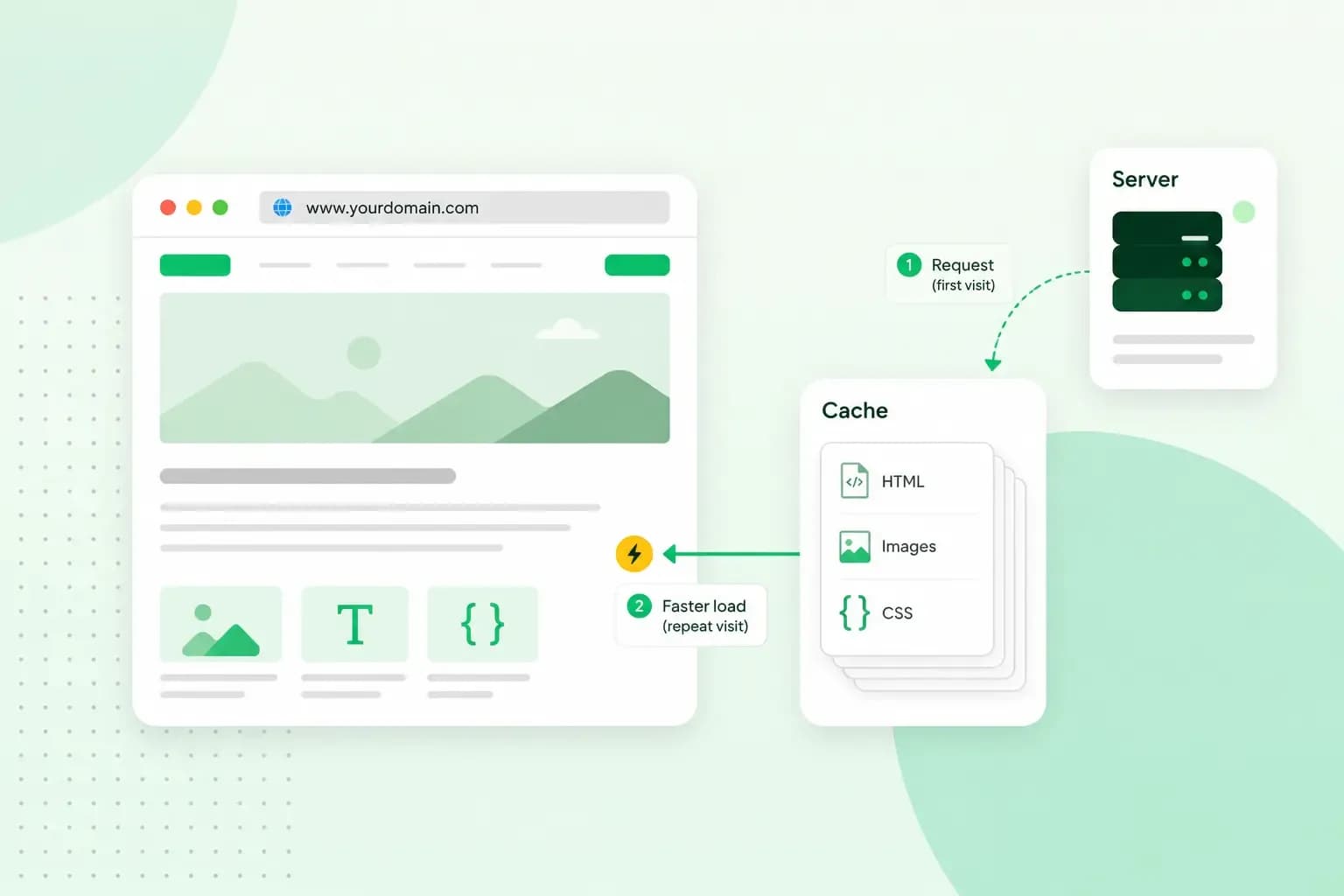
What is website cache?
What does cache mean? And how to clear your cache? Read the importance of cache and why it's necessary to clear your cache once in a while.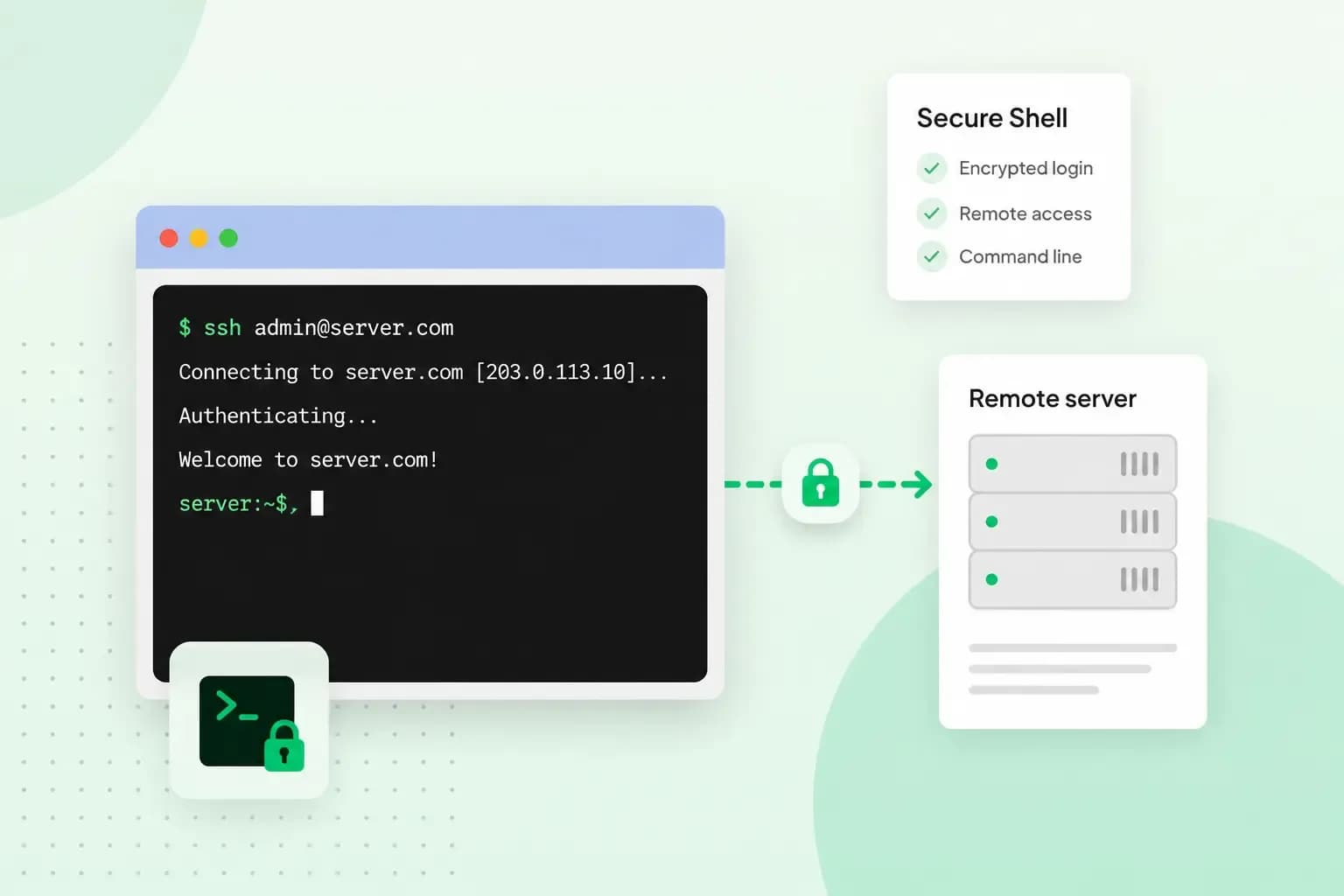 Hosting4 Aug 2026
What is SSH?
How does SSH work & what does it do? Learn about the history of Secure Shell's predecessor Telnet and how SSH improved our internet security in this article.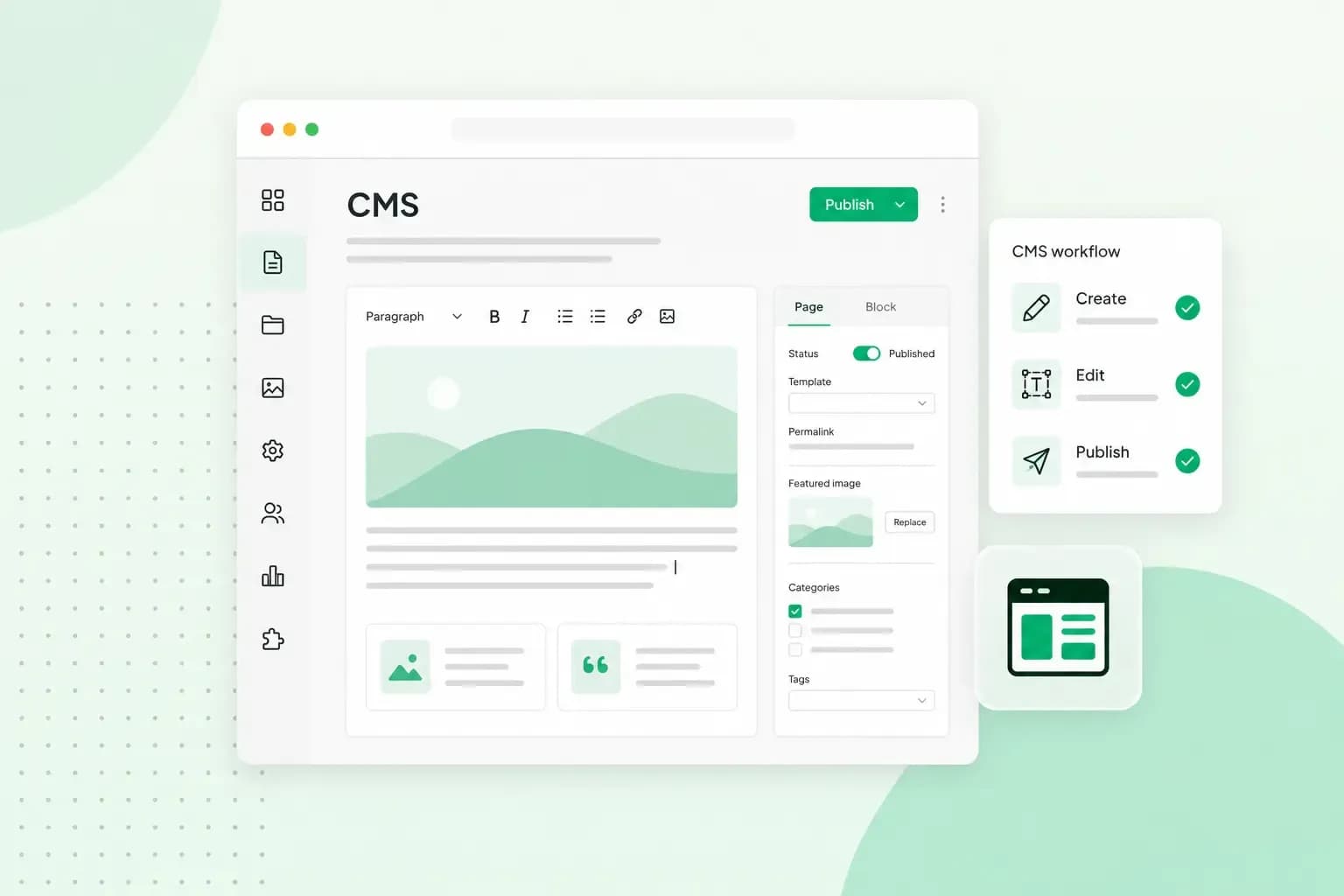 Hosting4 Aug 2026
What is a CMS (content management system)?
You can easily create and manage your website with a content management system (CMS). Want to know more? Learn all about CMS in this complete guide!