
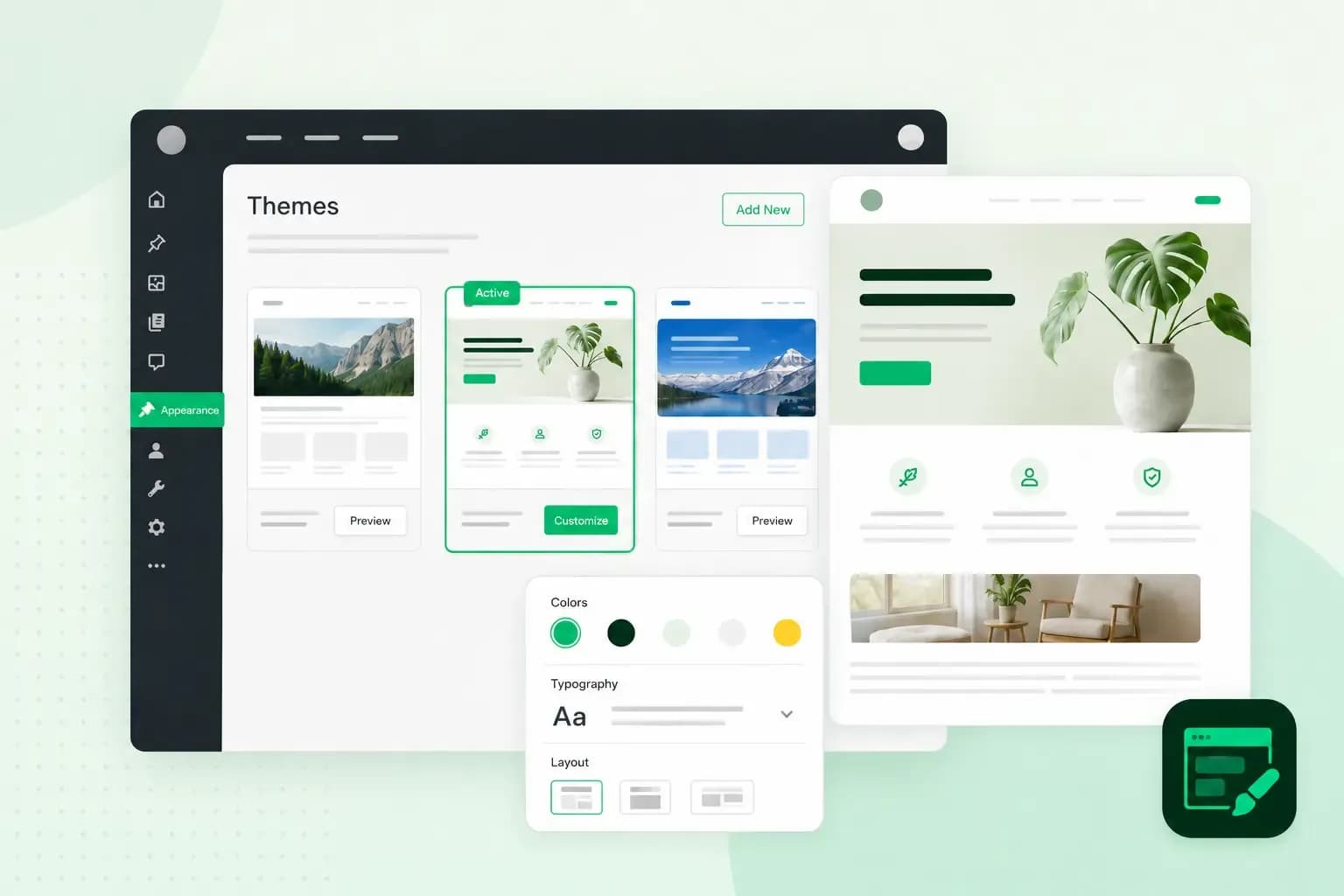
A WordPress theme is the set of files that decides how your WordPress website looks: the layout, the colours, the fonts and where menus and sidebars sit. You can switch to another theme and give your site a new look without writing your content again.
What a WordPress theme controls
WordPress itself stores your posts and pages, and the theme only decides how visitors see them. A theme can split a page into one, two or more columns, set the fonts and the colour scheme, and put a sidebar on the left or the right or leave it out.
To do that, a theme uses a folder of files that work together. Most themes include:
- WordPress templates, each laying out one kind of page, such as an archive page or a 404 page.
- CSS stylesheets, which set the colours, fonts and spacing of your pages.
- JavaScript and PHP code for the parts that do something. PHP builds your pages on the server, and JavaScript runs in your visitor's browser, for example to open a menu.
- Media such as images, audio and video.
- JSON files, which in a block theme hold the global settings and styles for the whole site.
Every WordPress installation comes with a few default themes named after a year, such as Twenty Twenty-Four, so your site has a design from the start. You can keep one, but WordPress's developer handbook suggests also trying other themes from the directory to get a feel for what's possible.
Block themes and classic themes
WordPress supports two main types of theme. Block themes are the newer kind and are built entirely from blocks: the paragraphs, images, buttons and menus you place one by one in the WordPress editor. That means you can edit every part of your site in the same way, from the header to the footer. Classic themes are built on PHP templates and are still widely used.
| Block theme | Classic theme | |
|---|---|---|
| Built from | Blocks, in HTML templates | PHP templates |
| Where you change the design | The Site Editor and Styles | The Customizer |
| Widgets and menus | Blocks instead of widgets, including a Navigation block | Widgets and a separate Menus section |
In a block theme, you change headers, footers and page layouts with blocks in the Site Editor, and Styles sets the fonts and colours for the whole site in one place. You'll also come across the term hybrid theme. It's a classic theme that uses some block features, such as global styles, the site-wide fonts and colours a block theme sets under Styles.
If you're starting a new site, a block theme is usually the better choice, because block themes are built for the newest WordPress features. A classic theme makes sense when the design or a feature you want only comes as a classic theme. You can tell which kind you have from where you change its design: a block theme opens in the Site Editor, a classic theme in the Customizer.
What is the difference between a theme and a WordPress plugin?
A theme controls how your website looks, and a plugin controls what it does. A contact form, for example, comes from a WordPress plugin, while the colours and layout around the form come from your theme.
When you change theme, your posts and pages stay, as WordPress stores them, but a feature built into the theme itself goes with it. So keep the features your site depends on in plugins, where they survive a change of design. Before you switch, use Live Preview, the last step of installing a theme, to check that your menus, sidebars and the features you rely on still show with your own content.
Keep your own code changes apart from the theme too, in a child theme. It takes everything from the original theme and holds only your changes, so you can still update the original without losing them.
How to choose a WordPress theme
Decide what your website needs to do, then build a shortlist from our pick of the best WordPress themes and compare a few against it. Before you choose, check:
- Purpose: pick a theme made for your kind of site, whether that's a shop, a booking site or a blog.
- Layout: check that it gives you the structure you need, such as a clear navigation bar.
- Typography and colour: you should be able to set fonts and colours that match your logo and brand.
- Mobile: a responsive theme adapts its layout to phones and tablets, so visitors can use your site on any screen.
- Support: the theme's author should be there to help if something doesn't work.
Look first in the official WordPress theme directory, which holds thousands of free themes. A team of reviewers checks each theme there against a long list of rules meant to keep it secure. To narrow the choice, you can filter the directory by layout, subject and features. Paid themes, often called premium themes, are sold outside the directory by theme shops and developers.
Our advice: start with a free theme from the WordPress theme directory. It has passed the directory's review and costs nothing, so you lose little if it turns out not to suit you. Our shortlist of free themes is a good place to begin, as we tested each one for features, design and speed. Choose a paid theme when you need a feature or design the free ones don't offer, or want support from its author. A paid theme hasn't been through the directory's review, so buy it from its developer or a theme shop you trust.
How to find out which theme a website uses
A WordPress theme detector tells you what WordPress theme a website uses. When you find a site whose design you like, you type in its address, and the tool scans the site's source code for the theme's name. For a popular theme, it often shows where you can download or buy it too.
If the site isn't built with WordPress, the detector tells you that instead. And if the site runs on a custom theme made just for it, you'll see a name but no theme you can buy. In that case, look in the directory for a theme with a similar layout.
How to install a WordPress theme
You need a WordPress website to install a theme on, and an administrator account for it. If you're starting from scratch, read our guide to installing WordPress in one click. With your site ready, add the theme from your dashboard:
- Log in to your WordPress dashboard.
- Go to Appearance, then Themes.
- Select Add New.
- Search or filter the directory to find a theme you like.
- Select Preview to see the theme, then Install to add it to your site. To use a theme you bought elsewhere, upload its zip file with Upload Theme instead.
- Use Live Preview to see your own content in the new theme, then select Activate. The theme goes live straight away.
If the preview shows a blank page, don't activate the theme, as your site may not display correctly. Ask the theme's author for help instead.
Every Hosting for WordPress plan comes with a private test copy of your site, so you can try out a new theme before your visitors see it.
Compare Hosting for WordPress plansOnce your theme is active, you can customise your WordPress theme to match your brand. Keep it up to date afterwards, along with WordPress and your plugins. With Managed Hosting for WordPress, we update WordPress, your themes and your plugins automatically and check your site visually after each update. You look after your content and design.
Recommended reading
 WordPress6 Aug 2026
What is WooCommerce?
Do you want to start your online shop? Get to know WooCommerce in this guide: an e-commerce solution to build your shop. WordPress5 Aug 2026
Why is my WordPress site so slow? 7 reasons and ways to fix them
Slow WordPress site? We look at the most common reasons and share how to speed up your WordPress website in this practical guide. WordPress30 Oct 2025
WordPress SEO – Checklist with 9 tips
Increase traffic to your site with WordPress search engine optimisation. Follow our WordPress SEO guide and read about the best SEO plugins.