
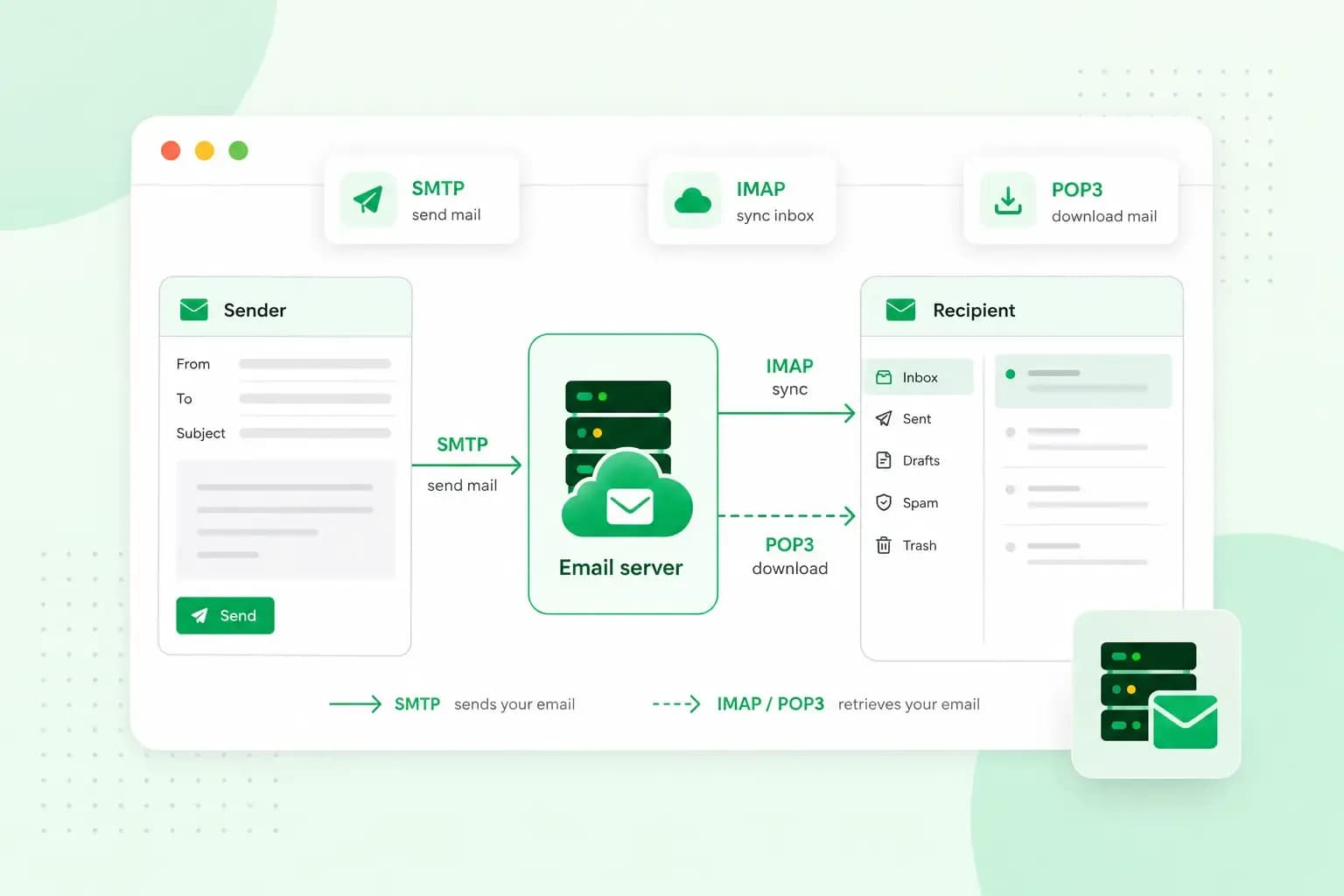
An email server, or mail server, is the computer that sends, receives and stores email for an address. When you send a message, your email server passes it to the recipient's email server, which keeps it until they open their inbox.
You usually don't run one yourself. The server is run by the email provider. This can be Google if you use Gmail, Microsoft if you use Outlook.com, or a hosting provider like one.com for addresses on your own domain. What you see is webmail or an email app, while the server does the work behind it.
What does an email server do?
An email server does three jobs:
- Sending: it accepts the email you write from your app and delivers it to the recipient's email server.
- Receiving: it accepts email that other servers send to your address and puts it in your mailbox.
- Storing: it keeps your email in your mailbox, so your app or webmail can show it to you.
You read and write emails with an email app, also called an email client, like Outlook or Apple Mail, or with webmail in your browser, for example our webmail. The app is only how you reach your mailbox: the server keeps receiving email for you, even when the app is closed.
In email app settings, these jobs are split over two servers. The outgoing server is the one that sends email. The incoming server is the one your app collects your emails from. Usually both belong to the same provider.
Who runs the server depends on your email address. With a free address like anna@gmail.com, it's Google. With an email address on your own domain, it's the company that hosts your email, like us. You can also run an email server yourself, but most businesses don't need to.
How does an email server work?
Every email passes through two servers: the sender's outgoing server and the recipient's incoming server. Each side has its own protocol, a set of rules that apps and servers follow:
| SMTP | IMAP | POP3 | |
|---|---|---|---|
| Stands for | Simple Mail Transfer Protocol | Internet Message Access Protocol | Post Office Protocol, version 3 |
| Used by | The outgoing server | The incoming server | The incoming server |
| What it does | Sends your email to your server and on to the recipient's server | Shows the email on the server in your app, the same on every device | Downloads your email from the server to one device |
Outgoing server: SMTP
Sending uses Simple Mail Transfer Protocol (SMTP), both between your app and your server and between servers:
- You press send, and your app sends the email to your outgoing server.
- Your server looks up the recipient's domain to find its MX record.
- It delivers the email to the server named in that record, over an encrypted connection.
An MX record is a setting in a domain's DNS that names the server receiving email for that domain. For your own domain, it points to whoever hosts your email:
- Domain and email both at one.com: we set the MX records for you.
- Domain elsewhere, email at one.com: point the MX records to one.com.
- Email with Microsoft 365 or another provider: point the MX records to that provider. They tell you what to enter, and our help centre shows how to create an MX record.
That's also why your email doesn't have to be with the company where you registered your domain: the MX record decides where it goes.
The whole route usually takes a few seconds. If delivery fails, for example because the address doesn't exist, your server sends you a message saying your email couldn't be delivered, usually with the reason.
Incoming server: IMAP or POP3
The recipient's server accepts the email, checks it and stores it in their mailbox. It stays there until their app or webmail collects it. Apps do that with one of two protocols:
- IMAP keeps your email on the server. Your app shows what's in the mailbox, so your phone, your laptop and webmail all show the same email, folders and read status.
- POP3 downloads your email to one device and usually removes it from the server. After that, the email only exists on that device.
IMAP is the usual choice today, because most people read their email on more than one device. You can read more about the difference between IMAP and POP3.
How servers check where an email comes from
When an email arrives, the receiving server checks that it really comes from the domain it claims to. If the check fails, the email often ends up in spam. Gmail, for example, only accepts email from senders that use SPF or DKIM and an encrypted connection. Three settings in your domain's DNS make the check work:
- SPF lists the servers that are allowed to send email for your domain.
- DKIM adds a digital signature that shows the email came from your domain and wasn't changed on the way.
- DMARC tells receiving servers what to do with an email that fails these checks.
With hosted email, your provider usually sets these records up, so there's nothing for you to do. At one.com, we take care of them when your domain uses our name servers. You only add them yourself if your domain's DNS is managed elsewhere, or if you run your own email server.
How email works with one.com
With one.com, we run the email server: sending, receiving and storing your email, the spam and virus filter and backups. All you do is create your email addresses in the control panel.
Do you need to choose between IMAP and POP3?
Usually not: webmail doesn't ask, and many apps fill in the settings for you. If your app does ask, choose IMAP. With POP3, your email disappears from our server and from webmail once your app downloads it.
If an app asks for server names and ports, you'll find the email settings for your app in our help centre.
With our email plans, you get ad-free email on your own domain, with webmail and a calendar in one place.
Choose an email planShould you run your own email server?
Running your own mail server means doing everything an email provider does, yourself. You rent a VPS, install mail server software like Postfix, Exim or Microsoft Exchange Server, and set up the DNS records yourself: MX, SPF, DKIM, DMARC and reverse DNS. From then on, security updates, spam filtering, backups and keeping your server off blocklists are your job. With a one.com VPS, you get root access and choose Linux or Windows, so you set the server up exactly the way you want.
Some people have good reasons to do it:
- They want full control over where their email is stored and how it's handled.
- They run an application that sends a lot of system email, or host email for many domains on one server.
- They're developers, or they have an IT team that already runs its own servers.
- They have strict rules about keeping data in-house.
For most businesses, email hosting is enough: it's quicker to set up, and the provider helps keep your email out of spam. A VPS is the better fit when you need that control, and the same server can also run your website, apps or automation tools like n8n.
Now you know who runs an email server and what it does for you, the simplest route for a business is to let a provider run it and use an address on your own domain, like hello@yourbusiness.co.uk. Start with professional email from one.com and set up your first address.
Recommended reading
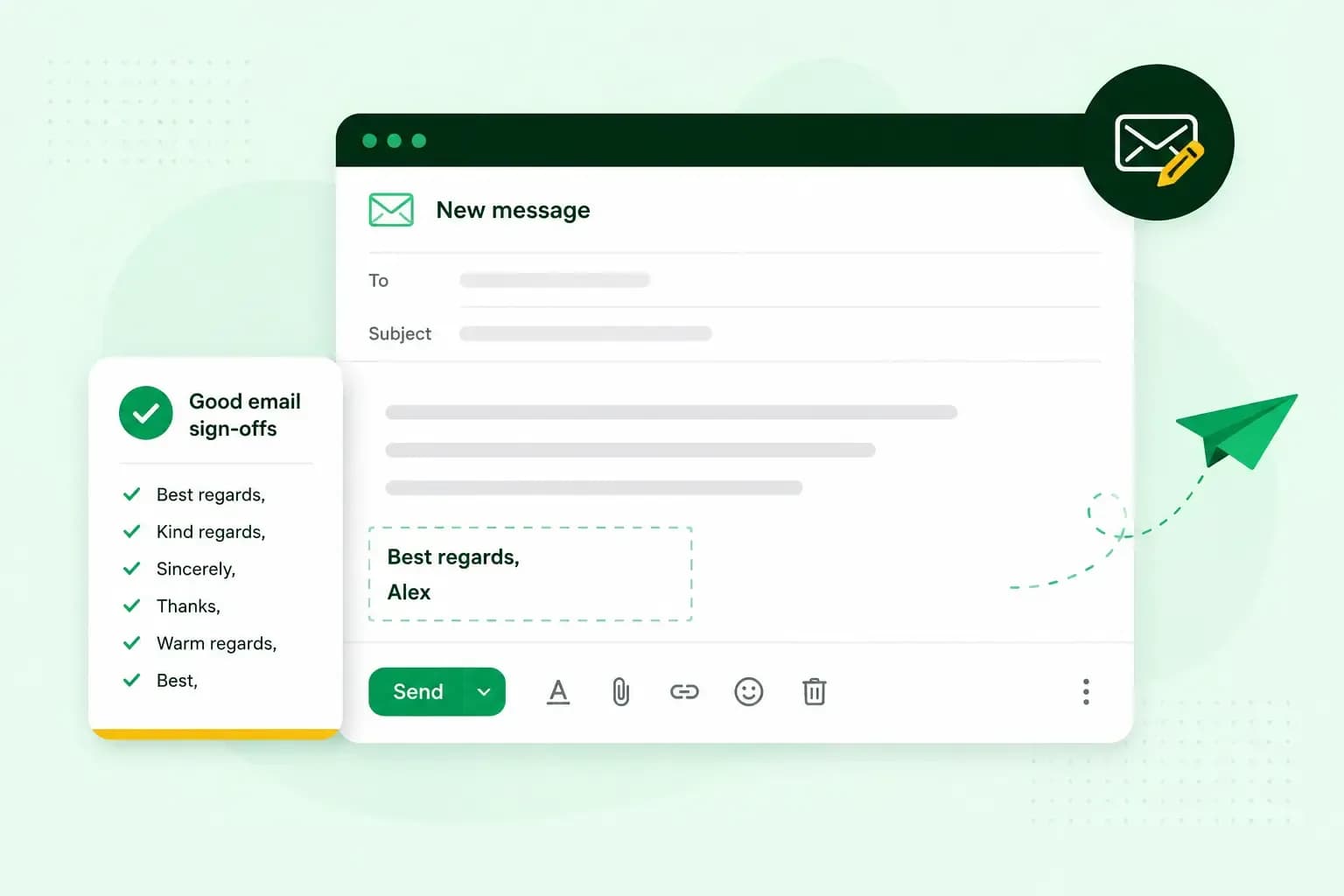 Email10 Nov 2025
How To End An Email
How you end an email impacts how it is perceived. We have collected the best ways to sign off emails in English.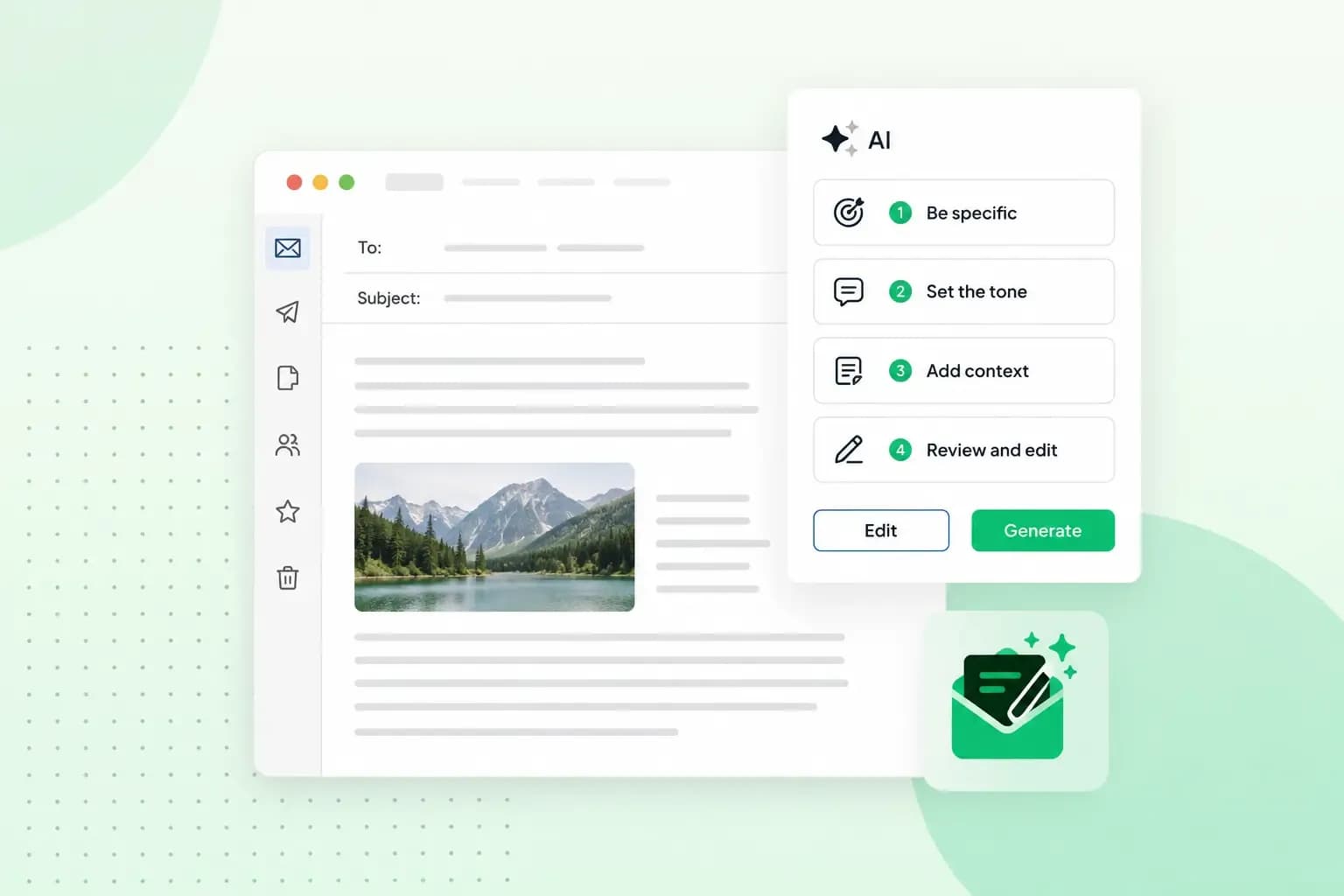 Email23 Oct 2025
4 tips for better results with AI email writing
Save time without sacrificing quality: learn how to use AI for email writing and create personalised emails effectively. Tips for crafting clear and compelling prompts.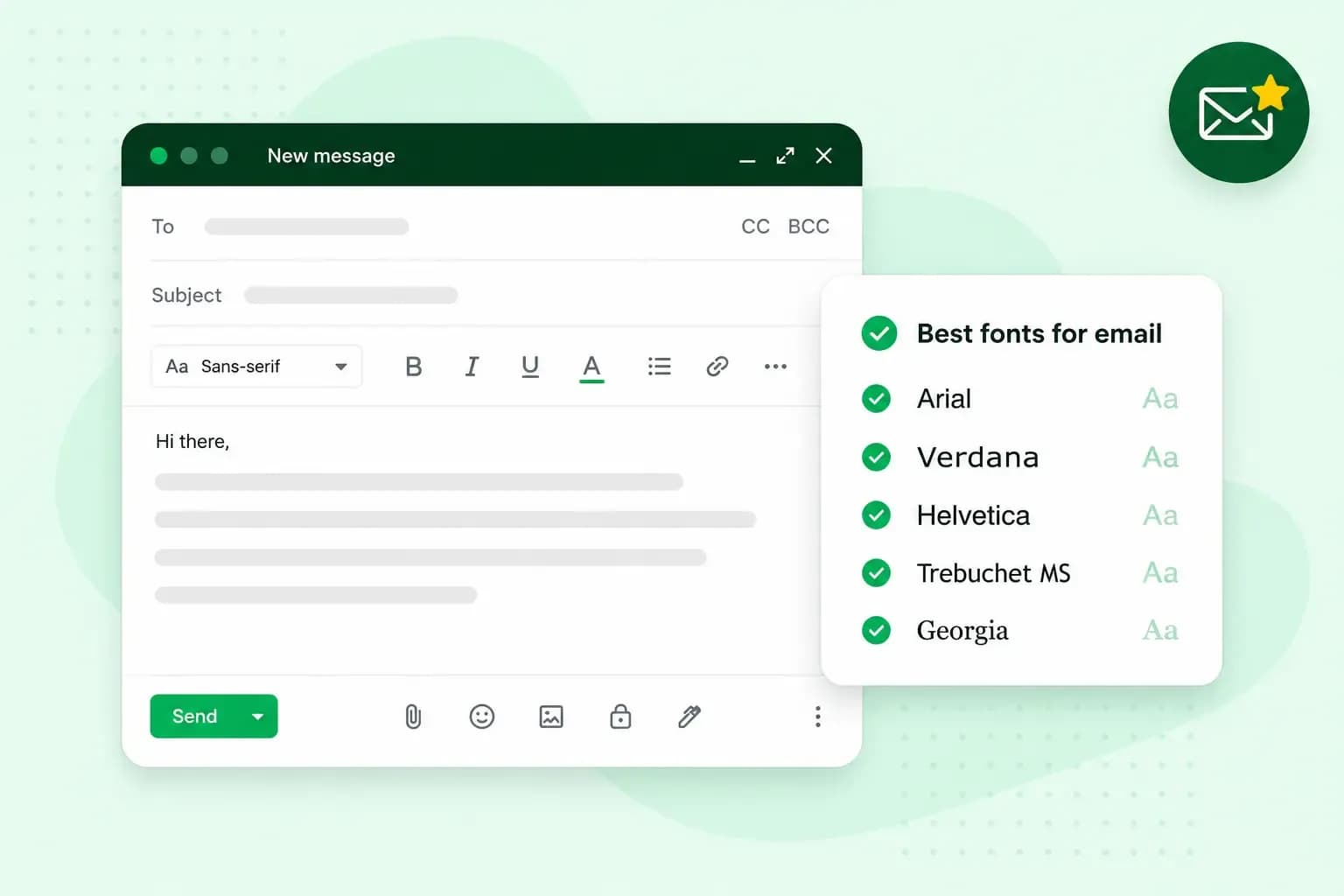 Email10 Oct 2025
What is the best font for email?
Sending the perfect email is essential. Read our tips on what you should consider when choosing the best professional font to ensure success.