
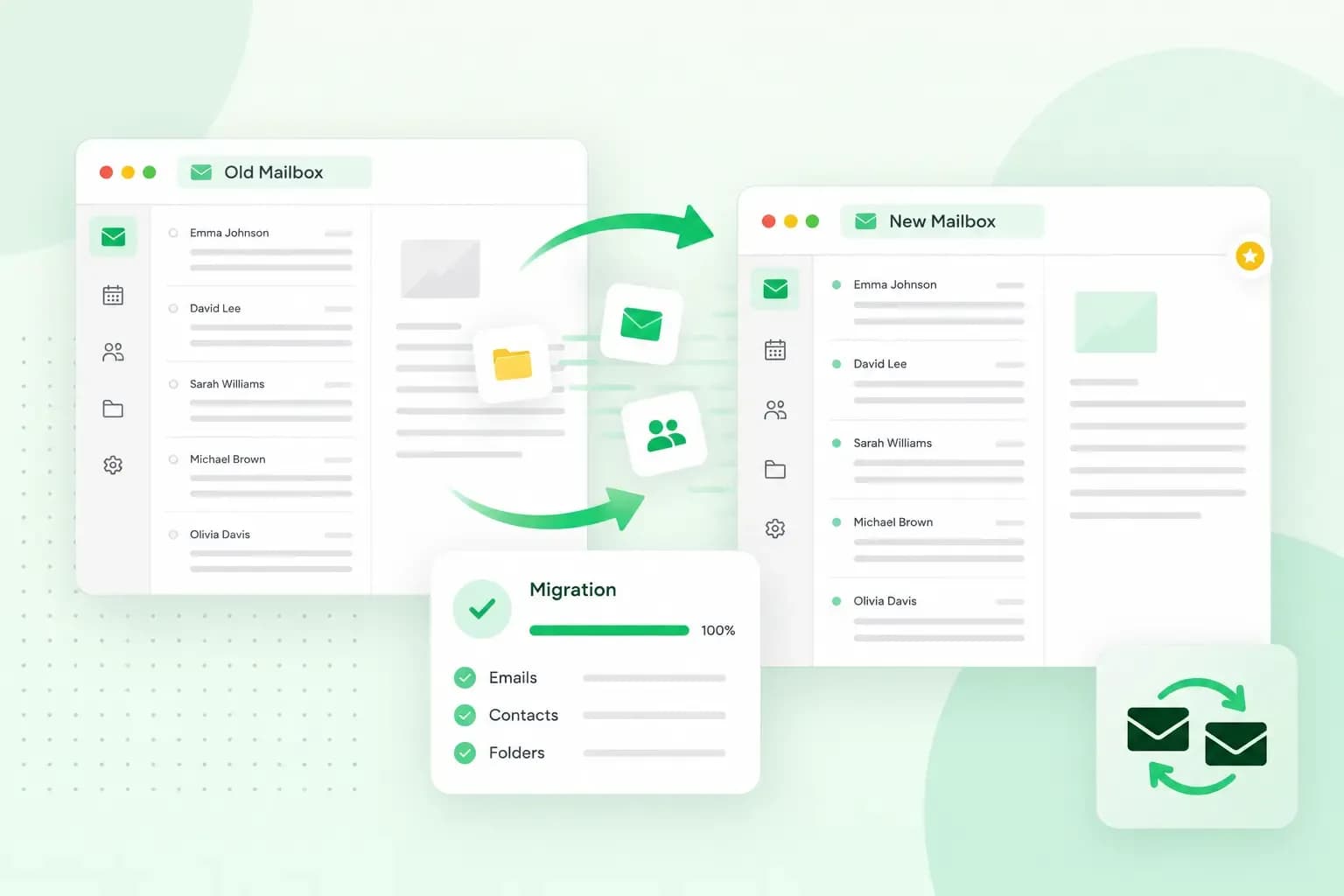
Email migration copies your emails and folders from your old email account into a new one, so you can change provider without leaving your old emails behind. If you're wondering how to migrate emails to us, you start the copy from your new account: you enter the old address, allow access, and our import tool runs the import from there.
What is email migration?
Email migration is a copy rather than a move: our import tool copies your emails, folders and contacts to the new account and removes nothing from the account you import from. You use it when you change email provider, or when you swap a free address, such as one from Gmail, for an address on your own domain. Calendars aren't listed among what the import copies, so export them from your old account separately if you need them.
What you need before you start
- An email account on your domain with us. That's where the emails go, and you get it with an email plan or with one of our web hosting packages.
- The address and password of the old account, which has to be active when you start the import, so keep it open until the import is finished.
- A decision on your address: a new address on your domain, or the one you have now. If your current address is already on your own domain, keeping it is usually the better choice, because your customers already know it. You then copy your emails another way, so read "Can you keep your email address when you switch?" below before you start.
How to migrate your emails with our import tool
Our import tool is the email migration tool built into Webmail. It imports from Gmail, Hotmail, Yahoo and other providers, and from other accounts you have with us. To copy emails from another account into your new account:
- Create the email account on your domain that the emails should go into.
- Log in to Webmail with that new account and start an email import.
- Enter the old email address you want to import from.
- Sign in to the old account on the secure login page and allow the import tool access.
- Confirm to start the import.
The emails land in a new folder named after the account you import from, and Webmail tells you when the import is complete. You can import as many accounts as you like, one at a time. Our guide to importing emails shows each screen.
Can you keep your email address when you switch?
Yes, if the address is on your own domain, such as hello@yourbusiness.co.uk. With a free address, like one from Gmail, you copy its emails to a new address on your own domain with us instead.
Keeping your address means you copy your emails without the import tool. It can't copy from the same address, because both accounts must be active and one address can't be active in two places. So before you switch, set up your old account with IMAP in an email program such as Outlook or Apple Mail, and back up your emails there: copy your folders into the program's local folders on your computer, so the copy stays even after your old account is closed. When the program asks whether to use IMAP or POP3, choose IMAP, because POP3 downloads the messages and removes them from the server. Once the switch is done, you copy the emails from that program into your new mailbox, as "After the migration" describes.
Then move your domain's email hosting to us. You can transfer your domain to us, or keep the domain where it is and set our email records at its current host, as the next section shows. For most domains, you confirm a transfer with a transfer code (Auth-ID or EPP code) from your current registrar, the company your domain is registered with now; a .uk domain, .co.uk included, doesn't use an Auth-ID and moves with an IPS tag change instead.
If your domain uses our name servers, the settings that tell the internet where to find your domain's website and email, there's usually nothing to set up for your email. The MX record, which tells other mail servers where to deliver your email, points to our mail servers by default; if you changed it to receive email through another provider, set it back to ours. DKIM, which signs your emails so receiving servers can check they really come from your domain, is switched on, and our standard SPF record is switched on automatically for newer domains. On an older domain, you may need to switch it on in your DNS settings.
If your domain stays with another host
Your email records are set at the host that runs your domain's name servers, even when we registered the domain. Besides our MX record, that host needs our SPF record, which tells receiving mail servers that our servers may send email for your domain, and our DKIM records. Our support gives you the DKIM records for your domain, and the full MX record if your domain uses another format, so ask them for your domain's records before you start.
- Create the new email address with us first.
- At the host of your name servers, note down the current MX records so you can put them back.
- Replace every MX record there with our one MX record, so only ours is left: for most domains it is your domain followed by
.mx.one.com(such asyourbusiness.co.uk.mx.one.com); for some domains the record has another format, and our support gives you the full record. - Add our SPF record as a TXT record at that host (
v=spf1 include:_custspf.one.com ~all) in place of any SPF record already there, because a domain with two SPF records fails the check, and add the DKIM records (CNAME records) our support gives you for your domain. - Give the change time to reach everyone: it often takes a few hours and can take up to 72 hours.
- Send a test email to and from the new address.
Until the change has reached everyone, not all your email reaches our servers yet, and some new emails can still arrive in your old mailbox. Keep your old account active until then, check it for new emails, and copy any that arrived after your backup into your new mailbox the same way as the rest.
How long does an email migration take?
The import itself can take up to 2 days. While it runs, the import folder is already in your new mailbox, but it won't hold all your emails yet.
If you transfer your domain to us too, the transfer typically completes within several days. A DNS change to your email records can take up to 72 hours to reach everyone, although it often takes a few hours.
After the migration
Once the import is complete, move the emails and folders out of the import folder to wherever suits you. To read your new address on your phone or computer in Outlook, Apple Mail or another popular email program, set it up with IMAP like this, so every device shows the same mailbox:
- Make sure the new email account exists with us before you start.
- Add the account to your email program with IMAP: the incoming server is
imap.one.com(port 993 with SSL), with your full email address and its password. - Set the outgoing server to
send.one.com(port 587 with TLS, SSL or STARTTLS, or 465 with SSL/TLS), with the same email address and password. - Send yourself a test email to check that sending and receiving both work.
If you kept your address, add the new account to the email program that holds the backup of your old emails, then copy your folders from that backup into the new account. Because the new account uses IMAP, the emails you copy are saved in your mailbox with us and show up in Webmail and on your other devices.
If your address has changed, tell your contacts, and change your email address everywhere customers find it, from your website to your social media profiles.
If your business still uses a free address, get an email address on your own domain and bring your old emails with you through the import tool.
Our email plans come with a built-in import tool and protect your inbox from spam and suspicious logins.
Choose an email planRecommended reading
 Email10 Nov 2025
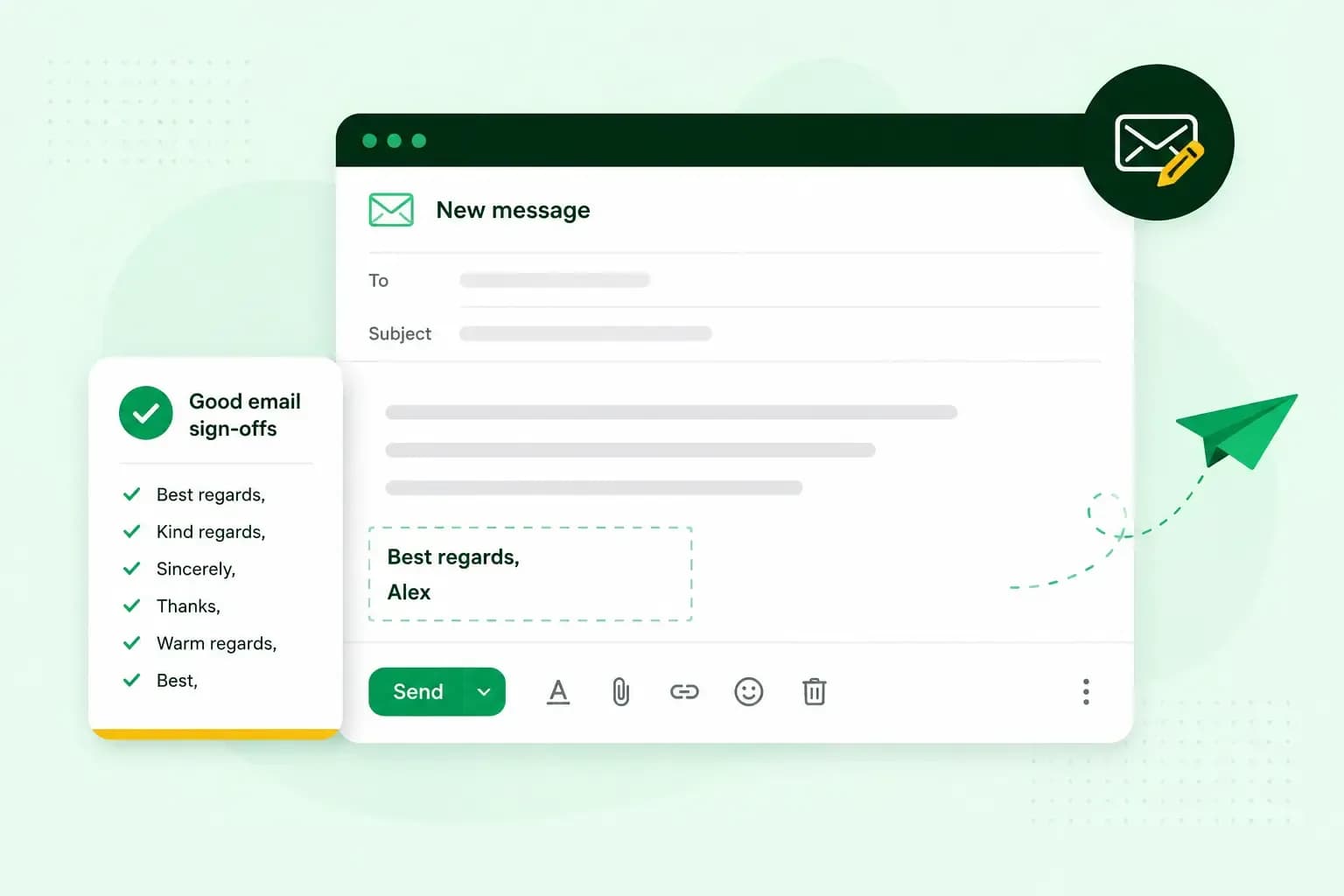
How To End An Email
How you end an email impacts how it is perceived. We have collected the best ways to sign off emails in English.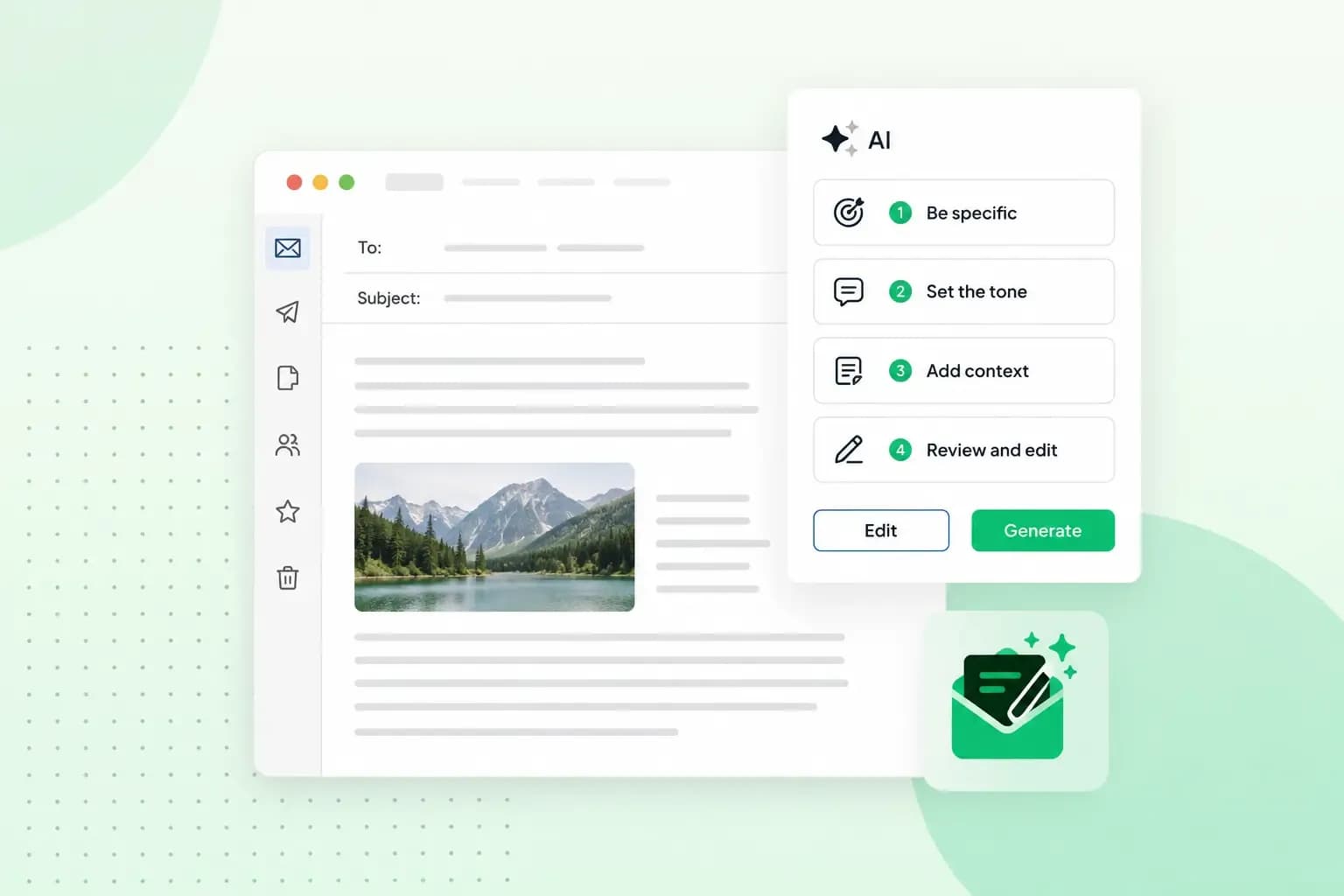 Email23 Oct 2025
4 tips for better results with AI email writing
Save time without sacrificing quality: learn how to use AI for email writing and create personalised emails effectively. Tips for crafting clear and compelling prompts.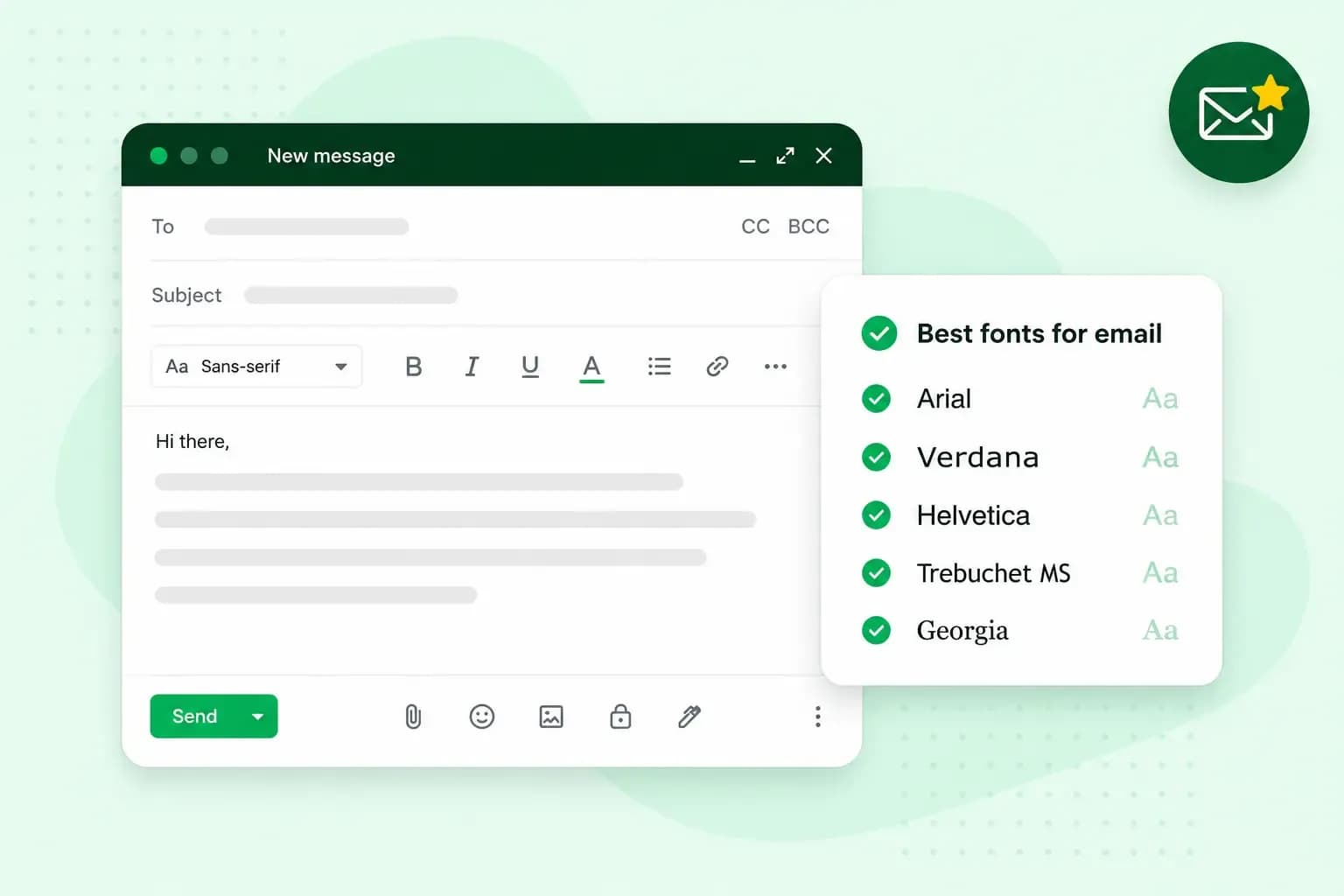 Email10 Oct 2025
What is the best font for email?
Sending the perfect email is essential. Read our tips on what you should consider when choosing the best professional font to ensure success.