
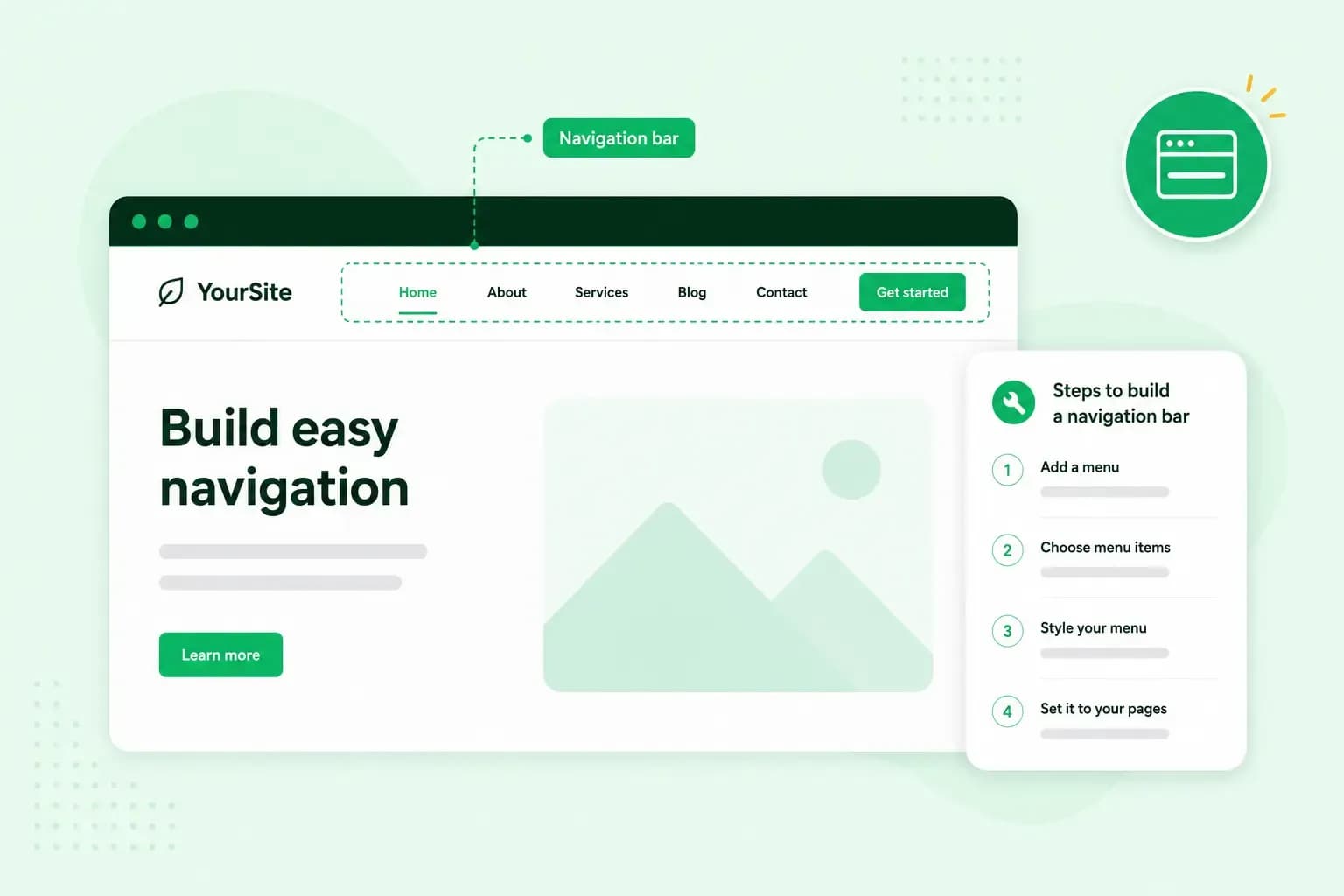
A navigation bar, also called a nav bar or navbar, is the row of links that takes visitors to the main parts of a website. It usually runs across the top of every page. For a plumbing business at yourplumbing.co.uk, it might hold Services, Areas we cover, Reviews, About and Contact. To make one, you choose the pages your visitors need most, group them under short labels and then add the menu in your website builder or in your page's code.
On a phone, the same links usually fold into a hamburger menu, which opens from a small icon of stacked lines.
Why your website needs a navigation menu
A navigation menu is how people find their way around your website. Visitors often don't arrive through your home page. A customer might land straight on your boiler repairs page from a search, for example, then use the menu to see that you fit bathrooms too.
The menu also shows at a glance what your business does and how much your website covers. If it's hard to use, visitors can struggle to find even your best pages.
Example of a navigation bar
On yourplumbing.co.uk, the navigation bar could hold these items, from left to right:
- Logo: your logo links to the home page, so visitors can get back to it from any page.
- Services: a dropdown with your boiler repairs, bathroom fitting and emergency call-outs.
- Areas we cover: the towns you travel to, so local customers can see whether you come to them.
- Reviews: what earlier customers say about your work, which new customers often read before they choose who to hire.
- About: who you are and how long you've been in business.
- Contact: your phone number, email address and a contact form, as the last item on the right.
Types of navigation bar
The main types of navigation bars differ in how many links they show at once and where they sit. Which one fits depends on how many pages your website has and on the screen it's viewed on.
| Type | What it looks like | Works well for |
|---|---|---|
| Horizontal bar | A row of text links across the top of the page | Websites with a handful of main pages, since a long list of items won't fit in one row |
| Hamburger menu | A small icon of stacked lines that opens the links when tapped | Phones and small screens, where a full row of links doesn't fit |
| Dropdown menu | A main item that opens a list of links to the pages under it | Grouping a few related pages one level down, such as your services |
| Mega menu | A large panel that opens from the bar and shows many links in groups, all at once | Larger websites, such as online shops, with categories and subcategories |
| Vertical menu | A column of links down the left side of the page | Websites with many main categories, or a menu that will keep growing |
| Footer menu | Links at the bottom of every page | Pages visitors look for less often, such as jobs and legal pages |
The hamburger menu saves space, but it hides your links. In usability tests by the Nielsen Norman Group, people used hidden navigation less than links they could see, and hiding the links did more harm on a computer than on a phone. So for most websites, including yourplumbing.co.uk, show the links in a horizontal bar on a computer and keep the hamburger menu for phones.
How to plan your navigation bar
Plan your menu before you start creating a website, or before you add or move pages on one you already have. Whenever you are planning the menu of a new or existing website, the steps are the same:
- List the pages your visitors look for most, and give each one a short, familiar label, such as Reviews rather than What people say.
- Group related pages under one main item, such as your three services under Services, and keep each dropdown to one level.
- Put the main menu in the header, where visitors expect to find it.
- Move the extra links that don't fit, such as a careers page or your legal pages, to the footer.
- Check the menu on a phone as well, where it usually folds into a hamburger menu.
With a handful of main pages, fit the main menu in one row on a computer and let dropdowns and the footer hold the rest. On a larger website, don't cut your main categories down to fit one row. A vertical menu or a mega menu gives them room instead.
When your plan is ready, you add the bar to your website. In a website builder, you usually set the menu's items, their order and their labels in the editor. If you write the code yourself, put the links in a nav element in the header of every page. That element marks the links as navigation for browsers and screen readers.
Tell Aida about your business, and our Aida AI Website Builder creates your pages, text and images. You can then change them through chat or edit them yourself.
Build my websiteTips for a navigation bar that's easy to use
A menu gets hard to use when its links are hard to see, it doesn't show visitors where they are, or its dropdowns won't open on a touchscreen. Good navigation bar design avoids all three, and on long pages a sticky bar helps as well.
Make your menu links easy to see
Your menu links need to stand out from their background, so choose a text colour with strong contrast. A busy photo or a slideshow behind the bar makes those links harder to read. A background colour of its own or some white space around the bar helps visitors tell it apart from your content.
Show visitors where they are
Highlight the page a visitor is on, for example with a bold or underlined label. Someone who lands on your boiler repairs page from a search can then see at once which part of your website they're in. On a larger website, breadcrumbs above the page title, such as Services > Boiler repairs, do the same job.
Let dropdowns open on a click
A dropdown that only opens when the mouse hovers over it doesn't work on a touchscreen, and keyboard users can't reach it either. Make sure it opens on a click or a tap instead, so it works for touchscreen and keyboard users too. A small arrow next to each item that opens a list shows visitors there's more behind it.
Use a sticky navigation bar on long pages
A sticky navigation bar stays at the top of the screen while visitors scroll, so they can move to another page without scrolling back up. It's most useful on long pages, such as a services page with your prices and photos of past jobs. Keep a sticky bar slim, especially on phones, where every line of the screen counts. A partly sticky bar is a good middle ground, because it only comes back when visitors scroll up.
How your navigation bar affects SEO
Your navigation bar affects SEO, because search engines use it as well as visitors. Google uses links to find new pages to crawl, and your menu puts a link to your most important pages on every page of your website. In general, that only works when each menu item is a real link. According to Google, it can generally only crawl a link that is an a element with an href attribute, which is the standard way to write a link in a page's code. Google can't reliably follow a menu item that only works through a script.
The words in your menu matter too. Link text tells people and Google what the page behind it is about, so "Boiler repairs" says more than "What we do". Menu links are internal links, just like the links you place in your text.
With your menu planned and a real link behind every item, you're ready to build your own website around it.
Recommended reading
 Website Builder19 Oct 2026
How to get your website ready for Black Friday (with checklist)
Get your website ready for Black Friday with this practical guide and checklist. Website Builder31 Aug 2026
Website redesign: How to modernise your website with AI
Discover how Aida AI can redesign your existing site in minutes, add new features, and help you create a site that's ready for business. Website Builder11 Aug 2026
How to prompt an AI Website Builder
Learn how to prompt an AI website builder to create a professional website for your business. Get examples for shops, salons, clinics, and more.