
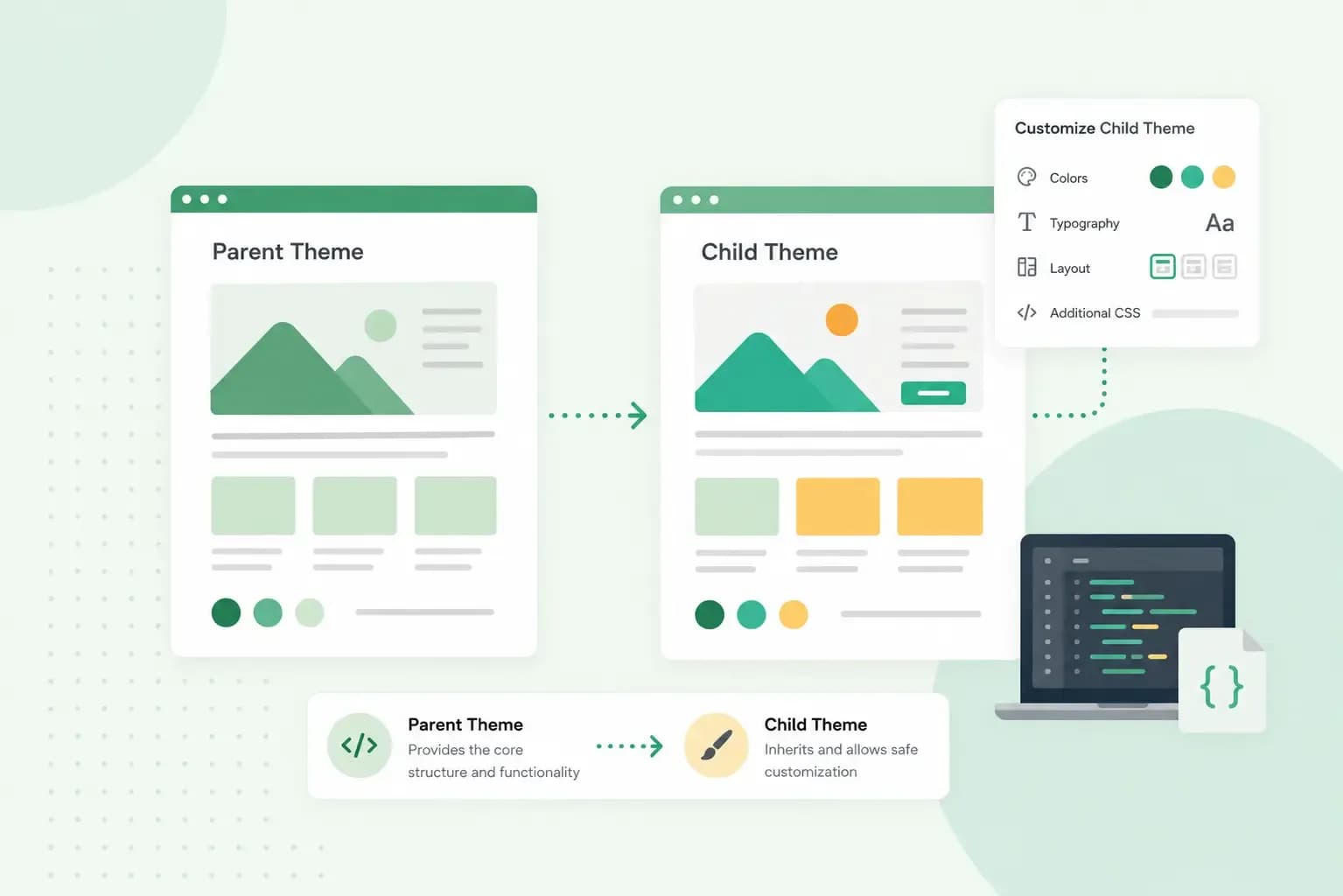
A child theme is a small theme that takes its design and functions from another theme, the parent, and holds only the changes you make. The parent theme is the complete theme your website runs on, with all its templates and styles. When the parent theme gets an update, your changes stay safe in the child theme. If you edit the parent's stylesheet or PHP files directly instead, the next update replaces those files and your work is gone.
Almost any WordPress theme can be a parent theme. The child theme itself can be as small as one folder with a single stylesheet in it. It only grows when you add files to change more.
How a child theme works with its parent theme
WordPress knows which theme is the parent from one line in the child theme's style.css file. This Template line names the parent theme's folder. By default, the child theme then includes everything from its parent, both the design and the functionality.
A file you add to the child theme either replaces the parent's version or adds to it, depending on its kind:
- Templates, template parts and patterns: these files lay out your pages and the sections on them, such as the header. A file with the same name as one in the parent replaces the parent's version, and you can also add new ones that the parent doesn't have.
- The functions.php file: the child theme's
functions.phpdoesn't replace the parent's. WordPress loads both, the child's first, so you add your own functions without touching the parent's code. - The stylesheet: your own CSS goes in the child theme's
style.css. Some parent themes load it for you, and with others you load it from the child theme'sfunctions.php, as the steps below show.
There are only two levels, so a child theme can't have a child theme of its own. If you haven't picked a parent yet, start with one of the best WordPress themes for your kind of website.
The parent theme keeps getting updates, and who installs them depends on your hosting. On Hosting for WordPress, you update the theme yourself. With Managed Hosting for WordPress, we update your themes for you. Either way, an update only replaces the parent's files and leaves your child theme as it is.
Do you need a child theme in WordPress?
Not always. You need one as soon as you change the theme's own files. That means a template, the CSS in its stylesheet or the PHP in its functions.php file. A function you add to the parent's functions.php, for example, disappears with the next theme update.
If you only change the look of your website in the editor, you may not need one. When your WordPress admin has Appearance > Editor, your theme is a block theme. With a block theme, the changes you make in the Site Editor are saved in the database rather than in the theme's files. If you only see Appearance > Customize, you have a classic theme. On a block theme where editor changes are all you make, skip the child theme and customise your WordPress theme in the editor.
At the other end, a child theme that changes almost everything about its parent can become hard to manage. For a project that large, the WordPress theme handbook suggests turning a copy of the theme into a full theme of your own. For anything in between, create the child theme before your first code change, so your edits land in the right place from the start.
How to create a WordPress child theme
A WordPress child theme is the place for your changes to the theme's PHP and CSS files. You can create one with a plugin or by hand. Child Theme Configurator, the plugin route below, suits you if you don't want to work with files at all. The manual route works for block themes and classic themes alike. It needs only a stylesheet, plus a functions.php file when the parent doesn't load that stylesheet. On a block theme, you can also use the Create Block Theme plugin from WordPress.org. It creates a child theme of the theme that's active on your website. It works inside the Site Editor, from a panel that appears once you've installed and activated the plugin.
With the Child Theme Configurator plugin
Child Theme Configurator is a WordPress plugin that checks the theme you use and sets up a matching child theme without you writing any files.
- In your WordPress admin, go to Plugins > Add New, search for
child theme, find Child Theme Configurator and click Install Now. - Go to Plugins > Installed Plugins and click Activate under Child Theme Configurator.
- Open Tools > Child Themes, choose to create a new child theme and select the parent theme it builds on.
- Click Analyze. The plugin checks the parent theme's stylesheets and flags possible problems.
- Name the folder of the new child theme. You can also change its name, description and author, or leave them as they are.
- Click the button to run the Configurator, and it creates the child theme.
- Go to Appearance > Themes, find the new child theme and click Live Preview to check it before it goes live.
- When it looks right, click Activate.
Once the child theme exists, the plugin also lets you find, copy and edit the parent's templates from your WordPress admin. You'll find them under Tools > Child Themes again.
By hand with a style.css file
For this route, you need access to your site's files. Without it, you can upload the finished folder as a ZIP file in your WordPress admin instead.
- Create a folder for the child theme and name it after the theme, in lower case with hyphens between the words.
- In that folder, create a file called
style.css. Give it a header with the theme's name and aTemplateline with the folder name of the parent theme, spelled exactly as the parent's folder inwp-content/themes. - If your parent theme does not load the child theme's stylesheet, as with the parent in the example below, add a
functions.phpfile to the folder with the code shown after these steps, which loadsstyle.css. - If the folder is not in
wp-content/themeson your site yet, zip it and upload the ZIP file under Appearance > Themes > Add New. - Go to Appearance > Themes, find the child theme and click Activate.
For a child theme of Twenty Twenty-Four, whose folder is called twentytwentyfour, the header at the top of style.css starts like this:
/*
 * Theme Name: My Shop Child
 * Template: twentytwentyfour
 */
The child theme should look like its parent at first, because you haven't changed anything yet. If it has lost the parent's design, the parent probably loads only the active theme's stylesheet, so load the parent's style.css from the child theme's functions.php as well. To check that your stylesheet loads, add a test rule to style.css, such as a new background colour, and reload your website. If you edit the files on your computer, the installed copy only changes once you upload them to your site again, for example by zipping the folder again, uploading it under Appearance > Themes > Add New and choosing Replace installed with uploaded. If nothing changes, the parent doesn't load your stylesheet. Then add a functions.php file to the child theme's folder with a short function like this one, which loads style.css through wp_enqueue_style:
<?php
add_action( 'wp_enqueue_scripts', 'my_shop_child_styles' );
function my_shop_child_styles() {
	wp_enqueue_style( 'my-shop-child-style', get_stylesheet_uri() );
}
For a parent that loads only the active theme's stylesheet, change get_stylesheet_uri() in the function above to get_parent_theme_file_uri( 'style.css' ), so the function loads the parent's stylesheet instead.
On a classic theme, check your menus, widgets and Customizer settings after you activate the child theme, as some may need setting again. If anything looks wrong, activate the parent theme again under Appearance > Themes.
Making changes in your child theme
Make your changes in the child theme once it's active. To change a template, copy it from the parent into the child theme under the same name and edit the copy. To add a feature, put your code in the child theme's own functions.php.
Do not copy the parent's functions.php into the child theme. Both files load, and the duplicate function names will likely cause fatal errors, which stop your website from loading.
Before your visitors see a new template or function, try it on a staging site, a private copy of your website. You can set up a staging site for your WordPress website, or use the staging environment that comes with Managed Hosting for WordPress.
With your changes in a child theme, you can install every update to the parent theme and keep the website you've built. If your WordPress website isn't with us yet, run it on Hosting for WordPress and create the child theme before your first change.
With Managed Hosting for WordPress, we update WordPress, your themes and plugins for you. You can also try your changes on a private staging site before your visitors see them.
See Managed Hosting for WordPressRecommended reading
 WordPress6 Nov 2026
How to find your WordPress login page (wp-admin)
Your WordPress login page is your site's address with /wp-admin at the end. Here's how to log in, why wp-admin may redirect and how to reset a lost password. WordPress6 Aug 2026
What is WooCommerce?
Do you want to start your online shop? Get to know WooCommerce in this guide: an e-commerce solution to build your shop. WordPress5 Aug 2026
Why is my WordPress site so slow?
Slow WordPress site? We look at the most common reasons and share how to speed up your WordPress website in this practical guide.