
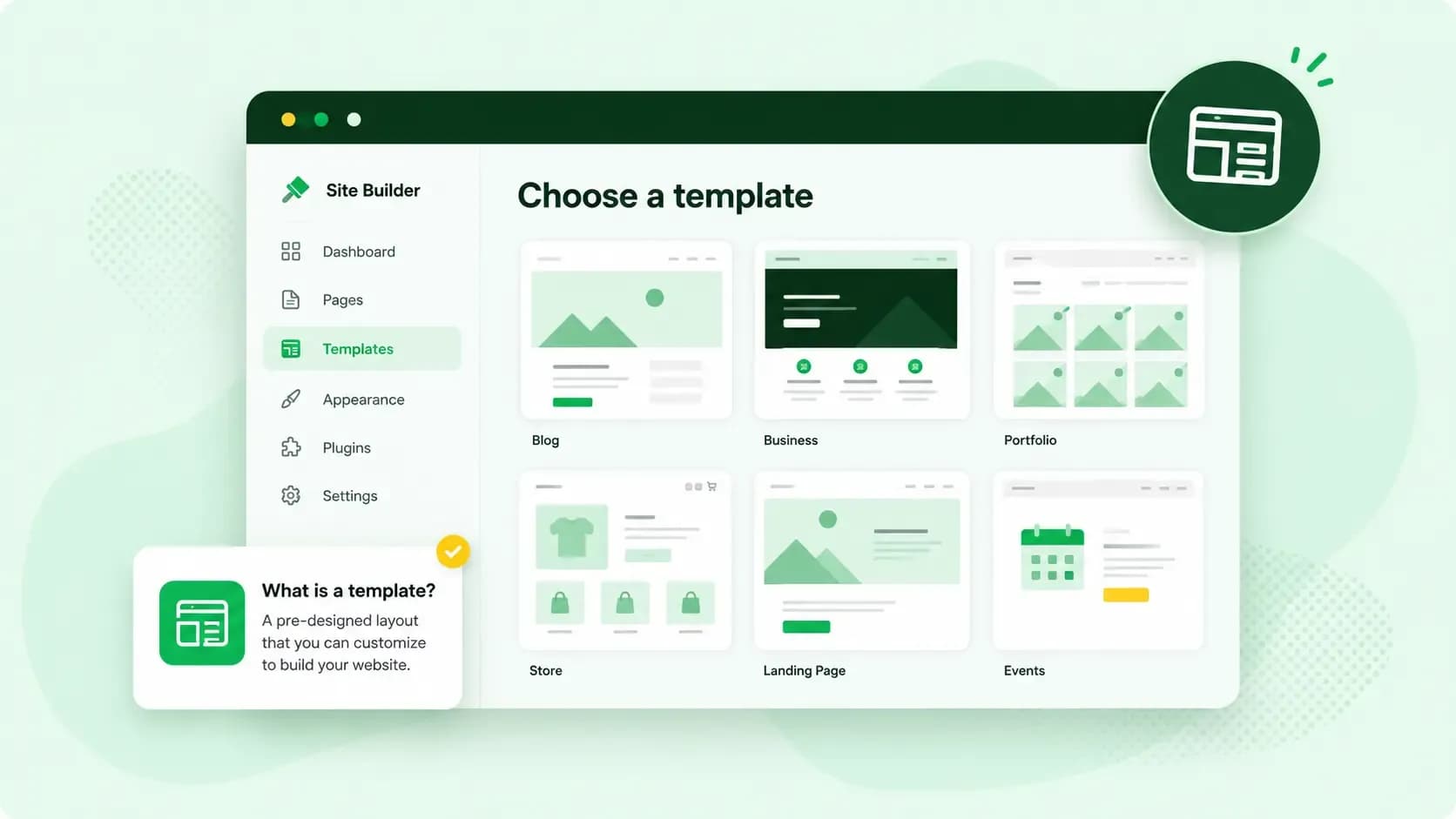
A WordPress template is the layout WordPress uses to display one kind of content on your site. That can be a single blog post, a page or a list of posts. Templates come with your theme. The theme sets the design of the whole site, and a template decides how one type of page is put together within that design. So if you're looking for a ready-made design for your whole website, what you want is a theme.
Besides the basic templates, a theme can add extra ones, like a full-width page without a sidebar. That way you can give a page a different layout without changing the rest of your website.
WordPress templates and themes: what's the difference?
In WordPress, the difference between a theme and a template is that a template lives inside a theme. A WordPress theme is the overall design of your whole website, and it's made up of files called template files.
| Theme | Template | |
|---|---|---|
| What it controls | How the whole website looks | The layout of one kind of content, such as single posts or pages |
| Where it comes from | You install it on your site | It comes with your theme, or you make it yourself |
| How you change it | Switch to another theme | Pick another template for a page or post, or edit the template |
Block themes and classic themes handle templates differently
Which kind of theme you have decides how much you can do with templates yourself. A block theme builds every part of your website from blocks, and its templates are HTML files made of blocks. You can edit them and create new ones with blocks in the Site Editor.
A classic theme uses templates written in PHP, so a new template there means writing code. In the Template Editor, you can still edit templates with blocks, but only a block theme lets you add a new template there. A classic theme can switch it on, and you can then open it only while you edit a page or post in the block editor.
Not sure which kind you have? Look under Appearance in your WordPress dashboard. With a block theme active, you'll find Editor there, which opens the Site Editor. Classic themes don't work with the Site Editor, so if there's no Editor, your theme is a classic one.
Which templates does a WordPress site use?
Base templates are generated when you select a block theme. Each one displays a different part of your website:
- Front Page: your homepage, whether it shows your latest posts or a static page.
- Blog Home: the list of your latest posts, on the homepage or on the page you've set as your posts page.
- Pages: a static page, unless that page has its own template.
- Single Posts: one blog post, unless that post has its own template.
- All Archives: lists of posts by author, category, tag or date, when no more specific template exists.
- Index: the fallback WordPress uses when no more specific template is defined.
A block theme can add more, such as a 404 template for the page visitors see when an address doesn't exist.
Templates also share smaller building blocks called template parts. Your header and footer can be template parts, so you design them once and reuse them in every template.
With a block theme, you see the templates your website has in the Site Editor: open it from Appearance > Editor and click Templates. In a classic theme, the templates are files inside the theme.
How to add a WordPress template
You don't install a single template on its own. You either pick one that your theme already has, or you make your own.
How to change the template of a page or post
If your theme offers more than one template for pages or posts, you choose the template in the settings of the page or post itself:
- Open the page or post in the WordPress editor.
- If the settings sidebar is closed, select the gear icon in the upper-right corner of the editor to open it.
- Select the Page or Post tab on the left of the sidebar, not the tab for the selected block.
- Click the current setting under Template. A pop-over opens.
- Pick a different template from the drop-down list. It lists all your theme's templates.
Changing the template of one page affects that page only, not the rest of your website.
How to create your own WordPress template
You need a block theme that lets you create custom templates. If your user role is Editor, the option to add a template isn't available. With that theme, you can make a new template while you edit a page or post:
- Click Posts > Add New for a new post, or Pages > Add New for a new page. This opens the block editor.
- Open the Page or Post tab of the settings sidebar.
- Click the template's name, then the add template icon at the top right of the popup.
- Give the template a name that says what it is for, such as
Full Width. - Click Create and build the layout with blocks in the Template Editor.
- When you're done, select Publish, then click Save to keep both the template and the page or post.
With a classic theme, a custom page template is a PHP file you add to the theme. WordPress's handbook on page template files shows how it's done. Put the file in a child theme, so the theme can be updated without losing your template.
Should you change the template or the theme?
Change the template if only one page, or one kind of page, needs a different layout. Switch to another theme if you want a new design for the whole website, layout included. You can start from a shortlist of themes worth a look. If you're happy with the layout and only want different colours and fonts, keep your theme and customise its colours and fonts instead.
Editing a template changes every page and post that uses it. If the template came with your block theme and you don't like the result, you can reset it to the theme's version. You lose the changes you made to it. With Editor permissions, the option to edit a template isn't available.
Try a new theme or template on a copy of your website before you use it on the live one. All our Managed Hosting for WordPress plans include a staging environment. It's a private copy of your site where you can test new themes and other changes before your visitors see them.
Test changes on a private staging site first. With Managed Hosting for WordPress, we update WordPress, your theme and your plugins automatically.
See Managed Hosting for WordPressRecommended reading
 WordPress6 Nov 2026
How to find your WordPress login page (wp-admin)
Your WordPress login page is your site's address with /wp-admin at the end. Here's how to log in, why wp-admin may redirect and how to reset a lost password. WordPress6 Aug 2026
What is WooCommerce?
Do you want to start your online shop? Get to know WooCommerce in this guide: an e-commerce solution to build your shop. WordPress5 Aug 2026
Why is my WordPress site so slow?
Slow WordPress site? We look at the most common reasons and share how to speed up your WordPress website in this practical guide.