
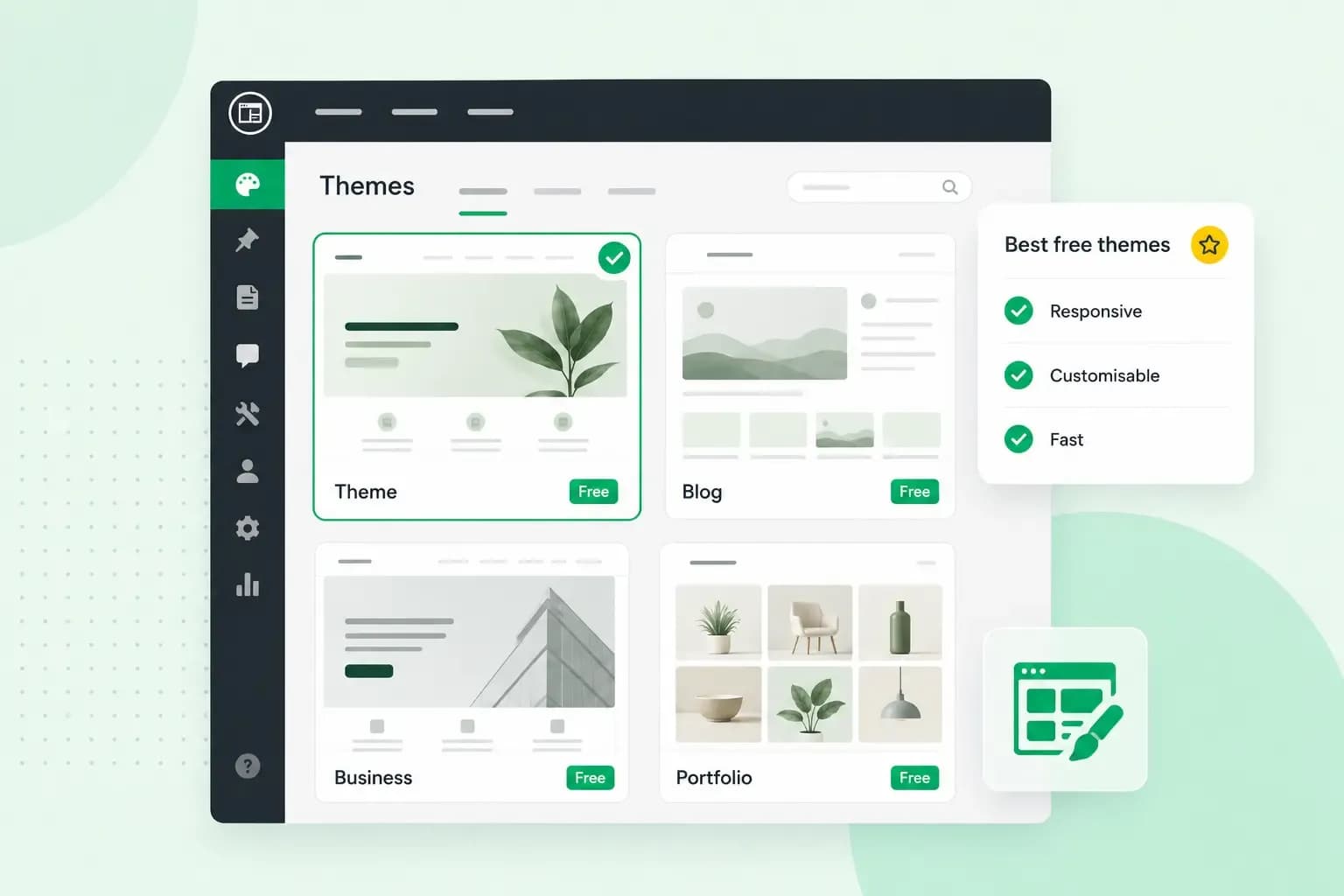
For most new blogs and small business sites, Twenty Twenty-Five is the best free WordPress theme to start with. It came with WordPress 6.7, and you build every page with the block editor that's already part of WordPress. If you work with a page builder such as Elementor, or you're setting up a WooCommerce shop, popular free website themes like Astra, Kadence, GeneratePress or OceanWP give you more design options.
Your theme decides most of your WordPress website design, from the colours and fonts to the whole layout. If themes are new to you, our guide explains what a WordPress theme is.
Our top 10 free WordPress themes at a glance
Every theme on this list is free in the WordPress.org theme directory. The installation figures come from each theme's directory page on 14 October 2026, rounded the way the directory shows them.
| Theme | Active installations | Page builders listed on its directory page | Good for |
|---|---|---|---|
| Twenty Twenty-Five | 1+ million | Block editor (a block theme) | Blogs, portfolios and simple business sites |
| Astra | 1+ million | Spectra, Elementor, Beaver Builder | Business sites, shops and membership sites |
| GeneratePress | 500,000+ | Block editor, Beaver Builder, Elementor | Light, simple sites |
| Kadence | 500,000+ | None named on its page; it has its own header and footer builder | Business, shop and course websites |
| OceanWP | 400,000+ | Elementor, Beaver Builder, Brizy, Visual Composer, Divi, SiteOrigin | Business sites and WooCommerce shops |
| Blocksy | 300,000+ | Block editor | WooCommerce shops built in the block editor |
| Neve | 200,000+ | Block editor, Elementor, Bricks, Oxygen | Blogs and small business sites |
| Sydney | 80,000+ | Block editor, Elementor | Company and portfolio sites |
| Hestia | 70,000+ | Elementor | One-page business sites |
| Zakra | 30,000+ | Block editor, Elementor, Brizy, BlockArt | Sites that start from a ready-made demo |
Page builders, block themes and classic themes
A page builder lets you put a page together from ready-made elements, without writing code. WordPress has one built in, the block editor, which you may also see called Gutenberg. A page builder such as Elementor gives you a drag-and-drop editor and more control over your WordPress web design. You don't need one for most blogs and simple business sites, as the block editor does the job. If you already work in a page builder, choose a theme whose directory page lists it: how many builders a theme supports matters less than whether yours is one of them.
Block themes take the block editor further. You edit every part of the site with blocks, including the header, the navigation and the footer, in the Site Editor, so you design the whole site in the same way you write a page. A classic theme keeps its design settings in the Customizer instead, so you change things like the header and colours there rather than with blocks.
The 10 best free WordPress themes
We recommend Twenty Twenty-Five for most new sites, and the other nine follow in order of active installations. We're part of group.one, which sponsors contributors who support the open WordPress project every week.
Twenty Twenty-Five
With Twenty Twenty-Five, a new page takes a few clicks rather than a blank screen: it's a block theme with style variations and a set of patterns for pages such as services and landing pages. It suits personal blogs, portfolios and business websites. Features such as a contact form come from WordPress plugins. If you'd rather keep the previous default, Twenty Twenty-Four is still updated; its last update came in August 2026.
Astra
If you're planning a larger site or a shop, Astra is a good base, because it supports page builders such as Spectra, Elementor and Beaver Builder as well as WooCommerce. Like Twenty Twenty-Five, it's in the directory's 1+ million band of active installations, and its developer also offers support to people using the free version. If your site has only a few pages, you'll probably want to start with a simpler theme.
GeneratePress
Choose GeneratePress if a light site matters most to you: its developer says a fresh install adds less than 10 kB (gzipped) to your page size. It's built for speed and ease of use, uses the block editor fully and works with Beaver Builder and Elementor, so it's worth trying if you want a reliable site that's easy to build and look after. Keep in mind that speed depends on more than your theme: your hosting, your WordPress set-up and the number and size of your images all play a part, and a cache plugin such as WP Rocket can speed your site up.
Kadence
Kadence lets you shape your own header and footer: it comes with a drag-and-drop header and footer builder and a library of starter templates you change with global font and colour settings. Its makers built it to work with the most popular plugins, which makes it a good choice for a business site, a shop or a course website that runs on an LMS plugin, the kind of plugin that runs your online lessons.
OceanWP
OceanWP suits you if you already build in a page builder. The most popular ones, from Elementor to Divi, run on it, and its directory page lists more page builders than any other theme here. It adds its own features for WooCommerce shops, and you can change its settings for tablets and phones separately, so your site looks right on every screen.
Blocksy
Blocksy is built for the block editor and has advanced WooCommerce support, so it's worth a look if you want to run a shop without a separate page builder. It also sells a premium version, but for a simple site the free one is the place to start.
Neve
Neve is the theme on this list for people who build with Bricks or Oxygen: its page names both, alongside the block editor and Elementor. It's built for speed, suits blogs, small businesses, portfolios and shops, and handles WooCommerce well.
Sydney
Sydney is made for presenting a business or a portfolio in a professional way. It comes with a library of block patterns for building pages quickly, and you design it in Elementor or the block editor. For most company sites, we recommend starting with the free version.
Hestia
For a site that fits on a single page, look at Hestia. It's built around a one-page design, which suits a small business, a start-up or a freelancer who wants everything in one place. Because it supports Elementor and WooCommerce, it can grow into a small shop.
Zakra
Zakra lets you begin from a ready-made design: it offers more than 40 free starter sites and suits anything from a café to a dental practice, so you start close to what you need and change the rest in the block editor, Elementor, Brizy or BlockArt.
Which free WordPress theme should you choose?
Our advice: start with Twenty Twenty-Five unless you already know you need a page builder or a shop. It keeps your site simple, and you can move to another theme once you know what you need. Pick by the kind of site you're building:
| Blog or simple business site | Business site built with a page builder | WooCommerce shop | |
|---|---|---|---|
| Start with | Twenty Twenty-Five | A theme whose directory page lists your builder, such as Astra or OceanWP | Astra, Blocksy or OceanWP |
| Why | You build your pages in the block editor that comes with WordPress | The theme is made to work with the builder you already use | All three list WooCommerce support on their directory pages |
Before you install any free theme, open its page in the WordPress.org directory and look at when it was last updated, how many sites use it and what its ratings say, then choose one that's updated often and used widely.
When is a paid WordPress theme worth it?
A paid theme is worth it when you need more flexibility than the free version gives you; for a simple site, a free theme is usually the better choice. A free theme does not have to be insecure or perform poorly. Where it can fall short is flexibility, and premium versions, such as Astra Pro and GeneratePress Premium, add things like:
- more professionally designed starter sites
- more customisation options
- a more advanced header and footer builder
- extra features for WooCommerce shops
- priority support
Don't pay for a theme when a free one already has the features you need. Several themes on this list sell a premium version, GeneratePress and Neve among them, so you can start free and upgrade later. Marketplaces such as ThemeForest sell thousands of premium WordPress themes, too, and our guide to the best WordPress themes for each type of site suggests a theme that fits a specific business, such as a restaurant or a travel blog.
How to install a free WordPress theme
You install a theme from the directory straight from your WordPress dashboard:
- Log in to your WordPress dashboard.
- Go to Appearance, then Themes.
- Select Add New.
- Search for the theme by name, or use the filters.
- Click Preview to see the theme, then Install to add it to your site.
- Use Live Preview to see your own content in the theme. If the preview is blank, do not activate the theme.
- Click Activate.
Switching theme doesn't mean writing your content again: WordPress stores your posts and pages, and the theme decides how they're displayed. On an existing site, check your menus and sidebars in the preview as well before you switch. If you change your mind later, activate your previous theme again under Appearance, then Themes. Once the new theme is active, our guide shows you how to customise your WordPress theme, and if the dashboard is new to you, our beginner’s guide to WordPress walks you through the rest.
Are free WordPress themes safe?
Yes, as long as you download them from a reliable source and keep them up to date. The WordPress.org directory is a trusted place to get one: before a theme is listed there, a dedicated review team checks it against a long list of rules. Never install a copy of a paid theme that another website offers for free.
After that, updates keep your theme safe. Update WordPress, your plugins and your theme when a new version comes out: it's one of the measures our guide lists to keep your WordPress site secure. Since WordPress 5.5 you can switch on automatic updates theme by theme, which saves you the work. An update can still go wrong or change how your site looks, so make sure you have a backup you can roll back to.
If you'd rather not do this yourself, Managed hosting for WordPress, an add-on to your hosting plan, runs all of these updates for you automatically.
We look after the updates, check your site visually after each one and roll back if something is off. You look after your site.
See managed hosting for WordPressNext steps for your WordPress site
If your site doesn't have a home yet, our Hosting for WordPress plans give it one. Every plan includes a private test version of your site, so you can try several of the themes on this list there and keep the one you like before your visitors see it.
Recommended reading
 WordPress6 Aug 2026
What is WooCommerce?
Do you want to start your online shop? Get to know WooCommerce in this guide: an e-commerce solution to build your shop. WordPress5 Aug 2026
Why is my WordPress site so slow? 7 reasons and ways to fix them
Slow WordPress site? We look at the most common reasons and share how to speed up your WordPress website in this practical guide. WordPress30 Oct 2025
WordPress SEO – Checklist with 9 tips
Increase traffic to your site with WordPress search engine optimisation. Follow our WordPress SEO guide and read about the best SEO plugins.