
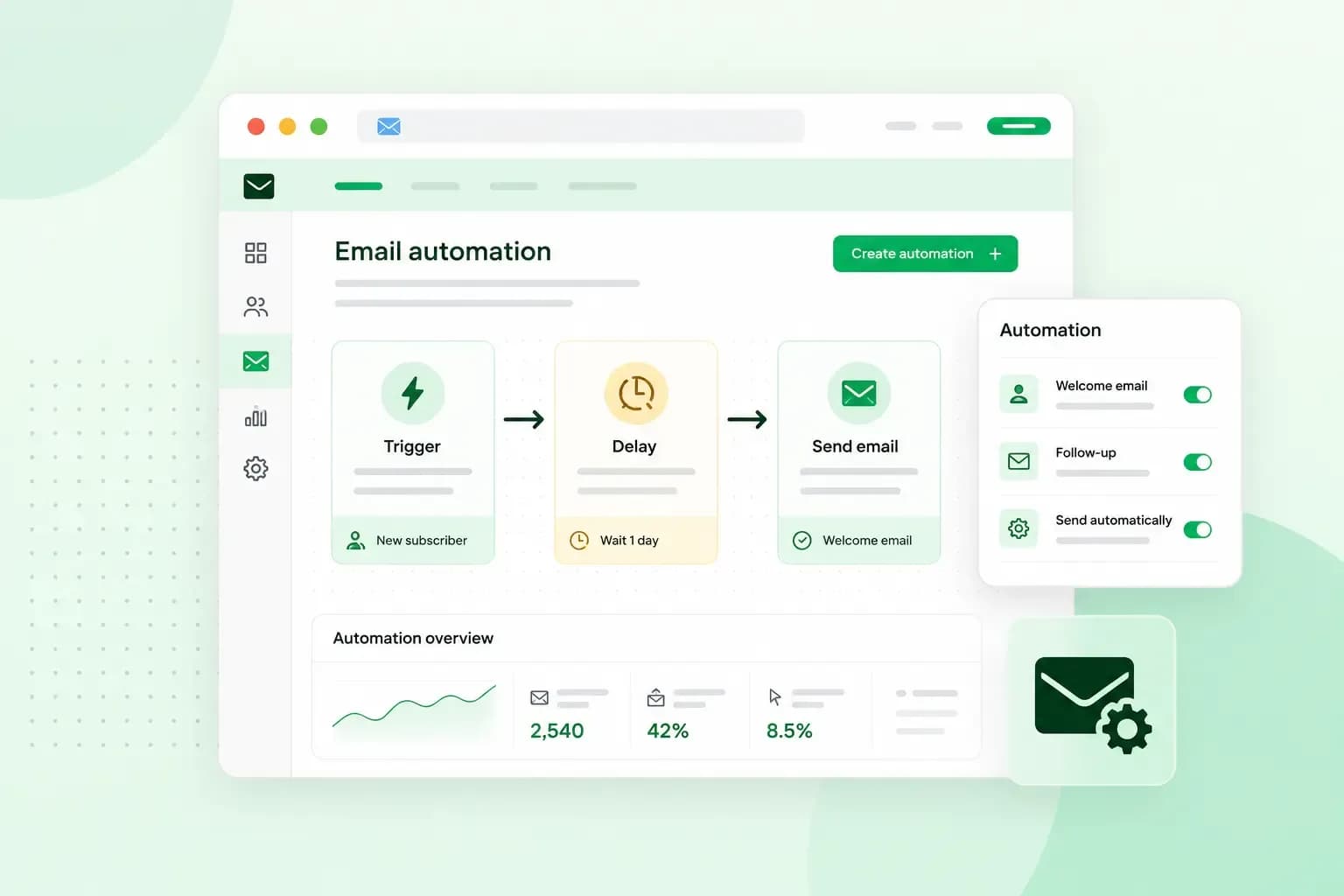
To automate your emails, you write an email once in an email marketing tool and set a rule for when it goes out. The tool then sends it automatically to each contact the rule picks out, based on what they do or on a date. If you run a small coffee roastery at hollowmillroasters.co.uk, your first automated email could be a welcome with a discount on the first order. It goes out the moment someone signs up on your website.
With email automation, you build each email once, and from then on it runs in the background while you get on with roasting and packing orders.
What is an automated email?
An automated email is a message that goes out when something happens, not when you press send. Every automated email starts with a trigger, the event that sets it off: a contact submits a form or clicks a link, or a date you've set arrives.
Automated emails and newsletters are both part of email marketing, but they work differently. A newsletter is a campaign you send by hand to your list, or a segment of it, on a date you pick. A transactional email, such as an order confirmation, is different again. It tells a customer about their own purchase rather than selling to them.
Emails triggered by what a contact does
Many triggers are something a contact does on your website. When someone signs up through the form on your site, your welcome email goes out. When a customer looks at a bag of your beans or puts it in their basket and leaves without paying, a reminder of the forgotten purchase can follow.
Emails sent in a timed series
Other automated emails run on the calendar rather than on an action. A date can start one, such as a customer's birthday or a loyalty milestone, like two years since their first order. A series of emails sent at set intervals is what people call a drip campaign or a sequence, and it suits anything you want to explain step by step. For your roastery, that could be a short email course for new subscribers on hollowmillroasters.co.uk, with a brewing tip in each email.
Why automate your emails?
You automate your emails so they respond to what people do straight away, without you watching the inbox. Someone who signs up at 11 at night gets your welcome then, not the next morning, while they still remember why they signed up. That timing pays off, because timely, relevant emails usually go down better than generic mailings. Because you build the workflow once and the tool handles the sending, each new subscriber to your roastery also gets the same welcome.
The automated emails you can set up
Each of these automated emails starts with its own trigger, so you can add them one at a time.
- Welcome email: goes out when someone subscribes to your list, as a single email or a short series. It thanks them and reminds them what they'll get from you.
- Contact form reply: starts when someone submits the contact form on your website and confirms that their message has arrived. It can also say when you'll answer.
- Abandoned basket reminder: reminds a customer of what's still in their basket after they left your site without completing their purchase. A small discount code can give them a reason to come back and finish the order.
- Follow-up after a purchase: goes out once the customer has had a little time to try what they bought. It asks how the coffee was and invites them to leave a review.
- Upsell or cross-sell email: goes to customers who bought a certain product and recommends other products that go with it, such as a grinder for someone who orders whole beans. An upsell suggests a bigger or better version instead, such as a larger bag.
- Re-engagement email: goes out when a contact hasn't opened your emails or bought from you for some time. An offer just for them or a discount code can win them back.
- Birthday email: goes out before, on or after the date in a contact's birthday field, whichever you choose. A discount code makes the greeting feel like a present.
Start with the welcome email and, if you sell online, the abandoned basket reminder. Add the others once those two work.
How to set up an automated email
The tool you choose in step 1 runs your email marketing automation. Pick one that can send an email when someone uses your sign-up form and lets you set the wait between emails. If you sell online, it should also connect to your shop, so it can send the abandoned basket reminder. Check that connection for your shop system before you choose, because not every email marketing tool has it. We offer an email marketing tool as an add-on. In the Ubivox add-on, you create newsletters and automated emails and see how each one performs. Check its integrations for your shop too.
Before you start, you need contacts who have agreed to get marketing emails from you, or a sign-up form on your website to collect them. Then follow these steps:
- Choose an email marketing tool that can send automated emails.
- Decide what the automation should achieve, who it is for and how you'll measure it.
- Map the workflow: the trigger that starts it, the emails in order, the wait between them and when a contact leaves it.
- Write each email with a clear subject line and one call to action.
- Build the workflow in your tool: set the trigger, add the emails and set the delays.
- Test it before you switch it on: fire the trigger yourself and check the email on a phone and a computer.
- Switch it on, then check its opens, clicks and unsubscribes, compare two subject lines with an A/B test and adjust the timing or the content.
For the roastery, the sign-up form on hollowmillroasters.co.uk is the trigger, and the first email is a short thank you with a discount code. A few days later, a reminder goes to everyone who hasn't ordered yet. Our guide on how to write marketing emails helps with the wording itself.
Your email marketing tool handles the triggers and the sending, but the address your emails come from is up to you. An address on your own domain, such as hello@hollowmillroasters.co.uk, shows customers straight away that the email is from your roastery. With professional business email, you get that address with a mailbox of its own.
With our email plans, you send and receive email on your own domain, so customers know your automated emails come from your business.
Choose an email planHow to make automated emails feel personal
An automated email works when it fits the person reading it, and segments get you there. A segment is a group of contacts who have something in common. For the roastery, that could be subscribers who haven't bought yet and customers who have, or people who buy espresso beans and people who buy filter coffee. Each group then gets the emails that match what it already does with you.
Personal details help too. An email marketing tool can pull each contact's first name into the email from their contact record, for example to open with "Hi Sam,". Don't rely on the name alone, though. Send what fits the person, such as a reminder about the beans they left in their basket rather than a general offer.
Plan for replies as well. Some people will answer an automated email, so make sure replies reach an inbox someone reads. Give each series an exit, the point where you mapped a contact to leave it. Someone who orders after your welcome email shouldn't keep getting reminders to place a first order. Space your emails out so nobody gets several in a few days, and look over your flows now and then to check they still fit.
Consent and unsubscribing: the UK rules
In the UK, you can only send marketing emails to individuals who have clearly said yes to hearing from you. A tick box on your sign-up form is one way to get that yes. These rules are in regulation 22 of the Privacy and Electronic Communications Regulations (PECR), which the ICO explains in its guidance on electronic mail marketing.
Your own customers are the one exception, under a rule the ICO calls the soft opt-in. If you collected someone's details when they bought from you, or while they were asking about buying, you can email them about your own similar products. That only holds if you gave them a simple way to opt out when you collected their details and in every email since. It doesn't cover new contacts or bought-in lists.
For the roastery, that means the welcome email goes only to people who ticked the box on your sign-up form. Your newsletter and the abandoned basket reminder are marketing too, so they go to those people and to customers who fall under the soft opt-in. A cross-sell email about a new blend can go to customers who bought your beans under the soft opt-in. An order confirmation that only tells the customer about their order is a transactional email, not marketing, so it doesn't need that consent. If you add a promotion to it, it counts as marketing.
Every marketing email must also make clear who it's from and give a valid contact address where people can opt out or unsubscribe. Emails to companies follow other rules. You can email a limited company without that consent, but sole traders and some partnerships count as individuals. Either way, keep a list of everyone who opts out and leave them out of every automation you run.
The ICO says this guidance is under review because of changes made by the Data (Use and Access) Act, and it may change. Check its current version before you build the sign-up form on hollowmillroasters.co.uk. The contact details you collect are personal data as well, so UK GDPR also applies to how you store and use them.
Questions about automated emails
Can Gmail send automated emails?
Only on a schedule or as an automatic reply, such as an out-of-office reply or a saved template that a filter sends. Gmail can schedule an email to go out at a later time, and you can have up to 100 scheduled emails. Each one goes out once, at the time you pick. A series that starts when someone signs up on your website or buys from your shop needs an email marketing tool.
How do I send an automated email in Outlook?
You schedule it, because Outlook can delay or schedule an email. In new Outlook, you select the dropdown next to Send and choose Schedule send. You then pick one of the default options or a custom time and select Send. Microsoft notes that this isn't available for IMAP or POP accounts. In classic Outlook for Windows, you tick Do not deliver before in the message options and choose the delivery date and time. You select Close and, once your email is written, Send. Outlook then needs to be online and connected for the email to go out. Outlook can also send an out-of-office reply, an automatic answer to people who email you while you're away.
Start with one welcome email
Once your sign-up form and tool are ready, build the welcome email for hollowmillroasters.co.uk. To send it from your roastery's own address, choose an email plan for your domain. Then create the address in the control panel and set it as the sender in your tool. Then switch the welcome email on and, once it works, add the abandoned basket reminder.
Recommended reading
 Online MarketingOct 19, 2026
15 ideas for Black Friday marketing
Make the most of Black Friday with 15 marketing ideas to attract customers and boost sales. Discover ways to promote your offers, reach more shoppers and make your campaign stand out. Online MarketingDec 30, 2025
AI SEO: how to use AI for search engine optimisation
A basic guide to AI in SEO – let's look at how artificial intelligence can help you speed up your SEO tasks. Online MarketingDec 30, 2025
AI search optimisation: how to get your website into AI answers
A basic guide to AI in SEO – let's look at how artificial intelligence can help you speed up your SEO tasks.