
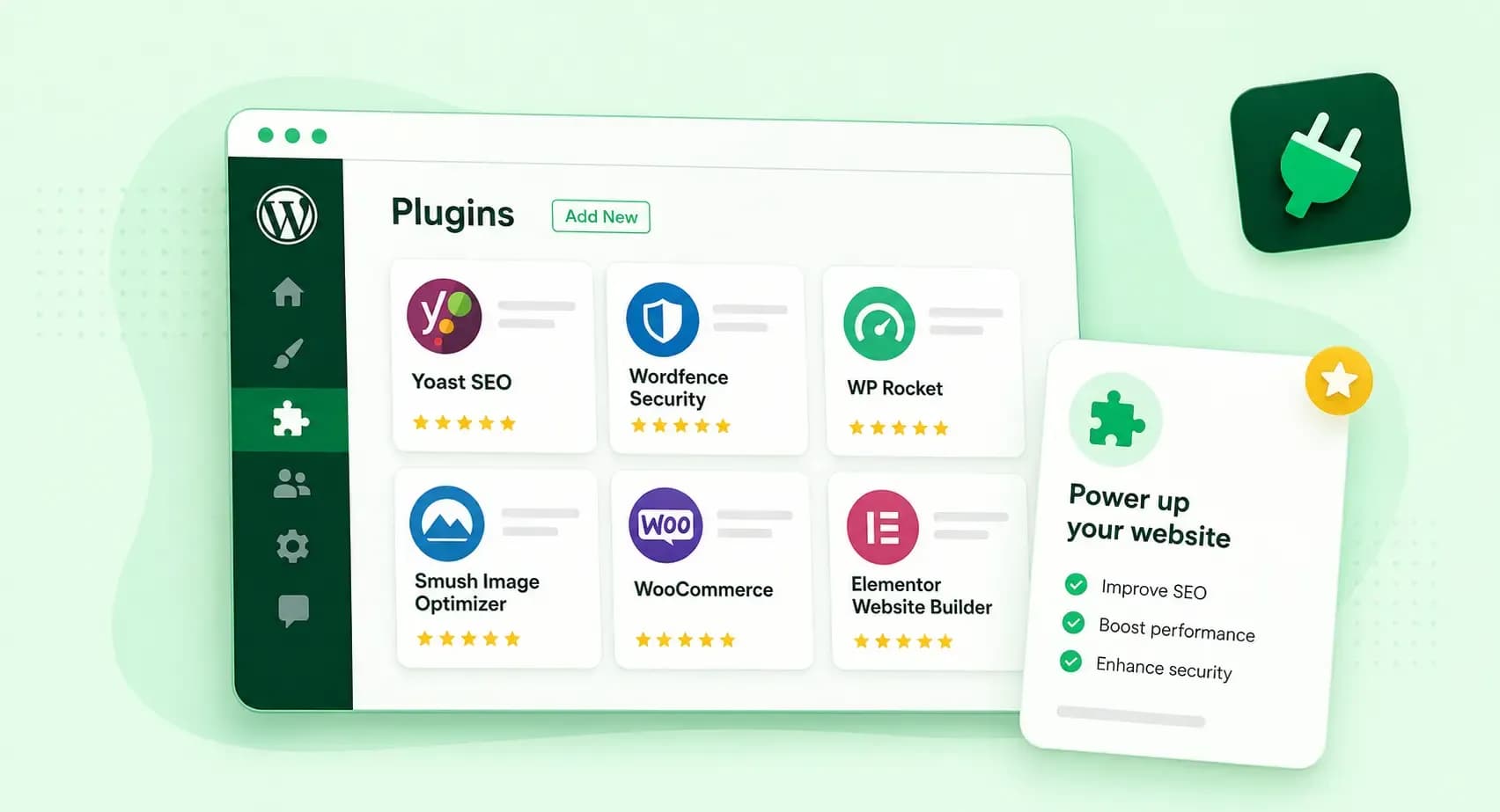
For a small business website, we recommend five WordPress plugins to start with: Rank Math for search engine optimisation (SEO), WP Rocket for page speed, WPForms Lite for enquiry forms, UpdraftPlus for backups and Wordfence for security. Add more only when your website takes on a new job, such as selling products, collecting email subscribers or running a membership.
A plugin adds a feature to WordPress, much like an app adds one to your phone. If you're new to them, here's what WordPress plugins are and how they work.
The 11 best WordPress plugins for a small business website
The first five plugins cover the basics. The other six are for the jobs a growing website picks up later, from visitor statistics and marketing to an online shop.
- Rank Math: search engine optimisation
- WP Rocket: page speed
- WPForms Lite: enquiry forms
- UpdraftPlus: backups
- Wordfence: security
- Jetpack: several jobs in one plugin
- MonsterInsights: visitor statistics
- HubSpot: marketing and live chat
- Bloom: email sign-ups
- WooCommerce: an online shop
- MemberPress: memberships
Rank Math for SEO
The Rank Math plugin helps people find your website in search engines like Google. You use it to optimise your content, target the right keywords and run SEO checks. It also connects to Google Search Console, so you can follow how your pages perform in search. The free version is limited, and Rank Math PRO adds features such as a keyword rank tracker and Google Analytics 4 integration. If you host your WordPress website with us, you can install Rank Math while you install WordPress.
WP Rocket for page speed
Fast pages keep visitors on your website. WP Rocket speeds up your website by caching your pages, which means it keeps a ready-made copy the browser can load quickly. It also removes unused code and optimises your WordPress database. You don't need any coding skills to set it up. WP Rocket is a paid plugin, and its maker lets you try it free for 14 days.
WPForms Lite for contact forms
WPForms Lite is the free version of WPForms, which builds the forms visitors use to get in touch with you. You drag fields into place or start from a ready-made template to build contact and feedback forms. The paid WPForms Pro adds features such as file uploads and multi-page forms.
UpdraftPlus for backups
A backup is a copy of your website you can go back to if an update breaks something or someone hacks your website. The UpdraftPlus WordPress plugin backs up your website on a schedule you choose, such as every 12 hours, daily or weekly. It sends the copies to remote storage, such as Dropbox or Google Drive, and you can restore a backup from there with the plugin. The paid version also lets you back up to more places, such as Microsoft OneDrive.
Wordfence for security
Wordfence protects your website with a firewall, which blocks attackers before they can get in, and a malware scanner that checks your files. You can start with the free version. Wordfence Premium gets new firewall rules and malware signatures in real time, while the free version gets them 30 days later. Malware signatures are the patterns the scanner uses to recognise harmful code.
Jetpack for several jobs in one plugin
Jetpack covers off-site backups, malware scanning, site statistics, spam filtering, forms and newsletters in one plugin. It's worth choosing if you'd rather manage one plugin than several. Installing it is free, and login protection and basic downtime monitoring are free too, but only on a non-commercial website. Real-time backups, security scanning and spam filtering are part of Jetpack's paid services, so check which plan covers the features you need before you rely on it for backups or security. To use Jetpack, you connect it to a WordPress.com account.
MonsterInsights for visitor statistics
MonsterInsights connects your website to Google Analytics in a few clicks. It shows the reports right in your WordPress dashboard, so you can see how people find and use your website and which pages need work. The plugin in the directory is the free Lite version, and MonsterInsights Pro adds tracking such as ecommerce tracking.
HubSpot for marketing and live chat
The free HubSpot plugin brings HubSpot's marketing tools into WordPress. You can keep track of your contacts, add forms to capture leads, send newsletters and chat with visitors live on your website. Choose it if you want to follow up with the people who contact you, not only collect their messages.
Bloom for email sign-ups
Bloom helps you build an email list. It shows sign-up forms as pop-ups, fly-ins, forms inside your posts or forms below them. You decide when a pop-up appears, for example after a set time or when a visitor reaches the end of a post. You get Bloom by joining Elegant Themes, its maker, with a paid membership that also gives you its other themes and plugins, such as Divi. Elegant Themes offers a 30-day money-back guarantee. Choose Bloom if you want control over how and when your sign-up forms appear.
WooCommerce for an online shop
The WooCommerce plugin turns your WordPress website into an online shop for physical and digital products. The core plugin is free and open source, which means anyone can use it and look at its code. Extensions, some free and some paid, add more ways to sell, such as subscriptions, bookings and memberships.
MemberPress for memberships
MemberPress lets you sell access to your content, as a membership, an online course or digital downloads. You control who sees which content, and you can release it over time. MemberPress is a paid plugin, and its maker offers a 14-day money-back guarantee.
How to choose plugins you can trust
Plugins vary in quality, even in the official directory. Before you install one, check its page in the plugin directory for three details:
- Last updated shows when the developer last released a new version. If it hasn't been updated for more than six months, look for an alternative.
- Active installations gives a rounded count of the plugin's active installs, such as 10+ million. A large number tells you many website owners rely on it.
- Tested up to is the version of WordPress the developer has tested the plugin against. If it's several versions behind the one you run, choose something else.
WordPress.org can also close a plugin. That can happen because of a security issue, for example, and a closed plugin can no longer be downloaded. If a plugin you use is closed, its page in the plugin directory tells you so. Replace it with a plugin that's still listed.
Every plugin you add is one more thing to keep up to date. So install plugins only for jobs your website really has, and delete the ones you no longer use. In WordPress, you can switch on automatic updates for each plugin.
Who keeps the rest up to date depends on your hosting. On Hosting for WordPress, you update WordPress, your theme and your plugins yourself. If you'd rather not, choose Managed Hosting for WordPress: we update them automatically and check every update before it goes live.
Our advice: install the five basic plugins first. If you'd rather have backups and security in one plugin, Jetpack on a paid plan can take the place of UpdraftPlus and Wordfence. Before you add another plugin, check that it does a job none of your plugins already does.
How to install a WordPress plugin
You install plugins from your WordPress dashboard. Free plugins come straight from the plugin directory. You download a paid plugin, such as WP Rocket, from its maker as a zip file and upload it yourself, unless you buy WP Rocket with one of our hosting plans that offers it, when you can add it while you install WordPress.
Install a plugin from the plugin directory
This route works for any free plugin listed in the plugin directory.
- In your WordPress dashboard, go to Plugins.
- Search for the plugin by name, keyword, author or tag.
- Click the plugin's title or More Details to read about it before you install it.
- Click Install Now.
- When the installation is complete, click Activate.
Install a paid plugin from a zip file
Use this route for a paid plugin you bought from its maker and downloaded as a zip file.
- Open your WordPress dashboard and go to Plugins > Add New.
- Click Upload Plugin at the top of the screen.
- Select the plugin's zip file on your computer.
- Then click Install Now.
- When you see "Plugin installed successfully", click Activate Plugin.
Once a plugin is active, go through its settings in your dashboard before you rely on it, so it does the job you installed it for. For a paid plugin, check your account or receipt email from its maker: if it gives you a licence key, enter it in the plugin's settings, as some paid plugins need it to work correctly and to get updates.
If your website isn't online yet, host it with us first, then install WordPress and the plugins you've picked.
Need somewhere to run WordPress and your plugins? Every plan includes a free SSL certificate for your WordPress website.
Compare Hosting for WordPress plansRecommended reading
 WordPress6 Nov 2026
How to find your WordPress login page (wp-admin)
Your WordPress login page is your site's address with /wp-admin at the end. Here's how to log in, why wp-admin may redirect and how to reset a lost password. WordPress6 Aug 2026
What is WooCommerce?
Do you want to start your online shop? Get to know WooCommerce in this guide: an e-commerce solution to build your shop. WordPress5 Aug 2026
Why is my WordPress site so slow?
Slow WordPress site? We look at the most common reasons and share how to speed up your WordPress website in this practical guide.