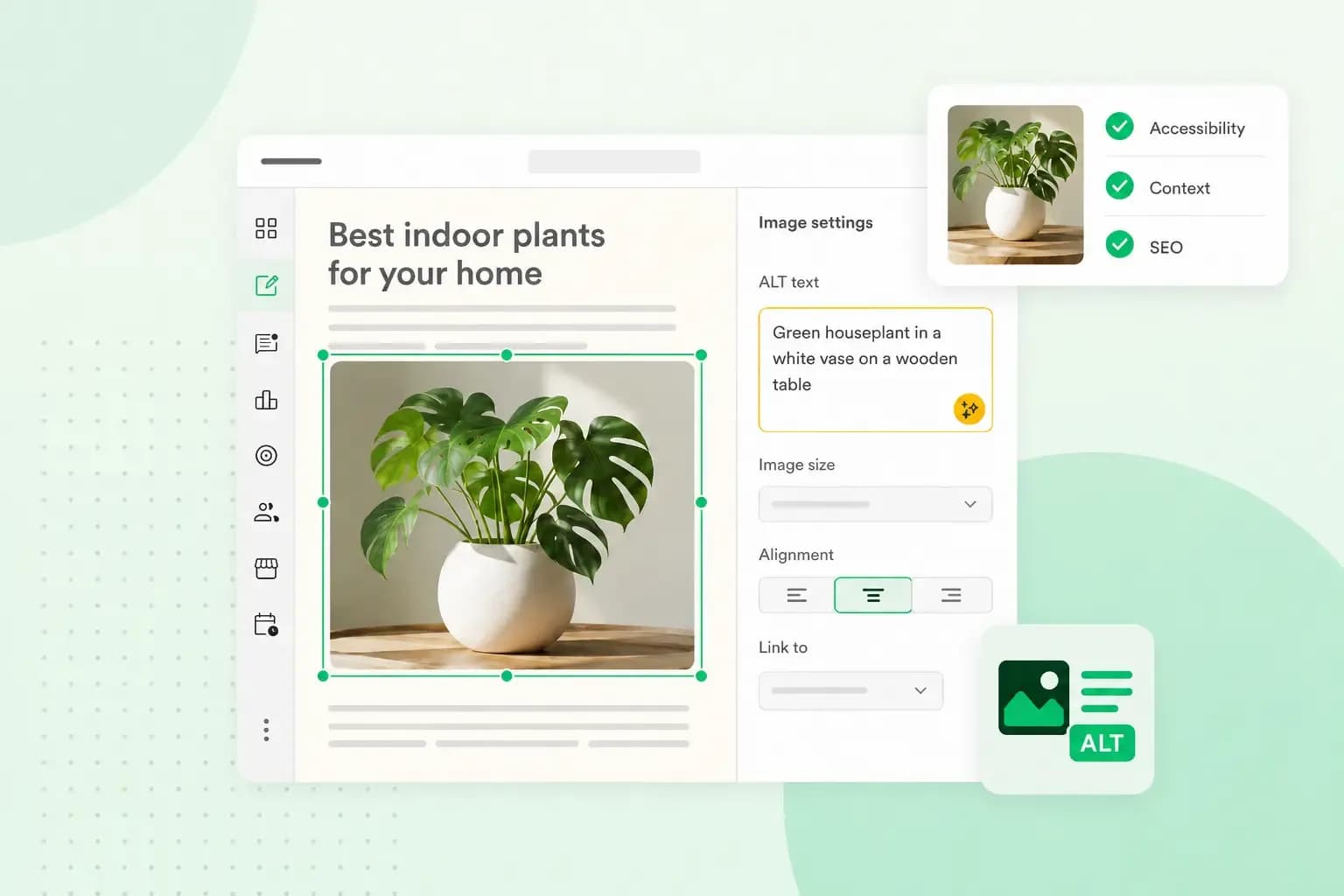
Alt text, or alternative text, is a short written description of an image, added to the image in your website's code. Screen readers read it aloud to people who can't see the image, and browsers can show it when the image doesn't load. Google reads it too, to understand what the image shows. On a bakery website, a photo of a loaf might have the alt text Sourdough loaf with a dark, crackled crust.
How does alt text work?
Alt text sits in the HTML of your page, as the alt attribute of the image. For the photo of the loaf, the code looks like this: <img src="eyJ0YXNrSWQiOiIwZGUyZmI5ZC1hOWE1LTQwZDktOTkzZi0yNDJmMTU5NjljMTAiLCJmaWxlbmFtZSI6Im91dHB1dC9zb3VyZG91Z2guanBnIiwiZXhwIjoxNzkzNTYwNzMxNTMxLCJzY29wZSI6InZpZXcifQ.ERQ0Kct5x93fYAokCCG0XyULI8Sm61JkLGyjtnjfxFA" alt="Sourdough loaf with a dark, crackled crust">.
To see the alt text of an image in Chrome, right-click the image and choose Inspect. In the code that opens, find alt= in the line that starts with <img, and read the text in quotes after it. Try it on an image on your own website.
A screen reader reads a web page out loud for people who are blind or partially sighted. When it reaches an image, it reads the alt text instead, so the visitor still gets what the image was there to say. If an image fails to load, the browser can show the alt text in its place. Alt text is one of the key things to check when you work on website accessibility.
For image SEO, Google calls alt text the most important attribute for giving it more information about an image. It reads the alt text together with the image itself and the text on your page. From all three, it works out what the image is about.
How to write alt text
Good alt text says what a visitor would miss if they couldn't see the image. That depends on the image's purpose, so the same photo can need different alt text on different pages. On your shop page, the photo of your sourdough is there to sell the loaf, so the alt text describes the loaf. On a page about your bakery's history, the same photo might have the alt text Our first sourdough loaf, still baked to the same recipe.
- Be specific about the main thing in the image. Write
Sourdough loaf with a dark, crackled crustrather than justbread, and in a busy photo, describe the main subject rather than everything in it. - Write for the people who can't see the image first, and use the keywords your customers search for only where they describe it. Google warns that filling alt text with keywords gives visitors a poor experience and may get your site seen as spam.
- Leave out words like "image of". The visitor needs what the image shows, not a note that there's an image, so start with the content.
- When you sell digital products or run an online shop, it's tempting to write alt text like an advert. Describe each product as you would to a customer standing in front of you instead.
Alt text examples for common image types
Your bakery's website, quillowbakehouse.co.uk, has five kinds of image, and each needs a different kind of alt text.
- A product photo. For the sourdough on your shop page, write
Sourdough loaf with a dark, crackled crust, cut in half. - A logo that links to the home page. When an image is a link, the alt text says where the link goes, not what the image looks like:
Quillow Bakehouse home page. - An image with text. When an image holds text meant to be read, the alt text repeats that text. For a poster with your Christmas opening hours, write
Christmas opening hours: open mornings only on Christmas Eve, closed on Christmas Day and Boxing Day. - A chart. Give the point the chart makes rather than every bar:
Bar chart: carrot cake was our most ordered cake last year, ahead of lemon drizzle. If the details matter, write them out in the text next to the chart. - A decorative image. Decorative images, such as a wheat border between sections, add nothing a visitor needs and don't need alt text. Give them an empty alt attribute,
alt="", and screen readers can skip them.
Don't leave the alt attribute out altogether, because some screen readers may then read out the file name instead. In WordPress, you don't need the code: you mark the image as decorative, as the steps below show.
How to add alt text to images
Where you add alt text depends on how you build your site. In plain HTML, you write it in the image's alt attribute, as in the example above. In a website builder or a content management system (CMS) such as WordPress, you fill in an alt text field for each image instead. That way, you don't have to touch the code.
How to add alt text in WordPress
If you create a WordPress website, you add alt text to each image in the block editor:
- Open the post or page in the editor and select the image. The Image block's options appear in the editor sidebar.
- If you don't see the sidebar, click the Settings button next to Save or Publish.
- In the Content tab, under Alternative text, write the alt text. If the image adds no information, mark it as decorative instead.
- If you want the alt text to be the default each time you insert the image elsewhere, add it to the image in the Media Library instead. Alt text you add in the block applies to that one page or post.
- Click Save or Publish to keep the alt text on your post or page.
How to add alt text in our classic Website Builder
If your site is built with our classic Website Builder, a different product from our Aida AI Website Builder, you give each image its alt text in the editor when you edit the image. Then save and publish your site, so the change goes live.
Alt text generators: can AI write it for you?
AI can write a first draft, but check each suggestion before you publish it. An alt text generator looks at an image and writes a description of it. Edit each description until it says what the image is there for on your page.
- AltText.AI generates alt text for your images automatically. With its WordPress plugin and an AltText.AI account, on a free trial or a paid plan, the alt text is added as you upload each image.
- GenAlt is a Chrome extension: you right-click an image on a web page to get a description of it.
Next, go through the images on your home page and your shop, and check that each one that carries information has alt text. If you're starting a new site, you can build your website with our Aida AI Website Builder.
Tell Aida about your business in a short chat, and Aida builds your website. Hosting and professional email are included.
Build my websiteQuestions about alt text
How long should alt text be?
A sentence or two at most, and often just a few well-chosen words.
Is alt text the same as a caption?
No. A caption is the visible text shown above or below an image. Alt text is the description that stands in for the image when someone can't see it. Don't repeat the caption in the alt text, but describe what the caption and the text around the image don't already say.
Recommended reading
 Website Builder19 Oct 2026
How to get your website ready for Black Friday (with checklist)
Get your website ready for Black Friday with this practical guide and checklist. Website Builder31 Aug 2026
How to redesign an existing website using AI
Discover how Aida AI can redesign your existing site in minutes, add new features, and help you create a site that's ready for business. Website Builder11 Aug 2026
How to prompt an AI website builder
Learn how to prompt an AI website builder to create a professional website for your business. Get examples for shops, salons, clinics, and more.