
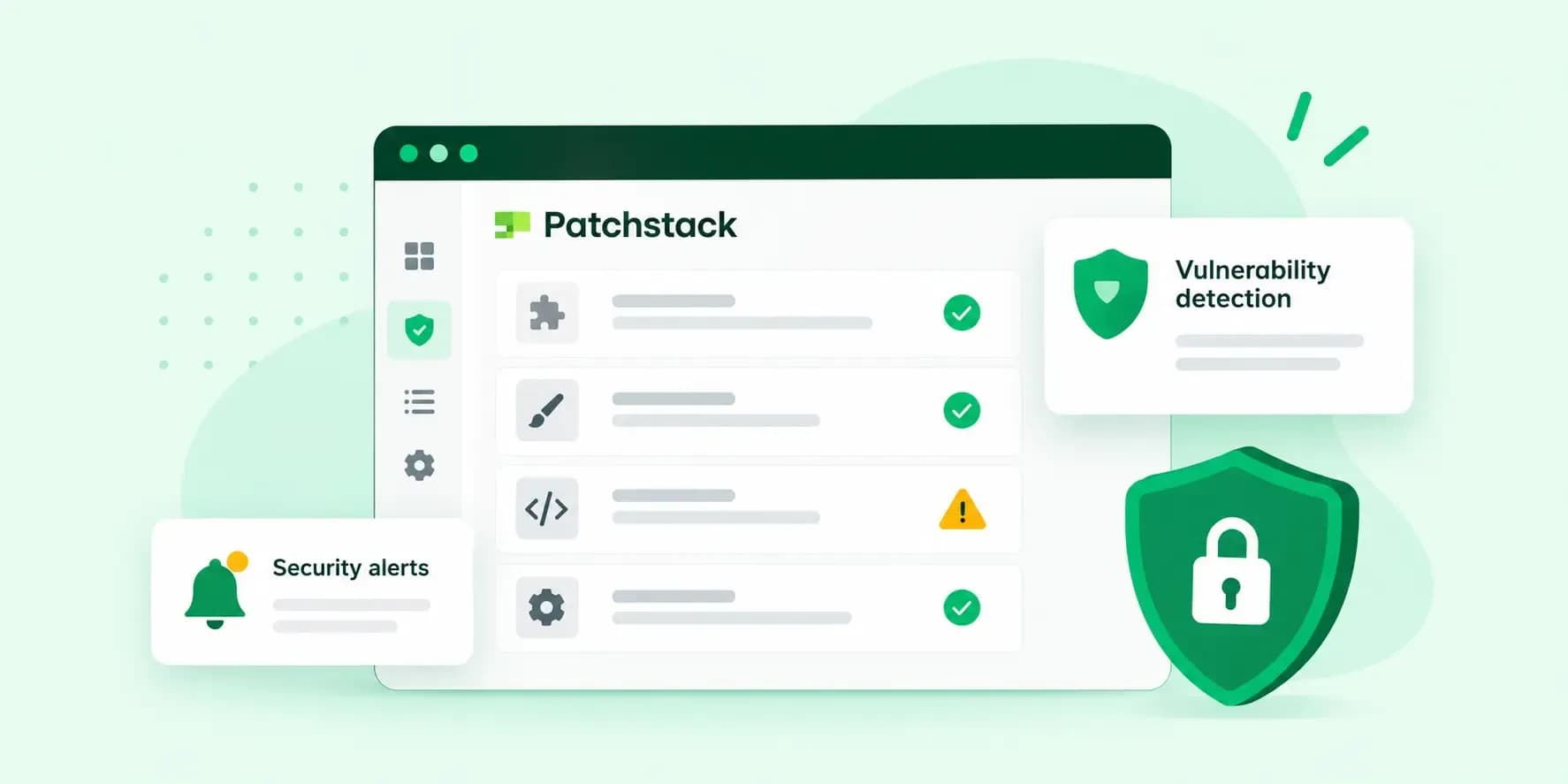
Patchstack is a security service for WordPress that checks your plugins, themes and WordPress core for known vulnerabilities. When it finds one, it alerts you so you can update the affected software. On a paid plan, or with a paid add-on for a single site, it also blocks attacks on a flaw it has issued a virtual patch for, until the developer releases a fix you can install.
What is Patchstack?
Patchstack looks for weak spots in the software your site runs on, so you can close them before anyone uses them against you. The Patchstack WordPress plugin compares the versions you have installed with the Patchstack database of known vulnerabilities. It doesn't run any checks on your website from the outside.
The database is built on reports from a large community of ethical hackers who find new vulnerabilities. Patchstack says that, thanks to this community and its partnerships with plugin developers, it is regularly among the first to identify a new flaw.
Patchstack focuses on preventing infections in the first place. Its WordPress vulnerability monitoring keeps watch for known flaws, so you can act before an attacker does. It doesn't scan for malware or clean up a site that has already been hacked. On the free version, the fix is also up to you: Patchstack tells you what to update, and you install the update or switch on automatic updates for vulnerable plugins.
You can install Patchstack on your own site, and some hosts include it in their plans. Our Managed Hosting for WordPress includes vulnerability monitoring powered by Patchstack.
What are WordPress vulnerabilities?
A vulnerability is a flaw in your website's code that an attacker can use. It can sit in WordPress core, a plugin or one of your installed themes. With such a flaw, an attacker can:
- Get into your website's admin area without permission.
- Change your content, spread malware or inject spam.
- Steal personal data, such as the details customers enter in your forms.
- Take your website offline.
Recent statistics put WordPress on 39.5% of all websites, and on 58.2% of the websites whose content management system it knows. The plugins you install are a big part of what makes it so flexible, and together with themes, they're where most flaws are found. Patchstack's 2025 mid-year report showed the same pattern: most vulnerabilities were in plugins, far fewer in themes and only a single one in WordPress core. So the fewer plugins you run and the more up to date you keep them, the better the security of your WordPress site.
What are the most common WordPress vulnerabilities?
Cross-Site Scripting (XSS) was the most common type of WordPress vulnerability in Patchstack's 2025 mid-year report, with almost double the share of the next type. The types on that list, in order, were:
- Cross-Site Scripting (XSS), 34.7% in Patchstack's 2025 mid-year report: attackers inject malicious scripts into a site, and those scripts steal visitor data or take over accounts.
- Cross-Site Request Forgery (CSRF), 19%: attackers trick a logged-in user into clicking a link or visiting a page, which then carries out an action in that user's name, such as changing their password.
- Local File Inclusion (LFI), 12.6%: attackers make the site load a file that's already on its server. Depending on how severe the flaw is, this can reveal what's in the file or even let them run code on the server.
- Broken Access Control, 10.9%: a plugin doesn't properly check what each WordPress user role may do, so someone can reach functions or data that aren't meant for them. A subscriber could open settings that only an administrator should see, for example.
- SQL Injection, 7.2%: attackers slip their own database commands into the site, so they can read, change or delete the database, including user accounts and private data.
You don't fix these flaws yourself. They sit in the code of plugins and themes, and their developers release the fixes, so update as soon as a fix is out. For the latest figures, Patchstack's vulnerability statistics keep a running count.
What do the free and paid versions include?
Patchstack's free version, which its WordPress.org plugin page calls the Personal plan, finds vulnerabilities and alerts you, and its paid plans also block attacks on them.
| Free version | Paid version | |
|---|---|---|
| Finds known vulnerabilities | Yes | Yes |
| Email alerts | Yes | Yes, plus Slack alerts |
| Manage updates from one dashboard | Yes | Yes |
| Virtual patches that block attacks | No, but on the free plan you can add them per site for a monthly fee | Yes, on the Developer and Enterprise plans |
| Firewall and hardening rules | No, but free plan users get hardening with the same monthly add-on per site | Yes |
| Two-factor login | No | Yes |
Patchstack's pricing page lists the current paid plans, from a Developer plan for professionals and agencies to custom plans for larger businesses and web hosts.
For one site that you keep up to date, the free version can be enough, because it tells you what to update and when. A paid plan is worth it when you look after several sites, or run plugins you can't always update straight away, because virtual patches cover you until you can.
How does virtual patching work?
A virtual patch is a protection rule that blocks attempts to exploit one specific vulnerability. Patchstack only adds the rule to a website that actually has the vulnerable plugin or theme, and it doesn't change your website's code.
Sometimes there's no fix to install yet. A virtual patch protects your site in that gap, but it doesn't replace the update. Once the developer releases a fixed version, install it.
How to set up Patchstack on your WordPress site
Patchstack says setup takes just a few minutes. You install the Patchstack plugin on your website and connect it to the Patchstack App:
- In your WordPress dashboard, search for Patchstack on the plugin management page, then install and activate the plugin.
- Register an account in the Patchstack App.
- Add your site to your Patchstack account in the app.
- Copy the API key the app gives you and paste it into the plugin on your site.
Once your website is connected, Patchstack emails you as soon as it finds a vulnerability on it.
How to use the Patchstack vulnerability database
Patchstack keeps a public and up-to-date database of WordPress vulnerabilities. To check a plugin or theme, search the database for its name.
Each entry names the affected plugin or theme, the vulnerable versions and the type of flaw. Where the developer has fixed it, the entry tells you which version to update to.
The entry also gives a CVSS score. Patchstack points out that this score isn't ideal for WordPress, so judge how fast to act by Patchstack's own priority instead:
- Low: unlikely to be exploited. Update it as part of your usual routine.
- Medium: could be exploited in more targeted attacks. Update it soon, without waiting for your routine.
- High: expected to be exploited, or already known to be exploited. Act on it straight away.
What to do when Patchstack finds a vulnerability
When Patchstack alerts you to a vulnerability on your site, start with the vulnerability's entry. Its priority tells you how fast to act. Then:
- Make sure you have a backup of your website, so you can go back if the update causes a problem.
- Update the affected plugin or theme to the patched version the entry names.
- If you can't update, because there's no update yet or you're not sure how, ask your hosting provider or web developer for help.
- If there's no update yet, check the entry for a mitigation rule that covers the flaw. Where the entry says Patchstack has issued one, this virtual patch blocks attacks on the flaw until you can update to a patched version.
Without a virtual patch, the flaw stays open while you wait. If no update exists yet and Patchstack rates the flaw as high priority, deactivate the plugin until a fix is out, even though its features stop working on your site in the meantime. If the fix never comes, remove it and use another one that is still maintained.
With Managed Hosting for WordPress, we update WordPress, your themes and plugins automatically, check every update and roll back if something breaks.
See Managed Hosting for WordPressMake update management a habit too, so the next alert finds less to fix: keep your plugins and themes current, and remove the ones you no longer need.
Who keeps an eye on your plugins is up to you. Install Patchstack yourself, or choose Managed Hosting for WordPress and get Patchstack's vulnerability monitoring as part of your plan.
Questions about Patchstack
Do I need Patchstack and another security plugin?
Only for malware scanning or a clean-up after a hack, and you can run the two side by side. Patchstack says it hasn't come across conflicts, but it recommends keeping the number of security plugins low and avoiding features that overlap.
Will Patchstack slow down my website?
The free version only runs scheduled tasks, so you won't notice it in your website's speed. The paid version filters traffic on every page load, which Patchstack says has only a minimal effect on performance.
Recommended reading
 WordPressNov 6, 2026
How to find your WordPress login page (wp-admin)
Your WordPress login page is your site's address with /wp-admin at the end. Here's how to log in, why wp-admin may redirect and how to reset a lost password. WordPressAug 6, 2026
What is WooCommerce?
Do you want to start your online shop? Get to know WooCommerce in this guide: an e-commerce solution to build your shop. WordPressAug 5, 2026
Why is my WordPress site so slow?
Slow WordPress site? We look at the most common reasons and share how to speed up your WordPress website in this practical guide.