
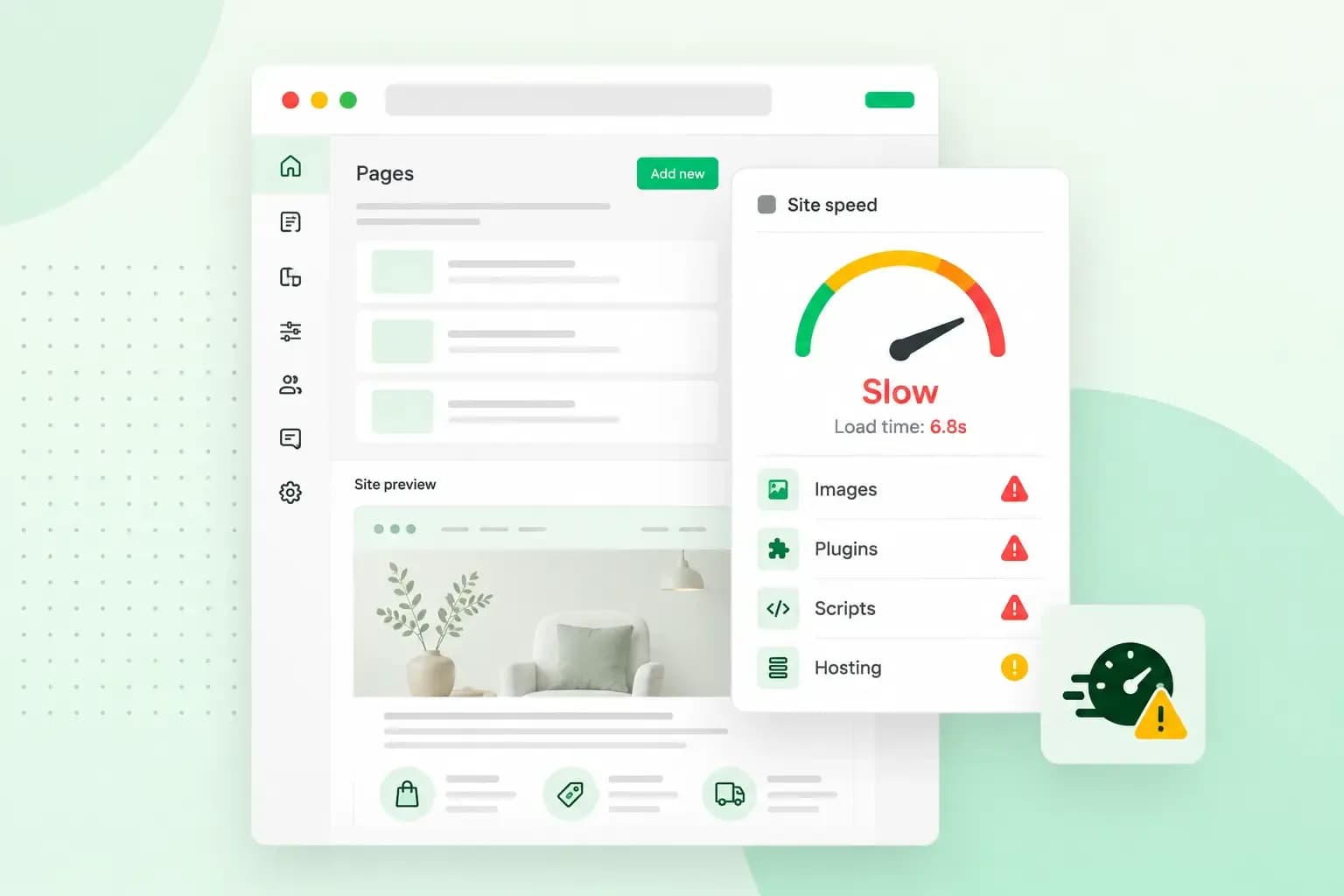
A slow WordPress site usually comes down to what runs on it and where it runs. The most common causes are too many plugins, large images, hosting without enough resources, missing caching, a heavy theme, too many external scripts or a cluttered database. Run a speed test first, so you know which of these to fix before you change anything.
How to find out what is slowing your site down
Test the page that feels slowest in PageSpeed Insights from Google. It checks the page on mobile and desktop and suggests what to improve. The test gives you two kinds of results. Lab data comes from a simulated test run by Google's Lighthouse tool and helps you find the problem. Field data comes from real visitors and shows what they actually experience.
The suggestions under the results also tell you which of the seven reasons below to look at first.
- Large or unoptimised images point to reason 2.
- A slow response from the server points to your hosting or your caching, reasons 3 and 4.
- CSS and JavaScript that hold up the page point to your theme or your plugins, reasons 5 and 1.
- Code from other companies' servers, such as fonts or analytics, points to reason 6.
If your WordPress site is connected through our control panel, our Performance Monitor also analyses your site's status in detail. Whichever tool you use, change one thing at a time and test the same page again, so you know which change made the difference.
7 reasons why your WordPress site is slow
1. Too many plugins, or badly built ones
WordPress plugins add features to your site, from SEO tools to live chat. How many plugins you run and how well each one performs both affect your site's speed. Some plugins put a high load on the server or cause performance problems on their own.
To find a slow plugin, deactivate your plugins one at a time on the Plugins page in your WordPress dashboard. After each one, clear your cache (in Performance Cache, if that's your caching plugin) and test the same page, then activate the plugin again before you move on to the next. When the speed jumps after you've switched one off, you've found the culprit. If it's a plugin you still need, check its documentation, ask in its support forum or look for a lighter plugin with similar features. Visitors don't get that plugin's feature while it's off, so do this when your site is quiet.
- Deactivate and delete the plugins you no longer use.
- Keep the plugins you use up to date, and make a current backup of your site before each update, as an update can sometimes go wrong.
2. Unoptimised images
Every image on a page adds to how long it takes to load, and a large file takes longer than a small one. So when your WordPress pages load slowly, smaller image files are a good place to start. The aim is a balance between a small file and a picture that still looks good. You can optimise images before you upload them, or let a plugin do it in WordPress.
- Let a plugin such as Imagify do the work in WordPress. It resizes and compresses your images and converts them to WebP and AVIF.
- If you optimise images yourself before you upload them, save them as WebP. It's a modern format that's smaller in size than older formats such as JPG and PNG.
- Lazy load images further down the page, so they load as the visitor scrolls.
3. Hosting that lacks the resources your site needs
On shared hosting, your site shares a server and its resources, such as CPU and RAM, with many other websites. The host manages that server for you. Those resources are limited, which can directly affect how fast your site runs. It's worth looking at your plan once you've worked through the other fixes in this guide and your pages are still slow.
- Upgrade your hosting plan to get more resources for the same site.
- Choose a Virtual Private Server (VPS), which gives your site its own share of CPU, RAM and storage. A VPS is unmanaged, so you look after the updates, security and configuration yourself.
Try a bigger plan first. Choose a VPS only when you're comfortable managing a server yourself.
4. No caching, or caching that clashes
Caching saves a copy of your pages and shows that copy to the next visitors. Without a cache, the server has to build each page again for every visit and go to the database each time, which slows its response.
Use one way of caching only. A caching plugin that runs at the same time as Varnish caching can conflict with it and make your pages load more slowly. Our servers have Varnish caching built in, and our Performance Cache plugin is how your WordPress site uses it. You get Performance Cache with our parent plugin for WordPress, which is installed automatically with every 1-click installation. For another caching plugin, we recommend WP Rocket, a paid premium plugin that caches your pages, removes unused code and lazy loads images. If you use it, switch off Performance Cache in our parent plugin.
5. A heavy theme or outdated code
Your theme decides how your site looks. A lightweight theme runs much more efficiently than a heavy one full of graphics. Lighthouse, the tool behind the PageSpeed Insights test, highlights the requests that hold up your page before it first shows anything on screen. These are usually CSS files and scripts. If your test flags them, or warns about the initial loading time, a heavy theme is a likely place to look.
Back up your site's files and database, then make the first fixes: update your theme to the latest version and switch off the theme features you don't use. Newer versions of PHP run faster, so the recommended PHP version helps too. Before you switch to it in your hosting control panel, make sure your plugins and theme are compatible with it, or your site may break. If your site is still slow, a lighter theme is worth considering. Test it before you switch, so you don't lose features your site relies on.
6. Too many external scripts and requests
Your site may run scripts that come straight from other companies' servers, such as fonts, analytics, social sharing buttons, embedded YouTube videos and chat widgets. Setting up a connection to each of those servers can take a long time, especially on a slow network.
- Load only the scripts and fonts you need. If you use Google Fonts, keep the number of font families and styles low.
- If you're thinking of hosting fonts on your own server, check first that your site uses a CDN and HTTP/2. Without them, self-hosted fonts are much less likely to load faster.
- Avoid plugins that rely heavily on files and scripts from other servers.
- Lazy load embedded content such as videos, so it only loads when a visitor scrolls to it.
7. An overloaded database
WordPress keeps your posts, pages, comments and settings in a database. Over time, the database collects old post revisions, spam comments, leftovers from plugins you've removed and sometimes expired temporary data called transients that were never deleted. On a large site, that clutter can make it run slower.
Make sure you have a recent backup before you clean anything. With Backup & Restore, we back up your website every day. Changes you make to the database in phpMyAdmin cannot be undone. If you're not used to database queries, a free clean-up plugin such as WP-Optimize does the job for you. If you are, you can also clean up the database in phpMyAdmin and delete transients and old revisions directly.
Compression and a CDN
Compression makes your site's files smaller before the server sends them, and the visitor's browser unpacks them. GZIP, the most common method, is a setting on the web server rather than something you install in WordPress. If your speed test lists text files that are sent without compression, your server isn't compressing them yet. It's worth having for every file except ones that are already compressed, such as images and videos.
A CDN (Content Delivery Network) keeps copies of your site's files on servers in many places around the world. The data then reaches each visitor from a short distance away. For more ways to make your pages faster once the cause is fixed, here's how to speed up your WordPress site.
How to keep your WordPress site fast
Test your most important pages now and then, so you notice early when your site starts to slow down again. Make update management part of your routine too, so everything on your site stays up to date.
To hand the updates over, choose Managed Hosting for WordPress. If an update leaves something wrong on your site, we roll it back.
With Managed Hosting for WordPress, we update WordPress, your theme and your plugins automatically and check your site visually after every update.
See Managed Hosting for WordPressWhat to do next
Once you've fixed the cause, your speed test shows whether your site still needs more room than its plan gives it. If it does, you can compare our Hosting for WordPress plans and decide how much of the upkeep you want to do yourself.
Recommended reading
 WordPressNov 6, 2026
How to find your WordPress login page (wp-admin)
Your WordPress login page is your site's address with /wp-admin at the end. Here's how to log in, why wp-admin may redirect and how to reset a lost password. WordPressAug 6, 2026
What is WooCommerce?
Do you want to start your online shop? Get to know WooCommerce in this guide: an e-commerce solution to build your shop.- WordPressOct 30, 2025
WordPress SEO checklist: 15 steps to get found on Google
Increase traffic to your site with WordPress search engine optimisation. Follow our WordPress SEO guide and read about the best SEO plugins.