
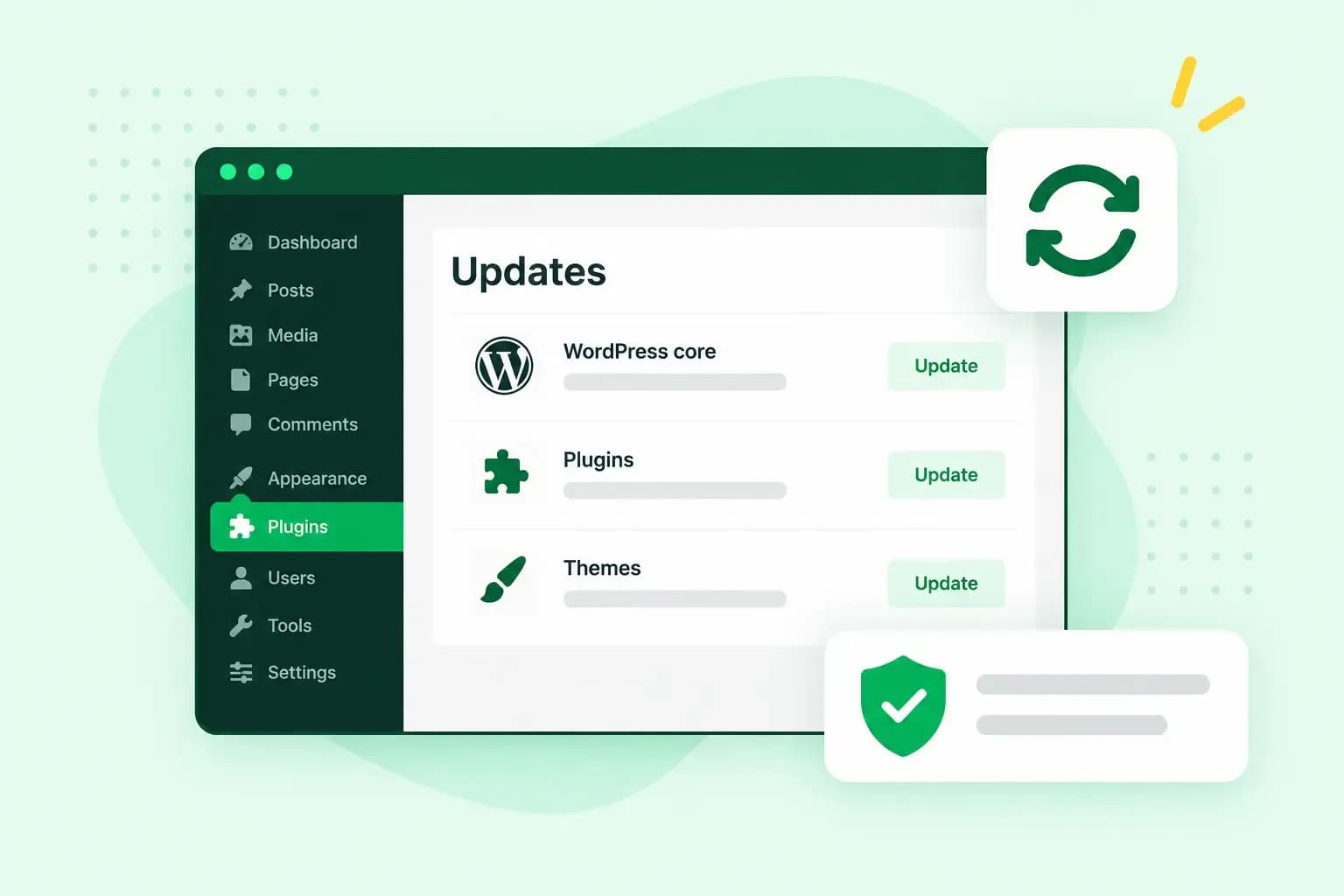
WordPress update management means keeping WordPress itself, your theme and your plugins up to date without breaking your website. Always back up before you update, then check that everything still works. You can do it by hand in the dashboard, let WordPress run auto-updates, or leave the updates to your host.
What needs updating in WordPress
A WordPress website is made of several pieces of software, and each one gets its own updates. You see them all on the Updates screen of your dashboard.
- WordPress itself. Since WordPress 3.7, most sites can install minor and security releases of the core software in the background. New installations since WordPress 5.6 also install major releases on their own, while older sites keep their setting until you switch it on.
- Your theme. Your WordPress theme decides how your site looks. Its developer releases new versions with fixes and changes.
- Your plugins. WordPress plugins add new features to your site. Each one is a separate piece of software with updates of its own.
- Translations. The language files of WordPress, themes and plugins get updates too. They appear on the same Updates screen.
Why updating WordPress matters
Updates keep your site secure, improve its code and keep its parts working together.
- Security fixes. Developers update their plugins and themes with security fixes to keep them secure. WordPress.org advises you to always run the newest version of each one if you want to keep your WordPress site secure.
- Bug fixes. Developers improve the quality of their code in new versions. Updating soon after a release is how those bug fixes reach your site.
- New features and speed. Updates can bring new features and better code.
- Speed. Updating regularly can even improve your site’s speed.
- Compatibility. A plugin whose developer hasn't released an update since the last WordPress version may not be compatible with it. An update you skip today can cause problems later, once the rest of your site has moved on.
Four ways to update WordPress
You can start updates yourself in the dashboard, let WordPress run them, replace the files by hand or leave the updates to us with Managed Hosting for WordPress. The four ways differ in how much work they take and how much control you keep.
| Way to update | What you do | Control | Good for |
|---|---|---|---|
| One-click updates | You start the update in the dashboard | Full: you decide what and when | Owners who like to decide when to update |
| Auto-updates | You switch them on per plugin and theme | Less: by default WordPress runs them twice a day | Plugins you trust, with a backup in place |
| Manual updates | You replace the files over SFTP | Full, with more work | When a one-click update fails |
| Managed updates | You choose Managed Hosting for WordPress, we run and check the updates | Less: we run them, with visual checks and automatic rollback | Business sites where nobody has time to check every update |
One-click updates in the dashboard
The one-click update is the easiest way to update WordPress, and it works on most servers. For the backup in step 1, you don't have to copy anything by hand. A backup plugin can save your WordPress database for you on a schedule, and you'll find one in the plugin browser of your dashboard.
- Back up your website before you start, so you can restore it if the update goes wrong.
- Open the Updates screen under Dashboard > Updates, or click the link in the new version banner if you see one.
- Click Update Now on the Update WordPress page and wait until the update has finished.
- If you use caching, clear the cache so visitors see the updated site.
- Open your website and check that its pages, forms and shop still work as before.
Plugin and theme updates are on the same Updates screen, and you can tick several plugins there to update them in one go. You have to log in and do this regularly yourself. If an update breaks something, putting it right is up to you.
Auto-updates for plugins and themes
Since WordPress 5.5, you'll find the auto-update switch for each plugin on the Plugins screen and for each theme on the Appearance screen. By default, WordPress then runs those updates twice a day and emails you after each attempt, whether it worked or failed.
Auto-updates save you logging in, but you no longer decide when an update runs. An update management plugin also lets you manage all kinds of updates, with the same trade-off. Checking the site afterwards is still your job. When an update email arrives, open your site and make sure it still looks and works as it should. Before you switch auto-updates on, make sure you have a backup you can restore.
How to update WordPress manually
A manual update is for when a one-click update of WordPress doesn't work, for example after a failed automatic update. Besides a recent backup, you need an SFTP program and the SFTP login details your host gives you. If you host with us, switch on SFTP access in the control panel first, as our guide to connecting with SFTP shows.
- Back up your website, both its files and its database, before you change any files.
- Download the latest WordPress zip file and unpack it on your computer.
- Deactivate your plugins in WordPress.
- Connect to your web space with your SFTP program (FTP on older servers) and delete the old
wp-includesandwp-adminfolders. - Upload the new
wp-includesandwp-adminfolders in their place. - Upload the files from inside the new
wp-contentfolder into your existingwp-contentfolder, overwriting the old files. Never delete that folder, because your themes and plugins live there. - Upload the loose files from the root folder of the new version to your WordPress root folder.
- If you're updating by hand after a failed automatic update, delete the
.maintenancefile from your WordPress folder, so the failed update message goes away. - Open
/wp-adminand, if WordPress shows a link to update the database, follow it. - Reactivate your plugins, clear the cache if you use one and check your website.
To update a single plugin by hand instead, reinstall it: deactivate it in the Plugins menu and remove its old folder from wp-content/plugins over SFTP, then transfer the unzipped folder of its new version there and click Activate for it in the Plugins menu of your dashboard.
Managed updates with Managed Hosting for WordPress
If you'd rather not run updates yourself, Managed Hosting for WordPress does it for you. We update WordPress, your themes and your plugins automatically. Each update is checked visually, and if we detect an issue, the changes are rolled back automatically.
Each of our Managed Hosting for WordPress plans also includes a staging environment. That's a private copy of your website where you test changes before your visitors see them. If you want experts to look after the whole site, Premium WordPress Care goes a step further. We monitor your website 24/7 for updates, security and performance, and send you a monthly report on its status.
With Managed Hosting for WordPress, we update WordPress, your themes and plugins, check every update visually and roll back if anything breaks.
See Managed Hosting for WordPressHow to manage WordPress updates without breaking your site
With these habits, a bad update is quick to spot and easy to undo.
- Make a backup of your files and your database before every update. If something goes wrong, you can restore your site as it was.
- Try a big update, such as a new major version or a new theme, on a staging site before your visitors see it. Our guide shows how to set up a staging site.
- Before a major WordPress update, look at the compatibility information WordPress gives for your installed plugins. Each plugin's View details link on the Plugins screen shows it, and a new plugin's description says if it's compatible with your version of WordPress before you install it.
- After each update, auto-updates included, open your homepage, a few key pages and any forms or checkout. You'll spot a problem before your visitors do.
What to do if an update breaks your site
What you do depends on what went wrong. If you run a shop, note any orders that came in after the backup before you restore it, because the backup doesn't hold them. Restoring the backup puts your site back as it was when you made it. When an update fails or your site looks wrong afterwards, steps 1 and 2 are for a failed update message, and steps 3 to 5 for a broken site, depending on which backup you restore.
- If WordPress shows a failed update message, connect to your web space with SFTP (FTP on older servers), as for a manual update, and find the
.maintenancefile. - Delete the
.maintenancefile from your WordPress folder; when WordPress shows a failed update message, deleting this file clears it. - If your site is broken after the update, restore the backup you made just before it, which puts back the files of your previous version.
- If your site is broken and you'd rather restore one of our daily backups yourself, check that your hosting plan with us includes restore, as it does from the Professional plan up. For a WordPress site, restore the web space and the database from the same date, as our Backup & Restore guide shows.
- If your site is broken and you're on our Starter plan, which keeps backups only, you can view the backups and upgrade your plan to restore one.
If the trouble started right after one plugin or theme update, that one is the likely cause. Deactivating the plugin, or switching to a default WordPress theme, shows whether it is. If you can't log in to your dashboard, renaming the plugins folder inside wp-content over SFTP, for example to plugins.hold, and then opening /wp-admin/plugins.php deactivates all your plugins and keeps their settings, as WordPress then finds them missing. Once you've renamed it back, you can reactivate them one at a time. If the plugin or theme is the cause, restore the backup you made before the update to roll back to the previous version of your website, and update it again once its developer has fixed the problem.
Which way to manage WordPress updates should you choose?
The right way depends on how much your website matters to your business and how much time you have for it. If your site is small and you log in often, update from the dashboard yourself, with a backup first. Auto-updates suit software you trust, once you can restore a backup if an update goes wrong.
Our advice: if your website brings in customers or sales and nobody has time to check every update, let your host run and check them. With Managed Hosting for WordPress, a bad update is then rolled back instead of staying on your live site.
If you'd rather spend the time updates take on your business, let Managed Hosting for WordPress run your updates.
Recommended reading
 WordPressNov 6, 2026
How to find your WordPress login page (wp-admin)
Your WordPress login page is your site's address with /wp-admin at the end. Here's how to log in, why wp-admin may redirect and how to reset a lost password. WordPressAug 6, 2026
What is WooCommerce?
Do you want to start your online shop? Get to know WooCommerce in this guide: an e-commerce solution to build your shop. WordPressAug 5, 2026
Why is my WordPress site so slow?
Slow WordPress site? We look at the most common reasons and share how to speed up your WordPress website in this practical guide.