
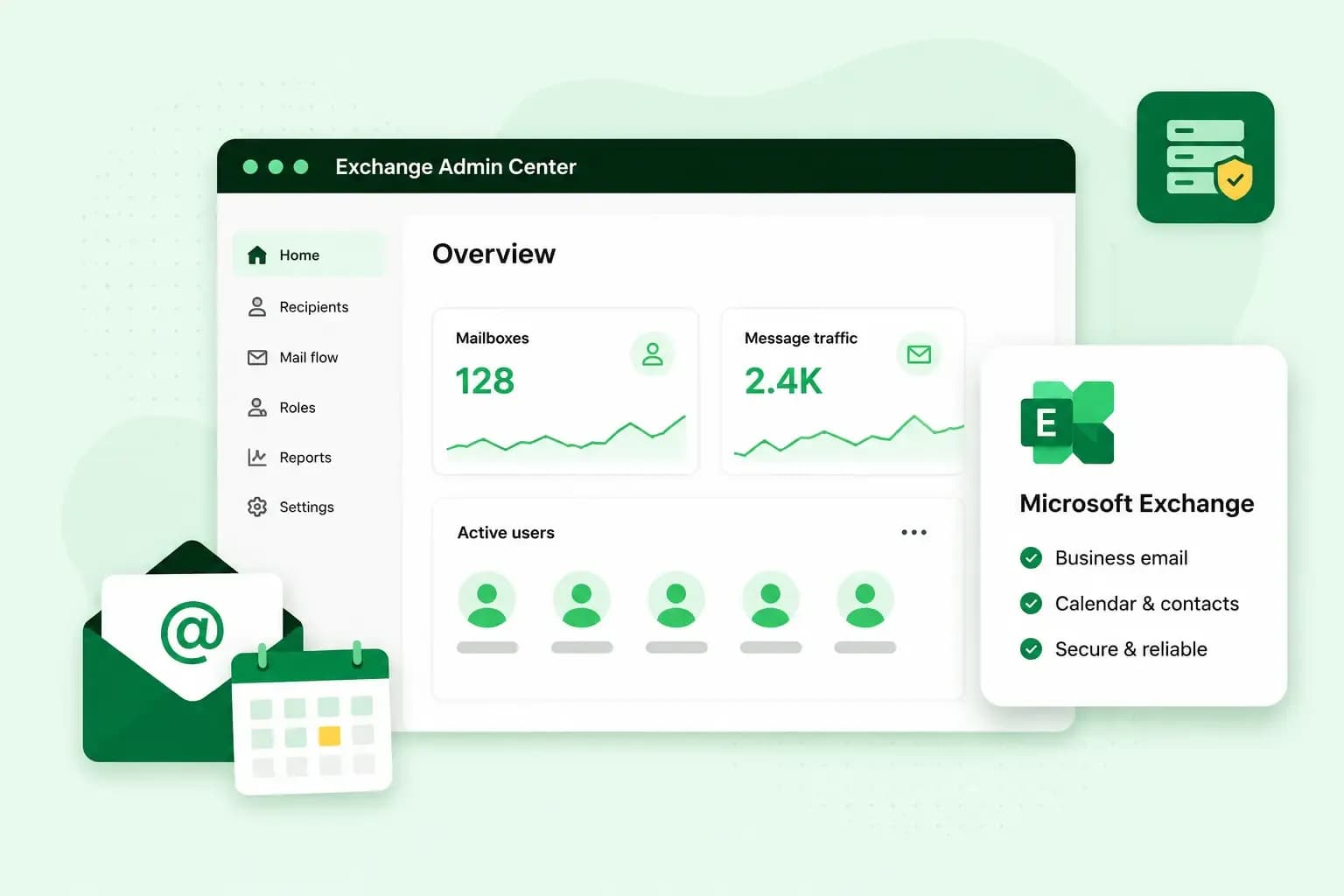
Microsoft Exchange is Microsoft's email and calendar server. It keeps your email, contacts and calendar in one mailbox on a server, not only on your computer. So your laptop, your phone and your web browser all show the same messages and appointments. A business either runs Exchange Server on its own premises or uses Exchange Online, the cloud version.
Because Exchange is an email server, it isn't an app you open yourself. You read your email in an email app or a browser, and Exchange keeps your devices in step in the background.
How Microsoft Exchange works
With an Exchange account, new email arrives in your mailbox on the Exchange server, and your contacts and calendar are stored there as well. Your devices don't hold the only copy. They read and update the mailbox on the server. So a meeting you accept on your phone also appears in Outlook on your laptop.
You usually get an Exchange account, which Microsoft calls a work or school account, from your employer or school. They either run their own Exchange server or use Microsoft 365, which relies on Exchange for its email.
Adding a new device is usually quick. Autodiscover, a feature of Exchange, uses the domain in your email address to find your server and mailbox, and sets up Outlook for you. You're only asked for the server name if that lookup fails. Whoever gave you the email address can then tell you what it is.
Exchange Server or Exchange in the cloud
Exchange comes as Exchange Server and Exchange Online, and the difference is who runs the server. Microsoft Exchange Server is software an organisation installs on its own servers, so its IT team plans, deploys and manages it. Exchange Online is the cloud version that Microsoft runs for you. You reach your mailbox with Outlook on your computer, in a web browser or on your phone.
Because Microsoft looks after the server, Exchange Online is usually the better choice if your business has no IT team of its own. You still connect your domain and add your users yourself.
Microsoft 365 is the subscription, and Exchange is the part of it that handles your email and calendar. We sell Exchange Online as a plan on its own. It also comes with two of our Microsoft 365 plans, Microsoft 365 Business Basic and Microsoft 365 Business Standard.
Exchange hasn't been discontinued, but the older server versions have. Microsoft ended support for Exchange Server 2016 and Exchange Server 2019 on 14 October 2025, so they no longer get security updates or fixes. The server version Microsoft supports now is Exchange Server Subscription Edition (SE), in support since 1 July 2025. Exchange Online carries on as part of Microsoft 365.
Is Microsoft Exchange the same as Outlook?
No. Outlook is an email client, the app you read and write email in, while Exchange is the server that holds your mailbox. Outlook can open an Exchange account, and it can hold IMAP and POP accounts as well. Your Exchange mailbox isn't tied to Outlook either, as it can sync to your phone's own mail app too. The two are easy to mix up, partly because the browser version of an Exchange mailbox is called Outlook on the web.
To check whether an account in Outlook is an Exchange account, open File and select Account Settings, then Account Settings once more. On the Email tab, the Type column shows the type of each account.
Exchange, IMAP and POP compared
IMAP and POP are the other ways an email app can reach a mailbox. IMAP leaves your email on the server, and POP downloads it to your computer. Exchange goes a step further and keeps your calendar and contacts on the server too.
| Exchange | IMAP | POP | |
|---|---|---|---|
| Where your email is kept | In your mailbox on the server | On the server, where your device reads it | Downloaded to your computer, then deleted from the server |
| What stays in sync across devices | Email, calendar and contacts | Email in your Inbox, Sent Items and Deleted Items folders | Nothing: you read your email on the computer that downloaded it |
Choosing between Exchange and an ordinary email plan
You don't need Exchange to have professional email on your own domain. Our business email plans give you that too. Their calendar syncs across your computer, tablet and phone, and we back up your email every day. You need no technical knowledge to set them up.
Exchange is built to work with Microsoft's apps: with Outlook, and in the Microsoft 365 plans also with Word, Excel, PowerPoint and Teams. It also takes more setup. Our Microsoft 365 plans are self-managed, so you look after the DNS configuration, the users and the services yourself.
Our advice: choose a plan with Exchange if your team already works in Microsoft's apps and wants them next to its email. If you mainly need email on your own domain with a calendar, choose one of our business email plans instead. It covers that and is simpler to run.
Which plans include Exchange
Each of our Microsoft 365 plans with Exchange gives you an Exchange Online mailbox with 50 GB of storage and a calendar. The plans differ in the Microsoft apps you get with that mailbox.
| Exchange Online | Microsoft 365 Business Basic | Microsoft 365 Business Standard | |
|---|---|---|---|
| Word, Excel and PowerPoint | Not included | Online and mobile apps | Online, mobile and desktop apps on up to 5 devices |
| Microsoft Teams | Not included | Included | Included |
| OneDrive storage | Not included | 1 TB | 1 TB |
OneDrive is Microsoft's online storage for your files, so you can open them from any of your devices with an internet connection.
If you've chosen Exchange and your team only needs email and a calendar, without Word, Excel or Teams, Exchange Online is enough. Choose Business Basic if your team works in the browser and on mobile. Choose Business Standard if you want the desktop apps as well, Outlook on the desktop included. With Exchange Online or Business Basic, you reach your mailbox in Outlook on the web or on your phone, because Business Basic has the web and mobile versions of Outlook, not the desktop app. Microsoft 365 Apps for Business has the apps without email, so it doesn't include Exchange.
How to get Microsoft Exchange
You set up your Microsoft 365 plan yourself, so check these points before you buy. Our Microsoft 365 plans don't include backup and restore, so keep your own copy of any email and files you can't afford to lose. That matters most if a subscription is cancelled or suspended, because Microsoft may then delete your data after a grace period.
If you already have email on the domain, with us or with another provider, review that setup before you buy. Microsoft 365 can't run alongside a Basic Mail account, so if you use Basic Mail on the domain, you need to move away from it before Microsoft 365 handles the domain's email. Moving to Microsoft 365 can change how your email is delivered. New email then goes to Microsoft 365, but the email you already have stays with your current provider unless you move your existing email across.
Two DNS records do most of the work in the steps below. The MX record tells other email servers where to deliver email for your domain, so changing it is what moves your email to Microsoft 365. The SPF record lists the services that may send email from your domain, which helps keep your email out of spam. On our name servers, the activation of Microsoft 365 creates a new SPF record for you. You'll find both with your domain's other records under DNS settings in our control panel. If your domain uses another host's name servers, you change the records at that host, even when we registered the domain.
- Have your domain ready, or register a domain first. Your email addresses are created on that domain, and you cannot change the domain afterwards.
- Choose your Microsoft 365 plan and buy it from us.
- If your domain is on our name servers and already has an SPF record, copy it and keep the copy somewhere safe, so you can include it in the new SPF record later.
- If your domain is on our name servers and already has an SPF record, delete that SPF record from your DNS settings before you activate Microsoft 365. The activation creates a new SPF record, and the old one would conflict with it. On another host's name servers, keep your SPF record there and add Microsoft's entry to it at the last step, because only one SPF record is allowed per domain.
- Accept the Microsoft Customer Agreement for your Microsoft 365 subscription in our control panel.
- Sign in to the Microsoft 365 admin centre with the access details we email you, and set a new password.
- If the SPF record you deleted listed more than our email, such as a newsletter service, edit the new SPF record once Microsoft 365 is active. Add that service's entry from your saved copy to it, so one record covers both. Keep the new record rather than deleting it.
- Add your domain in the Microsoft 365 admin centre and verify it by adding the record Microsoft gives you to your domain's DNS settings. Leave the email records for the last step.
- Create your users and assign their licences, so each person has a mailbox before your email moves.
- If you already have email on the domain, with us or with another provider, move it across now. An IMAP migration moves the email in your mail folders only, so you move contacts and calendars separately.
- Note down your domain's current MX record, so you can put it back if you need to.
- Last, replace your domain's MX record with the one Microsoft gives you, and add the other email records it lists, so the email for your domain goes to Microsoft 365. On our name servers, the activation has already created the SPF record, so don't add a second one.
Microsoft can take up to 10 minutes to verify your domain after you add its record, or up to 48 hours with some providers. The MX change often takes a few hours to reach everyone, and it can take up to 72 hours. After that, new email arrives in your Exchange mailbox, and you can start using Outlook. Our guide to getting started with Microsoft 365 shows you how to accept the terms in your control panel and sign in for the first time. It also shows how to update your MX records with us.
Choose Exchange Online on its own, or get Microsoft's apps with it in Business Basic or Business Standard.
Compare Microsoft 365 plansWhat does Microsoft Exchange cost?
Microsoft Exchange isn't free: every person who uses it needs their own licence, which comes with their mailbox. With us, the price depends on which plan you choose and how many licences you need. Exchange Online gives you Exchange on its own, while Business Basic and Business Standard add Microsoft's apps to it. Start with the users you need today, and add licences or upgrade later as your team grows.
Once you know how many people need a mailbox, see the current price of each Microsoft 365 plan for that number of licences.
Recommended reading
 EmailNov 10, 2025
How To End An Email
How you end an email impacts how it is perceived. We have collected the best ways to sign off emails in English. EmailOct 23, 2025
4 tips for better results with AI email writing
Save time without sacrificing quality: learn how to use AI for email writing and create personalised emails effectively. Tips for crafting clear and compelling prompts. EmailOct 10, 2025
What is the best font for email?
Sending the perfect email is essential. Read our tips on what you should consider when choosing the best professional font to ensure success.