
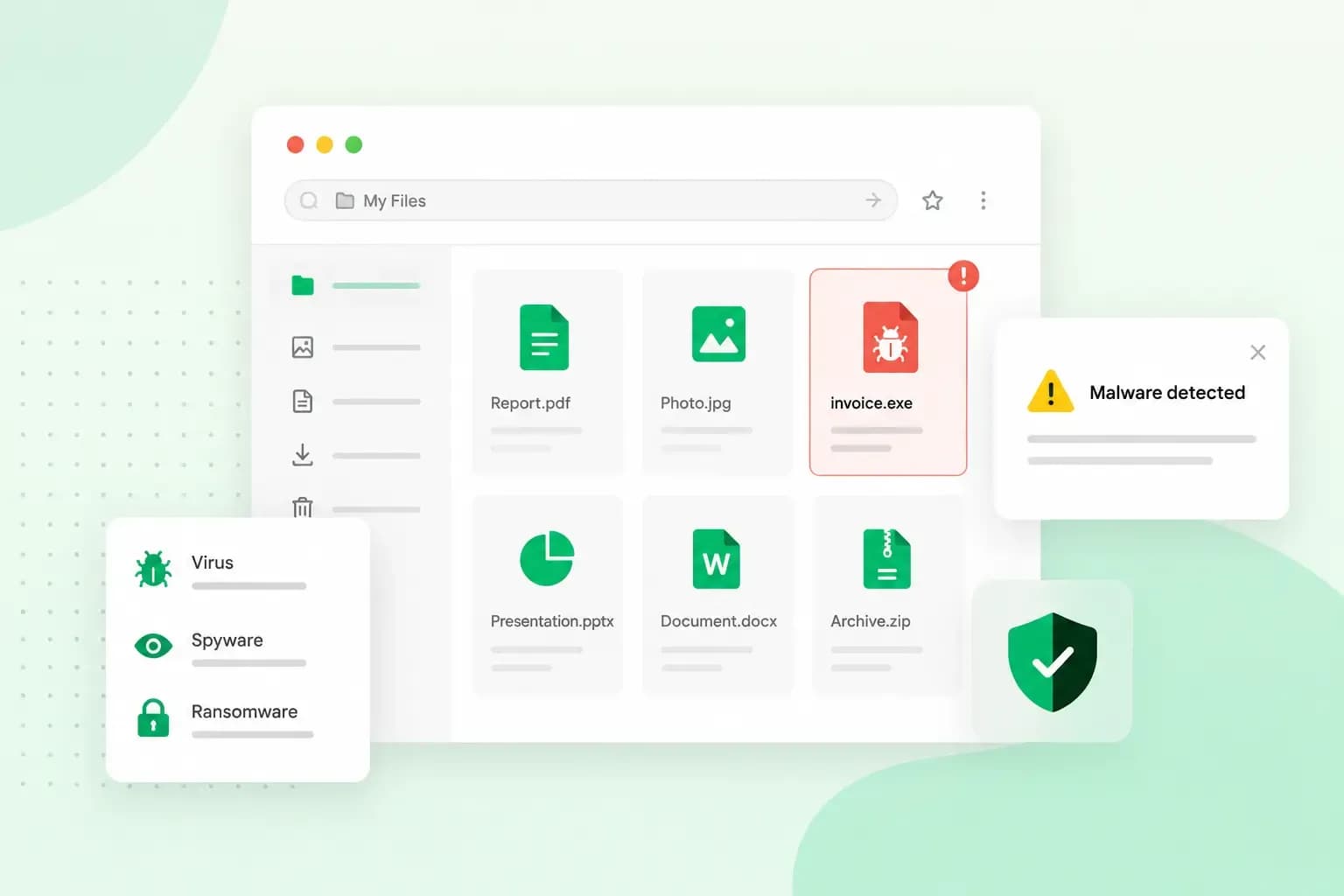
Malware is any software made to harm a device or the person using it. The word is short for malicious software. Malware can steal your passwords, lock you out of your computer until you pay a ransom or use your device to attack others. It can hide in something that looks harmless, such as an email attachment or an app you download.
Malware works on computers, phones and tablets alike, so the same care applies to every device you use.
What does malware do?
Once malware runs on your device, it can take your data, your logins or your money, or lock you out altogether. The UK's National Cyber Security Centre (NCSC) lists six kinds of harm:
- It locks your computer or phone, or makes it unusable.
- It steals, deletes or encrypts your data, so your files, photos or customer details are copied, wiped or scrambled and you can't open them.
- It steals your logins. Credentials such as passwords give the attacker access to the systems and services you use.
- It takes control of your device, and the attacker uses it to attack other organisations.
- It mines cryptocurrency, using your computer's power to make money for the attacker.
- It runs up charges on paid services in your name, such as premium rate phone calls.
Is malware the same as a virus?
No. A computer virus is one type of malware, and malware is the catch-all term for any malicious code or program. What sets a virus apart is that it lives inside another file and spreads through it. In everyday speech, people often call any malware a virus, and that's fine.
Common types of malware
Malware comes in many types, each named after how it spreads or what it does to you.
Viruses
A virus hides in a file, such as a program or a Word document, and stays dormant until that file is opened. Then it runs its code and copies itself into other files on your device, much as a cold spreads through the body. A virus can destroy personal files or take control of a device.
Worms
A worm spreads on its own. Unlike a virus, it doesn't need anyone to open an infected file: once it's on a computer, it copies itself and moves on. Worms travel through networks, email attachments, file-sharing programs and USB sticks.
Trojans
A trojan pretends to be a genuine app, often with the same file name as the real one, so that you download it yourself. Once it's installed, it can download other malware, record what you type and give an attacker control of your device. Like the Trojan horse of the myth, it does all this unnoticed. Unlike a virus, it can't spread on its own, so it only reaches a device when someone downloads it or other malware installs it.
Spyware and keyloggers
Spyware gets onto your device without your consent. It gathers data about you, from your browsing history to the passwords you save for online banking and shopping, and sends it to someone else. A keylogger records every key you press, so the passwords and financial details you type end up with the attacker. It's like someone looking over your shoulder at a cash machine, only on every site you log in to.
Adware
Adware makes money for its developers by showing adverts on your screen, for example in your web browser. Some adware goes further and opens the door to other malicious programs. So remove it, even when it only looks annoying. Run a scan with your security software first, then uninstall any app or browser add-on you don't recognise.
Ransomware
Ransomware stops you from using your computer or the data on it. The computer may be locked, or your files stolen, deleted or encrypted, and you're asked to pay, which the NCSC says is usually in a cryptocurrency such as Bitcoin. For a small business, that can mean losing access to orders, invoices and customer records in one go.
Paying the ransom is a gamble. The NCSC and UK law enforcement do not encourage paying ransom demands, and even if you pay, there's no guarantee you'll get your files back. Your computer will still be infected, and you're more likely to be targeted again.
A backup gives you a way back without paying. The NCSC advises always keeping a recent offline backup of your most important files. Unplug a backup drive when you're not using it, because ransomware can move to attached drives automatically and infect the backup too.
What is a malware attack?
A malware attack is any attempt to get malware onto your device. It's one kind of cyber attack, the wider term for any attempt to break into or damage your systems. The usual ways in are:
- Phishing emails and texts: an email or text message that looks like it comes from a company or a person you know asks you to open an attachment or click a link.
- Pirated or fake downloads: sites that offer pirated software and media often spread malware, and pirated software can come bundled with it.
- Hacked and malicious websites: visiting one can infect your device automatically, or trick you into downloading malware yourself. Even a genuine website can carry malicious code in the adverts it shows.
- Fake support calls and pop-ups: scammers pretend to work for a software company and ask you to install an app that gives them remote access to your device. If you get one, hang up or close the page.
- Out-of-date software: malware can get in through weak spots in your operating system and apps, which updates fix.
Get email on your own domain, with spam and virus protection for every inbox.
Choose an email planHow do you know if you have malware?
An infected device usually behaves differently from the way it did before. Watch for these signs:
- Your device slows down or crashes: apps take longer to load than they used to, or it keeps crashing.
- Pop-ups and ads everywhere: adverts keep appearing, sometimes even when you're not browsing the internet.
- Your browser changes: your home page is different, your searches are redirected, or a toolbar you didn't install appears.
- Apps you don't remember installing: they turn up on your phone, and you don't remember downloading them.
- A ransom demand: your files won't open and a message asks you to pay. That's ransomware.
None of these proves an infection on its own, so check with a scan before you start deleting things.
What to do if you think you have malware
Until the device is clean, avoid logging in to your bank or other important accounts on it, because what you type could end up with the attacker. Windows comes with Microsoft Defender Antivirus built in, so you may already have security software without having installed any. If you don't have any yet, install security software from a maker you recognise. Then run a full scan with your antivirus or other security software, because it can find and clean what you wouldn't spot yourself.
On a phone or tablet, also uninstall any app you don't remember installing. If the scan can't clean the device, the NCSC's guide to recovering an infected device takes you through the next steps. It covers phones and tablets as well as computers.
Once the device is clean, change your passwords, starting with your email and online banking. Do it from another device you trust if you can, in case a keylogger picked up the old ones.
If ransomware has locked your files, restore them from your offline backup once the device is clean, rather than paying. If you've been the victim of a scam or an attack in England, Wales or Northern Ireland, you can report it to Report Fraud, the national scam reporting centre that used to be called Action Fraud. In Scotland, report it to Police Scotland on 101.
How to prevent malware attacks
The habits and tools below close the ways in described above, and a backup lets you recover if something still gets through.
- Don't open attachments or links in emails you weren't expecting, even from a sender you recognise. Our tips on spam emails help you sort genuine messages from the rest.
- Let a filter check your email before you do. With business email from us, every inbox comes with spam and virus protection that blocks unwanted messages and harmful content before they reach you.
- Install updates for your operating system, browser and apps as soon as they're offered, because they close the weak spots malware uses to get in.
- Keep your antivirus switched on and let it update itself, so it knows about the latest threats.
- Get apps from official app stores such as Google Play or the App Store, and software from makers you recognise.
- Use strong, unique passwords and switch on two-factor authentication (2FA), which helps keep attackers out of your accounts even when they have your password.
- Keep a recent copy of your important files offline. For a website you host with us, every one of our hosting plans has a daily backup, and from Professional up Backup & Restore is part of the plan, so you can restore your website, email and databases yourself.
- If you run a website, keep it updated and give its logins strong passwords. Our guide on how to keep your website secure has more tips.
Your inbox is one way in you can close today. If you'd like that filter on your own email, choose an email plan and set up your address on your own domain.
Recommended reading
 Website SecurityNov 6, 2026
"Your connection is not private": what it means and how to fix it
"Your connection is not private" means your browser couldn't trust a site's certificate. See when it's safe to continue and how visitors and site owners fix it. Website SecurityAug 11, 2026
Does your website need a cookie banner?
Find out when a cookie banner is required, the legal requirements that apply, and how you can easily make your website GDPR-compliant.- Website SecurityJul 13, 2026
What is domain theft and how do you protect your domain?
Learn what domain theft and domain hijacking means and how to protect your domain from external threats.