
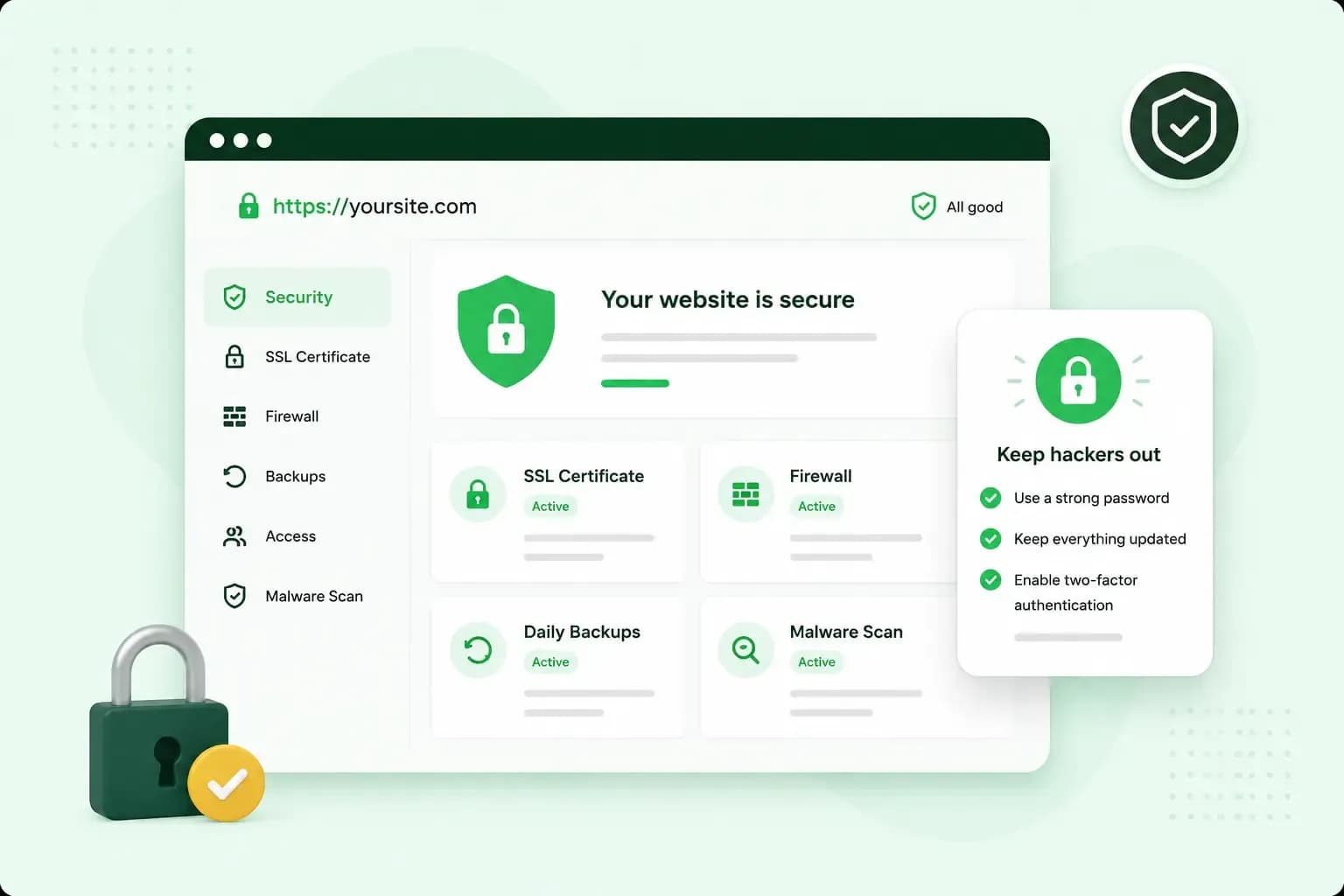
You protect your website from hackers by closing the gaps they look for. Keep your software up to date, use strong logins with two-step verification, switch on HTTPS, keep recent backups and limit who can change what. Many attacks on WordPress websites are carried out by automated bots, not by someone who picked out your business. The bots look for sites with outdated software or passwords that are easy to guess.
Why hackers go after small websites
Small websites are a target too. According to the UK's NCSC, small firms face online crime as often as big companies do. By its count, half of all small businesses have a cyber incident each year.
Attackers can use or harm your website in several ways:
- Someone who gets into your administrator account can install malicious scripts that may compromise your whole server. From there, your site can be used to put malware on your visitors' computers.
- Hackers add spammy links or text to your pages, or create new pages full of spam words that have nothing to do with your business.
- Fake pages that look like a real login trick your visitors into giving away passwords or other confidential information. This is known as phishing.
- A denial-of-service (DoS) attack can leave your website unreliable or unresponsive. That can cost you sales for as long as it lasts.
How to secure a website and prevent hacking attempts
Updates and logins come first. On WordPress, the most common attacks usually go after outdated plugins and software, or try to guess the password.
Keep WordPress, plugins and themes up to date
WordPress releases may include fixes to security issues. The release notes can show which security holes were fixed, which makes sites that haven't been updated yet an easy target for hackers. So install updates for WordPress, your theme and your plugins as soon as they come out. Every plugin and theme you have installed can be a security risk, so delete the ones you no longer use. Before you add a new one, check our list of the best WordPress plugins, which names the ones we think are worth having.
Who does the updating depends on your hosting. On Hosting for WordPress, you install updates yourself in WP Admin, although WordPress installs its minor security releases automatically. With Managed Hosting for WordPress, we update WordPress, your themes and your plugins for you automatically.
Use strong passwords and two-step verification
Use a strong password, and a different one for your website, your hosting account and your email. Criminals try passwords stolen in one data breach on other accounts. The NCSC suggests combining three random words, which makes a password hard to crack. To keep track of them all, it recommends a password manager. For more tips, see our guide on how to create a secure password.
Then switch on two-step verification, also called two-factor authentication (2FA), wherever it's offered. According to the NCSC, it helps keep criminals out of your accounts even when they have your password. Where a service supports passkeys, the NCSC recommends switching them on, starting with your business-critical accounts.
Switch on HTTPS with an SSL certificate
An SSL certificate encrypts the link between your website and your visitors' browsers. Without it, someone in between could read what visitors send or receive through your site, such as passwords or card details. Chrome can also warn visitors that the connection to a site without HTTPS is not secure.
All our web hosting plans include a free SSL certificate. It's issued and activated for you when your domain uses our name servers, but it can take a while before it works. If it still doesn't work 24 hours after you started using our name servers, something else may be wrong, and our support team can help. To check that it works, open your site and see whether the address starts with https://. If your WordPress site still opens on http://, the Really Simple Security plugin redirects visitors to the https:// version.
Back up your website
A recent backup is your way back if your site is hacked. On WordPress, a backup has two parts, the database and the files, so make sure you copy both. Keep a copy of your own, in online storage or on an external drive.
Our hosting plans also make daily backups of your web space and databases and keep them for up to 14 days. You can restore a backup yourself on the Professional, Business and Max plans. On Starter you can see your backups, but you need to upgrade to restore one, so your own copy matters even more there.
Add malware scanning and a firewall
A malware scan checks your website's files for code that shouldn't be there. A web application firewall (WAF) sits in front of your website and filters the requests that reach it. Known kinds of attack are then blocked before they get through.
On our web hosting, you don't need to add either yourself. Our hosting is guarded by a WAF and DDoS protection, and we run regular malware scans. If your site is with another host, ask whether it offers both. On WordPress, you can also add a security plugin such as Wordfence, which comes with a firewall and a malware scanner.
Our web hosting plans include a free SSL certificate, a web application firewall, DDoS protection and automatic backups.
See hosting plansLimit what visitors and users can do
Give each person their own account, with only the rights they need for their work. Delete accounts that nobody uses any more.
Moderate comments before they go live, so spam and phishing links don't end up on your pages. For the settings, see our guide on how to stop spam comments on WordPress. Allow file uploads only where you really need them, such as a job application form.
If you upload files to your server with a program such as FileZilla, connect with SFTP rather than FTP. On our new servers, FTP isn't available at all, because it's an outdated protocol with security limitations.
Be careful with links in emails
Phishing reaches you by email too. Criminals send links to fake websites that ask you to log in. If an email asks you to log in, go to the website yourself instead of clicking the link. Our guide on how to fight spam emails explains how to spot them.
How do you know your website has been hacked?
You can tell from changes you didn't make: new pages or links, a warning from Google or your browser, or visitors sent elsewhere. Some changes are hard to spot, because hackers can hide spam content with a technique called cloaking, so that you, the site owner, don't see it. Look out for these signs:
- Pages or links you didn't add. New pages full of spam words, or links on your pages to websites you don't know.
- Odd results for your own site. Type
site:and your domain into Google, with no space between them. The results list pages Google has indexed on your domain, though not always all of them, and can show pages or text you didn't write. - Google warnings. When Google finds a security problem, it can flag the affected pages in its search results, and the browser can put a warning screen in front of visitors before the page loads.
- A ransom demand. Ransomware locks your data so that you can't get to it, and the criminals behind it ask for payment.
- Visitors sent elsewhere. Code on your site redirects visitors to other websites.
If you've set up Google Search Console, check its Security issues report. It lists any signs of hacking that Google has found on your site.
What to do if your website has been hacked
Start by changing your passwords, so the hackers can no longer get into your web space. Change the ones for SFTP, your hosting account, your database and every WordPress user, and put the new database password in your wp-config file as well. Then check the user list in WordPress and note any account you don't recognise, so you can delete it once your site is clean.
To clean a hacked site, Google suggests replacing the affected files with the last good backup, or removing the hacker's content yourself. Before you restore anything, make a backup of your site as it is now, so you keep all your files and content if something goes wrong. Keep in mind that your site may already have been hacked when a backup was made. Restore one from before you first noticed the signs above, and on WordPress, restore the database from the same date as the files. If the problem comes back, an older backup may be the clean one. To check, compare when the backup was made with when the infected files were last changed, although hackers sometimes alter those dates too. If the backup is newer, you still need to remove the malware yourself. On Starter, you need to upgrade to restore a backup, either by moving to Professional or higher or by buying Backup & Restore. If your plan doesn't let you restore a backup yourself, or you're not sure which one is clean, our support team can help.
Even if the backup is from before the attack, change your passwords again and update WordPress, your theme and your plugins straight after restoring. Then delete any WordPress account you don't recognise, including one the backup brought back, and check for other weak spots. Otherwise the gap the hackers used is still open. On our hosting, once all the malware is gone and WordPress is updated, ask us to open your site again in the control panel.
If Google has flagged your site, request a review in the Security issues report once the problem is fixed. Google says a review takes from a few days to a few weeks. The NCSC's advice for sole traders and small organisations explains what else to do and where to report the attack.
What your hosting does and what stays with you
Website protection is shared between you and your host. With our web hosting, we look after the server side. Look after the rest yourself: your passwords, who has access, a backup copy of your own and, on Hosting for WordPress, your updates. Keeping control of your domain is part of your side too, and our guide to website security explains how.
Work through the seven steps above, starting with updates and passwords. If your current host doesn't cover the server side for you, our web hosting plans do.
Recommended reading
 Website SecurityNov 6, 2026
"Your connection is not private": what it means and how to fix it
"Your connection is not private" means your browser couldn't trust a site's certificate. See when it's safe to continue and how visitors and site owners fix it. Website SecurityAug 11, 2026
Does your website need a cookie banner?
Find out when a cookie banner is required, the legal requirements that apply, and how you can easily make your website GDPR-compliant.- Website SecurityJul 13, 2026
What is domain theft and how do you protect your domain?
Learn what domain theft and domain hijacking means and how to protect your domain from external threats.