
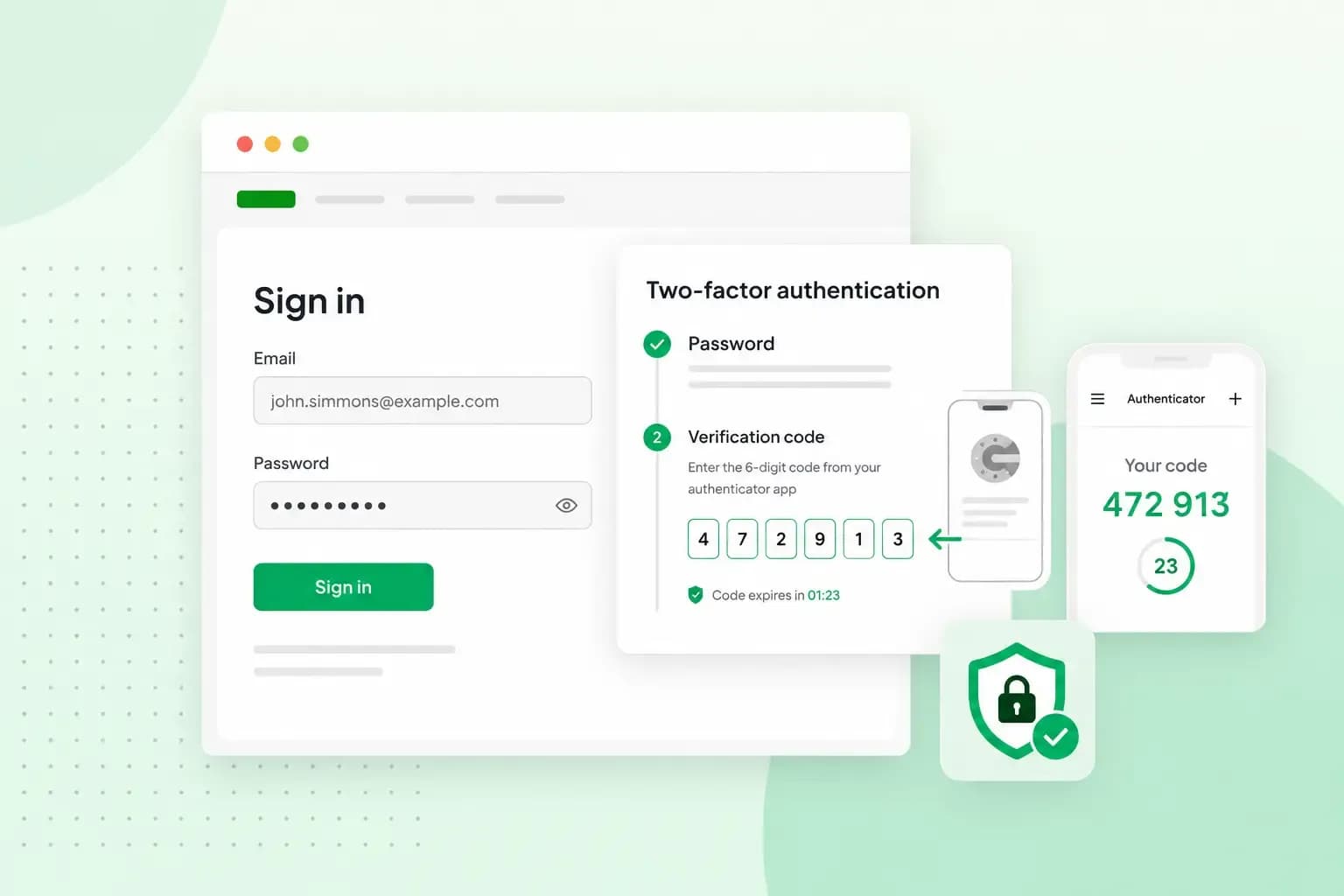
Two-factor authentication (2FA) means you need two forms of identification to get into an account or device. On top of your password, you show in a second way that it's really you. That's usually a code from an app on your phone or a code sent to you by text message. So if someone steals your password, they still can't get into your account without that second step.
How does 2FA work?
2FA works by asking for two of the three kinds of proof a service can use when you log in.
- Something you know: a password or a PIN that only you should know.
- Something you have: a device such as your phone or a key card.
- Something you are: your fingerprint, your face or another feature that's unique to you.
You log in with your password as usual, which is something you know. The service then asks for a second step of another kind, for example a code from your phone. You only get in when both are correct.
Why a password alone is not enough
Even a strong password can be stolen through no fault of your own. When a company that holds your details is hacked, criminals take the passwords leaked in a data breach and try them on other accounts. That works because many people use the same password in more than one place.
Criminals also send emails and texts with links to fake login pages, hoping you'll type your password in. 2FA adds a second lock on top, so a stolen password is no longer enough on its own. Your password is still the first lock, so it's worth taking the time to create a strong, unique password.
Which two-factor authentication method should you use?
The method you use depends on what the account offers. Each two-factor authentication method needs something different from you and holds up differently against criminals.
| Second step | What you need | How you confirm it's you | Good to know |
|---|---|---|---|
| Text message or call | A phone number | You type in the code you're sent | Easy to set up, but a criminal who moves your phone number to their own SIM card (a SIM swap) can get your codes |
| Authenticator app | An app such as Google Authenticator on your phone | You type in the code the app shows | Works when you have no internet connection or mobile signal |
| App prompt | The service's own app, signed in on your phone | You tap to approve the login | Easier than typing a code, and can help protect you against a SIM swap |
| Security key | A small device you buy | You connect the key to your phone or computer | Protects your account against phishing, the fake login pages criminals send you to |
Backup codes aren't a method of their own. They're spare codes some accounts give you for the moment your usual second step isn't to hand.
Our advice: where an account offers an authenticator app or an app prompt, choose that over text messages. For your email and the other accounts that matter most, consider a security key if the account supports one. It also protects you against phishing. If text messages are the only option, use them anyway. Any second step makes your account safer than a password alone.
How to set up two-factor authentication
You set up two-factor authentication in each account's own settings. Start with your email, because whoever gets into your inbox can reset the passwords of your other accounts from there.
- Open the account's security settings and look for two-factor authentication or 2-step verification.
- Choose your second step from the types the account offers, such as a code by text message or an authenticator app on your phone.
- Add a backup option where the account allows it, such as backup codes, so a flat or lost phone doesn't lock you out.
The account's own set-up screens then show you how to finish.
With web hosting from us, you manage everything in our control panel, and you can protect its login with 2FA too. You choose between two apps. Our Companion app lets you approve the login on your phone, and Google Authenticator gives you a 6-digit code. Our help centre shows how to switch on two-step verification for your control panel.
Our hosting plans include web space, professional email accounts and an SSL certificate, all managed from a control panel you can protect with 2FA.
See hosting plansIs two-factor authentication safe?
Yes, two-factor authentication is safe to use, though it isn't 100% secure. Criminals have adapted the tricks they use to steal passwords so they also get round some of these second steps. A fake login page, for example, can ask for your code as well as your password. Codes sent by text can also reach a criminal through a SIM swap.
So be careful with phishing emails and texts that ask you to log in, and never share a code with anyone who asks for it. If your second step comes through your phone, protect the phone with a PIN or password as well, since it now holds your second step.
How to turn off two-factor authentication
You usually switch 2FA off in the same security settings where you switched it on. We recommend keeping it on, though, because without it your password is the only lock again.
If you change phone, add the new phone as your second step before you give the old one away. Otherwise your codes keep going to a phone you no longer have. If you lose your phone, sign in with one of your backup codes and add your new phone as your second step. Without backup codes, use the recovery option the account offers on its login screen.
On your account with us, you switch 2FA off in the two-step verification settings of the control panel by entering your control panel password. If you've lost access to your control panel, the same help centre guide has a form to disable two-step verification. Sign the form and send it with the picture ID the guide asks for. If a company or association owns the subscription, the guide lists the company proof to add as well. Once you're back in, you can turn the protection on again. If you plan to change the contact email address on your account, switch 2FA off first. 2FA stops working when the address changes, so switch it back on afterwards.
Other questions about 2FA
Is 2FA the same as two-step verification and MFA?
Mostly, yes. 2-step verification (2SV) is another name for two-factor authentication, and so is multi-factor authentication (MFA). MFA means two or more factors, so 2FA is one form of it.
Do you need a code every time you log in?
Not necessarily. A service can save the second step for moments that matter, such as a login from a new device. A request to change your password is another. If a service asks you every time on your own device, look for an option such as "remember this browser".
Once 2FA is on for your email, work through the other accounts your business relies on in the same way. If you're setting up a website and business email, choose a web hosting plan and protect your control panel login with 2FA from the first day.
Recommended reading
 Website SecurityNov 6, 2026
"Your connection is not private": what it means and how to fix it
"Your connection is not private" means your browser couldn't trust a site's certificate. See when it's safe to continue and how visitors and site owners fix it. Website SecurityAug 11, 2026
Does your website need a cookie banner?
Find out when a cookie banner is required, the legal requirements that apply, and how you can easily make your website GDPR-compliant.- Website SecurityJul 13, 2026
What is domain theft and how do you protect your domain?
Learn what domain theft and domain hijacking means and how to protect your domain from external threats.