
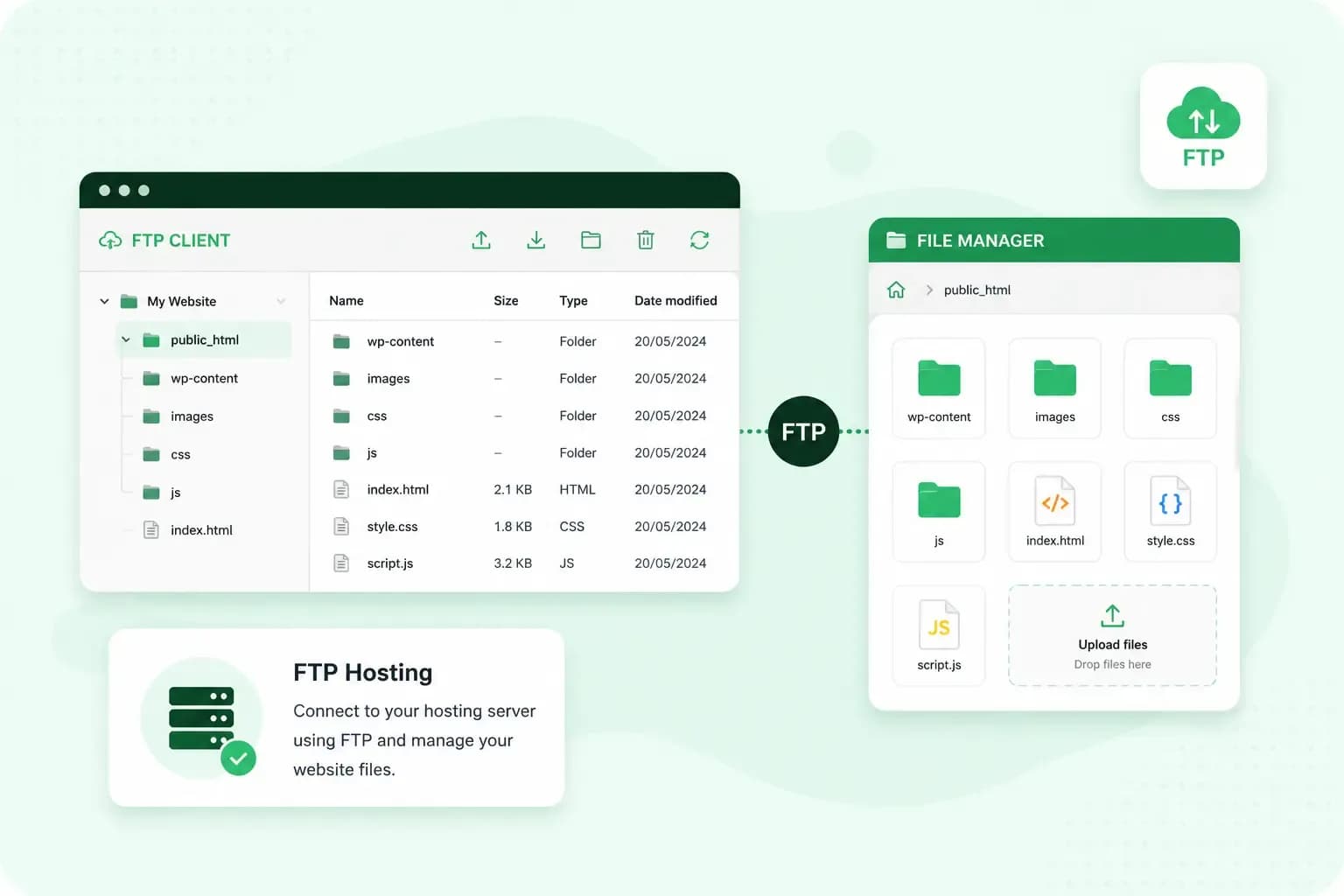
FTP hosting means your hosting plan lets you copy files between your own computer and your web space with a file transfer program. You build or edit your website's pages on your computer, then upload them to put them online. Today we recommend you do this over SFTP, a secure file transfer protocol that encrypts your password and files on the way.
What is FTP?
FTP stands for File Transfer Protocol. A protocol is a set of rules that computers follow when they talk to each other. FTP's rules are for moving files over the internet.
On your computer, you use a program called an FTP client, such as FileZilla. At the other end is the web server that stores your website. The client logs in to the server with a username and password. You can then copy files in both directions.
With web hosting that includes FTP or SFTP access, your web space works much like a folder you open from your own computer. When someone types your domain name into their browser, the web server sends them the files you uploaded there.
What you can use FTP for
You can use FTP or SFTP for these four jobs:
- Publishing a website you built yourself: you upload the pages, images and style files from your computer, and visitors see them on your domain.
- Moving your website to a new host: you upload your existing website files to your new web space.
- Installing software by hand: a content management system needs its installation files uploaded to your web space before you can set it up.
- Keeping a copy of your files: you download everything in your web space to your computer as a backup. If your site runs on a CMS such as WordPress, back up its database as well.
FTP or SFTP: which should you use?
SFTP is the better choice for your website. Plain FTP sends your username, password and files as plain text, so anyone who intercepts them on the way can read them. SFTP, the SSH File Transfer Protocol, is a separate protocol that runs over a secure SSH connection, which encrypts them. Programs such as FileZilla handle both. FTP is still around because some systems and processes may rely on it for compatibility.
Our advice: connect with SFTP whenever your host offers it, and only fall back on FTP for a system that can't use anything else. Our comparison explains the differences between FTP and SFTP in more detail.
How to connect to your web space with SFTP
If you have one of our hosting plans, follow these steps:
- Install an SFTP client on your computer, such as FileZilla or Cyberduck.
- Switch on SFTP access for your web space in the control panel.
- Request an SFTP password in the control panel. We send an email to your contact email address, and you set your new password from there.
- Find your domain's connection details on the SSH & SFTP page in the control panel.
- Enter the connection details in the fields your SFTP client asks for, then connect. The first time, your client may ask you to approve the connection to the server.
- Upload your website files, including your home page, to your website's root folder, the public folder where your website is located. On our new servers, each domain and subdomain has its own root folder, and the Subdomains page of the control panel shows its name after
/webroots/.
Once you're connected, your SFTP client shows the files and folders in your web space. The files you upload to the root folder can be reached from a web browser. On our web hosting, your home page must be an index file in that folder, its name in lower case, such as index.html.
Our web hosting gives you SFTP access to your web space, so you can publish and edit your website files securely.
See hosting plansFrequently asked questions
Does our hosting support FTP?
Only on our older servers. On our new servers, FTP is no longer available for security reasons, so you connect with SFTP instead. To check which server you're on, open the SSH & SFTP page of your control panel: if you don't see FTP Administration there, you're on our new servers. If your website is still on an older server, FTP works there, but SFTP is the safer choice.
Can I upload files without installing a program?
Yes. Our File Manager application runs in your browser, so you can upload, download, rename and move files from any computer, even one at work or in a library where you can't install software. It's included with every web space, and you open it from your control panel. For a few files, the File Manager is the easier choice, but for a whole website with many folders, we'd use an SFTP client.
Get your website online
You can build your pages on your own computer and publish them whenever they're ready. To start, set up web hosting with SFTP access, connect your SFTP client and upload your files.
Recommended reading
 HostingNov 6, 2026
504 Gateway Timeout: what it means and how to fix it
A 504 Gateway Timeout means a server in between got no answer from the website in time. See whose fault a 504 error is and how to fix it, WordPress included. HostingAug 4, 2026
What is website cache?
What does cache mean? And how to clear your cache? Read the importance of cache and why it's necessary to clear your cache once in a while. HostingAug 4, 2026
What is SSH?
How does SSH work & what does it do? Learn about the history of Secure Shell's predecessor Telnet and how SSH improved our internet security in this article.