

A 503 error means the web server is running but can't handle your request right now, usually because it's overloaded or down for maintenance. Once the load drops or the work is done, the site comes back. Until then, the server answers your requests with the 503 status code, and your browser shows "503 Service Unavailable" or "HTTP error 503" where the page should be.
A 404 Not Found is a different error: it means the page doesn't exist. With a 503, the page is still there, but the web server isn't serving it for now. If your browser shows "502 Bad Gateway" instead, a server in between, such as a proxy or gateway, got an invalid answer from the web server, so the fixes for a 502 Bad Gateway error are the ones to follow.
What to do if you see a 503 error as a visitor
There's little you can fix yourself, and it's not your fault: a 503 is a server error, so the problem usually sits with the website rather than your computer. Work through these checks to see whether to wait or get in touch:
- Refresh the page, but not while a payment is going through, since a refresh can charge you twice.
- Check whether the site is down for other people too, with an online status checker.
- If it is down for everyone, wait and try again later.
- If the site works for other people but not for you, the problem may lie in your own connection, so restart your computer and your router.
- Contact the website owner through its contact form or on social media.
What causes a 503 error?
Most of the usual causes leave a server either overloaded or down for maintenance:
- Too many visitors at once. A sudden traffic spike can overwhelm the server, for example when a campaign takes off. When it runs short of memory, CPU or connections, it can turn new requests away with a 503.
- Maintenance. While a server is being worked on, its administrators may send all traffic to a 503 page for a while, and some software does this by itself during updates.
- Resource limits on shared hosting. On shared hosting, several websites use the same server's resources, so a busy period can leave your site short of what it needs.
- A faulty plugin, theme or script. Inefficient code or a resource-hungry WordPress plugin or theme can use up the server's CPU and memory until it can't answer anyone else.
- Firewall rules. A firewall or security plugin that's set too strictly can block real visitors by mistake.
- Attack traffic. In a DDoS attack, someone floods the server with requests to use up its resources, so real visitors can't get through.
How to fix a 503 error on your own website
If your own site shows the error, work through these checks in order, from the clues you already have to a call to your host's support. Where you find the error logs and your resource usage depends on your host, so keep its help pages to hand as you go.
- Read the wording of the error message. Some messages say the server is down for maintenance, others that it's overloaded.
- Check the server's error logs for errors or warnings from the time the 503 appeared.
- If your site runs on WordPress, check its debug log for entries about a plugin, a theme or another component. The log is off by default, so switch it on first, and switch it off again when you're done.
- Check your resource usage: high CPU, memory, disk and bandwidth use point to a server under strain.
- Check your hosting account for a notice about planned maintenance or a wider server problem.
- If you use a security plugin or a firewall, review its settings, since a rule that's too strict can block real visitors.
- If none of this finds the cause, contact your hosting provider's support team.
Switch off WordPress plugins when you can't log in
A faulty plugin can keep the WordPress dashboard from loading, so you can't switch it off the usual way. You can still switch every plugin off from your site's files:
- Open the
wp-contentfolder of your WordPress site, either with an SFTP program such as FileZilla or with your host's file manager. - Rename the
pluginsfolder toplugins.hold; this switches every plugin off. - Log in to WordPress and open the Plugins page (
/wp-admin/plugins.php), where WordPress shows that the plugins are missing and switches them off. - Rename
plugins.holdback toplugins; the plugins stay switched off. - Switch the plugins back on one at a time on the Plugins page.
If the 503 returns as soon as you switch a plugin back on, that plugin is the one to update, replace or remove. Should it lock you out of the dashboard again, repeat the steps above and, this time, leave that plugin off while you switch the others back on. If the site still shows the 503 with every plugin off, the cause lies elsewhere, so go back to the checks above or contact your host.
Does a 503 error hurt your SEO?
Yes, if it lasts. In the short term, Google's crawlers treat this error like other server errors: they slow down, and pages that are already in Google's index stay there. If your pages keep returning a server error for several days, Google may drop them from its index. Once your server answers normally again, Google gradually goes back to its usual crawl rate. So treat a 503 that doesn't clear up on its own as urgent, and keep planned downtime short.
Show a proper 503 page during maintenance
When you take your site offline on purpose, 503 is the right status code to send, because it tells search engines the outage is temporary. Send a short page with it that explains to visitors what's going on. You can also add a Retry-After header, a line in the server's reply that says how long the site is expected to be unavailable, either as a number of seconds or as a date and time.
Schedule the work for your quietest hours, and on the page say when you expect to be back, much as a website under construction page does. If your site runs on WordPress, a maintenance mode plugin can show such a page for you; pick one that sends the 503 status code with it. If you manage your own web server, you set the page in its configuration: Apache's ErrorDocument directive and nginx's error_page directive are the settings that decide which page visitors see for a given error code.
How to prevent 503 errors
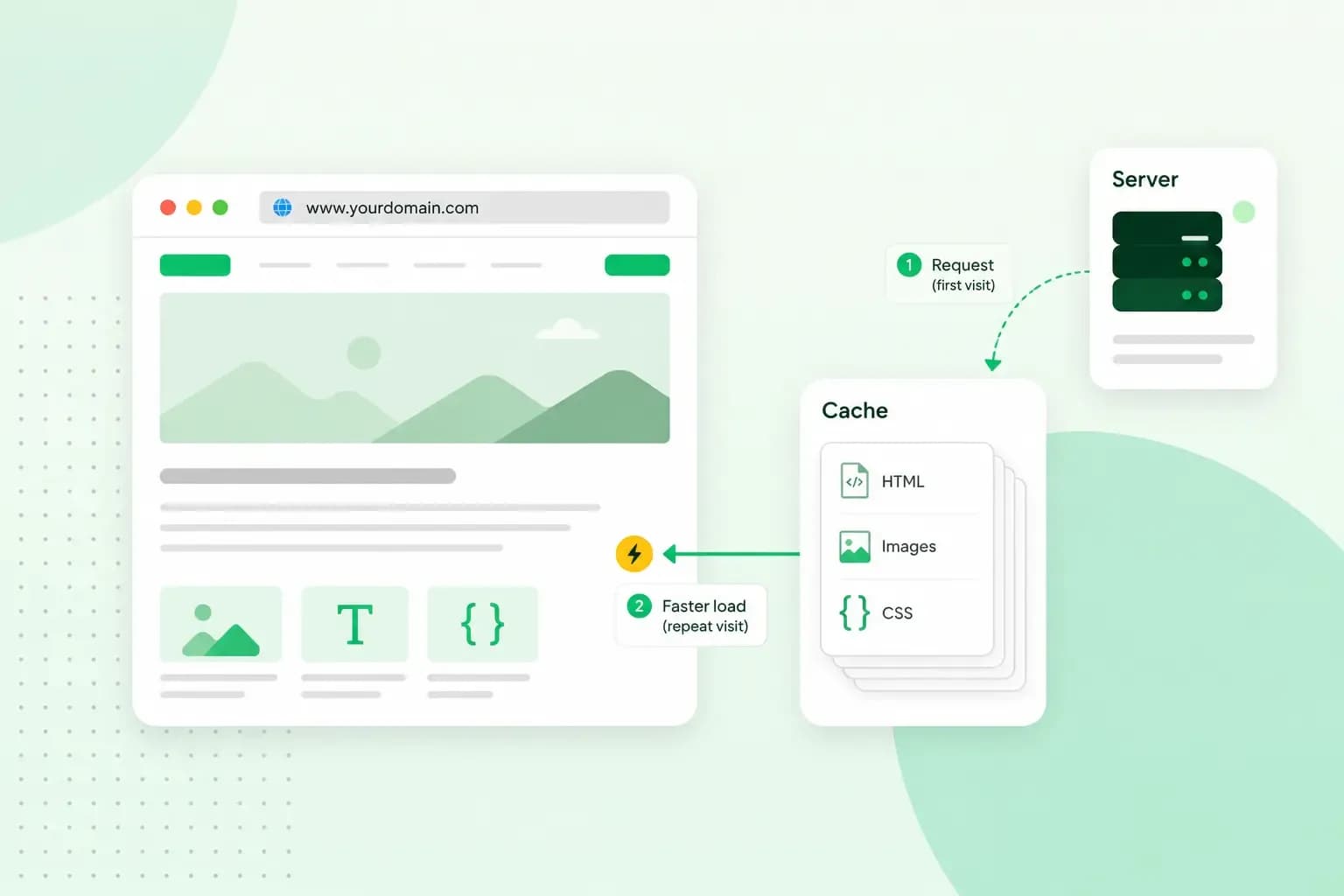
A site that's often down is a poor user experience, so take load off your server with caching and a CDN. Caching stores copies of your files so they can be served more quickly. A content delivery network keeps those copies on servers around the world, which cuts the amount of data your own server has to send.
Keep your plugins and themes up to date and remove the ones you don't use. Watch your traffic and resource use as well, so you see a spike building before the server runs out of room.
If your site keeps running out of resources, it needs more room: a bigger hosting plan, or a VPS. Our VPS gives you a guaranteed share of vCPU cores, RAM and NVMe SSD storage that other servers on the same hardware can't use, so a neighbour's busy day doesn't become yours. It's unmanaged, though: you configure the server and look after its security and updates yourself. So a VPS fits when you need resources nobody else shares and you're happy running a server. If you'd rather not, a bigger hosting plan is the simpler step: our web hosting plans go from a basic plan for simple sites to higher tiers for busier ones, and you can upgrade as your site grows.
Your own server, set up your way, with full root access and NVMe SSD storage.
Choose a VPSRecommended reading
 HostingAug 4, 2026
What is cache?
What does cache mean? And how to clear your cache? Read the importance of cache and why it's necessary to clear your cache once in a while.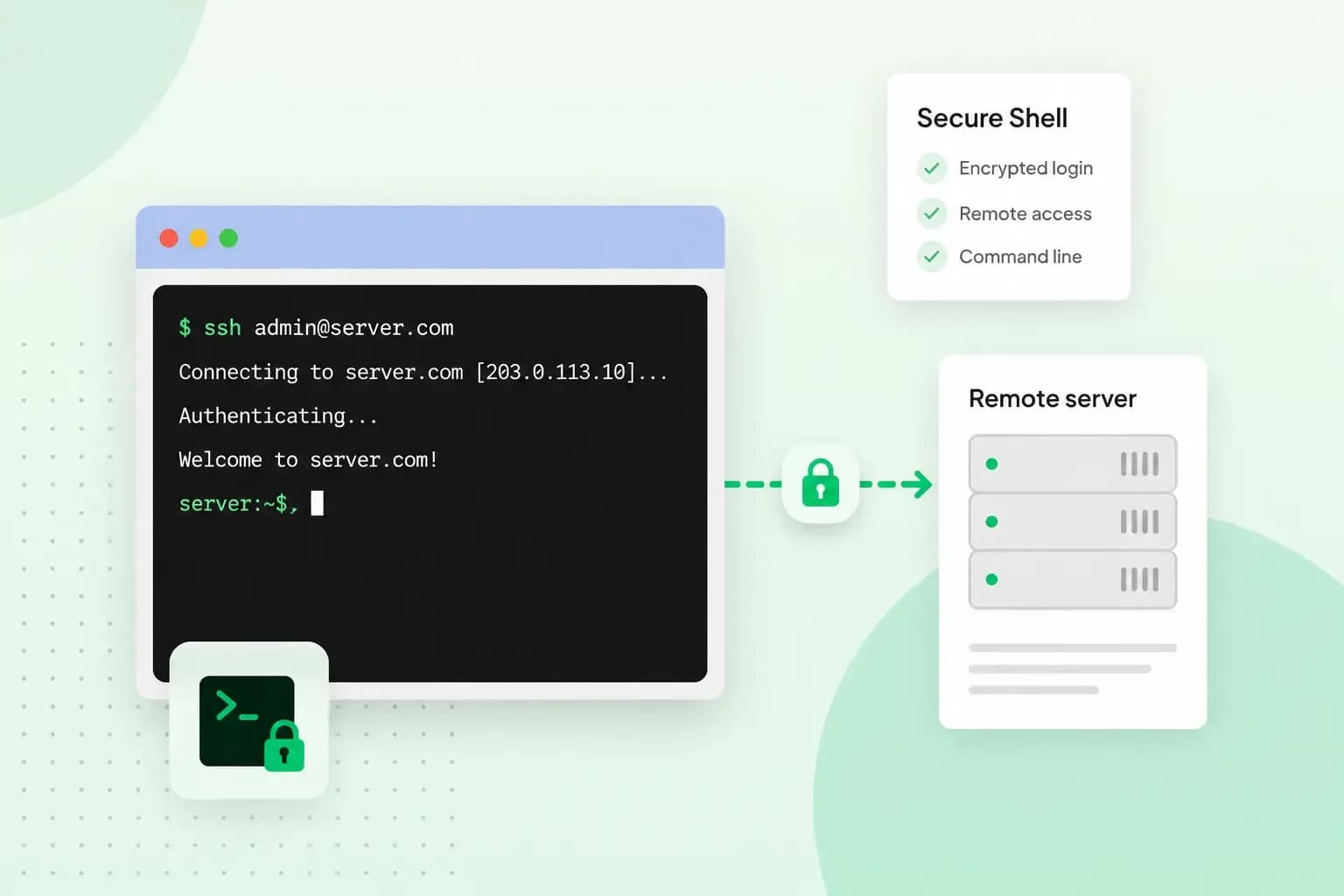 HostingAug 4, 2026
What is SSH?
How does SSH work & what does it do? Learn about the history of Secure Shell's predecessor Telnet and how SSH improved our internet security in this article.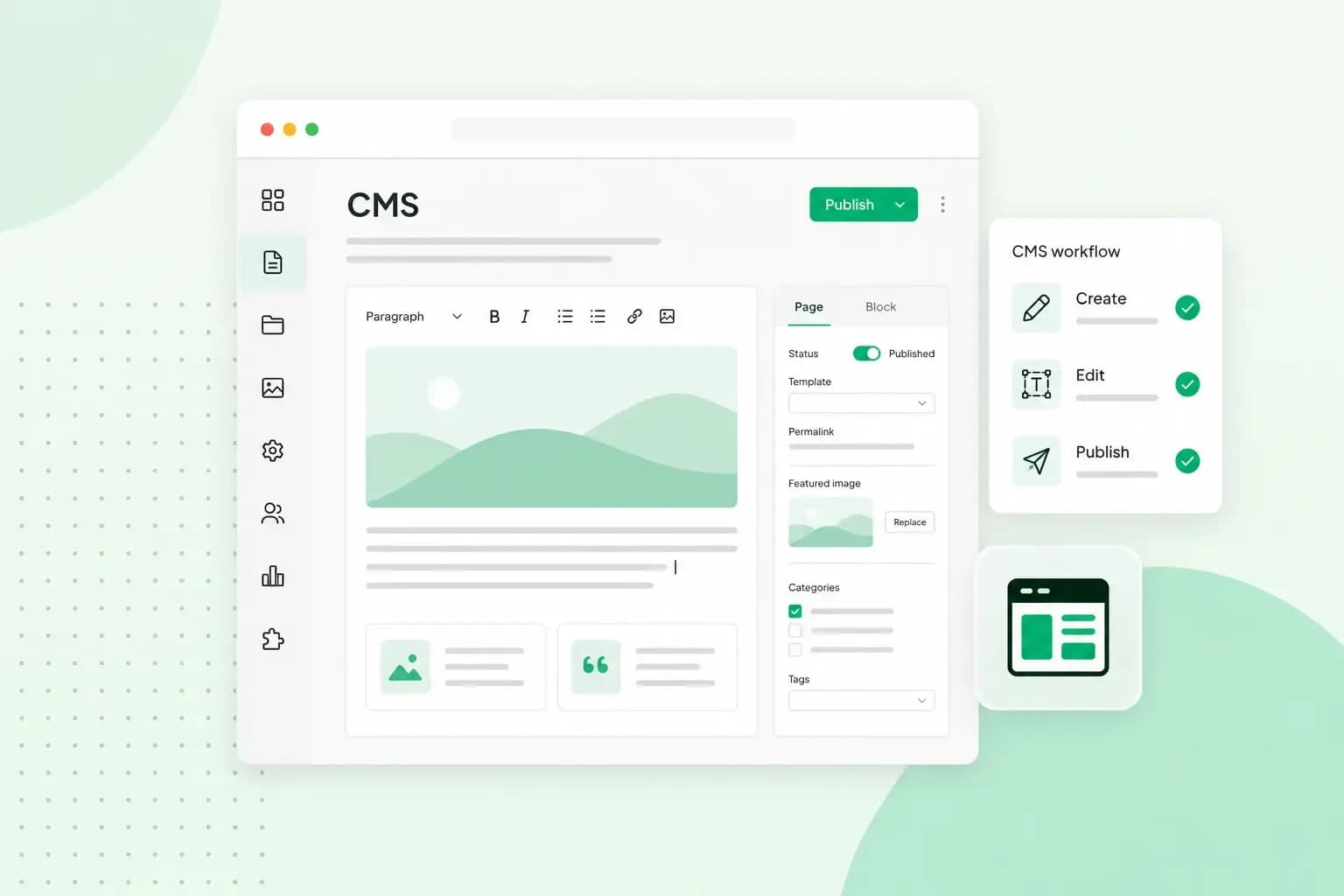 HostingAug 4, 2026
What is a CMS (content management system)?
You can easily create and manage your website with a content management system (CMS). Want to know more? Learn all about CMS in this complete guide!