
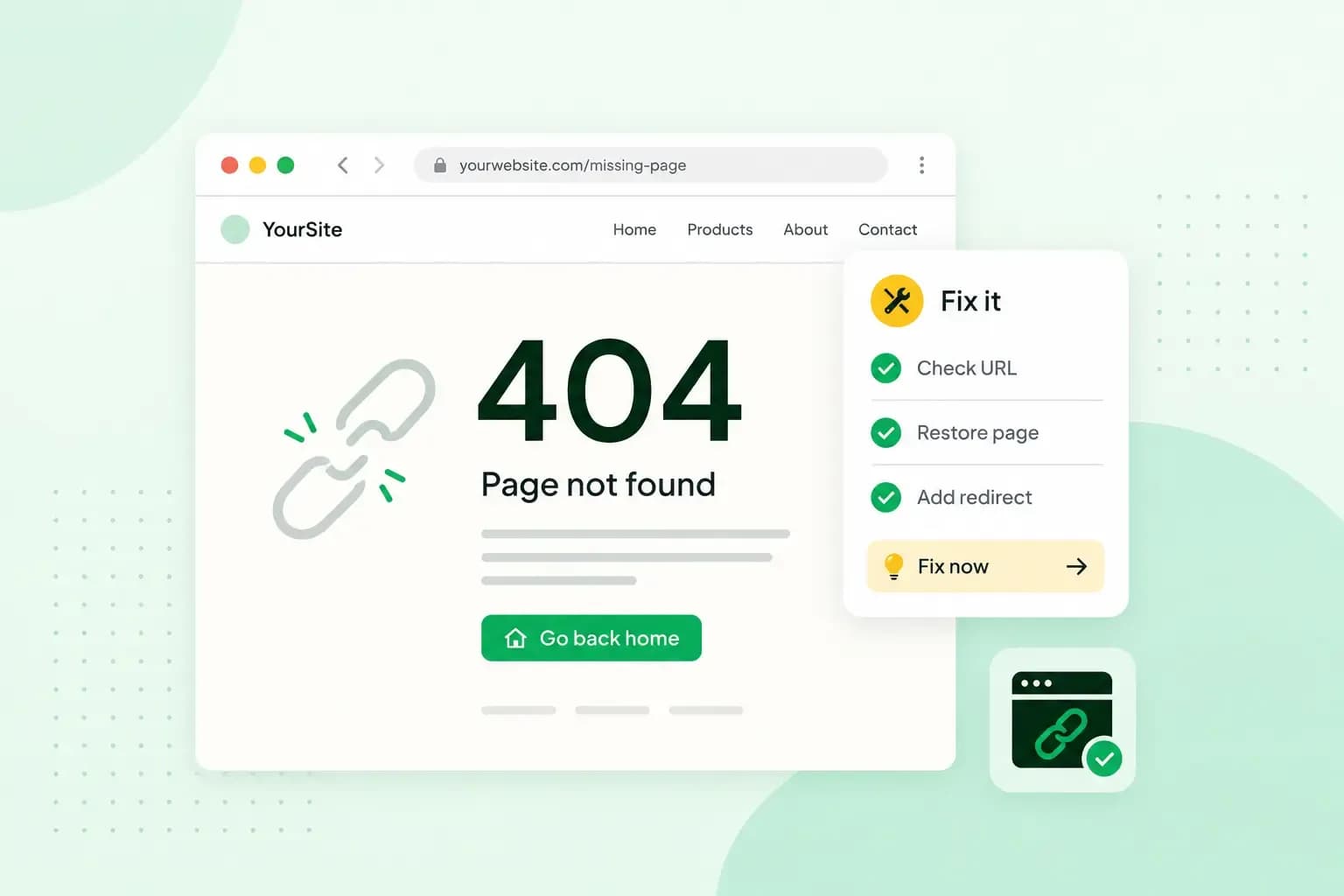
A 404 error, also called "404 Not Found" or an HTTP 404 error, means you reached a website's server, but it found no page at the address you asked for. It usually happens because a page was deleted or moved, or because a link or a typed address has a typo in it. If you see one on someone else's site, check the address for typos, reload the page or search the site for what you were looking for. On your own website, you fix a 404 by sending the old address to the right page with a redirect, or by correcting the link that points to it.
What does a 404 error mean?
It means the server sent back the HTTP status code 404. A status code is the short reply a web server gives with every page it delivers, and 404 tells the browser that the server found nothing at that URL. It doesn't say whether the page is gone for a while or for good. Because the reply comes from the server, a 404 also tells you the website itself is online: the server answered, it just had no page at that address. If a site doesn't load at all, the problem lies somewhere else.
Many websites design their own 404 page, so the message can look quite different from one site to the next.
A 403 Forbidden error is another reply from a server that answered, but it means something else: the server understood the request but refuses to carry it out, so the page may well exist but you can't open it.
What causes a 404 error?
On your own website, a 404 usually comes down to one of these causes:
- The page was deleted. Links on your site or on other websites still point to its address, so visitors who follow them reach a page that no longer exists.
- The page was moved or renamed. Its address changed, and without a redirect the old address leads nowhere, so anyone using an old link or bookmark gets a 404.
- A link has a typo. A wrong character in a link on your site, in an email or on another website, or in an address a visitor types, sends the browser to an address where no page exists.
- Permalink trouble in WordPress. Permalinks are the fixed addresses WordPress gives your posts and pages. If many of them suddenly show a 404, the cause may be an issue with the
.htaccessfile that WordPress uses for its permalinks.
When the server itself has a problem, visitors see a 500 error instead: the server ran into an unexpected condition that stopped it from delivering the page.
What is a soft 404?
A soft 404 is a page that tells visitors it doesn't exist but sends the status code for success (200) instead of 404. Google can also treat a page with no main content, or an empty page, as a soft 404. It leaves these pages out of its search results and lists them as soft 404 errors in the Page indexing report in Search Console.
Sending every missing page to your homepage is no way round this. When a site redirects unknown addresses to its homepage instead of returning a 404, Google can treat those pages as soft 404s too. Google recommends a real 404 code for a page that is truly gone, so give it one.
Do 404 errors hurt your SEO?
Usually not, when the page is really gone and nothing replaces it. When Google gets a 404, it drops the URL from its index if it was there, and it crawls that URL less and less often over time.
Make sure you fix the missing pages that matter to you: a page that moved, a page other websites link to, or a page you've put SEO work into. Visitors who follow a link to one of those pages hit a dead end instead of the content they came for, so each one is worth a redirect or a corrected link.
How to find 404 errors on your website
- In Google Search Console, the Page indexing report lists the addresses on your site that returned a 404 under "Not found (404)". Google finds them through links on other pages, or because the page existed before and was deleted.
- A crawler such as the Screaming Frog SEO Spider goes through your website and lists the links that end in a 404. It's free for crawling up to 500 URLs. Screaming Frog's broken link checker guide shows you how to run that check.
- If a visitor tells you a link doesn't work, ask where they found it, so you can correct the link.
Should you redirect, correct or leave a 404 error?
Redirect a page that moved, correct a link with a typo, restore a page that should still be there and leave the 404 for a page that's gone for good:
Which fix fits which 404 error
| Situation | Fix | What the visitor gets |
|---|---|---|
| The page moved or was renamed | A 301 redirect from the old address to the new one | The new page, straight away |
| A link on your site has a typo | Correct the link | The right page |
| The page was deleted and nothing replaces it | Leave the 404 in place | Your 404 page |
| The page should still be there | Restore or republish the page at the same address | The page as before |
Our advice: if other websites link to the missing page or visitors still look for it, and you have a page with similar content, set up a 301 redirect to that page. If there's nothing like it on your site, leave the 404 in place rather than sending people somewhere they didn't ask to go.
Set up a 301 redirect on your web hosting
When a page has moved or been renamed and your site runs on our web hosting, you add the redirect to the .htaccess file in your website's root folder. You edit it in File Manager in the control panel. Our step-by-step guide to web hosting redirects gives the exact line to add, so keep it open while you work through these steps:
- Open File Manager.
- Find the
.htaccessfile in your website's root folder. If there's no.htaccessfile yet, create one first, as the step-by-step guide explains. Make a backup copy of the file before you open it to edit. - Add a 301 redirect that sends the old address to the new page, all on one line.
- Save the file.
- Open the old address in your browser to check that it lands on the new page. If something goes wrong, put the backup copy back.
If you built your site with Website Builder, you add the redirect in its own redirect settings instead. There you choose between a 301 and a 302 redirect: pick the 301 for a page that has moved permanently.
Fix 404 errors on every WordPress post
If every post on your WordPress site shows a 404, saving your permalink settings again usually fixes it, because WordPress then updates its rules in the .htaccess file:
- In your WordPress dashboard, open the Settings Permalinks screen (Permalinks in the Settings menu).
- Click Save Changes at the bottom of the screen.
- Look for the message at the top: if it reads "Permalink structure updated.", WordPress has rewritten the rules for you.
- If it says "You should update your .htaccess now." instead, copy the rules WordPress shows into your .htaccess file. On our web hosting, open the file in File Manager and make a backup copy before you paste the rules in.
- Save the .htaccess file, so your new permalinks work.
If you use a caching plugin, clear it afterwards, so visitors don't get the old error from a stored copy of the page.
Keep the 404 code on your own error page
A custom error page helps visitors who hit a dead end: it keeps your design and menu, says plainly that the page wasn't found and links to your homepage and your most popular pages. Keep it simple, and add a search box, so visitors can still find what they came for. Our article Create a 404 error page also shows how to design your own in WordPress.
Whatever your error page looks like, it must still send the 404 code, or Google treats it as a soft 404. To add a custom error page on your web hosting, you point 404 errors to it with one line in the .htaccess file, such as ErrorDocument 404 /notfound.html. Write the page's address without your domain, starting with a slash as in that line. With a full web address that starts with https://, the server sends a redirect instead of the 404 code.
Prevent new 404 errors
Many new 404s start with a change on your own site: a page renamed, a product taken off your shop, a blog post moved. Add the redirect at the same time as you change an address, and when you delete a page, remove or correct the links to it in your menus and other pages. Check the Page indexing report in Search Console now and then for errors you missed.
Before you edit the .htaccess file or delete pages, make a backup of your website, so you can undo a change that goes wrong.
All our hosting plans include a daily backup of your website. From the Professional plan up, you can also restore a backup yourself.
See hosting plansRecommended reading
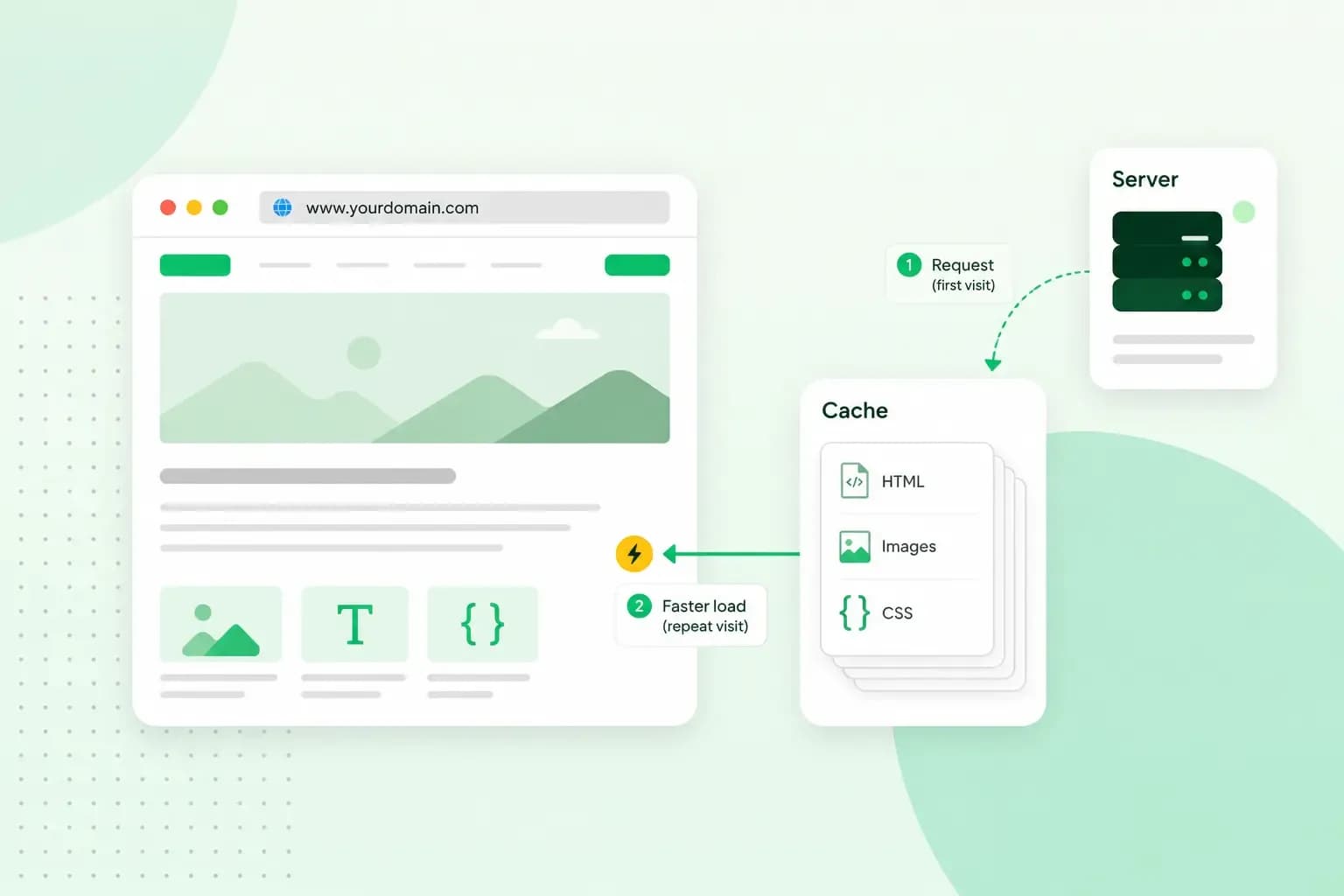 Hosting4 Aug 2026
What is cache?
What does cache mean? And how to clear your cache? Read the importance of cache and why it's necessary to clear your cache once in a while.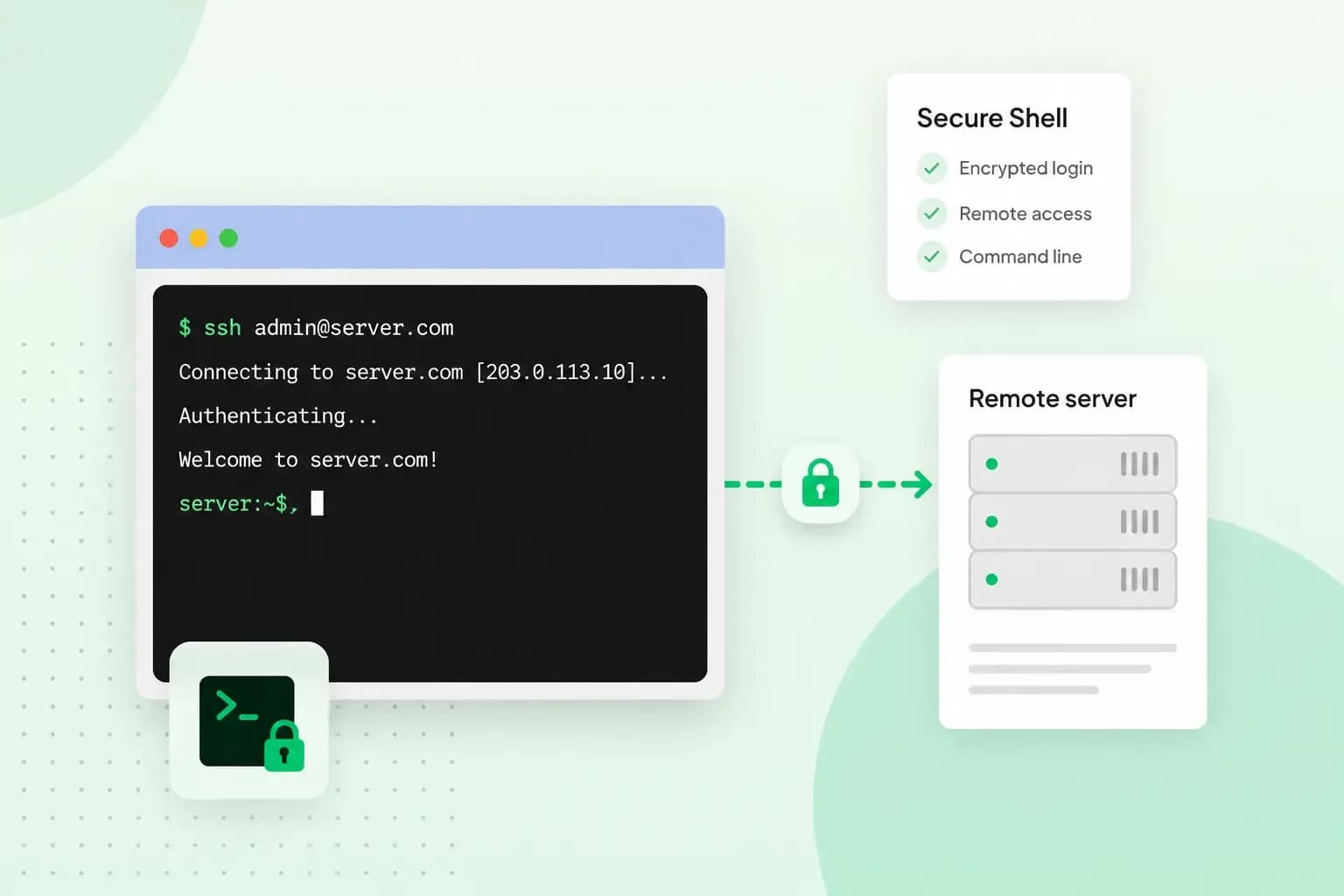 Hosting4 Aug 2026
What is SSH?
How does SSH work & what does it do? Learn about the history of Secure Shell's predecessor Telnet and how SSH improved our internet security in this article.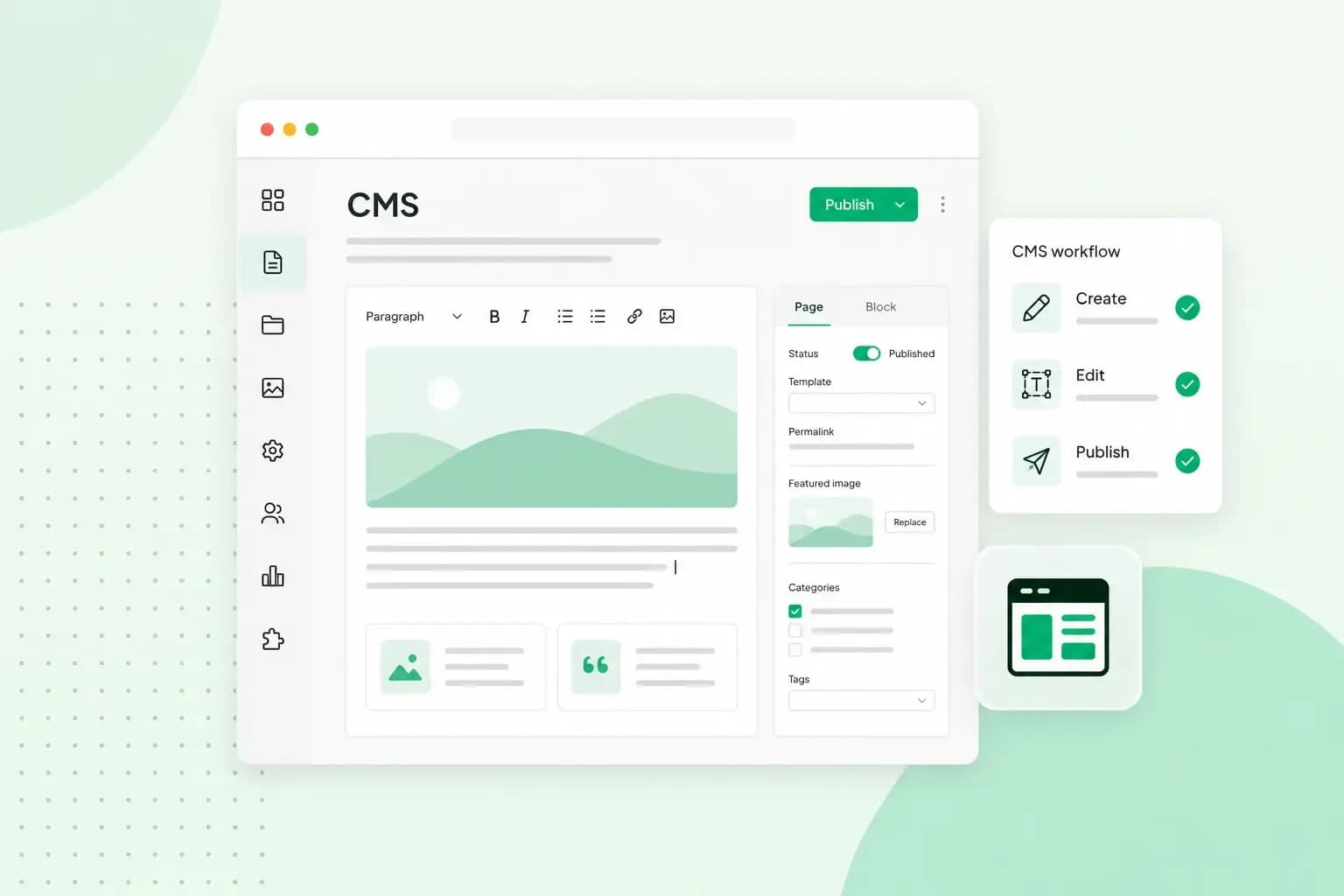 Hosting4 Aug 2026
What is a CMS (content management system)?
You can easily create and manage your website with a content management system (CMS). Want to know more? Learn all about CMS in this complete guide!