
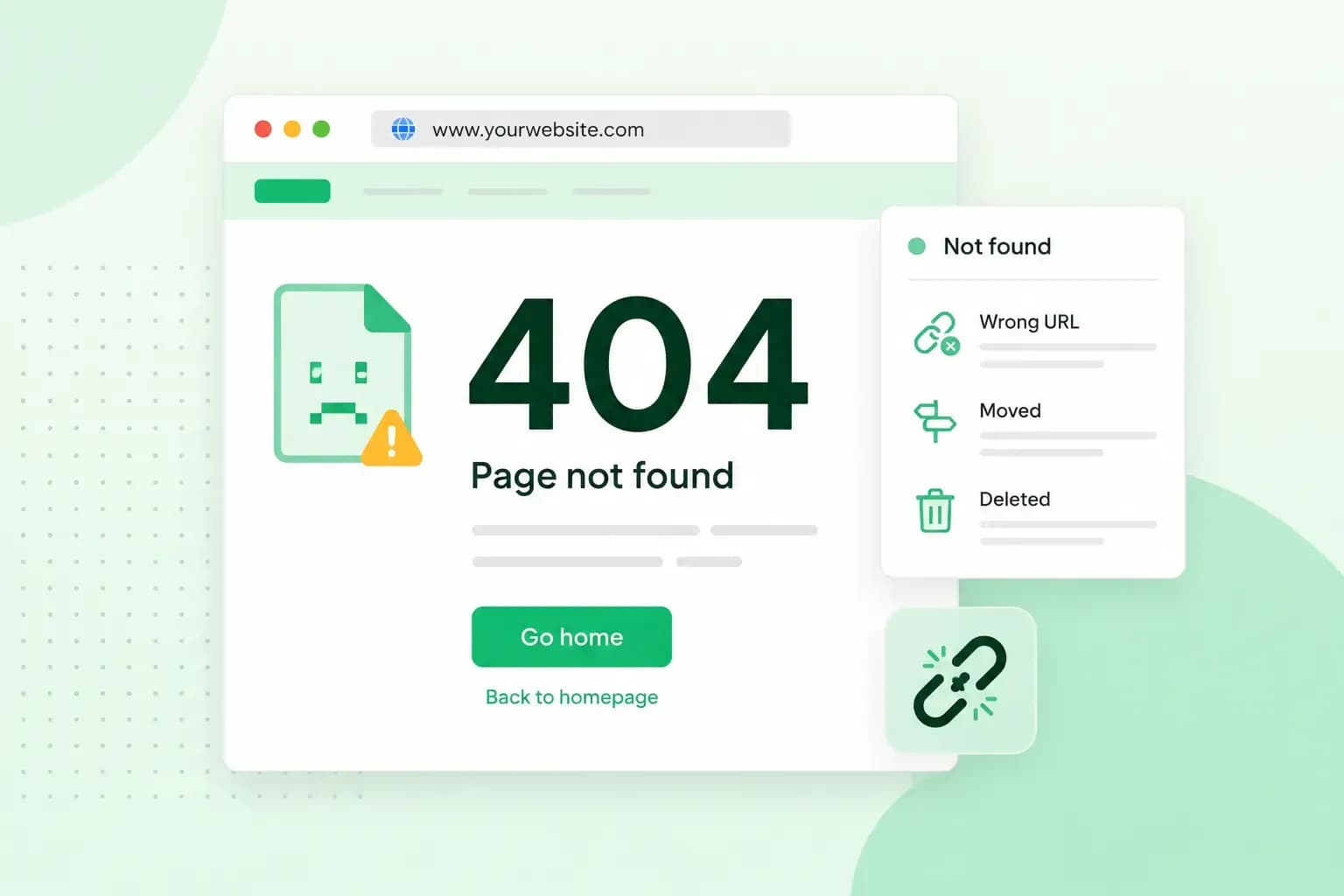
A 404 page appears when you try to access a webpage that doesn’t exist or can’t be found. Your visitors see it when they mistype an address, follow a broken link or open a page that’s been deleted. Along with the page, the server that holds your website sends the status code 404 (Not Found). That short code tells search engines that the page doesn’t exist. A custom 404 page keeps the code but gives your visitors a way back into your website. Our guide to the 404 error explains what causes it and how to fix the broken link behind it.
Why a custom 404 page is worth having
Without a custom page, visitors get a standard error message. It says the page is missing but doesn’t help them find anything else, so many simply leave.
A custom 404 page tells them the same thing in your own words and in your website’s design. It also points them to pages that exist. Someone who followed an old link to a product you no longer sell can then find your other products instead of closing the tab.
What to put on your 404 page
When you plan your 404 page design, keep the page short and give the visitor a way to carry on. A good 404 page has:
- A clear, friendly message. Say plainly that the page can’t be found. Don’t blame the visitor, and leave out technical terms they won’t understand.
- Your website’s look and menu. Keep the same design and navigation as the rest of your site, so visitors can keep browsing without the Back button.
- Links to pages that exist. Link to your home page and your most popular pages or products.
- A search box, so visitors can look for what they came for.
- A way to get in touch. Give your contact details or a way to report the broken link, so you hear about it and can fix it.
- A tip for mistyped addresses. Suggest that visitors check the address for typing mistakes.
You can use an illustration or just text, and a light touch of humour is fine if it suits your brand. Just make sure the visitor still understands what happened.
How to set up a 404 page on your website
For these steps you need web hosting where you can edit your own files. On our web hosting, you set up your own 404 page with one line in the .htaccess file, a settings file that tells the server how to behave. The error page itself is an ordinary HTML file. If you use our classic Website Builder, it overwrites a .htaccess file you’ve changed by hand every time you republish. Keep a copy of your ErrorDocument line and add it again after you republish.
- Create your error page as an HTML file, for example
notfound.html, in a text editor or by saving a page from your website as HTML. Upload it with our File Manager to your website's root folder, the main folder that holds your home page (index.html or index.php). - Open our File Manager and find the
.htaccessfile in the same folder, or create one if it doesn't exist. - Add the line
ErrorDocument 404 /notfound.htmlat the bottom of the file, with the path to your own page. - Save the file.
In that line, write the page as a path that starts with a slash, such as /notfound.html, not as a full web address. If the line holds an address that starts with http, the server sends visitors a redirect to the page. Browsers and search engines then get a redirect instead of the 404 code, so they’re no longer told that the page is missing.
Our web hosting comes with our File Manager and SFTP access, so you can edit your website's files, including your error page.
How to set up a 404 page in WordPress
WordPress already shows a 404 page when an address doesn’t exist, but the default one may not fit your site. The way you change it depends on whether your WordPress theme is a block theme or a classic theme. With a block theme, Appearance > Editor in your dashboard opens the Site Editor. If your Appearance menu has no Editor, you’re using a classic theme.
In a block theme
Many block themes come with a 404 template, and you can edit it in the Site Editor without installing anything extra.
- In your WordPress dashboard, go to Appearance > Editor to open the Site Editor.
- Click Templates and choose the 404 template.
- Edit the template with blocks: your message, links to your main pages and a search box.
- Click Save.
In a classic theme
In a classic theme, the 404 page comes from a template file, 404.php, which you’d have to edit as code. It’s simpler to use a plugin, an add-on that gives WordPress an extra feature. With the Smart Custom 404 Error Page plugin, you build the 404 page like any other page. The plugin doesn’t create a redirect, so your server still sends the correct 404 code.
- Check that your permalink structure under Settings > Permalinks is set to anything but Plain, which the plugin needs.
- Go to Plugins > Add New, search for Smart Custom 404 Error Page, then click Install Now and Activate.
- Create your 404 page like any other page under Pages > Add New, and publish it.
- Go to Appearance > 404 Error Page and select the page you just created.
Does a 404 page affect your SEO?
Not as long as your server sends the 404 code with it. Google sees a custom 404 page as a page for your visitors, not as content to index. It drops an address that returns 404 from its index if the address was there, and it doesn’t process new addresses that return 404.
In general, Google recommends fixing only the 404s you link to yourself or list in your sitemap. If a page has moved or has a clear replacement, use a 301 redirect to the new page instead. To see which broken addresses Google has found, open the Page indexing report in Search Console. It lists the URLs that returned a 404 in the past month.
What is a soft 404?
A soft 404 is a page that tells visitors the page doesn’t exist but answers with the code 200, which means success. When Google spots that the content is an error page, Search Console shows a soft 404 error in the Page indexing report. The page then stays out of search results. The setups above avoid this, because the missing address itself answers with your page and the 404 code.
How to check that your 404 page works
Type your website’s URL address followed by a page name that doesn’t exist, such as yourwebsite.co.uk/test-404, and press Enter. Your new 404 page should appear.
Then check that your server still answers with the 404 code. In Google Search Console, the URL Inspection tool shows whether an address on your site actually returns the code you expect. If you don’t use Search Console, a free online HTTP status checker shows the code as well, and it should say 404. A 200 means the page answers with success, the soft 404 described above. If you see a redirect code instead, check that your ErrorDocument line holds a path rather than a full web address.
Once both checks pass, a visitor who hits a dead link still has somewhere to go. Search engines also still learn that the page is gone. If your site runs on WordPress, you can move it to our Hosting for WordPress with our 1-click migration tool.
Recommended reading
 Marketing19 Oct 2026
15 ideas for Black Friday marketing
Make the most of Black Friday with 15 marketing ideas to attract customers and boost sales. Discover ways to promote your offers, reach more shoppers and make your campaign stand out. Marketing30 Dec 2025
AI SEO: a guide to search engine optimisation with artificial intelligence
A basic guide to AI in SEO – let's look at how artificial intelligence can help you speed up your SEO tasks. Marketing30 Dec 2025
Make your website visible in AI searches
A basic guide to AI in SEO – let's look at how artificial intelligence can help you speed up your SEO tasks.