
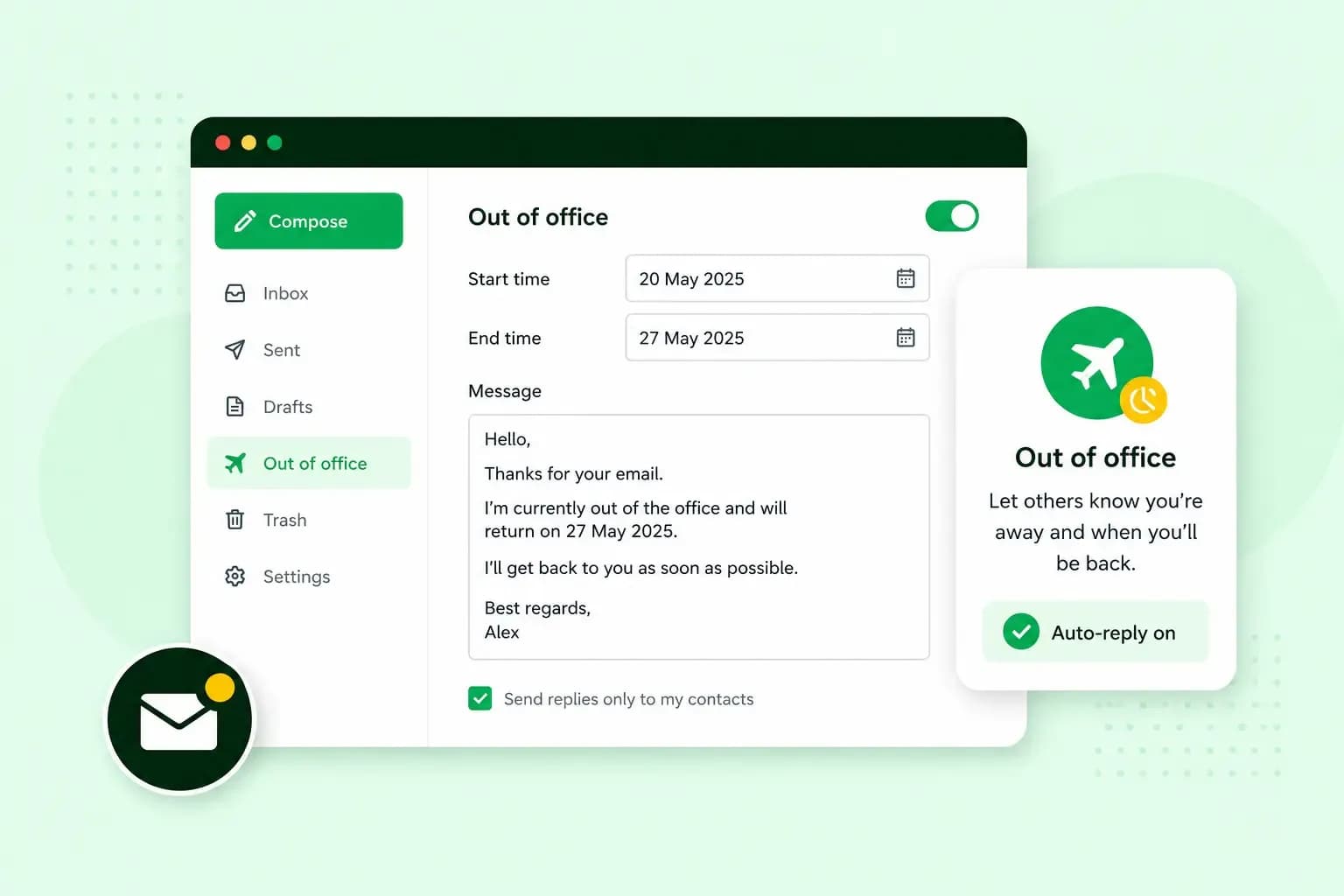
An out-of-office message is the automatic reply people get when they email you while you're away. A good one is short: it says when you're back, who can help in the meantime and when you'll reply. You write it once, set the dates if your email program lets you, and switch your out-of-office on in your email settings. For an out-of-office message in Outlook, that setting is called Automatic Replies, and for a Gmail out-of-office message it's Out of Office AutoReply.
You'll find the steps for Outlook, Gmail and our Webmail after the examples.
What is an out-of-office message?
An out-of-office message, also called an automatic reply or auto-reply, is an email your account sends by itself. It goes to people who write to you during an absence. You set it up once in your email account or in your email program, the app you read and write your email in. It then does the rest while you're gone. Outlook, for example, sends it once to each person who emails you while you're away.
It's worth setting one whenever people expect a quick answer and won't get one: a holiday, a business trip, sick leave or a short absence. With it, they know when to expect a reply and who to ask if it can't wait. It also confirms to the sender that their email has arrived.
What to include in an out-of-office message
A good out-of-office reply needs only a few parts:
- Subject line: write that you're away and until when, such as "Out of office until [date]".
- Greeting: keep it short, such as "Hello," or "Thank you for your email." Our guide to starting an email has more on greetings.
- Dates: when you're away and the day you're back. Write the date itself rather than a phrase like "soon".
- Who to contact: give the name and email address or phone number of a colleague who can help with urgent matters. Check with them first.
- Reply time: write that you'll answer when you're back, without promising a time you can't keep.
- Sign-off: use "Kind regards" with your name, job title and contact details. If you already use an email signature, it can do this part.
Keep the whole message to a few short lines. Match the tone to the people who write to you: businesslike for an accountancy firm's clients, and warmer for a small shop's customers.
What to leave out, and who gets the reply
Keep a professional out-of-office message to what people need to know. The same rules of email etiquette apply as in any other email, so leave out:
- Personal and health details. Write "I'm away from work" instead, because the sender doesn't need to know about your operation or your family.
- How long your home or office stands empty. Write "Away until [date]" and keep your travel plans to yourself, because strangers read the reply too.
- Negative or very casual wording. Don't complain about how busy you've been, and skip slang, abbreviations and rows of emojis.
- Wrong details. Check the dates and your colleague's address before you switch the reply on.
Who gets the reply depends on your email program. Outlook replies once to each sender. With a work or school account, you can also reply to senders outside your organisation. The reply then goes to everyone who emails you, including newsletters, adverts and possibly junk. Microsoft recommends choosing My contacts only. Gmail leaves out emails that land in your spam folder or come from mailing lists you subscribe to. You can limit its reply to your contacts too, with a tick box in the Gmail steps below.
Out-of-office message examples to copy
Copy the out-of-office email that fits your absence, fill in the parts in square brackets and cut anything you don't need. Most of these out-of-office responses give your return date in the subject line, so people know when you're back before they open the reply.
A general out-of-office message
Subject: Out of office until [date]
Hello,
Thank you for your email. I'm out of the office from [start date] to [end date] and will reply when I'm back.
For anything urgent, please contact [colleague's name] at [email address or phone number].
Kind regards,
[Your name]
[Job title]
On holiday
Subject: On holiday until [date]
Hello,
Thank you for your message. I'm on holiday until [end date] and won't be checking my email. I'll get back to you after I return on [date].
If it can't wait, [colleague's name] can help at [email address].
Kind regards,
[Your name]
Christmas or holiday closure
Subject: Closed for Christmas, back on [date]
Hello,
Thank you for getting in touch. Our office is closed from [start date] to [end date] over the Christmas holidays. We'll reply to your email when we reopen on [date].
For urgent [orders or questions], please [call us on phone number or visit our help page].
Merry Christmas and best wishes for the New Year,
The [business name] team
For a bank holiday, change the subject to "Closed for the bank holiday on [date]" and keep the rest.
Business trip
Subject: Travelling until [date], replies may be slower
Hello,
Thank you for your email. I'm on a business trip until [end date] with limited access to email, so my reply may take longer than usual.
For anything urgent, please contact [colleague's name] at [email address].
Kind regards,
[Your name]
A short absence
Subject: Out of office [today or this afternoon]
Hello,
Thanks for your email. I'm out of the office [today or this afternoon] and will reply on [day or tomorrow morning].
If it's urgent, please call [colleague's name] on [phone number].
[If you work part-time: I don't work on [day], so I'll reply on [next working day].]
Kind regards,
[Your name]
Sick leave
Subject: Out of office
Hello,
Thank you for your email. I'm away from work at the moment and not reading my email. [Colleague's name] is looking after my enquiries and can help at [email address].
I'll reply when I'm back.
Kind regards,
[Your name]
Parental leave
Subject: On parental leave until [month and year]
Hello,
Thank you for your email. I'm on parental leave until [month and year] and won't be reading my email. For anything about [project or account], please contact [colleague's name] at [email address], who is covering my work.
Kind regards,
[Your name]
If you don't have a return date yet, leave the date out and keep the name of the person covering your work.
When you leave the company
Subject: [Your name] has left [company name]
Hello,
Thank you for your email. I've left [company name] and this inbox is no longer read. [Colleague's name] has taken over my work and is happy to help at [email address].
Thank you for working with me.
[Your name]
Set this reply up before you leave, and ask whoever manages your company's email to keep the address and the reply running for a while.
How to turn on an out-of-office reply
Where you switch on your out-of-office reply depends on where your email account is, so go to the section for the program you use.
In Outlook
According to Microsoft, automatic replies in Outlook don't work for Gmail, Yahoo or other POP or IMAP accounts. These are addresses from another provider that you've added to Outlook to read your email. If Outlook shows no Automatic Replies after you select File, your account may be one of them. Our email connects to Outlook by IMAP or POP too, so with one of our email plans you use the Webmail steps further down instead.
Follow these steps in classic Outlook for Windows:
- Select File, then Automatic Replies.
- Select Send automatic replies. If you like, set a date range so the replies stop on their own at the end time. Without one, you switch them off yourself.
- On the Automatic replies tab, type the reply you want to send.
- Select OK to save.
In Outlook on the web or Outlook.com, select Settings at the top of the page, then Account and Automatic replies. Turn the Automatic replies toggle on, type your message in the box at the bottom and select Save. New Outlook has Automatic replies in its settings too, which you open with View settings on the View tab. Microsoft's steps for each version of Outlook show where to find it. If your account has no Automatic Replies, that page links to steps for replying with a rule instead, which works only while you leave Outlook running.
In Gmail
In Gmail, you set the Out of Office AutoReply on a computer:
- Open Gmail on your computer.
- In the top right, click Settings, then See all settings.
- Open the General tab and scroll down to Out of Office AutoReply.
- Select Out of Office AutoReply on.
- Fill in the date range, subject and message.
- Optional: to send the reply to your contacts only, tick the box under the message.
- At the bottom of the page, click Save changes.
According to Gmail Help, the reply runs from 12:00 am on the first day of your date range until 11:59 pm on its last day, unless you end it earlier. In most cases, someone gets it only the first time they email you. They get it again if they write after four days while it's still on. They also get it again after you edit the reply. To stop it early, click End now on the banner at the top of your inbox.
In our Webmail
If your email is with us, you set the auto-reply in Webmail:
- Log in to Webmail and open your settings.
- Open the auto-reply setting to edit it.
- Switch auto-reply on, then enter a subject and your message.
- Save the auto-reply.
- Test it by sending an email from a different address, not the one with the auto-reply.
- When you're back, switch the auto-reply off again.
If a setting is hard to find, our help centre shows how to set up an auto-reply in Webmail step by step. To keep the auto-reply from spamming people, Webmail sends no more than one automatic reply a day to each address. You can also add a reply-to address, so that answers to your auto-reply go to a colleague. If you manage several addresses on your domain, you can set the auto-reply from the Email section of the control panel too.
It's worth sending your out-of-office reply from an address that looks the part, such as hello@yourtradingname.co.uk rather than a free address. A professional business email gives every reply, the automatic ones included, your business's own name.
Email on your own domain, with a built-in calendar in every mailbox and protection from spam.
Choose an email planWrite your reply a day or two before you leave and send yourself a test, then switch it on as you leave if your email app can't schedule it. If your replies still come from a free address, get an email address on your own domain before you go and set the auto-reply up there.
Recommended reading
 Email6 Nov 2026
What is email spoofing? How to stop someone faking your business email address
Email spoofing is when someone forges an email's sender. See how to spot a spoofed email, what to do if it's your address and how to stop email spoofing.- Email6 Nov 2026
SPF, DKIM and DMARC explained: how to keep your emails out of spam
DMARC tells mail servers what to do with emails that fail SPF and DKIM checks. See what each record does, how to set them up and how to check they work.  Email10 Nov 2025
How to end an email in English
How you end an email impacts how it is perceived. We have collected the best ways to sign off emails in English.