

A good email signature tells people who you are and how to reach you, in a few short lines at the end of your email. If you run a bookkeeping business, for example, that could be your name and role, the business name, one phone number and your website, tidyledgerbooks.co.uk. You set it up once in your email settings, and your email app then adds it to the emails you send.
What is an email signature?
Your signature works like a digital business card for your emails. Because it sits at the end of every email you send, people can call you, visit your website or pass your details on without searching for them.
How to sign off before your signature
To sign an email, end it with a short closing line and let your signature follow. "Kind regards" or "Best wishes" suits a business email, and you can use something warmer for a close colleague or a client you know well. Your signature already starts with your full name, so you don't need to type your name above it as well. For a more personal touch, add just your first name under the closing line. Our guide to ways to end an email has more options for different situations.
What to include in an email signature
A professional email signature holds the details that help people place you and reply:
- Your full name: write it the way you want people to spell it.
- Your job title: show the recipient what you do.
- Your company: add the business name, so people connect you with it when your emails come back to them later. If your business is a limited company, use its registered name, because UK rules require a company to show it on all its business correspondence, emails included.
- A phone number: give the one you actually answer, with the international dialling code if you work with clients abroad. You can also make it a link, so people can tap it to call you.
- Your website: add one link to where people can find out more about your business.
- Your email address: it's worth adding, even though it's already in the email. Use your business email address, not a personal one.
For Jo Bennett at Tidy Ledger Bookkeeping, a complete business email signature fits on four lines:
Jo Bennett
Bookkeeper, Tidy Ledger Bookkeeping
01632 960123
jo@tidyledgerbooks.co.uk | tidyledgerbooks.co.uk
The details run in the usual order: who you are, where you work and how to reach you. You can see a signature at the end of complete emails in our business email examples.
With our email plans, you send email from your own domain and read it in our Webmail or the email app you already use.
Choose an email planExtras worth adding, and when to leave them out
Each extra makes your signature longer, so add one only when it helps the people you email:
- A small logo helps people recognise your business, as long as your details are also written out as text. In Outlook and Gmail, you insert the image in the signature editor, and the help pages linked below show how.
- Social media links belong in your signature only for the business profiles you use to promote your business.
- One call to action, such as a link to book a call or read your latest guide, gives people an easy next step.
- Your pronouns, such as she/her or they/them, tell people how to refer to you. Whether you include them is up to you.
- A confidentiality disclaimer may be needed in some business sectors, so check what yours expects before you add one. If you add one, put it last and keep it short.
How to keep your signature readable
A few habits keep your signature quick to scan:
- Keep it to a few short lines.
- Put your name first, then your role and company, then the ways to reach you.
- Stick to one accent colour, for example on your name.
- Use a plain, readable font, the same one as in the rest of your email, such as one from our list of the best fonts for email.
- Send a test email to yourself and open it on your phone, to check it still reads well on a small screen.
- Update your signature whenever your number, job title or website changes.
How to add your signature to your emails
Where you add your signature depends on where you read and send your email. If you also send email from your phone, add the same signature in your phone's email app, because the app may use a signature of its own. The app's help pages show where to find that setting.
Add your signature in our Webmail
If you have an email address with us, you add your signature in our Webmail application:
- Log in to Webmail and open your settings.
- Find the email signature setting and choose to edit it.
- Type or paste your signature and save it.
- Send a new email: your signature now appears on the emails you send from Webmail.
Add your signature in new Outlook
Where you set your email signature in Outlook depends on your version. The steps below are for new Outlook for Windows.
- Select Settings, then Accounts, then Signatures.
- If you have more than one account in Outlook, select the one the signature is for.
- Select Add signature and give it a name.
- Type your signature in the editing box and format it.
- Use the checkboxes to choose whether it goes on new messages and on replies and forwards.
- Select Save.
For classic Outlook for Windows, the steps are in Microsoft's guide to Outlook signatures, which also links to the steps for Outlook for Mac.
Add your signature in Gmail
On a computer, you add your signature in Gmail's settings:
- Open Gmail.
- At the top right, click Settings, then See all settings.
- In the Signature section, add your signature to the box.
- At the bottom of the page, click Save changes.
You can also keep more than one signature in Gmail, for example one for new emails and one for replies. Gmail's help page on signatures explains how.
Make your signature match your address
Your signature tells people which business you work for, and the address you send from should match it. An address on your own email domain, such as jo@tidyledgerbooks.co.uk, carries the same name as your website. People then see straight away that the email comes from your business. With an email plan from us, you can set up professional email on your own domain.
Recommended reading
 Email6 Nov 2026
What is email spoofing? How to stop someone faking your business email address
Email spoofing is when someone forges an email's sender. See how to spot a spoofed email, what to do if it's your address and how to stop email spoofing.- Email6 Nov 2026
SPF, DKIM and DMARC explained: how to keep your emails out of spam
DMARC tells mail servers what to do with emails that fail SPF and DKIM checks. See what each record does, how to set them up and how to check they work. 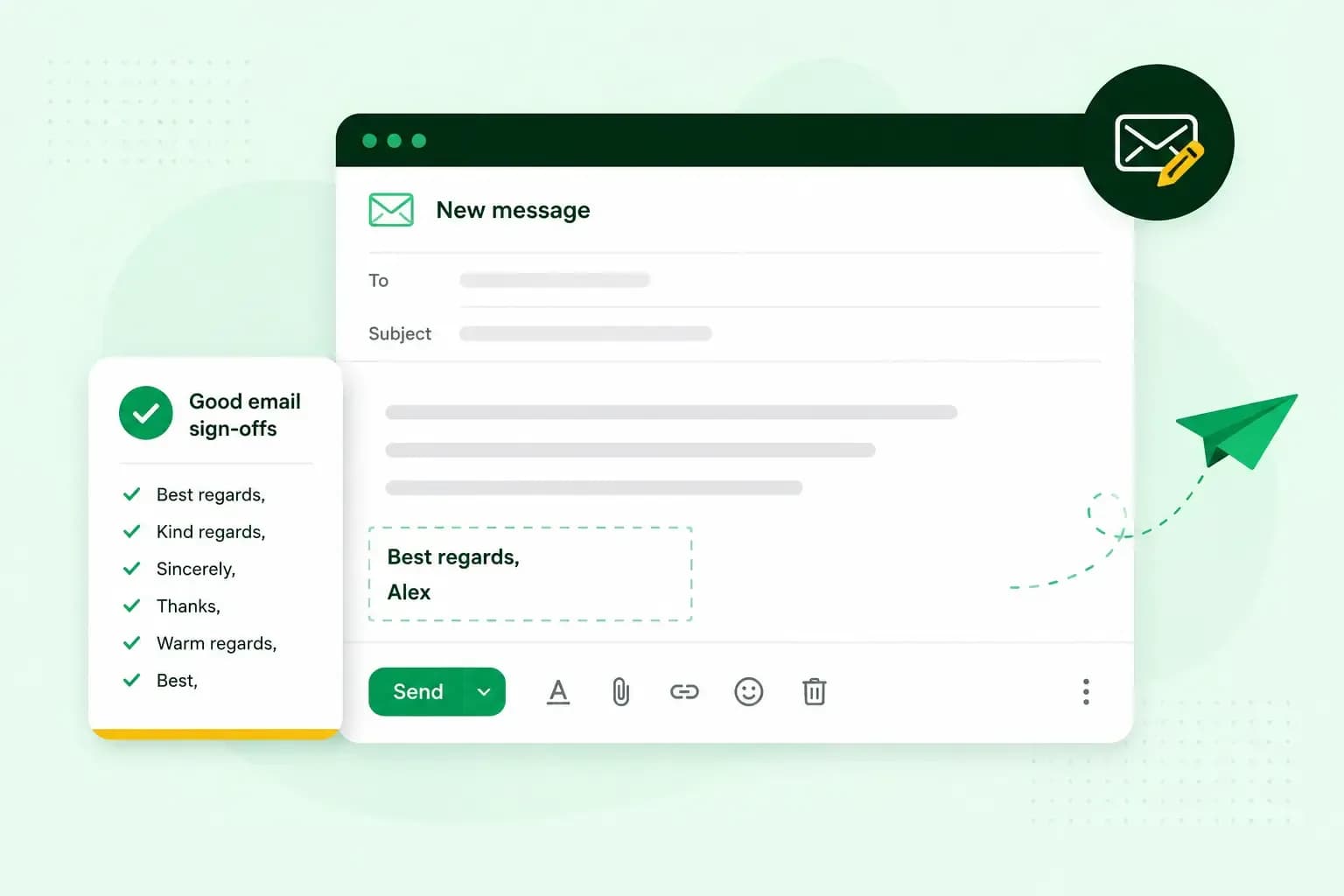 Email10 Nov 2025
How to end an email in English
How you end an email impacts how it is perceived. We have collected the best ways to sign off emails in English.