
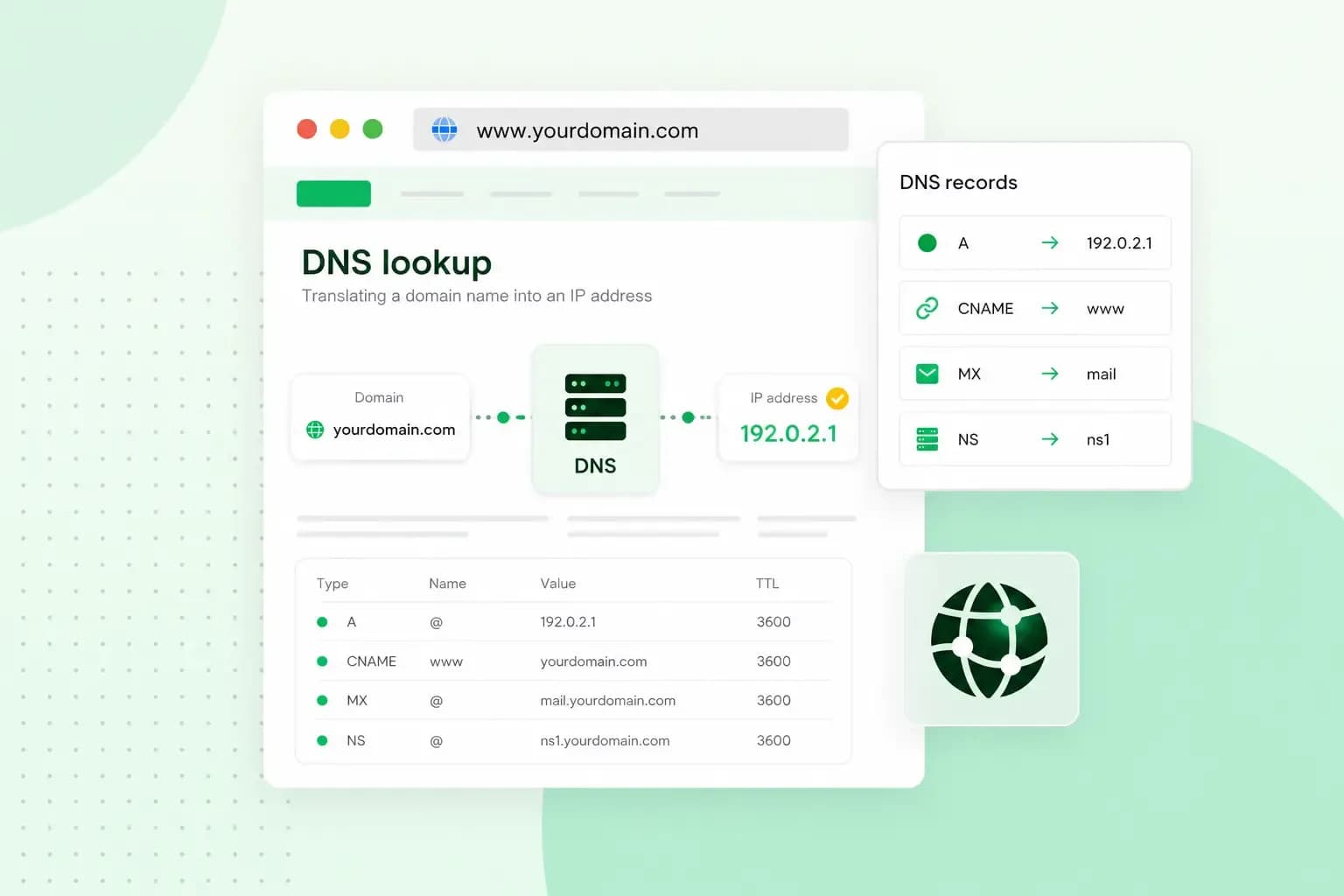
DNS, short for Domain Name System, is what turns a domain name into the IP address of the server a website sits on. People remember names, while computers find each other by numbers. When you type an address such as yourbakery.co.uk into your browser, DNS servers look up the matching number in the background. Your browser then uses that number to load the site.
Every device on the internet has an IP address, a string of numbers that works like a phone number. DNS is the internet's phone book: you give it the name in the URL, and it gives your computer the number it needs.
What is a DNS server?
A DNS server, also called a domain name server or domain server, is a computer that answers questions about domain names. Most of the time the question is which IP address belongs to the name you typed. A full DNS lookup involves two kinds of DNS server: a DNS resolver that asks the questions on your behalf, and name servers that hold the answers.
The resolver handles your own lookups. It's the server your device asks, and the one your network settings list as your DNS server. Name servers store each domain's DNS records and give the resolver its answer. If you have a domain name of your own, its records sit on name servers too.
How does DNS work?
DNS works by passing your request along a chain of DNS servers. The DNS resolver asks a root name server, then a TLD name server and finally the authoritative name server for the domain. The TLD name server is the one for the top-level domain (TLD), the last part of the address, such as .uk.
Say you type yourbakery.co.uk into your browser for the first time. Your device hands the request to the DNS resolver, and the lookup begins.
DNS resolver
The DNS resolver, also called a recursive resolver, takes your request. If it has looked up the address recently, it answers straight from its cache. If not, it asks the other servers one by one until it has the answer.
Root name server
Root name servers sit at the top of DNS. They don't know where yourbakery.co.uk is, but they know which server handles each top-level domain, so they send the resolver on to the right one. There are 13 root name servers, labelled A to M and run by 12 independent organisations. Each letter stands for a network of servers in many countries rather than a single computer.
TLD name server
Next, the resolver asks the TLD name server. For yourbakery.co.uk, that's the server for .uk domains. It doesn't hold the website's address either. It knows which name servers are in charge of yourbakery.co.uk and points the resolver to them.
Authoritative name server
The last stop is the authoritative name server for yourbakery.co.uk. It holds the domain's own DNS records, so it gives the final answer: the IP address of the server the website sits on. For your own domain, that's a name server of whichever provider manages its DNS, whether that's us or another host. The resolver passes the address to your browser, and the website loads.
Why DNS changes take time to show
Looking up every address from scratch would be slow. So your browser and the resolver both store, or cache, the answers they've had recently, and a site you visited a short while ago can then load with no new lookup.
How long they may keep an answer depends on the record's time to live (TTL), which you choose as the domain holder. On our name servers the default TTL is one hour, and you can set it anywhere from 10 minutes to 24 hours.
The same caching is why a change to your DNS records takes a while to show up. A resolver that cached the old answer keeps using it until its TTL runs out. Until then, some visitors still see your old website after you've pointed your domain somewhere new. The TTL only decides how long one resolver may keep an old answer, though. Each internet provider updates its resolvers through its own automated process, so nobody can tell exactly when a change has reached everyone. It often takes a few hours, but it can take up to 72 hours.
If you're planning a move, lower the TTL of the records you'll change to 10 minutes in your DNS settings. Do it at least one full TTL before you change the records: a day ahead if the TTL is 24 hours, or an hour ahead at our default. Resolvers then hold on to the old answer for a shorter time once you make the change.
DNS records and your domain's DNS settings
Your domain's DNS records are the entries on its authoritative name server that tell the internet where to send visitors and email. Each type of record has its own job:
- A record: points your domain to the IPv4 address of the server your website is on. IPv4 addresses are the familiar kind, four numbers separated by dots.
- AAAA record: does the same for an IPv6 address, the newer and longer kind.
- CNAME record: makes one name an alias of another. You might use one to point a subdomain such as
shop.yourbakery.co.ukto a service hosted elsewhere. - MX record: tells other mail servers where to deliver email for your domain.
- TXT record: holds text that other services read, such as a domain verification code. SPF and DMARC records are TXT records too, and they help other mail servers check that email from your domain really comes from you.
- NS record: names the name servers that are in charge of your domain.
Your records sit on your domain's name servers, so you change them with whichever provider runs those name servers. To see which name servers your domain uses, check its settings where you registered it: ours are ns01.one.com and ns02.one.com. If it uses our name servers, you manage your DNS settings in our control panel. There you can add records such as A, CNAME, MX and TXT yourself, and special types such as SRV, CAA and TLSA when a service asks for one. If it uses another host's name servers, you manage its DNS settings with that host, even if we registered the domain for you.
What is my DNS server?
Your DNS server is the resolver your device uses, which is usually the one your internet provider runs. To see which one you're using, open the test site Browserleaks and choose its DNS Leak Test. It shows the DNS servers your browser uses to look up domain names.
Instead of your provider's resolver, you can use a public DNS service, such as Google Public DNS. It's worth a try if your provider's resolver is slow or unreliable. Bear in mind that your lookups then go to that company instead of your provider. To switch, first write down the current DNS settings in the network settings of your device, so you can go back to them. Then enter the public service's IP addresses there as the DNS servers. Google's guide to using Google Public DNS lists its addresses with general example steps for the main systems. If you didn't use your own DNS servers before, you switch back in those same settings by choosing to get DNS server addresses automatically and deleting the addresses you added. If you did, you enter the addresses you wrote down again.
If websites suddenly stop loading and your browser says the DNS server isn't responding, first try another browser or device, then restart your router. If that doesn't help, our guide to the DNS not responding error takes you through the other fixes.
How to keep your domain's DNS safe
Because visitors reach your website through DNS lookups, attackers target DNS. In DNS cache poisoning, also called DNS spoofing, an attacker slips false records into a resolver's cache. The resolver then sends visitors to a fake website instead of the real one, where they may be tricked into entering their passwords.
DNSSEC helps protect your domain against cache poisoning. It adds digital signatures to your domain's DNS records. Resolvers can then check that an answer really comes from your domain and hasn't been tampered with on the way. If your domain uses our name servers, DNSSEC is on by default.
Domain Lock, part of our Domain Protection add-on, guards against a different risk. It locks your domain to help block malicious or accidental transfers. You can buy the add-on for a domain registered with us.
Find a domain for your business and manage its DNS records yourself in our control panel.
Buy your domainPut your own domain's DNS to work
With a domain of your own, two records decide where your website and your email go. The A record points it to the server your website is on, using the IP address your web host gives you. The MX record decides where its email goes. On our name servers, it points to our mail servers by default, so with email from us there's nothing to set. If your email is with another provider, you point the MX record to that provider's mail servers instead.
If you don't have a domain yet, register your own domain with us, then set up its records for your website and email.
Recommended reading
 Domain2 Oct 2026
What is a .si domain?
 Domain9 Sept 2026
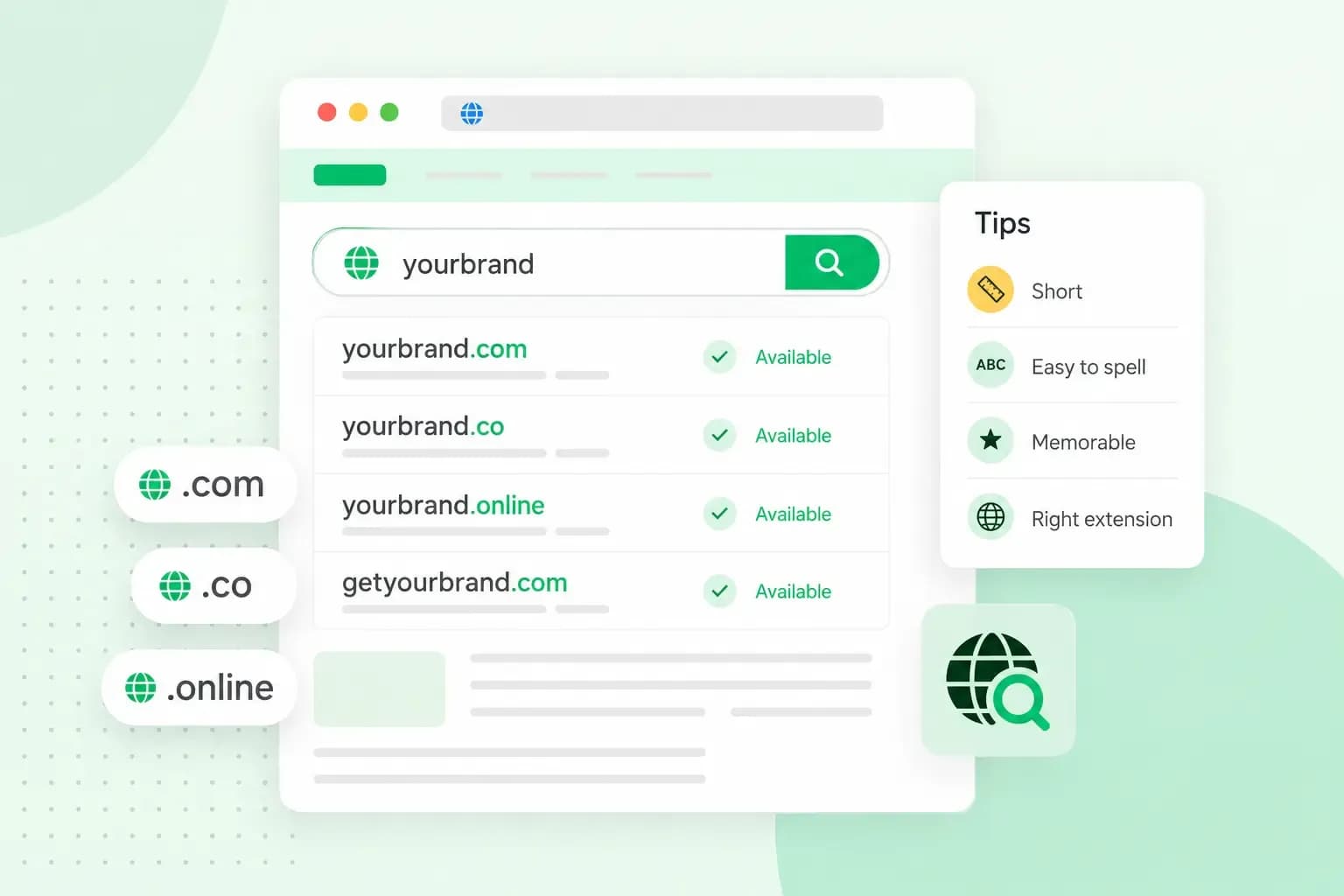
How to choose a domain name
With the abundance of websites on the internet, choosing a domain name can be overwhelming. Continue reading for some tips & tricks on how to pick yours.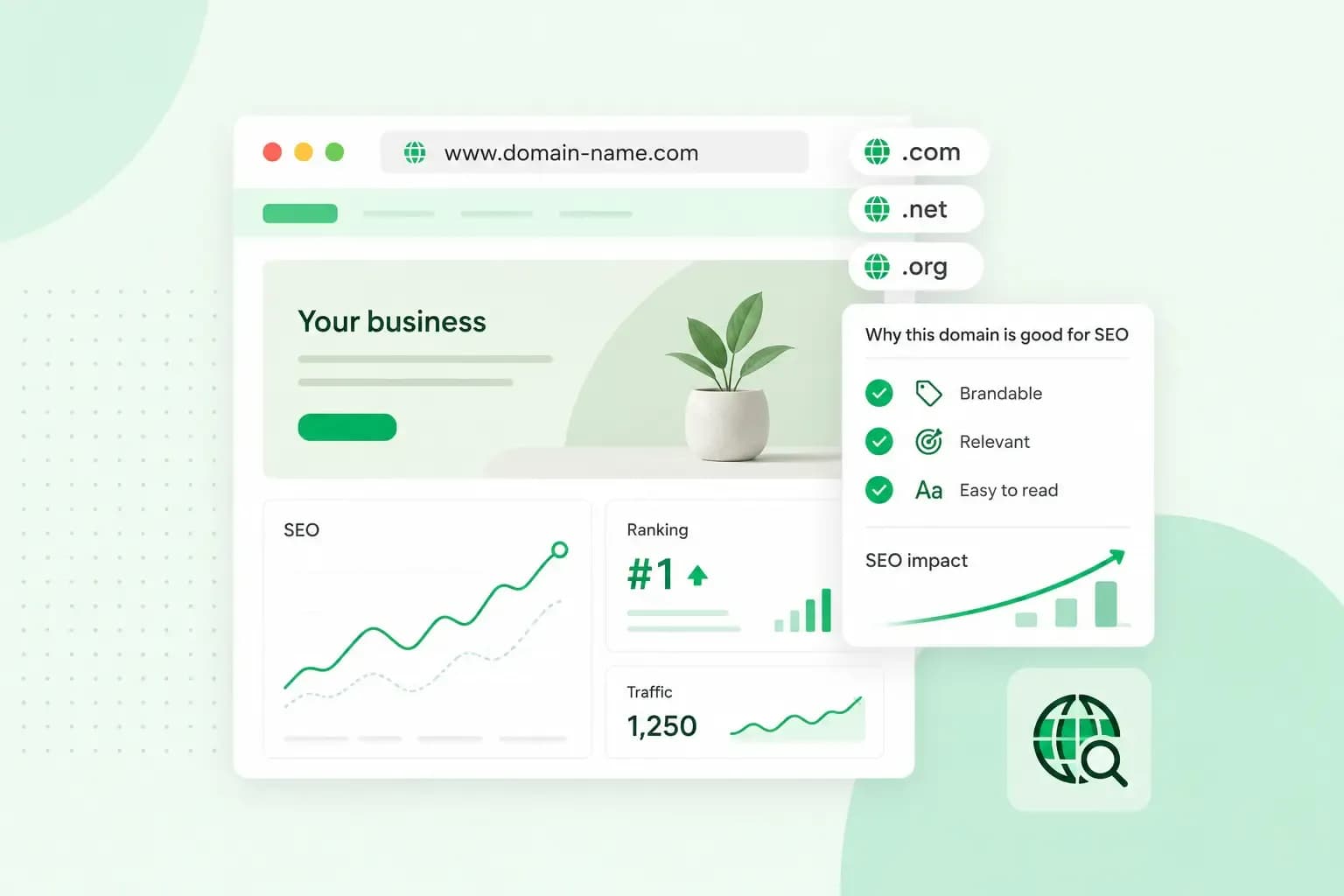 Domain5 Aug 2026
Domain names and SEO: what you should know
Start your website off on the right foot by choosing a domain name that will boost your website’s visibility on search engines.