
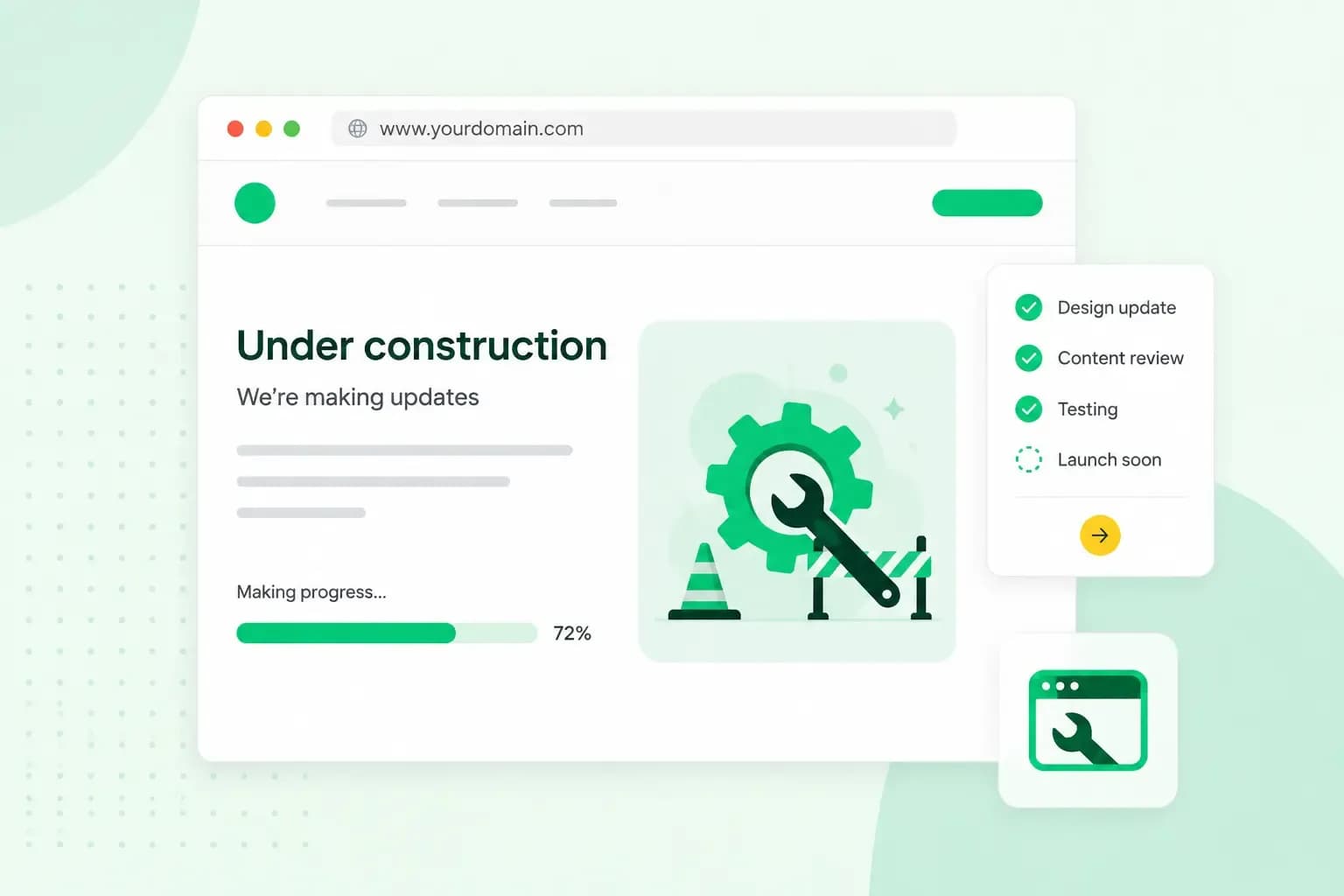
A website under construction page is a simple holding page that tells visitors your site is on its way. In WordPress, you can put one up with a plugin. Visitors see the holding page, while you keep working on the real site when you're logged in. If your site is already live and you're rebuilding it, a staging site on Managed Hosting for WordPress lets you work on a copy instead.
When is an under construction page a good idea?
An under construction page is worth it when there's something to look forward to. It suits a new business that wants an address people can visit before the site is finished. It also suits a launch you want to build interest in. You can use one while you rebuild part of a site too, such as a product page you're replacing.
A holding page is a poor fit for pages people already rely on, like a shop that's taking orders. Rebuild those on a staging site with Managed Hosting for WordPress instead, so your visitors never hit a dead end.
You'll also come across the term maintenance mode, which is for a short break on a site that's already live. An under construction or coming soon page is for a site that hasn't launched yet.
How to put your WordPress site under construction
There are two ways to do it: a plugin or a staging site. Which one fits depends on whether people already visit your site.
Should you use a plugin or a staging site?
A plugin shows visitors a holding page in place of your site while you work, which suits a new site that has nothing live yet. Both plugins below work with any WordPress theme. A staging site suits a site people already visit, because nobody sees a holding page at all. Staging comes with Managed Hosting for WordPress and isn't available with Hosting for WordPress.
Our advice: if your site isn't live yet, use a plugin. If you're rebuilding a site that people already visit, use a staging site, so visitors and search engines keep seeing a working site while you work. If your site isn't on Managed Hosting for WordPress, use a plugin and keep the holding page up for as short a time as you can.
Use a plugin
A WordPress plugin adds a feature to your site, in this case a holding page that visitors see in place of your site while you build it. One option from the WordPress plugin directory is the Under Construction plugin. Another is Under Construction, Coming Soon & Maintenance Mode. Both let you choose which user roles see the real site, so you can keep working on it while you're logged in. These steps are for Under Construction, which comes up first when you search for it in step 2.
- In your WordPress admin, go to Plugins and click Add New.
- Search for
under construction pageand click Install Now on the Under Construction plugin. - Activate the plugin and open its settings page under the Settings menu.
- Under Access, select your own user role, usually administrator, as a whitelisted role. That way you can still see and work on the site while you're logged in.
- Add your headline and content, then switch under construction mode on.
- Click Save Changes to save your settings.
The plugin can also switch the mode off by itself on a date you set. Once the mode is off, your site works as normal again.
Use a staging site
A staging site is for rebuilding a site that's already live. A WordPress staging environment is a copy of your WordPress website that you can change as much as you like without affecting the live one. Visitors keep seeing your current site the whole time, so there's no holding page to put up.
- Make sure your site runs on Managed Hosting for WordPress, which includes a staging environment.
- Create a staging site with our plugin in your WordPress admin.
- Log in to the staging site and build or change your pages there.
- View the staging site to check your changes. If something goes wrong, rebuild it from a fresh copy of your live site.
- Make sure you have a recent backup of your live site. Managed Hosting for WordPress includes daily backups. If you're on the Starter plan, which includes daily backups only, you can view them but must upgrade to restore one. In that case, make your own backup first with a backup plugin from the WordPress plugin directory.
- When you're happy with the result, copy the staging site to your live site.
- Delete the staging site once you no longer need it.
Once you copy the staging site over, the new version is what your visitors see.
With Managed Hosting for WordPress, a staging environment is included, and we update WordPress, your theme and your plugins for you.
See Managed Hosting for WordPressBuilding with our Website Builder instead?
With our Aida AI Website Builder, you don't need a holding page while you build. You create and edit your site in the editor, and nothing goes online until you publish it. Your visitors only see the site once it's finished. On our classic Website Builder, you can keep a page you're still editing unpublished while the rest of the site stays online. Our help article shows how to hide a page in our classic Website Builder.
What to put on your under construction page
Don't stop at "Under construction, come back later". Give visitors something to do instead:
- What's coming. Say what the new site or section will offer, so visitors know why it's worth coming back.
- Links to what's already live. If you're rebuilding one part of your site, point visitors to the rest. If you sell through an online store and you're adding body scrubs, for example, link to the soaps already on sale.
- A sign-up form. Ask visitors to leave their email address so you can tell them when you launch. The sign-up is your page's call to action, and it turns the holding page into a landing page for your launch.
- A launch date or countdown. Show your launch date if you've set one, and add a countdown or a short preview of what's coming.
- A way to get in touch. An email address or phone number means customers can still reach you while the site is being built.
- A way to measure it. Add Google Analytics to WordPress before the page goes up, so you can see later how many people visited and how many signed up. The second plugin above also has an option to add the Google Analytics tracking to its holding page.
Does a website under construction page hurt your SEO?
It can, if it stays up for long or replaces a site that search engines already know. Google's advice is not to close a site completely, because even a few weeks can affect how it indexes your site. If you have to take a site offline for a day or two, Google suggests an error page with the 503 status code. That code tells search engines the site is only temporarily unavailable. If the 503 code matters to you, use Under Construction, Coming Soon & Maintenance Mode, which sends it from its maintenance and coming soon pages. For a longer pause, Google suggests a home page that search engines can index, as a placeholder.
For a new site, your under construction page is that placeholder, so treat it as a real page for SEO. Give it a clear title and description that say what's coming. Then take it down as soon as the site is ready.
What to do when you launch
On launch day, switch under construction mode off so visitors see your new site. Then deactivate the plugin and delete it from the Plugins screen in WordPress. It's one less plugin to keep up to date, which helps your site's security.
After launch, compare the visits to your holding page with the number of sign-ups. It tells you whether the page did its job and what to change for your next launch.
Once your new site is live, Managed Hosting for WordPress keeps WordPress, your theme and your plugins up to date for you.
Recommended reading
 WordPress6 Aug 2026
What is WooCommerce?
Do you want to start your online shop? Get to know WooCommerce in this guide: an e-commerce solution to build your shop. WordPress5 Aug 2026
Why is my WordPress site so slow? 7 reasons and ways to fix them
Slow WordPress site? We look at the most common reasons and share how to speed up your WordPress website in this practical guide. WordPress30 Oct 2025
WordPress SEO – Checklist with 9 tips
Increase traffic to your site with WordPress search engine optimisation. Follow our WordPress SEO guide and read about the best SEO plugins.