
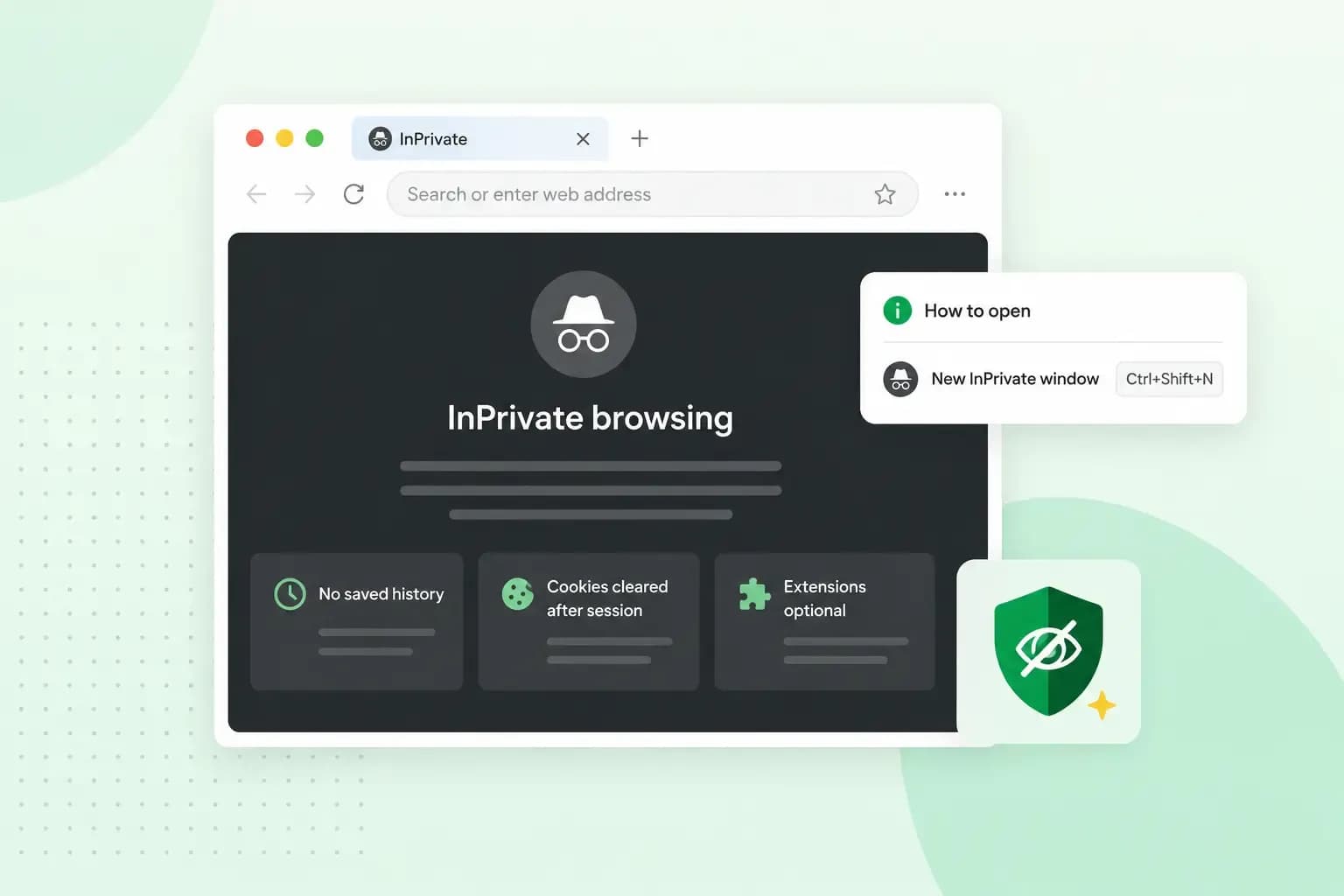
InPrivate browsing is a feature on the Microsoft Edge browser. When you close the browser, it deletes all the data you entered in your session. Most browsers these days have such a feature, but with different names. Google Chrome calls it “Incognito,” for example.
How to use InPrivate browsing?
Microsoft Edge doesn’t use this feature by default. You must activate it. Read how to do it:
- Go to your taskbar.
- Find the Microsoft Edge logo.
- Right-click it.
- Select “New InPrivate window.”
There is another method you can use:
- Open Microsoft Edge.
- Right-click a link.
- Click on “Open link in InPrivate window.”
Following these steps will prevent your device from storing your data. But there’s a catch. Some computers have software that sends your online activity to a third party. It could be your employer or university, for example. InPrivate doesn’t prevent that.
Likewise, you’re still vulnerable to malware, which can send your data to a hacker. The most common way to get infected is through email. You open a message and download an infected attachment. Be informed of email threats and use virus and spam filters.
How to turn off InPrivate browsing
To turn off InPrivate browsing, you only need to close and reopen Microsoft Edge. It always opens without InPrivate unless you ask it to do so. But you may want to disable this feature altogether. You may wish to do so to keep a local copy of a user’s data, for example.
How to disable InPrivate browsing
- Right-click the Start menu.
- Select “Run.”
- Write “gpedit.msc.”
- Hit “Enter.”
- Click “Computer Configuration.”
- Go to “Administrative Templates.”
- Select “Windows Components.”
- Open “Microsoft Edge.”
- Go to its settings folder.
- Right-click “Allow InPrivate browsing.”
- Select “Disabled.”
- Click “Apply.”
How to delete your InPrivate browsing history
You need to do nothing. InPrivate browsing deletes your history when you close the browser. It also erases the following data:
- Cached images and files.
- Passwords (but that doesn’t mean you don’t have to create a good password).
- Autofill form data.
- Site permissions.
But you still keep any files you downloaded during InPrivate browsing. It also lets you use extensions installed in the browser, so be mindful of them. They may record your data
Is InPrivate browsing safer?
Yes, depending on your case. If you access a shared computer, like in a web cafe, InPrivate browsing prevents the following users from accessing your information. But it doesn’t protect you from viruses. Be mindful of the best website security tips.
Recommended reading
 Website Security11 Aug 2026
Does your website need a cookie banner?
Find out when a cookie banner is required, the legal requirements that apply, and how you can easily make your website GDPR-compliant. Website Security13 Jul 2026
Domain Theft in 2026: What It Is, Why It’s Rising, and How to Protect Your Domain
Learn what domain theft and domain hijacking means and how to protect your domain from external threats. Website Security3 Nov 2025
What a EULA is and how to write one
Including an End User License Agreement is essential for your app, software, or digital service. We'll tell you everything you need to know.