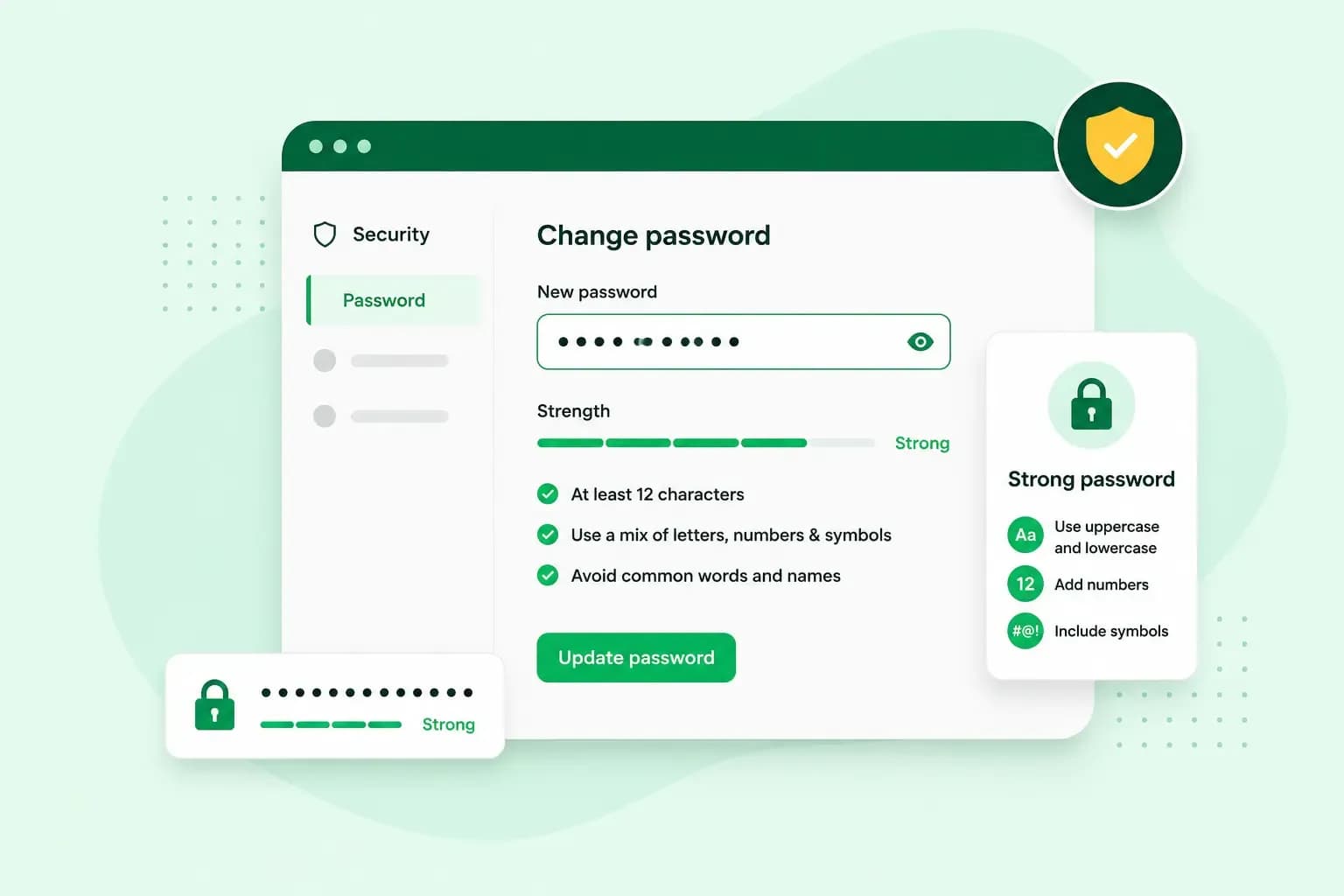
A strong password is long, used for one account only and hard for anyone else to guess. That way, a leak or a lucky guess on one website can't open your other accounts. Three random words strung together, such as lanternpuffinvelvet, make a password that's strong enough and still easy to remember. A password manager can do the rest, creating and remembering a random password for every account. Don't copy any password from this article: make your own.
What makes a strong password?
Three things make a password strong: its length, using it for one account only and how hard it is to guess.
- Length: the NCSC, the UK's National Cyber Security Centre, says the longer a password is, the harder it is to crack.
- Used once: a password that protects only one account can't open any of your other accounts when that website is breached.
- Hard to guess: nothing a stranger could find on your social media, such as names, birthdays, pets or favourite teams, and no common words or patterns on their own, like
passwordor1234. Three random words are fine together, because the combination is long and hard to guess even when each word is ordinary.
Google advises at least 12 characters. NIST, the US standards body, asks services to require at least 15 where the password is the only thing protecting the login. So aim for at least 15 characters yourself, and pick words long enough to get you there.
You don't need a jumble of symbols and numbers. The NCSC calls the old advice to make passwords very complex unhelpful, because hardly anyone can remember lots of complex passwords. Swapping an o for a zero doesn't help much either, as criminals know those tricks too. If a site still insists on a number or a symbol, add one.
How hackers crack weak passwords
Criminals guess a password with software, trick you into giving it away or try passwords stolen in a data breach. A weak password is easier to guess, and a reused one opens more of your accounts.
- Brute-force attack: software tries one possible password after another, which soon cracks a password that's too short.
- Dictionary attack: instead of every combination, the software tries dictionary words and passwords leaked in earlier breaches.
- Phishing: criminals send phishing emails and texts that link to a scam website. It looks genuine and asks you to log in, so the criminal gets the password you type.
- Credential stuffing: once a password leaks from one site, criminals try the same email address and password on other accounts. Reusing a password makes this easy.
Choosing a way to create strong passwords
Two methods give you strong passwords you can actually keep track of: three random words and a password manager.
| Three random words | A password manager | |
|---|---|---|
| How it works | You join three words that have nothing to do with each other | The manager creates a strong password and remembers it for you |
| What you remember | The words you picked | Only your manager's main password |
| Best for | The few passwords you type from memory | Most of your other accounts |
Three random words is the method the NCSC recommends. The NCSC says it gives a password that's long and strong enough for most purposes, and you can still remember it. A password manager can generate a strong password for each account and fill it in only on the right website. That also helps against phishing.
Our advice: use a password manager to create and store the passwords for most of your accounts. Keep three random words for the few you type from memory, such as the manager's own main password and your computer login. A manager means you can have a different password for every service, as you won't need to remember them.
To get started, use the password manager built into your browser or install one from another company. Chrome, Edge and Safari can each create and save passwords for you. Then let the manager create a new password each time you sign up for an account or change a password.
Password managers store your passwords safely, and the NCSC encourages people to use them. It also says it's safe to let your browser save passwords on your own devices. Never do that on a shared computer in a public place, such as a library. Protect the manager with a strong main password and switch on two-step verification for it too.
Strong password examples
The first two examples are strong passwords, and the last two only look strong.
- Three random words:
lanternpuffinvelvet. If a site insists on a number and a symbol, add them inside the words, as inLantern!puffin7velvet. - From a password manager:
g7Rq!vT2#mLw9zKe. You'd never remember it, and you don't have to. - Weak, even with a symbol:
EmmaClark94!for someone called Emma Clark, especially when her email addressemma.clark94@gmail.comcontains the same name and number. - Weak, despite the swaps:
P@ssw0rd. It's still the word password, one of the first that criminals guess.
How to keep your passwords safe
After you create a strong password, a few habits keep it safe:
- Give your email its own password: whoever gets into your email can reset the passwords of your other accounts. Use one there that you don't use anywhere else, at home or at work.
- Add a second step: with two-step verification, a criminal who knows your password still can't get in without the second step, such as a code sent to your phone or shown in an app. Switch it on for your email first.
- Never share a password by text or email: keep it to yourself, even if someone you know well asks for it. An email asking for your password is usually a phishing attempt, and if your email or website is with us, we'll never ask for it unless we've agreed that with you first for troubleshooting.
- Keep any written note out of sight: the NCSC says writing passwords down is fine if you keep them somewhere safe. Keep a paper note away from your computer and desk, rather than in an ordinary file on your laptop or phone.
- Change it when there's a reason: NIST tells services not to make you change passwords on a schedule, only when there's a sign a password has been compromised. Change yours straight away when a website reports a breach, when you've used it elsewhere, or when you think someone else knows it.
- Watch for breaches: some password managers can tell you when one of your passwords is found in a data breach. If your email password has been leaked, change it first and then check the accounts it can reset.
Some sites now let you use a passkey. It signs you in with your fingerprint, face or passcode instead of a password, and the NCSC recommends it as your first choice wherever it's offered. When an account gives you the option, set one up.
Protect the logins behind your website
If you run a website, use the same habits for the accounts behind it, like the logins to your website, your hosting and your business email.
If your website runs on our web hosting, you manage it from our control panel. You can protect that login with two-step verification, using our Companion app or Google Authenticator. Our help centre shows how to switch it on for your control panel login.
Our web hosting plans come in several sizes, so you can start small and upgrade as your site grows.
See hosting plansWhen you set up a new website, give its control panel a strong password of its own from day one.
Recommended reading
 Website Security6 Nov 2026
"Your connection is not private": what it means and how to fix it
"Your connection is not private" means your browser couldn't trust a site's certificate. See when it's safe to continue and how visitors and site owners fix it. Website Security11 Aug 2026
Does your website need a cookie banner?
Find out when a cookie banner is required, the legal requirements that apply, and how you can easily make your website GDPR-compliant.- Website Security13 Jul 2026
What is domain theft and how do you protect your domain?
Learn what domain theft and domain hijacking means and how to protect your domain from external threats.