
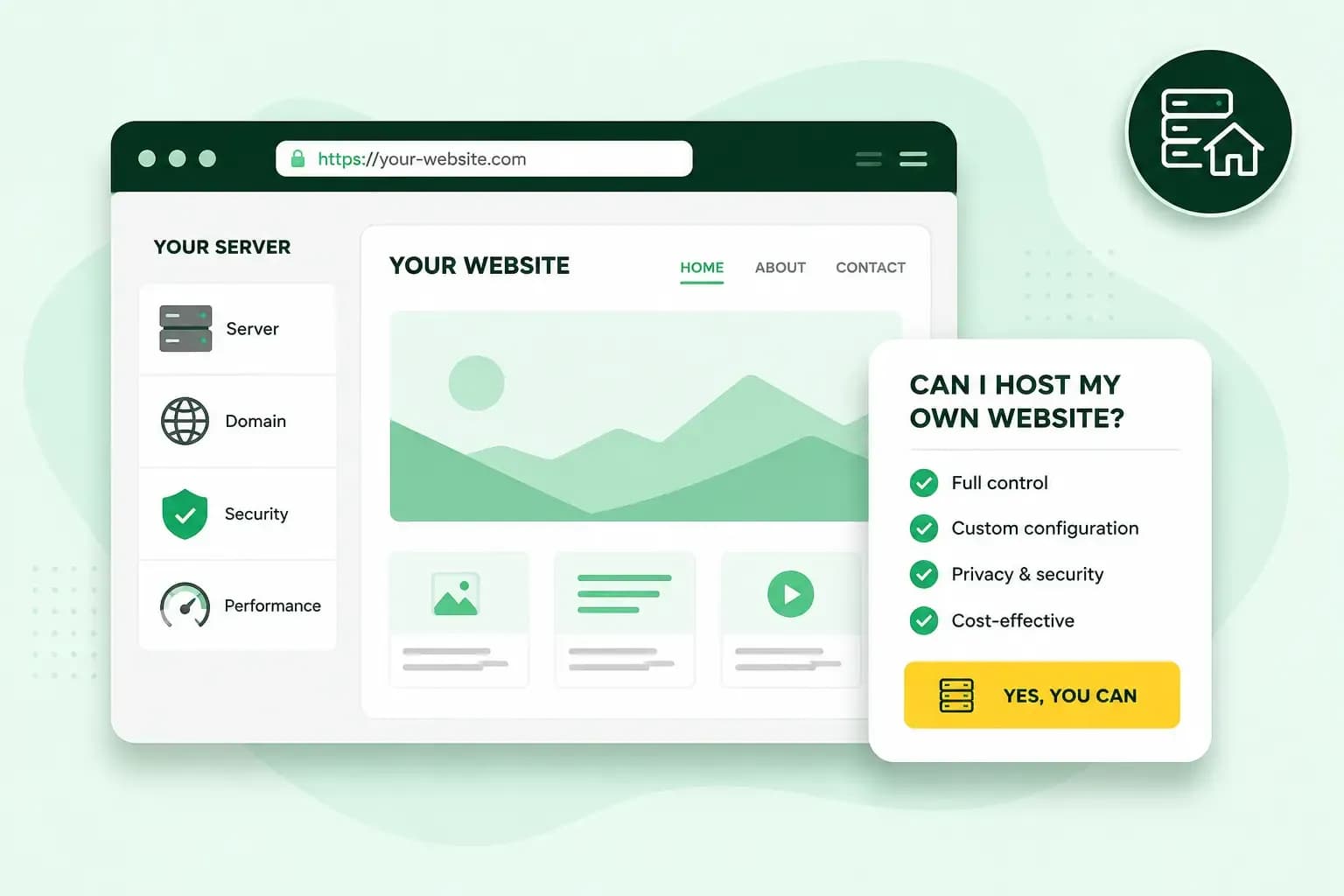
Yes, you can host your own website. Self-hosting means your website runs on a computer in your home instead of on a server in a data centre. You turn that computer into a web server and set up your router so visitors can reach it, which takes some technical knowledge and time. The other way is to rent space on a hosting provider's server, and the provider runs the server for you.
What you need to host a website yourself
To host a website from home, you need these five things.
- A computer that can stay switched on. It's worth using a spare computer rather than the one you work on, so your own files aren't on a machine that's open to the internet.
- Web server software. A web server is the program that answers visitors' browsers and sends them your pages. The steps below use Apache HTTP Server.
- A broadband connection and access to your router. You'll change a setting on your router, so make sure you can log in to it.
- Your public IP address. Every device on the internet has an IP address. Your router's public IP address is how visitors outside your home find your computer. To find it, search for "what is my IP address" on a device connected to your home broadband and open one of the lookup sites in the results.
- A domain name, if you want one. Visitors can reach your site by its IP address, but a name is much easier to remember. You can register a domain name and point it to your computer.
With one of our web hosting plans, your website's files sit on our servers rather than on a computer at home. You can then skip everything on this list except the domain.
How to host a website on your own computer
First you install Apache and check that it shows your website on your own computer. Then you set up your router so visitors outside your home can reach it. The steps below use Apache on Windows and a BT Hub, the router BT supplies with its UK broadband. On a Mac or Linux computer, Apache's own installation guide covers your system, and the router and test steps stay the same.
Install and test the web server
Once you've downloaded Apache Lounge's build in step 1, unzip the Apache24 folder to C:\Apache24. If you put it somewhere else, open Apache's httpd.conf file in a text editor such as Notepad and change the Define SRVROOT line to that folder. Before step 2, install the latest Visual C++ Redistributable, because Apache Lounge asks you to have it installed. Its download page names the files vc_redist_x64 and vc_redist_x86. Your website's files go in htdocs, the folder Apache serves pages from unless you change it. These steps install and run Apache on a Windows computer.
- Get a Windows build of Apache, a version that's ready to install, from a binary distribution such as Apache Lounge. You need one unless you can compile Apache yourself, because the Apache project itself publishes only source code, which you can't install as it is.
- Install Apache as a Windows service, the way Apache usually recommends running it, so it keeps running in the background. Open a command prompt as an administrator, go to the bin folder of your unzipped Apache folder and run
httpd.exe -k install. - Before you start the service, test its configuration with
httpd.exe -n "Apache2.4" -t(Apache2.4 is the name step 2 gives the service). - Start the service with
NET START Apache2.4or the Apache Service Monitor. - Open
http://localhost/in a browser on the same computer. You should see a welcome page that says "It Works!". If you don't, look in the error.log file in the logs folder. - Set up Apache to serve your website's files through the configuration files in the conf folder: in
httpd.conf, the DocumentRoot line names the folder your pages come from. Then restart the service and reloadhttp://localhost/to see your own home page.
Forward port 80 on your router
Port forwarding is a rule on your router that sends visitors' requests on to one device on your home network. Here, that device is the computer that runs Apache. These steps are for a BT Smart Hub. If your router came from another provider, use the instructions that came with it. Web traffic on port 80 uses TCP, so that's the protocol to select in step 4.
- On a device connected to your Hub, type
192.168.1.254into the browser's address bar to open the Hub Manager. - Open Advanced Settings, then Firewall, and enter the admin password, which you'll find on the Hub settings card on the back of your Hub unless you've changed it.
- Choose Create a new port forwarding rule, give it a name such as "My webserver" and select your computer as its device, then click Set.
- Enter
80as both the external and the internal port, because 80 is the default port for a web server. Then select the protocol and click Set. - Click the + (plus) sign to add the port entry to the rule.
- Click Save. The new rule then appears in the table.
Test your website and connect a domain
To check that your website works from outside your home, switch off Wi-Fi on your phone and type your public IP address into its browser. If your home page loads, your site is online. If it doesn't, check that your computer's firewall allows incoming connections on port 80.
To use a domain name, open the DNS settings at the company that manages your domain. There you add an A record, the setting that sends visitors who type your domain to your public IP address. A DNS change often takes a few hours to reach everyone and can take up to 72 hours, so give your domain time before you test it.
What to watch out for when you host a website at home
- Check your broadband provider's terms before you open your router to the internet. If they don't mention web servers, ask your provider whether you may run one.
- A restart, a power cut or a computer that goes to sleep takes your website offline, so make sure the computer stays on and connected.
- Keep the computer up to date: install updates for the operating system and Apache, and use a firewall, which blocks connections you haven't allowed. Here's how to keep your website secure.
- Your home connection may have a dynamic IP address, which changes from time to time. BT, for example, gives its home customers dynamic addresses, and a business line is one way to get a static one from BT. Each time your address changes, update your domain's A record, or visitors won't reach your site. A dynamic DNS service can do that for you: a small program on your computer tells the service your new address, and the service updates the record.
- Set up HTTPS. It encrypts the connection between your website and its visitors, and it needs a certificate. Chrome, for example, marks a site without HTTPS with an info or Not secure symbol, because its connection isn't private. Let's Encrypt doesn't charge for its certificates. To get one, you run a small program called an ACME client. Let's Encrypt recommends Certbot for most people, but Certbot no longer supports Windows, so on Windows pick another ACME client.
Should you host your own website or use a hosting provider?
Host your own website to learn how a web server works or to test a site before it goes live. For a website with more than a few visitors, a hosting provider is the better choice. Your site then runs on the provider's server instead of on a computer you have to keep running at home. The table shows how your own computer compares with our two ways to rent space on a server.
| Your own computer | Our VPS | Our hosting plans | |
|---|---|---|---|
| Where it runs | In your home | On your own virtual server in our data centres in Europe | On servers we run in our data centres in Europe |
| Updates and security | You | You | We do, for the server |
| Skills you need | Setting up a web server, your router and their security | Running your own server, with full root access | None for the server: you work on your website |
| Good for | Learning how a web server works and testing a site | Websites that need your own software | Websites your customers rely on |
Our advice: for a website your customers rely on, choose a web hosting plan. We monitor the servers 24/7 and back them up daily, so you spend your time on the website itself. If you need to install your own software, a VPS gives you a server with full root access, but you look after its updates and security. Read our guide to the differences between a VPS and web hosting if you're still unsure which suits you.
Our hosting plans all include an SSL certificate for HTTPS and a daily backup of your website.
See hosting plansHow much does it cost to host a website?
Hosting your own website can be free apart from running costs, because Apache costs nothing to download and use. You pay for the electricity a computer uses when it runs around the clock. A static IP address may also mean paying for a business line. Don't forget the time it takes to set up the server, install updates and fix problems.
A hosting plan's price depends on what the plan includes, such as the number of websites, the storage and the number of email accounts.
Whichever way you host, a domain name gives visitors an address that's easy to remember. You can keep the same name if you move from your own computer to a hosting plan later, by pointing it to the new server. Once you've picked one, check that the domain is available before someone else registers it.
Recommended reading
 Hosting4 Aug 2026
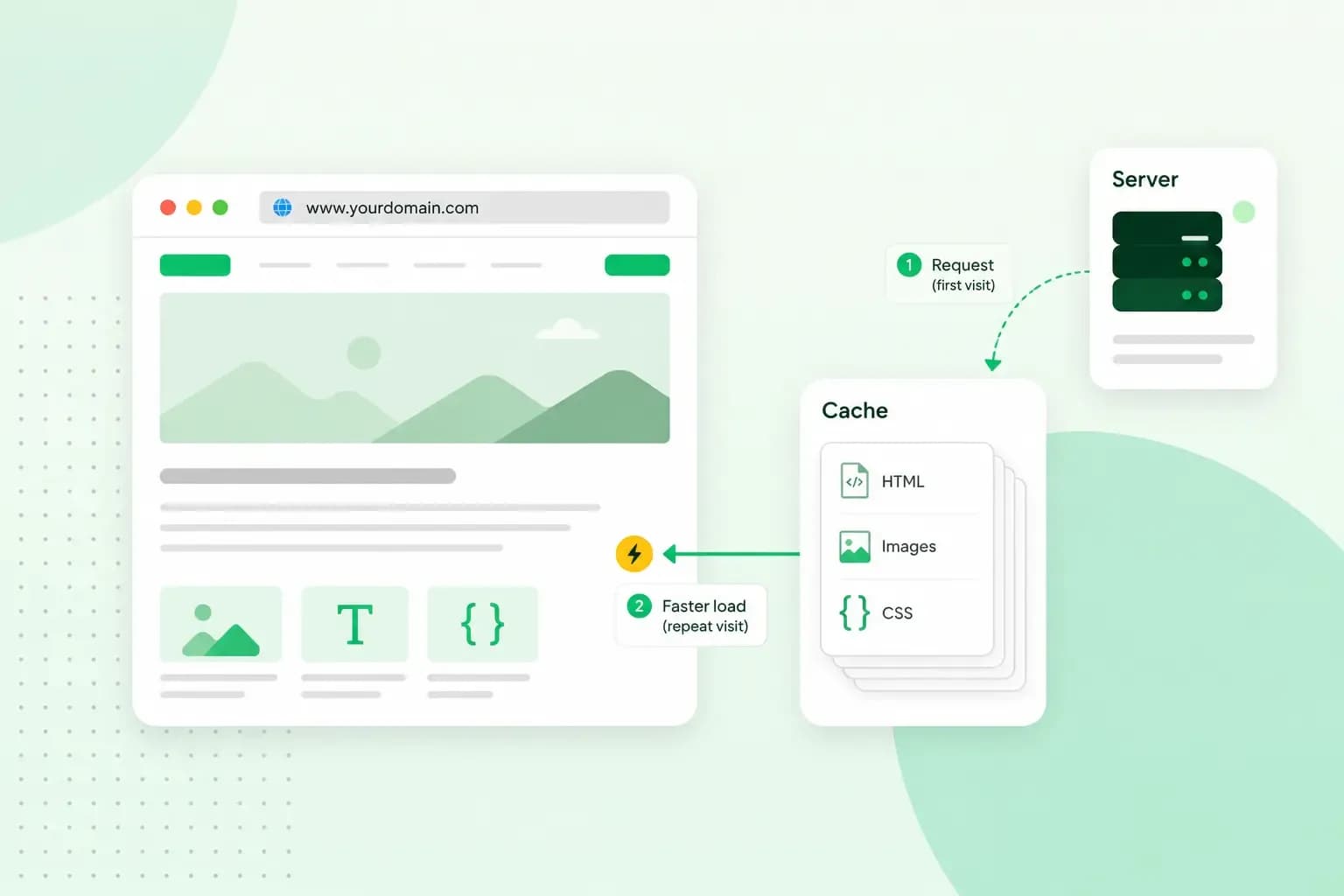
What is cache?
What does cache mean? And how to clear your cache? Read the importance of cache and why it's necessary to clear your cache once in a while.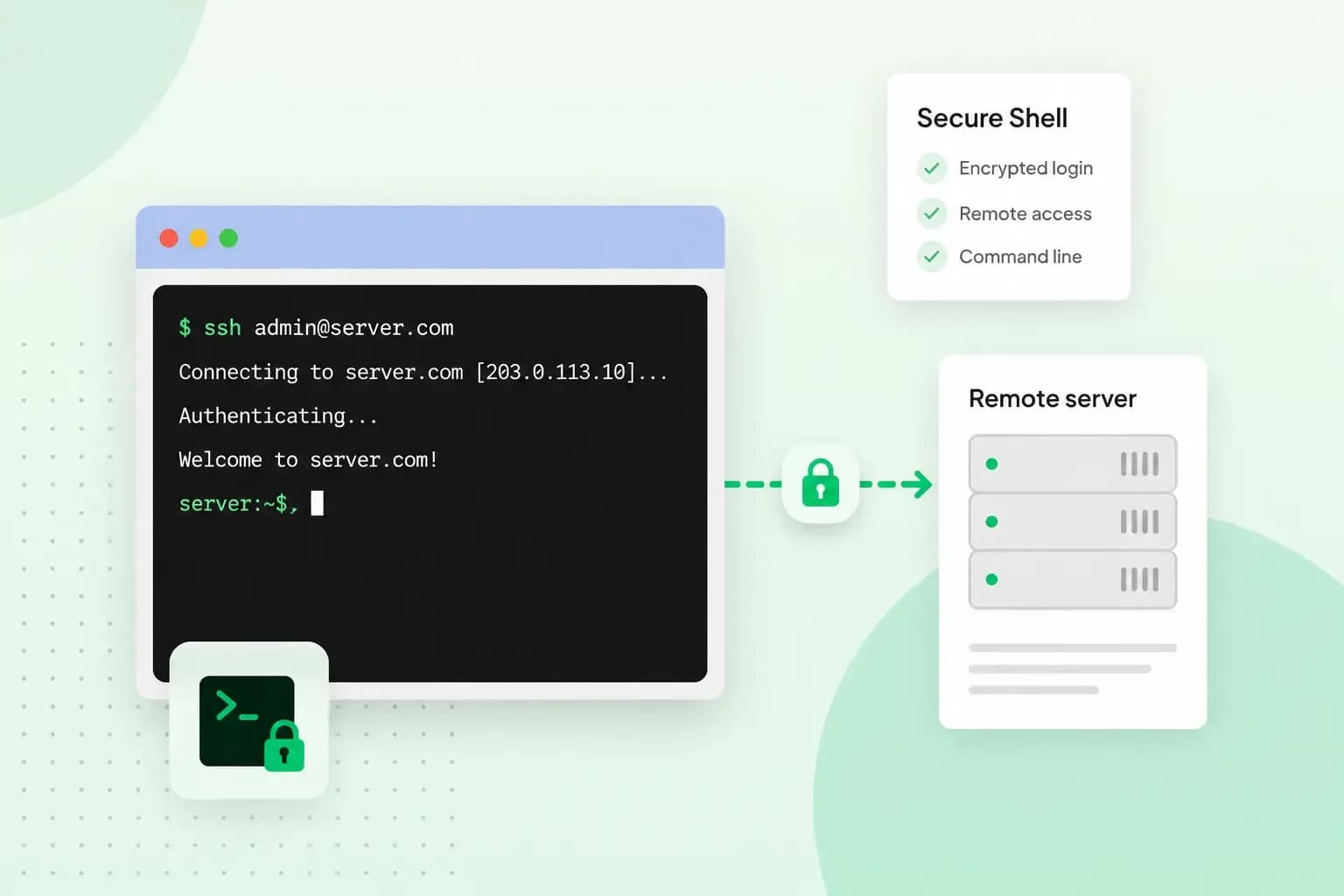 Hosting4 Aug 2026
What is SSH?
How does SSH work & what does it do? Learn about the history of Secure Shell's predecessor Telnet and how SSH improved our internet security in this article.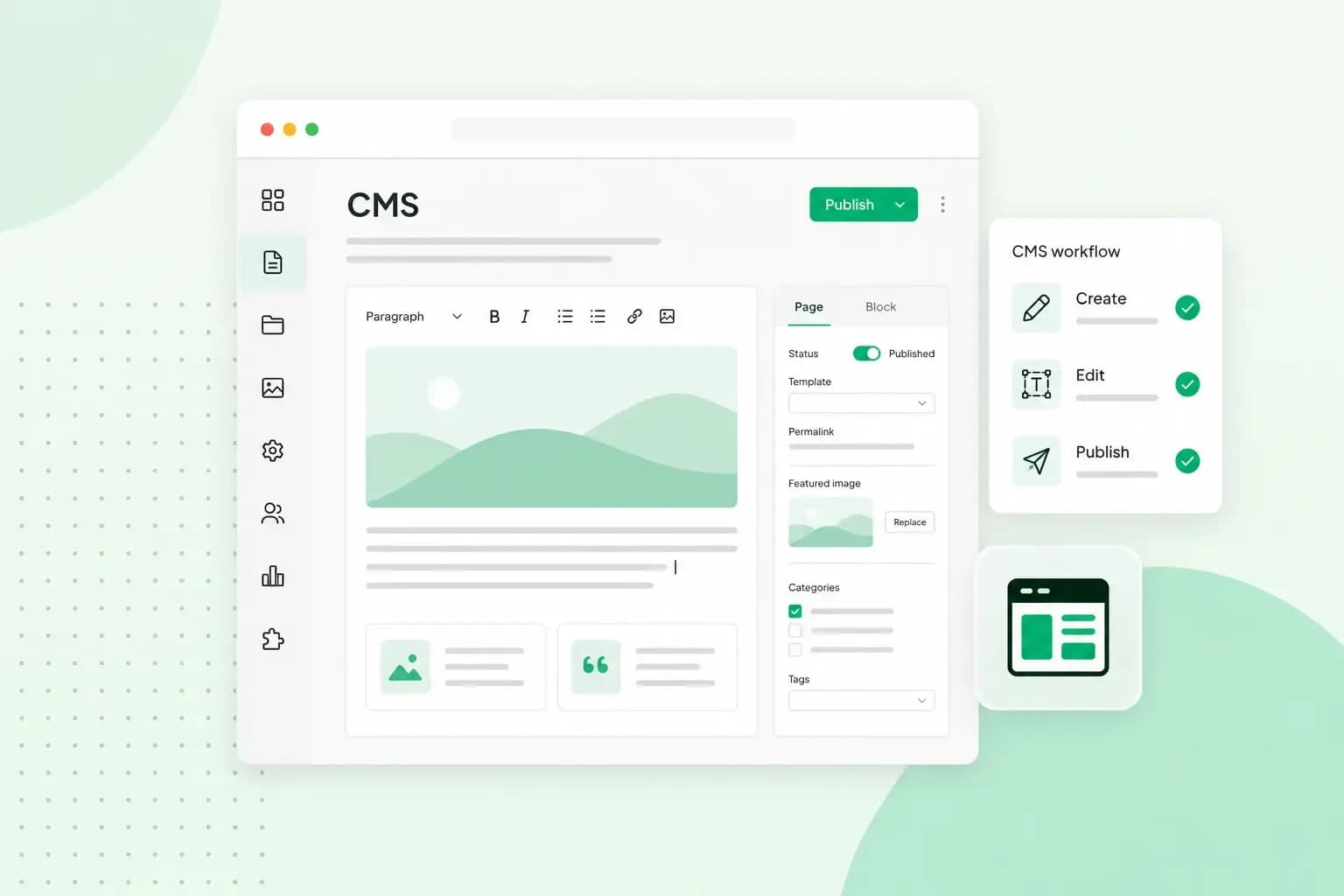 Hosting4 Aug 2026
What is a CMS (content management system)?
You can easily create and manage your website with a content management system (CMS). Want to know more? Learn all about CMS in this complete guide!