
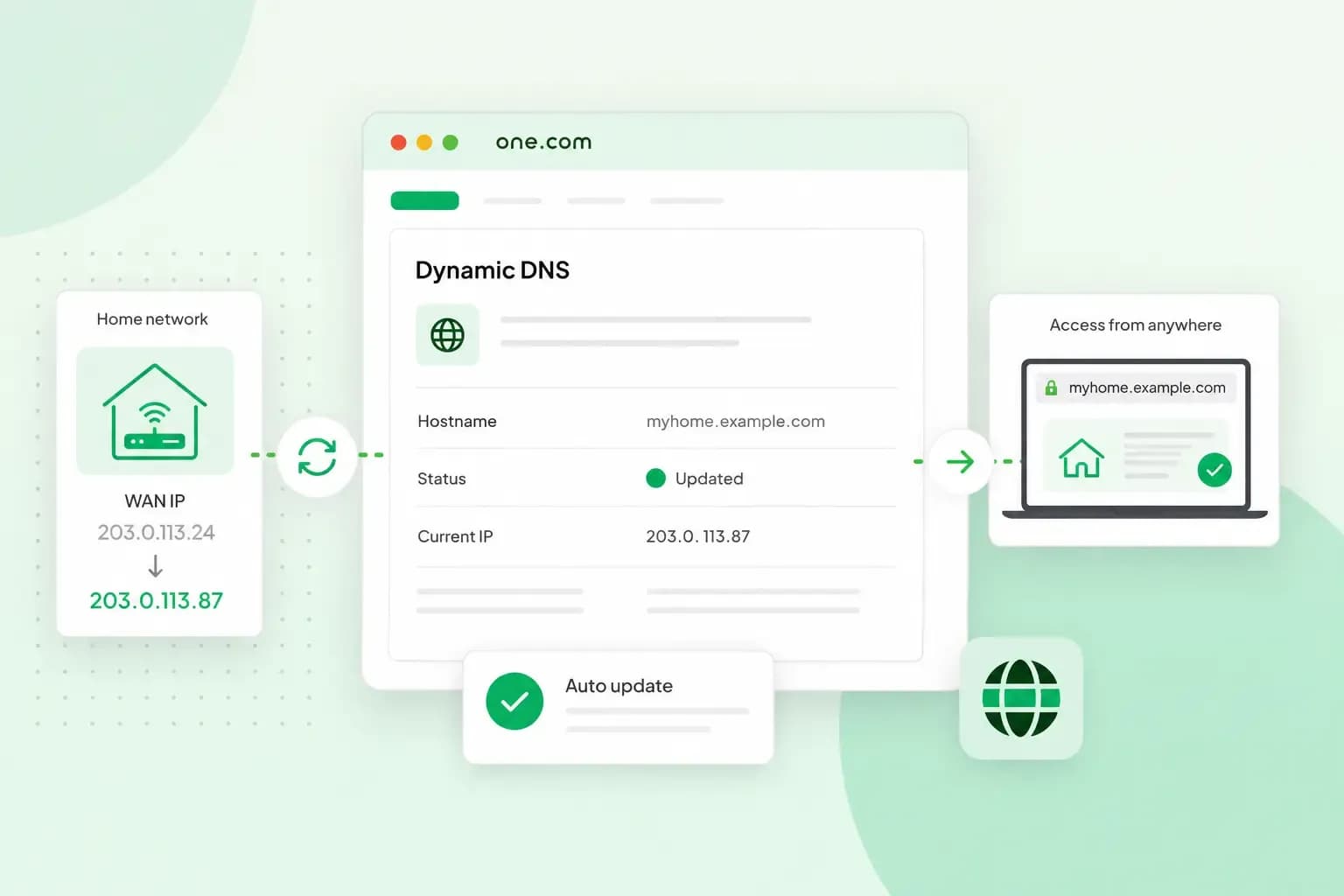
Dynamic DNS, or DDNS, keeps a domain pointing at your internet connection, even when the connection's IP address changes. A small program at home spots each new address and sends it to your DNS provider. That way you can reach a camera, a file server or your own computer at home by name, wherever you are.
How does Dynamic DNS work?
Most internet providers change their customers' IP addresses from time to time. DNS is the system that turns a domain name into the IP address of the device behind it, so your browser knows where to connect. When your address changes, your domain's DNS record still points to the old one until it's updated.
Dynamic DNS updates your domain's DNS record every time your IP address changes, so you don't have to do it by hand. The update program runs on your router, a computer or a server. It checks the connection's IP address and reports each new one, so your domain always points to the latest address. If your router has a Dynamic DNS setting, check in its settings or manual whether it works with your DNS provider. If it doesn't, a computer or server at home can run the program instead.
If your address never changes, you have a static IP address and usually don't need Dynamic DNS. A normal DNS record pointing to it does the job.
What can you use Dynamic DNS for?
Dynamic DNS is mostly used to reach devices at home when you're somewhere else, for example to:
- connect straight to surveillance cameras or Internet of Things devices at home, without a third-party server in between
- connect to a VPN you run at home
- use your desktop computer at home through Remote Desktop while you're at work or travelling
- open the files on your computer or network storage at home while you're away
How to set up free Dynamic DNS with your own domain
There are free and paid Dynamic DNS services. One free route that works with your own domain is Cloudflare's DNS service, which has a Free plan. Cloudflare runs it beside its CDN, a network that speeds up websites, and for Dynamic DNS you only need the DNS part. Cloudflare supports Dynamic DNS through its API, so the update program can change your domain's DNS records for you. The API is the connection programs use to talk to Cloudflare.
To use it, you move your domain's name servers to Cloudflare. Name servers decide which DNS provider your domain uses, so from then on you manage all its DNS settings at Cloudflare instead of with us. The Dynamic DNS part can be free, but you still need a domain, which you register for a year at a time and renew. If you don't have one yet, you can buy a domain from us.
Which domain should you use?
Our advice: use a separate domain for your home connection. Keep the domain your website and email use on our name servers, so your website and email keep working as before. Check that the domain you want is available before you start.
If the domain is part of a web hosting plan with us, all the plan's features stop working once its name servers point to Cloudflare. That includes your website, your online shop and your email. With a Domain only subscription, nothing stops working. For most domains, you change your name server settings in our control panel, under DNS settings.
Move your domain's DNS to Cloudflare
To use Cloudflare's free Dynamic DNS with your own domain, follow these steps. They come from Cloudflare's guide to a full DNS setup and its DNSSEC page, which go into more detail.
- Sign up for a Cloudflare account, if you don't have one yet.
- Add your domain to Cloudflare and choose a plan.
- Note down the DNS records your domain has now, so you can put them back if something goes wrong.
- Check the records Cloudflare found against your list, and add any that are missing, your email records included.
- If DNSSEC, the setting that checks DNS answers for your domain are genuine, is switched on, switch it off before you change the name servers.
- Wait until the old DS record, the DNSSEC record for your domain, has fully expired. If you change the name servers sooner, some visitors can't reach your domain.
- Replace your domain's name servers with the two Cloudflare gives you, copied exactly.
- Wait until Cloudflare shows your domain as Active, which can take up to 24 hours.
- If you switched DNSSEC off, switch it back on in Cloudflare and add the new DS record Cloudflare gives you at your domain's registrar.
Keep your IP address updated
Once your domain is active on Cloudflare, you need a program that sends your new IP address to Cloudflare each time it changes. Run it on a device that's always on and uses the connection you want your domain to point to.
One such program is ddclient, and Cloudflare's own page names it as a client for updating DNS entries. It runs on Mac and Linux, and its project page shows how to download and install it. If ddclient doesn't run on your computer, Cloudflare's page gives another route. You create a script that watches for IP address changes and pushes them to the Cloudflare API. DNS-O-Matic is no longer in service, so skip older guides that recommend it.
To update your domain, ddclient needs the domain and the name it should keep pointing at your home connection, such as home.yourdomain.co.uk. Before you start ddclient, add that name to your domain's DNS records at Cloudflare as an A record with your current IP address. ddclient also needs permission to change your DNS at Cloudflare. You give it that permission with an API token, which you create in your Cloudflare account with the permissions Zone:DNS:Edit and Zone:Zone:Read for your domain. You can start from one of Cloudflare's templates or create a custom token. Cloudflare isn't among the services in the ddclient guide to configuring protocols. For a service it doesn't list, the guide tells you to check the result of ddclient --help with the latest version of ddclient. You enter protocol=cloudflare, the domain, the name and the token in ddclient's settings file, ddclient.conf. Once it runs, open your domain's DNS records in Cloudflare and check that the name shows your current IP address.
Is Dynamic DNS safe?
Dynamic DNS can be safe, but that depends on how you set it up. To reach a device from outside, you may need to open a port in your router for it, a setting often called port forwarding. Your router's settings or manual show where to find it. An open port can let attackers into your home network. To keep Dynamic DNS secure, open ports only to the specific devices that need them, keep those devices updated and give them strong passwords.
Find a domain for your home network
A short name is the easiest to type when you connect from your phone or laptop away from home. Find one that's available with the domain search below, then point it at Cloudflare and connect your devices at home to it.
Recommended reading
 Domain2 Oct 2026
What is a .si domain?
 Domain9 Sept 2026
How to choose a domain name
With the abundance of websites on the internet, choosing a domain name can be overwhelming. Continue reading for some tips & tricks on how to pick yours. Domain5 Aug 2026
Domain names and SEO: what you should know
Start your website off on the right foot by choosing a domain name that will boost your website’s visibility on search engines.