
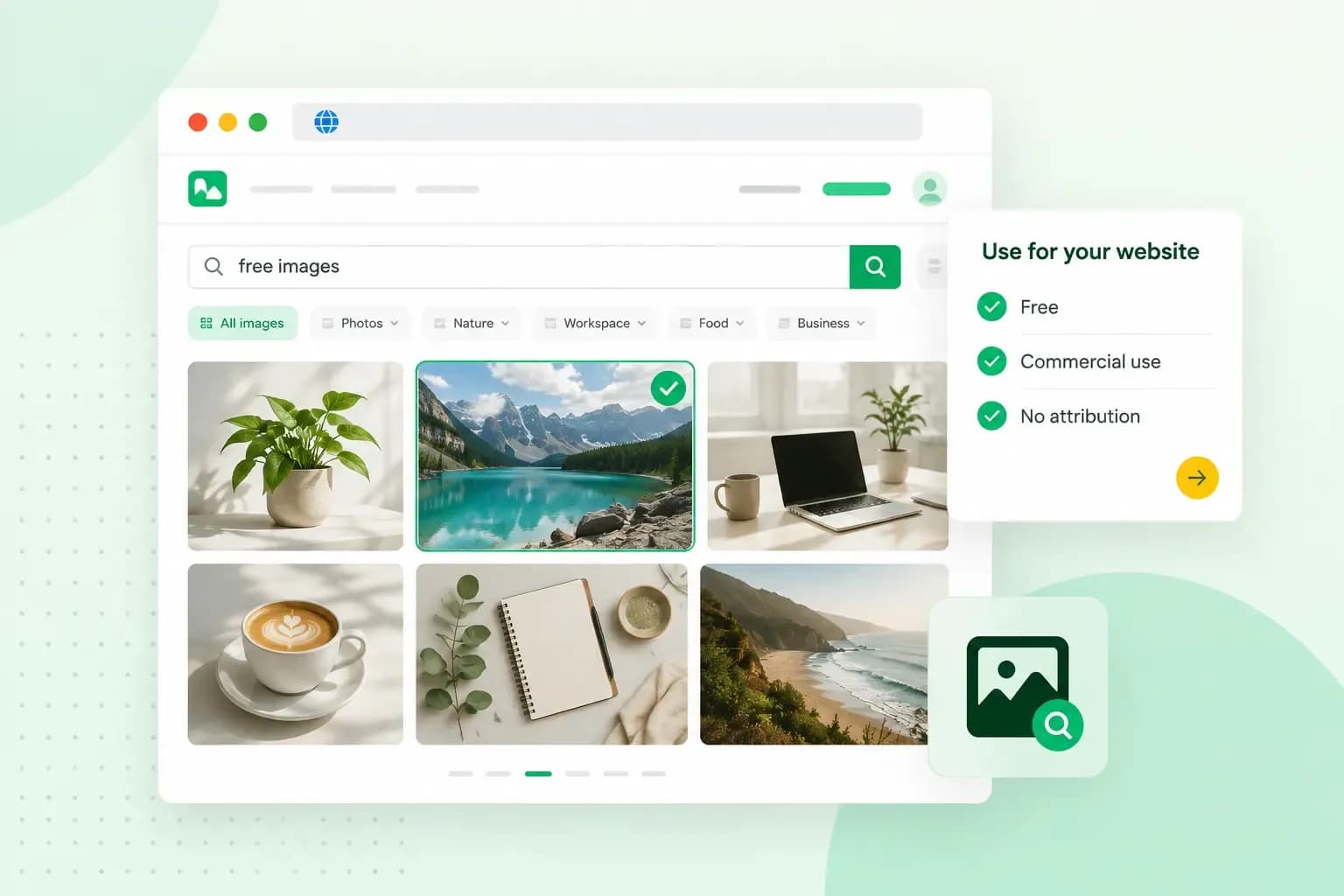
You can find free images for your website on stock photo sites such as Unsplash, Pexels and Pixabay, where photographers share photos you're allowed to use. Free doesn't mean free of rules, though. Each image on these sites comes with a licence that says what you can do with it, so check it before a picture goes on your site.
Free images and copyright
In the UK, photos, illustrations and other images are generally protected by copyright, whether or not they show a © symbol. The Intellectual Property Office's copyright notice on images says the vast majority of images online are likely to be protected by copyright. To use one, you usually need the owner's permission. On a free image site, that permission comes as a licence, so read it before you use a picture from any copyright free image website. The licence sets out exactly what you may do with the image and whether you have to credit its creator.
A few sites go further and use the CC0 licence, including ISO Republic and Negative Space from the list below. Under that licence, the creator has given up their copyright as far as the law allows. You can copy, edit and use the image, even commercially, without asking. CC0 doesn't cover other people's rights in the picture, such as a trademark or a person's privacy.
Using an image without permission can get expensive. The owner may ask you to buy a licence. If it goes to court, you could end up paying for the use of the photo, both sides' legal costs and possibly compensation. You could also be asked to take the image down.
Old images aren't automatically free either. In the UK, copyright in an image usually lasts for the creator's life plus 70 years. An image less than 70 years old is still protected, and an older one may well be too, depending on when its creator died.
Can’t I just use images from Google?
Not without checking the licence first. Google itself warns that the images in its results might be subject to copyright.
Google Images has a usage rights filter that shows only images with licence details attached, and Google's guide to the filter shows where to find it. Google takes those details from the sites that host the images, though, and asks you to confirm the licence on the image's own site. The filter offers two kinds of licence. Google describes images with a Creative Commons licence as usually free to use but requiring a credit, although CC0 images need none. Commercial or other licences can come from sites that charge nothing or from sites that require payment, so open the image's page to see which one you're dealing with.
What are stock photos?
Stock photos are ready-made images, such as a desk by a window, a plate of food or a handshake, that a picture library licenses to anyone who needs them. That way, you don't have to take them yourself. Some libraries give them away, and others charge for them.
Where to find free images for your website
Below are eight places to find images for your website, starting with our website builder, which picks suitable images as it builds your pages. Check the licence on each image site to see what you may do with its images.
1. Aida AI Website Builder
Aida AI Website Builder, our website builder, means you don't have to search for photos to get started. As Aida builds your pages from the chat, it selects images from Unsplash for them, rather than generating them with AI. You can replace any of them with your own photos. If none of them fits, describe the image you want, and Aida creates a new one and puts it on your page.
2. Unsplash
Unsplash is the photo library our website builder takes its images from, and you can also search it yourself. Its licence lets you download and use the photos for free, including on a business website, and you don't have to credit the photographer. You can't sell prints or products with its photos printed on them, though. Some of its images belong to Unsplash+, and only people with an Unsplash+ subscription may use those.
3. ISO Republic
ISO Republic offers free photos and videos for personal and commercial projects under the CC0 licence. You can use, edit and share them without asking permission or crediting anyone. Its licence page also warns that photos of people may not be model-released, which means the person may not have signed their consent to commercial use. Images that show private buildings may not suit every commercial use either, and any brand trademarks in them need to be respected.
4. Pexels
Pexels lets you download and use the photos and videos for free, and you don't have to credit the photographer, though it's appreciated. You may edit them as you like. What you can't do is show identifiable people in a bad light, or suggest that people or brands in a photo endorse your product. Selling unaltered copies as prints or posters isn't allowed either.
5. Pixabay
Pixabay is where creators share free stock photos, illustrations, vector graphics, videos and music. Vector graphics are drawings such as icons that stay sharp at any size. Pixabay's content licence lets you use them for free and adapt them, without crediting the author. One limit matters for a business site: you can't use an image that shows a recognisable trademark, logo or brand for commercial purposes in relation to goods and services.
6. StockSnap.io
StockSnap.io is another library of stock photos. Read its licence to see whether you may use them on a business website and whether you have to credit the photographer.
7. Negative Space
Negative Space puts all its high-resolution photos under the CC0 licence. The site vets each photo before it's published, but it says checking whether a photo is safe to use is your responsibility.
8. Wikimedia Commons
Wikimedia Commons works differently from the other sites. It's the shared media library of the Wikimedia Foundation's projects, Wikipedia among them, and anyone who registers can upload to it. Each file has its own licence, and the copyright usually stays with the person who created it. Some licences ask you to credit the creator, name the licence or share any changes you make under the same terms. Commons is worth a look, but check the copyright status of each image and read its terms before you use it.
Where a licence asks for a credit, Creative Commons recommends giving the title, the creator, the source and the licence, with a link to the licence. A short line under the image is enough, for example: "Harbour at dusk" by Sam Whitfield, licensed under CC BY 4.0.
What to check before you use a free image
If you want a free stock photo for commercial use, Unsplash, ISO Republic, Pexels, Pixabay and Negative Space all allow it without a credit. Whichever site you use, run through these checks before an image goes on your website.
- Read the licence. Check that it allows use on a business website and whether it asks for a credit, which for a Wikimedia Commons file goes to the creator, not the uploader.
- Look at the people in the photo. A recognisable person may not have agreed to appear on a business website, so don't use their photo in a way that suggests they recommend your product.
- Look for brands, logos and buildings. A trademark in a photo still belongs to its owner. You don't need permission to photograph buildings on public display in public spaces, but a stock site may warn that a photo of a private building doesn't suit every commercial use.
- Note where it came from. Keep a note of the site and the image's page, so you can show where your licence comes from if anyone asks.
- Resize large photos to the size your page shows them at before you upload them. A properly sized image sends fewer bytes to your visitors and helps you improve your site speed.
Should you use your own photos or stock photos?
We'd recommend your own photos for anything specific to your business, such as your shop, your products and your team. Free stock photos are fine for general website imagery, such as a desk, a street or a background texture.
If you run a restaurant, show your own dishes and kitchen on your restaurant website, not stock images of food. In the same way, a real photo of your team belongs on your about us page.
Photos you take yourself are generally yours to use as you wish. A photo a friend or relative took still belongs to them, so ask before you use it. If you take photos as part of your job, you need your employer's permission to use them.
When is it worth paying for stock photos?
We recommend paying for stock photos when the free sites lack what you need. That could be a specific subject for a campaign, a look that matches your brand or a photo few other websites use. A paid picture library normally sets its terms in a contract, so you can see what your licence covers before you buy.
How to add images with the Aida AI Website Builder
On a website built with our Aida AI Website Builder, you can replace an image with one you've downloaded or saved on your computer.
- Download the image from the free image site and keep a note of where it came from and its licence.
- Open your website in manual editing mode and select the image you want to replace.
- Upload your own image or photo (up to 20 MB), or describe the image you want and let Aida create it.
- Save the change.
- Publish your website again so visitors see the new image.
Once you've picked your images, they need a website to go on. If you don't have one yet, build your website with our Aida AI Website Builder, start with the photos Aida picks and swap in your own whenever you're ready.
Try the Aida AI Website Builder free for 14 days. No credit card required.
Build my websiteRecommended reading
 Website Builder19 Oct 2026
How to get your website ready for Black Friday (with checklist)
Get your website ready for Black Friday with this practical guide and checklist. Website Builder31 Aug 2026
How to redesign an existing website using AI
Discover how Aida AI can redesign your existing site in minutes, add new features, and help you create a site that's ready for business. Website Builder11 Aug 2026
How to prompt an AI website builder
Learn how to prompt an AI website builder to create a professional website for your business. Get examples for shops, salons, clinics, and more.