
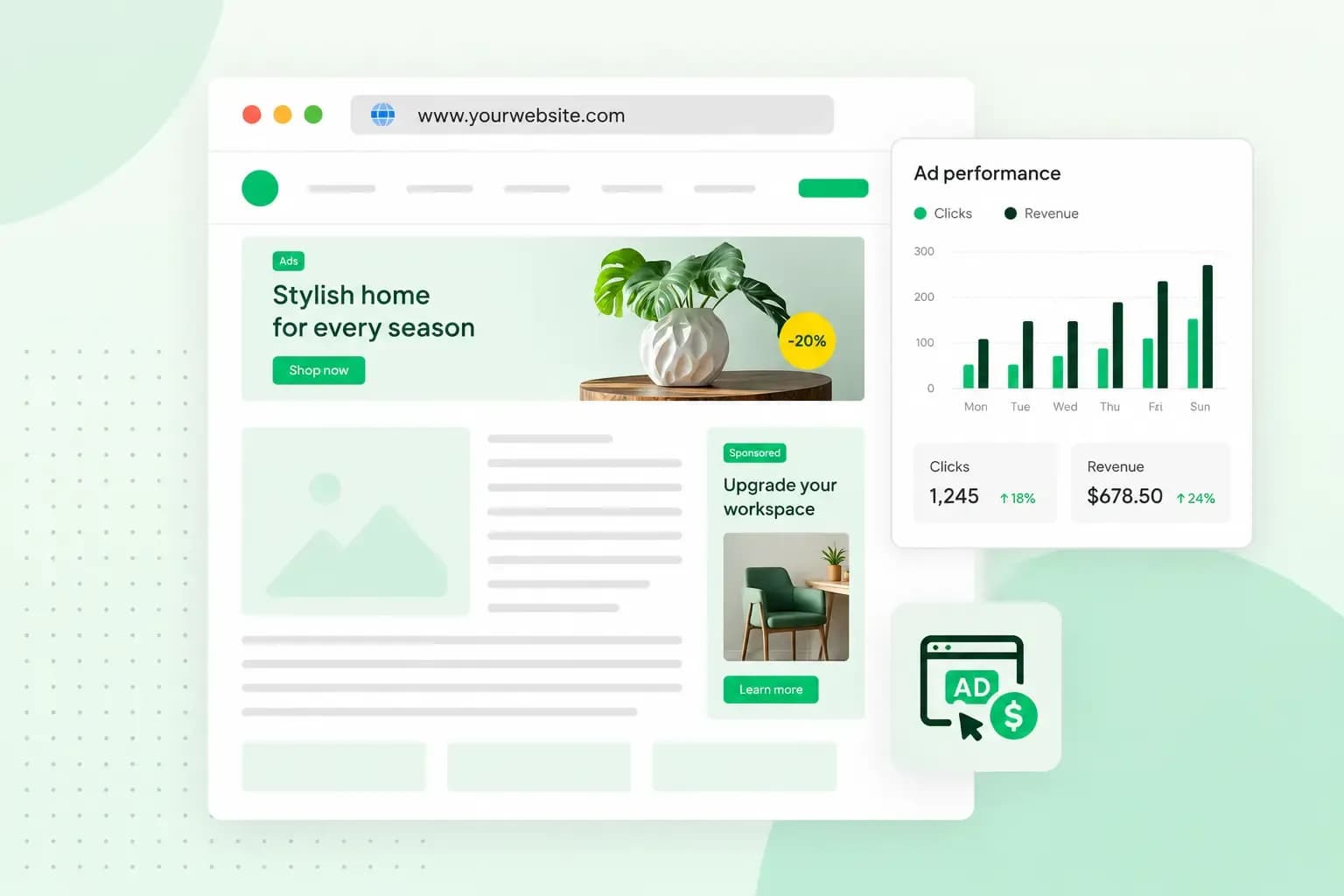
You can add advertisements to your website by joining an ad network such as Google AdSense. An ad network sells your ad space to advertisers for you. You add its code to your pages and choose where the ads appear, and the network pays you a share of what the advertisers spend. You can also sell space yourself, through affiliate links, sponsorships or paid articles. That way, a blog or a hobby site can earn money from the visitors who come to read it.
How to sell ads on your website
If you have a small website, finding the time to sell ads yourself can be hard. An ad network does the selling for you. Affiliate links, native ads and sponsorships take more of your own work.
Google AdSense
With Google AdSense, you get paid for putting ads on your website without dealing with advertisers yourself. You create an account and add a little code to your site. Google then fills the spots you choose with ads from its advertisers. These include display ads, also called banner ads.
Google takes a cut, and you keep the larger part. When an advertiser buys your ad space through Google Ads, Google says you receive about 68% of what the advertiser spends. That figure comes from Google's rule that publishers get 80% of the revenue left after the advertiser's platform takes its fee. Google pays you based on what advertisers bid for your ad space. What you actually earn depends on factors such as advertiser demand, your visitors' location and device, and your content.
The big advantage of AdSense is that it's easy to set up and run. The downside is that a small site with few visitors may earn very little from it.
Other ad networks
AdSense gives you access to what Google calls the largest network of online advertisers. If your site has a clear topic, look at networks that focus on your market or industry too. If your website reviews films, for example, you could find a network that sells ads to film companies.
To find ad networks that suit you, visit competitor websites and check which networks their ads come from. Ask other publishers in your field too.
Affiliate marketing
With affiliate marketing, you place ads and links that send your visitors to another company's website. The company then pays you a commission, such as a percentage of each sale. Affiliate marketing suits pages that already help your readers choose a product. To find them, look at where each page sits in your marketing funnel.
For example, a cycling blog could partner with a shop that sells cycling accessories. It could then earn a commission, such as 10% of every order placed through its links.
We run our own affiliate programme, which publishers can join to recommend our services and earn a commission on every qualified sale except domain sales.
Native ads
Native ads, or advertorials, are articles or videos that an advertiser pays for and that read like your own editorial content. We'd suggest them mainly if your site already publishes articles, as they're made to read like the rest of your content.
With native ads, we'd wait until your site has a loyal audience. Readers must also be able to tell that the article is paid for.
Sponsorships
With a sponsorship, a company pays for a more permanent, visible spot on your website, such as a banner, a series of articles or products featured in your content. If you run a recipe website, for example, a cookware maker could sponsor it and have its pans appear in your recipes, photos and descriptions.
Ads for your own online shop
The ads on your website can also promote your own products or services. You can place ads in your blog posts for items from your online shop, for example. A simple image with a link to the product can serve as the ad. If you have an online shop, try ads for your own products too, and compare what they earn with what ads for other companies bring in.
Which option should you start with?
Our advice: start with an ad network if your site is small or new. It needs no sales work, and you learn which pages and placements earn. Add affiliate links where your content already recommends products, and look at sponsorships and native ads once you have a loyal audience in a clear niche.
How to add ads to your website with Google AdSense
AdSense has three conditions. Your site needs original content that meets Google's policies, you must be 18 or over, and you need to be able to add code to your site. Once you meet them, follow these steps:
- Create an AdSense account.
- Enter your payment information.
- Connect your site to AdSense by adding the code AdSense gives you to your pages, then verify your site.
- Request a review, so Google can check that your site is ready to show ads.
- If your visitors are in the UK, choose a consent management platform (CMP) option in AdSense.
- Wait while Google reviews your payment details and your whole site. This usually takes a few days, though in some cases it can take 2 to 4 weeks. Google may also ask you to verify your identity before your account can show ads and receive payments.
- Start showing ads once Google tells you your account is ready.
For step 3, AdSense lets you connect your site in one of three ways. You can paste its code snippet between the <head> and </head> tags of your pages. Or you can add a short meta tag that AdSense gives you, or a line to an ads.txt file in your site's root directory. The root directory is the top-level folder of your website. An ads.txt file is a small text file there that lists who may sell ads on your site. It isn't required, but Google highly recommends one because it gives you more control over who sells your ad space. So add it as well as your connection code if you can.
Once your account is ready, you choose how ads are placed. With Auto ads, you choose your ad settings, put the AdSense code on every page and Google picks the spots. With ad units, you create each ad yourself and paste its code where you want it to show. If you're new to ads, Auto ads is the easier start, as there's nothing to place by hand. Switch to ad units when you want to decide exactly where each ad goes. It can take up to an hour before the first ads appear.
If your visitors are in the UK, choose a CMP option in step 5 and have a consent message on your site before your ads go live. With a certified third-party CMP, AdSense won't generate a European regulations message for your site, so you add that CMP's banner yourself. A consent management platform (CMP) runs the cookie banner on your site. It asks visitors whether they agree to cookies and personalised ads, and passes their answer on to Google. Personalised ads are ads chosen from data collected about a visitor earlier, such as the sites they have visited, what they have searched for or where they are. Google requires a CMP it has certified before it serves personalised ads in the UK and the European Economic Area (EEA). That CMP must be built on the IAB's Transparency and Consent Framework, the advertising industry's shared standard for passing on consent. Without one, your UK visitors may still see non-personalised or limited ads, but not personalised ones. Google keeps a list of certified platforms, and the CMP from Termly, which sets up your cookie banner, is on it.
Set up ads in WordPress and other website builders
Where the ad code goes depends on the CMS or website builder you use. In your builder, look for a setting that adds code to the header of every page, such as a custom code or header code setting. That's where the AdSense code goes, and your builder's help pages show where to find it. In many cases, an ad network will provide a code snippet that you can place where you want the ad to appear.
If your site runs on WordPress, a plugin can place the ad code for you, so you don't have to edit theme files. Google recommends its free Site Kit plugin, which connects your WordPress site to AdSense and places the AdSense code on all your pages. If you have UK visitors, Google says you might want to untick the option to show ads as soon as AdSense activates your account. It gives this advice to help you comply with its consent policy, so turn ads on once your CMP is in place.
If you'd like to place ads yourself, Advanced Ads is one example of a plugin that gives you a lot of flexibility. It can insert ads into posts and pages without coding and show a label such as "Advertisements" above each ad.
Putting ads on your website
Where you put ads, how many you show and how you label them decide how much they earn and whether visitors stay.
Different types of display ads
Display ads on a website come in many sizes, from wide banners to tall ones and squares. Google recommends responsive ad units, which adapt their size to your layout and your visitor's device. Fixed sizes can draw from a smaller pool of ads, which may mean lower earnings.
An interstitial ad takes over the whole screen, for example before a visitor reaches an article. It interrupts the visit and can drive people away. The Coalition for Better Ads, a group of companies from the advertising and media industry, names pop-up ads among the ad experiences that fall below what people accept. Prestitial ads with a countdown, which fill the screen before the page appears, are on that list too.
Some display ads are animated, play video or invite visitors to interact. They can slow down your website and get in the way of reading. Flashing animated ads are on the coalition's list for mobile sites as well.
How many ads should you have?
The right number of ads depends on each page. More ads can bring in more money, but past a point they cost you visitors, and fewer visitors means less revenue. Fit the number of ads to the amount of content on each page, so a long homepage can carry more than a short article. If your site is small, start with a few well-placed ads and add more only while visitors keep reading.
The Coalition for Better Ads gives a useful limit. On mobile pages, its standards list ads that take up more than 30% of the page's height. On desktop pages, the line is ads taking up more than 50% of the page's height.
Where to place ads on your website
Place ads where visitors can see them without the ads getting in the way of your content. On computers and larger screens, put ads in the sidebar, where they stay visible next to your content. Another good spot is between pieces of content, such as between the posts in a list of blog articles.
Never place an ad where it could be mistaken for part of your website, such as a menu, a navigation button or a download link. A file archive with ads that say "Download" is a typical bad example. Google doesn't allow layouts that lead to accidental clicks. It can send you a policy warning even when the layout was a mistake on your part.
Label ads clearly
Make sure visitors always know what's an ad. AdSense lets you label its ads only with "Advertisements" or "Sponsored Links", so a heading such as "Helpful links" above them breaks its policy.
UK advertising rules ask the same. The CAP Code, the UK's rule book for non-broadcast ads, says marketing communications must be obviously identifiable as such. Advertorials must be made clear as marketing, for example with the heading "advertisement feature". The Advertising Standards Authority (ASA), the UK's advertising regulator, has advice on affiliate links. Unless the context already makes it clear, it advises that the links and the content about the product should be identifiable as advertising. Putting "(Ad)" in front of them is one example the ASA says is likely to be acceptable.
Ensure ad quality
Ad networks accept many kinds of advertisers, so an ad you'd rather not show can appear on your site. With Google AdSense, you can block advertisers or categories of ads, such as a competitor or ads that don't suit your audience. Use blocking sparingly: Google says blocking can lower your earnings, because fewer ads then compete for your space.
Analyse revenue and performance
Choosing the right type of ad, the right number and the right placement takes some testing. Once your ads are live, see how visitors behave with Google Analytics, which collects data from your website and turns it into reports. Then compare that data with your ad reports:
- Look at how many of your visitors respond to your ads.
- Work out how much revenue each ad brings in.
- Find out which ads perform best and which perform worst.
If an ad performs poorly, find out why. It may be badly placed, or there may be too many ads around it. Adjust your ad placements regularly, but make one change at a time. That way, you can see whether each change brings the improvement you hoped for. You can also test your best-performing ad placements on other pages of your site, to see if they work there too.
Once your tests show which ads and placements work, use what you've learned on each new page you add. If your site doesn't have a blog yet, you can start a blog to earn from ads. Our Hosting for WordPress plans give you what you need to build and run it yourself. You add the ad plugins and the AdSense code when you're ready.
Recommended reading
 WordPress6 Aug 2026
What is WooCommerce?
Do you want to start your online shop? Get to know WooCommerce in this guide: an e-commerce solution to build your shop. WordPress5 Aug 2026
Why is my WordPress site so slow? 7 reasons and ways to fix them
Slow WordPress site? We look at the most common reasons and share how to speed up your WordPress website in this practical guide. WordPress30 Oct 2025
WordPress SEO – Checklist with 9 tips
Increase traffic to your site with WordPress search engine optimisation. Follow our WordPress SEO guide and read about the best SEO plugins.