
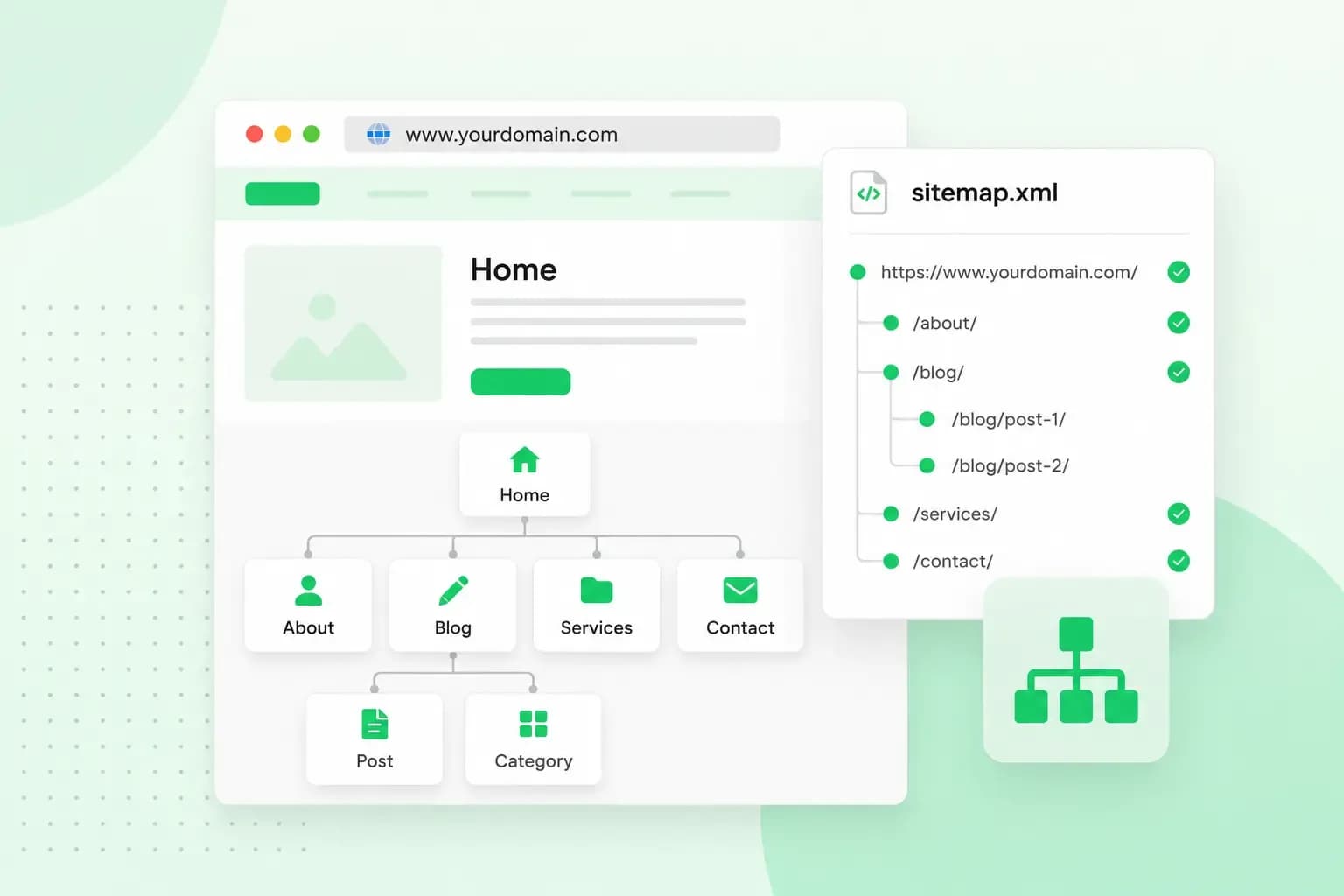
A sitemap is a list of the pages and other files on your website. In most cases it's a file that helps search engines like Google crawl your site more efficiently. It can also tell them when each page last changed. If your website runs on WordPress or another content management system, it has probably made one for you already.
On a well-linked website, Google can usually find most pages by following links from one page to the next. A sitemap points it to the pages it might otherwise miss, so Google can crawl and index those too. Crawling means Google reads a page, and indexing means it stores the page so it can appear in search results. A sitemap helps with both, but it doesn't guarantee that every page gets crawled and indexed.
What is an XML sitemap?
An XML sitemap is the sitemap file itself, written in XML, a format of tags that search engines read. Each page gets an entry: the loc tag holds the page's full address, and an optional lastmod tag holds the date it last changed. This sitemap example has one entry, for the cakes page of your bakery's website at yourbakery.co.uk:
<?xml version="1.0" encoding="UTF-8"?>
<urlset xmlns="http://www.sitemaps.org/schemas/sitemap/0.9">
  <url>
    <loc>https://www.yourbakery.co.uk/cakes/</loc>
    <lastmod>2026-09-24</lastmod>
  </url>
</urlset>
Older guides also mention priority and changefreq tags, but Google ignores both. It uses lastmod if the dates are consistently and verifiably accurate.
Besides pages, a sitemap can describe the images, videos and news articles on your website, and the versions of a page in other languages. One sitemap holds up to 50,000 URLs or 50MB uncompressed. A bigger website splits its pages over several sitemaps. It can list them in a sitemap index file, which you can submit to Google as one.
XML and HTML sitemaps compared
An HTML sitemap is an ordinary page on your website that links to your other pages, much like a table of contents. The XML sitemap does the same job for search engines.
| XML sitemap | HTML sitemap | |
|---|---|---|
| Who reads it | Search engines | Visitors |
| What it looks like | A file of addresses in tags | A normal page of links |
| What it's for | Helping search engines find and crawl your pages | Helping visitors find a page |
In most cases, the XML sitemap is the one worth getting right. Most websites today let visitors find their way through the menu, so an HTML sitemap is optional. Add one if your website has so many pages that visitors struggle to find them.
Should your website have a sitemap?
For most websites, yes. According to Google, you might need a sitemap if your website is large or if it's new and few other websites link to it yet. The same goes for a website with a lot of video and images, or one that appears in Google News.
Google also says a small website might not need one, if all three of these are true:
- It has about 500 pages or fewer that you want in search results.
- Every important page can be reached by following links from your home page.
- You don't have many media files or news pages you want to show in search results.
We recommend having one anyway. Google says that in most cases a website benefits from a sitemap. If your website software makes it for you, there's little reason not to.
A sitemap won't lift your ranking by itself, though. Where a page ranks still depends on its content and the rest of your SEO activities.
How to find your sitemap
Type your web address followed by /sitemap.xml into your browser, such as https://www.yourbakery.co.uk/sitemap.xml. That's the first place to look, since Google recommends putting the sitemap at the root of your website. On WordPress without an SEO plugin, try /wp-sitemap.xml instead.
If neither address works, open your robots.txt file at /robots.txt. A line that starts with Sitemap: gives the sitemap's address. If you find no sitemap at all, make one in one of the ways below.
How to create a sitemap
You can get a sitemap in four ways, and the software your website runs on decides which one suits you.
- Your website software. If you use a content management system (CMS), check the addresses above to see whether it already makes a sitemap before you do anything else. WordPress, for example, has made its own sitemap since version 5.5.
- An SEO plugin. On WordPress, the Rank Math plugin, for example, can make the sitemap instead and lets you choose which posts and pages it leaves out.
- A sitemap generator. A tool such as Screaming Frog crawls your website and builds the file for you. Its free version handles up to 500 URLs. You then upload the file to your website, for example with your host's file manager or an SFTP program.
- By hand. For a website with fewer than a few dozen pages, you may be able to write the file yourself in a text editor, in the format shown above, and upload it the same way. Keeping it up to date by hand gets tedious as the website grows, though.
Use the sitemap your website software makes if it has one, so you don't have to rebuild the file every time a page changes. Turn to the other three ways only when your software makes none.
How to submit your sitemap to Google
You submit a sitemap to Google in the Sitemaps report of Search Console, Google's free service for website owners. Before you start, your website needs to be in Search Console as a property. A property is what Search Console calls a website you've added there. Our guide to Google Search Console shows how to add and verify it.
- Check that you have owner permissions on that property in Search Console. Without them, list the sitemap in your robots.txt file instead.
- Post the sitemap on your website, ideally at the root, so it opens straight after your domain, as in
https://www.yourbakery.co.uk/sitemap.xml. If your website software makes the sitemap, it's already there. - Test that Google can reach it: inspect the sitemap's address with the URL Inspection tool in Search Console, run the live URL inspection and check that Page fetch says Successful.
- Open the Sitemaps report, paste the sitemap's address into the Add a new sitemap box and click Submit.
- Google should fetch the sitemap straight away. Crawling the pages it lists takes longer, and depending on your website's size, activity and traffic, some may not be crawled at all.
- If the status isn't Success, click its row in the report to see what went wrong.
You can also point to your sitemap from your robots.txt file with a line such as Sitemap: https://www.yourbakery.co.uk/sitemap.xml. Google finds it the next time it reads the file. The Sitemaps report only lists sitemaps you submit there or through the Search Console API, though, so it's worth submitting yours as well to see its status. Once it shows Success, check the report now and then to confirm Google can still fetch it.
If you're about to start a WordPress website, our web hosting plans include a one-click WordPress installer. WordPress then makes the sitemap for you to submit.
Rather not set up WordPress yourself? With our Aida AI Website Builder, you describe your business, and Aida builds the pages, text and images for you to change and publish.
Build my websiteRecommended reading
 Online MarketingOct 19, 2026
15 ideas for Black Friday marketing
Make the most of Black Friday with 15 marketing ideas to attract customers and boost sales. Discover ways to promote your offers, reach more shoppers and make your campaign stand out. Online MarketingDec 30, 2025
AI SEO: a guide to search engine optimisation with artificial intelligence
A basic guide to AI in SEO – let's look at how artificial intelligence can help you speed up your SEO tasks. Online MarketingDec 30, 2025
Make your website visible in AI searches
A basic guide to AI in SEO – let's look at how artificial intelligence can help you speed up your SEO tasks.