
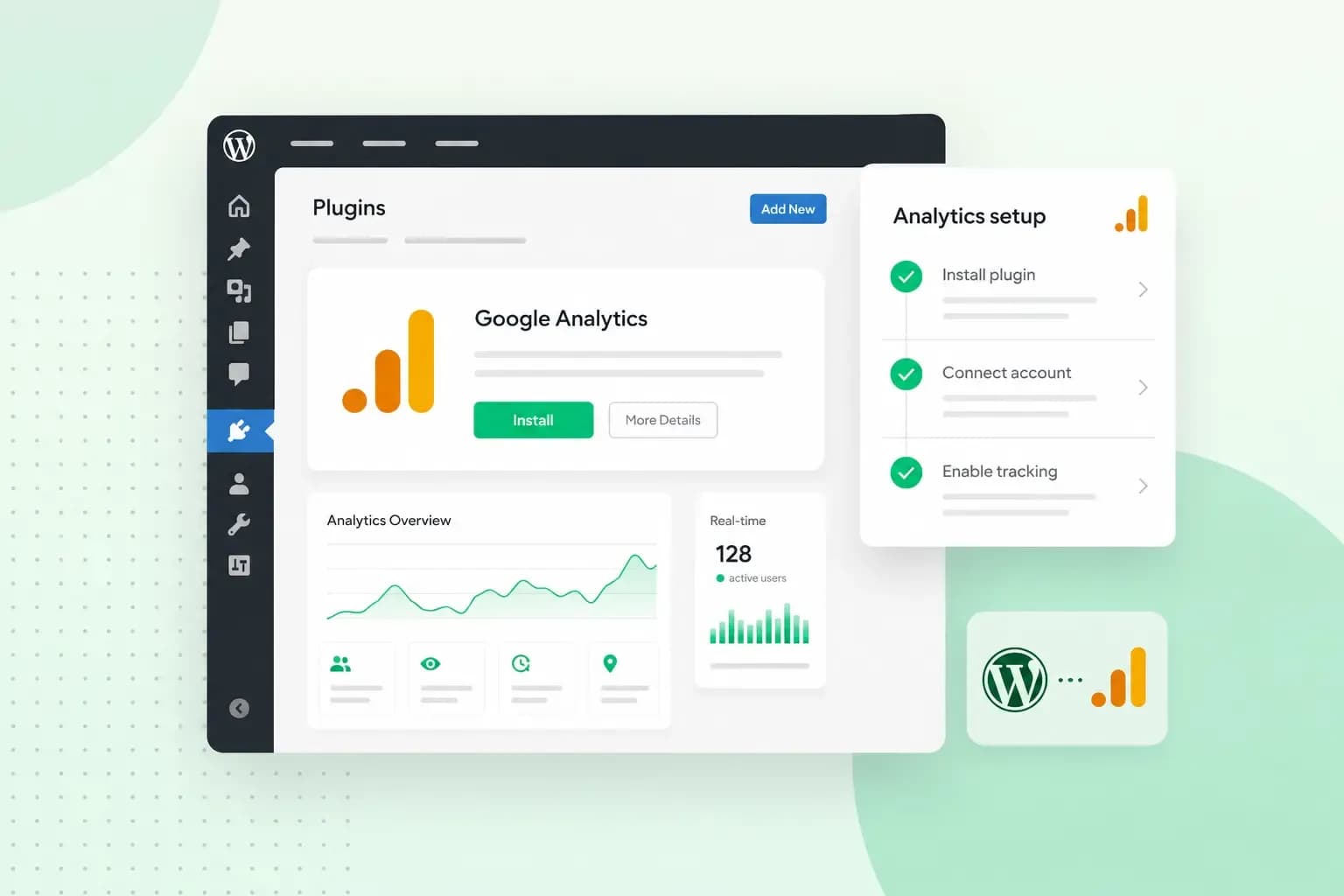
You add Google Analytics to WordPress by putting your Measurement ID or your Google tag on every page of your site. You can do it with a plugin that does the work for you, a code snippet you add yourself, or Google Tag Manager. A plugin is the easiest route, since you don't edit any code. Whichever way you choose, you first need a Google Analytics property for your website.
Before you start: get your Measurement ID
Google Analytics keeps your website's data in a property, which collects it through a data stream. The data stream gives you a Measurement ID, the code you add to WordPress. If you don't have a property yet, you set it up once in Google Analytics with your Google account:
- Go to
analytics.google.comand sign in. If this is your first time, click Start Measuring. If you already have an account, click Create in Admin, select Property and go on from step 4. - Give the account a name and choose which data you share with Google.
- Click Next to move on to setting up the property.
- Name the property and pick your time zone and currency.
- Choose your industry, business size and what you want to use Google Analytics for.
- Click Create. If the account is new, accept Google's Analytics Terms of Service and its Data Processing Amendment.
- Add a Web data stream: enter your website address and a stream name, then click Create stream.
- Under Stream details, copy the Measurement ID. It usually starts with
G-. - If you add the code with WPCode or a child theme, copy the Google tag too: under Google tag, click View tag instructions, choose Install manually and copy the whole code.
To learn what the reports show and how to find your way around them, read our guide to getting started with Google Analytics.
Which method should you use?
For most sites, a plugin made for Google Analytics is the best method. Site Kit by Google or GA Google Analytics sets it up without you editing any code. If your site already runs other scripts, such as an advertising pixel or a chat widget, a code plugin such as WPCode suits you better. Use one method only. If the Google tag is on your site twice, for example through Site Kit and a code snippet, Google Analytics may record duplicate data.
| Method | What you need | Good for | Watch out for |
|---|---|---|---|
| Site Kit by Google | A live site and your Google account | Beginners, and sites that also use Search Console | One more plugin to keep up to date |
| GA Google Analytics | Your Measurement ID | Sites that only need Google Analytics | One more plugin to keep up to date |
| Your theme's setting | Your Measurement ID or Google tag, and a theme with the field | Sites that want nothing extra installed | Tracking stops when you change theme |
| Code plugin (WPCode) | Your Google tag code | Sites that add other scripts too | Pasting the code in the right field |
| Child theme | Your Google tag code and some PHP | Developers who want no extra plugin | A mistake in the code can break your site |
| Google Tag Manager | A Tag Manager account and container | Sites with several tags, such as ad tracking | Tag Manager and the tag both need setting up |
Our advice: if you're a WordPress beginner, start with Site Kit. Google built it, and you choose your Analytics property while you set it up, so there's no ID to copy. You can connect other Google tools later. Site Kit is free, and so is the standard version of Google Analytics.
Install Google Analytics in WordPress with a plugin
A plugin adds the Google Analytics code to every page for you, so you never touch your theme's files. Each plugin needs updating, though, because updates keep it secure and help your site's performance. You can do those updates yourself, or let us do them with Managed Hosting for WordPress.
Site Kit by Google
Site Kit by Google is Google's official WordPress plugin. Besides Google Analytics, it connects your site to other Google services such as Search Console, PageSpeed Insights and Tag Manager. It then shows their figures in your WordPress dashboard. Because you sign in with Google, you pick your property in the setup flow and don't copy a Measurement ID. Your site has to be publicly accessible for this, which rules out maintenance mode and password protection.
- In WordPress, open Plugins > Add New and look for Site Kit by Google.
- Install and activate the plugin.
- Open the new Site Kit menu and follow the setup flow, which connects Site Kit to your Google account.
- Connect Analytics under Site Kit > Settings if the setup flow didn't already do it.
GA Google Analytics
If Google Analytics is the only Google tool you need, the GA Google Analytics plugin does the job. All it needs is your Measurement ID, and it adds the code to your pages for you.
- Install and activate the GA Google Analytics plugin.
- Open the plugin's settings.
- Paste your Measurement ID into the GA Tracking ID field.
- Select GA4 as the Tracking Method.
- Save your changes.
Your theme's Google Analytics setting
Some WordPress themes have a field in their settings where you paste your Measurement ID or your Google tag. You'll find it in the theme's own settings, under a name such as Google Analytics or header code. The Divi theme, for example, takes the Google Analytics code in its Header field. If the field asks for an ID, it takes your Measurement ID. If it asks for code, it takes the whole Google tag. It's a quick option with nothing extra to install. If you switch to another theme later, though, your site stops sending data to Google Analytics.
Add the Google Analytics code yourself
Google asks you to paste the Google tag immediately after the <head> element of your pages. Don't paste it into your theme's own files, because a theme update would wipe the code. Use a code plugin or a child theme instead. Both need the Google tag code from step 9 above, not only the Measurement ID.
With a code plugin such as WPCode
A code plugin is still a plugin, but it does more than one job. If you add other scripts too, such as an advertising pixel, you manage them all in one place. WPCode stores its snippets in the WordPress database, so your Google tag stays when you change theme.
- Install and activate the WPCode plugin.
- In the WordPress admin sidebar, go to Code Snippets > Header & Footer.
- Paste your Google tag into the Header field as Google gave it, with its opening and closing script tags.
- Click Save Changes.
Without a plugin: use a child theme
A child theme lets you change a WordPress theme without losing your changes when the parent theme updates. Only use this method if you're confident with PHP, as incorrect code can break your WordPress website. You add the Google tag through the child theme's functions.php, the file that holds the theme's own PHP code. Our guide explains what a child theme is and how you create one.
- Create a child theme of the theme you use and activate it.
- Save a copy of the child theme's
functions.phpfile before you change it, so you can put it back if the site breaks. - Add the snippet below to the end of the child theme's
functions.php, with the tag code you copied where the comment says. If the file ends in PHP code with no closing?>tag, leave out the snippet's first line.
<?php
add_action( 'wp_head', 'add_google_analytics' );
function add_google_analytics() { ?>
<!-- Paste your Google tag here -->
<?php }
The wp_head hook runs as your theme builds the head section of a page. It depends on your theme, though WordPress calls it widely supported. The snippet prints your Google tag at that moment on every page. You don't have to touch header.php, the theme file that holds the head section.
Use Google Tag Manager with WordPress
Google Tag Manager lets you set up and publish tags, from Google and from other companies, in one tool. A tag is a piece of code from a service such as Google Analytics or an ad platform that connects your website to that service. You add Tag Manager to WordPress once. From then on, you add or change tags, Google Analytics included, in Tag Manager instead of on your site. That pays off when you run several tags, for example for ads.
To start, create an account and a web container in Google Tag Manager. The container holds your tags, and its container ID starts with GTM-. If you already use Site Kit, it can connect Tag Manager as well. Google Analytics then runs through Tag Manager only, not through Site Kit too, or the tag is on your site twice. Otherwise, the GTM4WP plugin adds it:
- Install the GTM4WP plugin and activate it through the Plugins menu in WordPress.
- Go to Settings > Google Tag Manager and enter your container ID.
Once the plugin holds your container ID, add Google Analytics as a tag in your container:
- In Tag Manager, add a Google tag to your container and enter your tag ID. That's the Measurement ID you copied from your data stream.
- In the Triggering section, select Initialisation, then click Save.
- Click Submit, then Publish, so the tag goes live on your site.
Google's own guide shows how to configure a Google tag in Tag Manager, including the optional settings.
Check that Google Analytics is collecting data
Open the Realtime report in Google Analytics and visit your site in another tab: if your visit shows up, tracking works. The Realtime report covers the last 30 minutes. Many other reports can take 24 to 48 hours to fill, so an empty overview on your first day is normal.
If your test visit doesn't show up, or the other reports are still empty after 48 hours, check your ID first. The ID in WordPress must match the Measurement ID of your data stream. Then make sure the plugin or snippet is active. With GA Google Analytics or a code snippet, you can also open your page's source code and look for your Measurement ID. If you added the Google tag yourself, Google Analytics can also test your website for it from the tag instructions of your data stream.
Do you need cookie consent for Google Analytics in the UK?
Not always. The ICO, the UK's data protection regulator, has a statistical purposes exception. It lets you use analytics cookies without consent when their only purpose is statistics about all your visitors together, to help you improve your website. The exception comes with conditions:
- You tell visitors clearly what the cookies are for and give them a simple, free way to object.
- You don't use the data to identify, track or monitor individual people.
- You don't use it for online advertising, such as measuring how your ads perform.
- The data is only used to improve your website, even when a provider such as Google collects it for you.
Google Analytics can share data with Google, and the Google tag can send data on to linked products such as Google Ads. If you turned on data sharing with Google when you created your account, your set-up probably doesn't meet these conditions. The same goes if you linked Google Analytics to Google Ads. In that case, or whenever you can't be sure, we recommend asking for consent. Site Kit doesn't do that for you: telling visitors and asking for their consent is up to you as the site owner. A cookie banner plugin such as Complianz can hold Google Analytics back until a visitor agrees. It also works with the WP Consent API, a separate plugin that passes your visitors' choices on to other plugins that support it.
Start using your data
Once the reports fill, look at which pages bring visitors in and where they leave your site. In the Reports section, Traffic acquisition shows where your visitors come from, and Pages and screens shows which pages they view. Our guide on how to drive more traffic to your website shows what to do with what you find.
With Managed Hosting for WordPress, we update WordPress, your themes and your plugins for you, with a visual check of every update. You look after your content and design.
See Managed Hosting for WordPressRecommended reading
 WordPressAug 6, 2026
What is WooCommerce?
Do you want to start your online shop? Get to know WooCommerce in this guide: an e-commerce solution to build your shop. WordPressAug 5, 2026
Why is my WordPress site so slow? 7 reasons and ways to fix them
Slow WordPress site? We look at the most common reasons and share how to speed up your WordPress website in this practical guide. WordPressOct 30, 2025
WordPress SEO – Checklist with 9 tips
Increase traffic to your site with WordPress search engine optimisation. Follow our WordPress SEO guide and read about the best SEO plugins.