
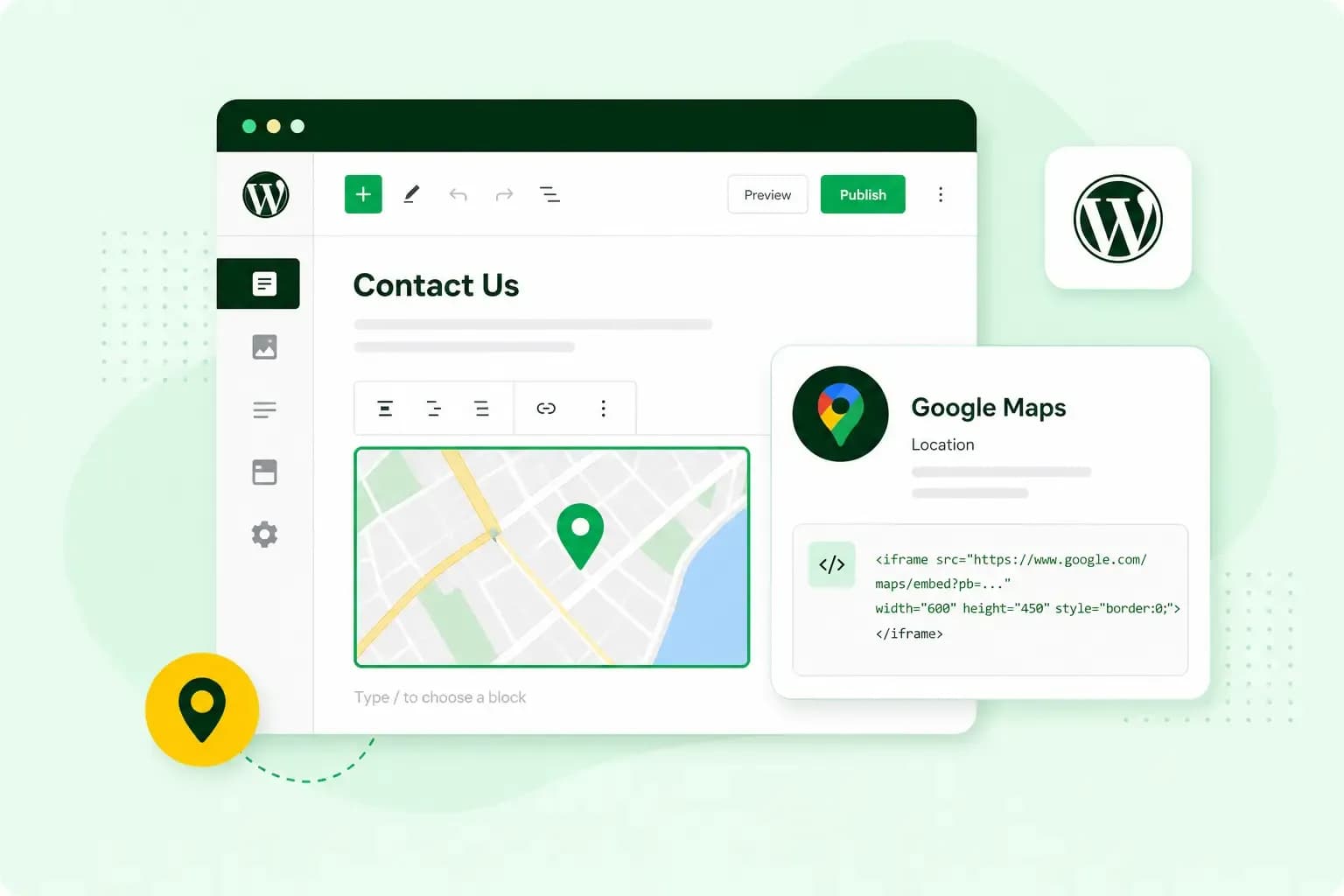
To embed Google Maps in WordPress, copy the embed code that Google Maps gives you and paste it into a Custom HTML block on your page. If you want several locations on one map, a store locator or a map in your own colours, a plugin is the better route, and a plugin that runs on Google Maps needs an API key from Google.
Why put a Google map on your website?
Putting a map on your website helps visitors find you. On your contact page, they see the route to your door and what's around it before they set off.
The map on your site helps people who already know your business. To get your business onto Google Maps itself, so people who search nearby find it too, add it to Google Business Profile, as long as your business is eligible for a profile. Once you've added and verified your profile, customers can find your business on Google Search and Maps, and adding it costs nothing. It's worth setting up early, as a first step in local SEO, the work of getting found by people who search nearby.
How to embed a Google map without a plugin
Copy the embed code from Google Maps
These steps give you the embed code for the part of the map you go to. Google doesn't let you share a map with your saved locations or a distance measurement this way, so find your address with a search rather than opening a place you've saved.
- On your computer, open Google Maps.
- Go to the part of the map you want to show, such as your shop or office.
- At the top left, click Menu.
- Click Share or embed map.
- Click Embed a map, then Copy HTML.
Paste the code into a Custom HTML block
- Make sure your user role has the unfiltered_html capability, then open the page or post where the map should go, for example your contact page, in the block editor.
- Click the Block Inserter icon and add a Custom HTML block, or type
/htmlin a new paragraph block and press Enter. - Click the Edit HTML button.
- Paste the embed code you copied. A preview shows next to the code.
- Click Update.
Save or publish the page as usual, then open it to see the map.
If the map has gone after you save, check your user role first. WordPress only keeps an iframe for users with the unfiltered_html capability, the permission to save HTML code such as an embedded map. Administrators of a single site have it, and on a Multisite network only the Super Admin does. For roles without it, such as Contributor, WordPress strips the iframe out when the post is saved, so ask an Administrator to add the map for you.
Embed code or plugin for your map
The embed code shows the part of the map you chose, such as your shop's address, so it suits a business with one location.
A plugin can put all your branches on one map and let visitors search for the nearest one. What it costs you is one more plugin to keep up to date, and if it runs on Google Maps, you need an API key from Google with billing set up behind it.
Our advice: if your business has one address, use the embed code. For several locations or a search for the nearest one, pick one of the plugins below.
Google Maps plugins for WordPress compared
Each of these five WordPress plugins adds a map to your site, and they differ in what the map can do. Several of them can also run on a map service other than Google Maps, such as OpenStreetMap, and then need no Google API key. Some add the map with a shortcode, a short tag you paste into a page where the map should appear.
| Plugin | Good for | Maps it can use | Google API key needed |
|---|---|---|---|
| Maps Widget for Google Maps | A map thumbnail that opens the full interactive map in a lightbox | Google Maps | Yes |
| WP Go Maps | A map with as many markers as you like, added as a block, widget or shortcode | Google Maps, Leaflet, OpenLayers and others | Only with Google Maps |
| WP Maps | Store locators and business directories with search and filters | Google Maps, OpenStreetMap, Mapbox | Only with Google Maps |
| Easy Google Maps | Markers with photos, videos and descriptions | Google Maps | Recommended by the plugin |
| WP Store Locator | Letting customers search by postcode for their nearest shop and get directions | OpenStreetMap, Google Maps, Mapbox, Stadia Maps | Only with Google Maps |
How to install a map plugin
- In your WordPress dashboard, go to Plugins > Add New.
- Search for the plugin by its name.
- Click Install Now.
- When the installation is complete, click Activate.
If the plugin runs on Google Maps, get your API key first, as the next section shows. You then create your map in the plugin's own settings and add it to a page with the plugin's block or shortcode.
How to get a Google Maps API key
You need a Google Maps API key when a plugin shows Google Maps on your site. The key is a code that ties every request the plugin makes to your Google Cloud project and its billing account.
Each billable item in Google Maps Platform comes with a set amount of free usage each month, and Google's pricing list shows how much. Above that free usage, you pay for each billable event, such as a map load, directions or place information, and the price depends on the service. It's worth checking the pricing list for the services your plugin uses before you set up billing.
- In the Google Cloud Console, create a new project.
- Make sure you've enabled billing for the project.
- Open the Maps API Library page and enable the APIs or SDKs your plugin uses.
- On the Credentials page, click Create credentials > API key.
- Restrict the key before you use it on your live site.
An unrestricted key can be used to call any Google Maps Platform service, and if someone misuses a key you left unrestricted, you pay for any charges. To keep that from happening, Google recommends giving every key one type of application restriction, which limits where the key works, and one or more API restrictions, which limit what it can call. For a map on your website, the application restriction is Websites, with your site's address, and the API restriction lists only the APIs your plugin uses.
With the key restricted, add it in your map plugin's settings.
Once the key is in your plugin, the map shows on your site and customers can find their way to your door. If your WordPress site runs with another host today, you can move it to our Hosting for WordPress with our 1-click migration tool and keep the map as it is.
With Managed Hosting for WordPress, we update WordPress, your themes and plugins for you, and roll an update back if your site doesn't look right afterwards. You look after your site.
See managed hosting for WordPressRecommended reading
 WordPressAug 6, 2026
What is WooCommerce?
Do you want to start your online shop? Get to know WooCommerce in this guide: an e-commerce solution to build your shop. WordPressAug 5, 2026
Why is my WordPress site so slow? 7 reasons and ways to fix them
Slow WordPress site? We look at the most common reasons and share how to speed up your WordPress website in this practical guide. WordPressOct 30, 2025
WordPress SEO – Checklist with 9 tips
Increase traffic to your site with WordPress search engine optimisation. Follow our WordPress SEO guide and read about the best SEO plugins.