
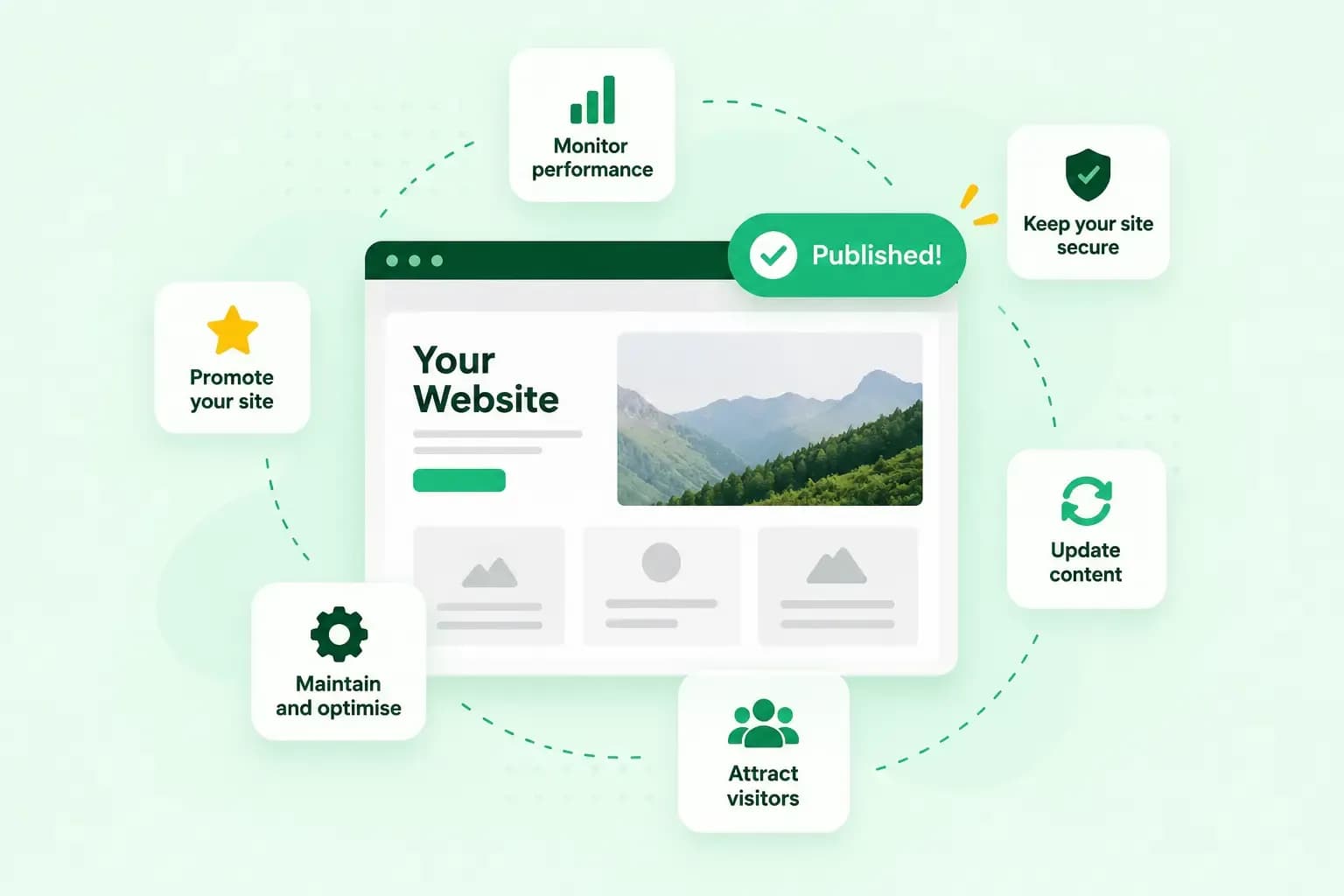
What to do next after creating a website comes down to making sure people can find it, use it and trust it. Test that your site works, help Google find your pages and set up analytics to see who visits. Then use an email address on your own domain and tell people about the site. Make it easy to get in touch, and keep your content current and backed up.
Once your website is created, it's tempting to leave it and hope visitors find it on their own. A few checks soon after you publish catch problems early. If you haven't published yet, begin with our checklist before launching your website.
8 things to do after creating a website
The first three checks make sure your site works, help Google find it and show you who visits. Do them before you start telling people about it.
Test your website like a visitor would
Open your website on a phone and on a computer, and look at it the way a new customer would. Click through the menu and the buttons, and send a test message through your contact form to check that it reaches you. Read the text once more for typos and leftover placeholder text. Your site may collect names or email addresses, for example through that contact form. If it does, UK GDPR gives visitors the right to be informed about how you use their personal data. Add a privacy policy that tells them what you collect and why.
Help Google find your website
Google has to find and crawl your new website before your pages can appear in its search results. To help it, add your site to Google Search Console and submit your sitemap there. A sitemap is a list of your pages that Google reads when it crawls your site. Submitting it tells Google where to find that file. When you add your site, Search Console asks you to choose a way to verify it. Our guide to Google Search Console takes you from verifying your site to entering your sitemap's address.
Search Console also shows which of your pages are indexed by Google, meaning Google has stored them and can show them in search results. You can also check a single page, such as your homepage. Enter its exact address in Search Console's URL Inspection tool to see whether Google has indexed it. Submitting a sitemap asks Google to look at your site, but it doesn't guarantee that your pages appear.
Set up analytics to see who visits
Analytics shows how many people visit your website, where they come from and which pages they read. You can use Google Analytics for this, and our guide walks you through setting it up. Then filter out your own visits, so your numbers show real visitors and not you checking your pages. Google Analytics lets you filter out activity from your own IP address, the address your internet connection uses. You mark that address as internal traffic and then create a filter that excludes it. Google's help page on how to filter out internal traffic shows each step and where to find your IP address. Once the filter is active, it can take 24 to 36 hours to apply, and after that your own visits no longer appear in your reports.
Use a professional email address on your domain
An email address on your own domain looks more professional to customers than a Gmail or Outlook address. Check first whether your website plan already includes one. If you built your site with our Aida AI Website Builder, every plan already includes professional email on your domain. If your plan doesn't, you can add our business email to the domain you have, after moving that domain to us if it's registered with another provider. Our email plans also work on their own, even if your website is hosted somewhere else.
Every mailbox comes with a calendar, and you can read your email in webmail or in the email app on your phone.
Choose an email planTell people your website exists
Start with the people who already know you. Share your web address on your social media profiles, add it to your email signature and print it on business cards and invoices. Post regularly on social media for your business, so your followers come back to the site when you add something new.
If you serve customers locally, set up a Google Business Profile. It lets you manage how your business shows up on Google Maps and Search at no charge. Once these basics are in place, digital marketing, from email newsletters to paid ads, can bring in more visitors.
Make it easy for visitors to get in touch
Put your phone number, email address or contact form where visitors expect to find it, and reply to messages quickly. You can also start a conversation yourself, for example by inviting comments under a blog post or asking a question in a social media post. Once customers have bought from you, ask them for a review or for feedback on what you could do better.
Keep your content up to date
Check your pages regularly, and edit and publish your website again whenever your prices, services or contact details change.
New content doesn't have to be long. Add a photo of your latest work, a short blog post or an updated offer. How often you add something depends on the type of website you have, so pick a pace you can keep up.
Back up your website and keep it secure
A backup is a copy of your website that you can go back to if something breaks or gets deleted. Make sure a recent one exists before you make bigger changes. Every one of our web hosting plans keeps a daily backup, and from the Professional plan up you can restore one yourself. On the Starter plan, you can view your backups, but you need to upgrade to restore one. Our website backup add-on, Backup & Restore, keeps daily backups of your website's files, databases and email accounts, so you can restore an earlier version.
Keep your software up to date and use strong passwords as well. Our guide on how to keep your website secure goes through the rest.
How long does it take for a website to go live after publishing?
If your domain and hosting are new, your website is usually online within minutes of us activating your order. In some cases, it can take up to 24 hours. Showing up in Google takes longer, and Google says crawling a site can take days, and sometimes weeks.
While you wait for Google, your emails can already send people to your site, so make sure they come from your website's domain. Customers then see one name in their inbox and in their browser. If you don't have an address on your domain yet, set one up with our email plans.
Recommended reading
 WebsitebuilderOct 19, 2026
How to get your website ready for Black Friday (with checklist)
Get your website ready for Black Friday with this practical guide and checklist. WebsitebuilderAug 31, 2026
Website redesign: How to modernise your website with AI
Discover how Aida AI can redesign your existing site in minutes, add new features, and help you create a site that's ready for business. WebsitebuilderAug 11, 2026
How to prompt an AI website builder
Learn how to prompt an AI website builder to create a professional website for your business. Get examples for shops, salons, clinics, and more.