
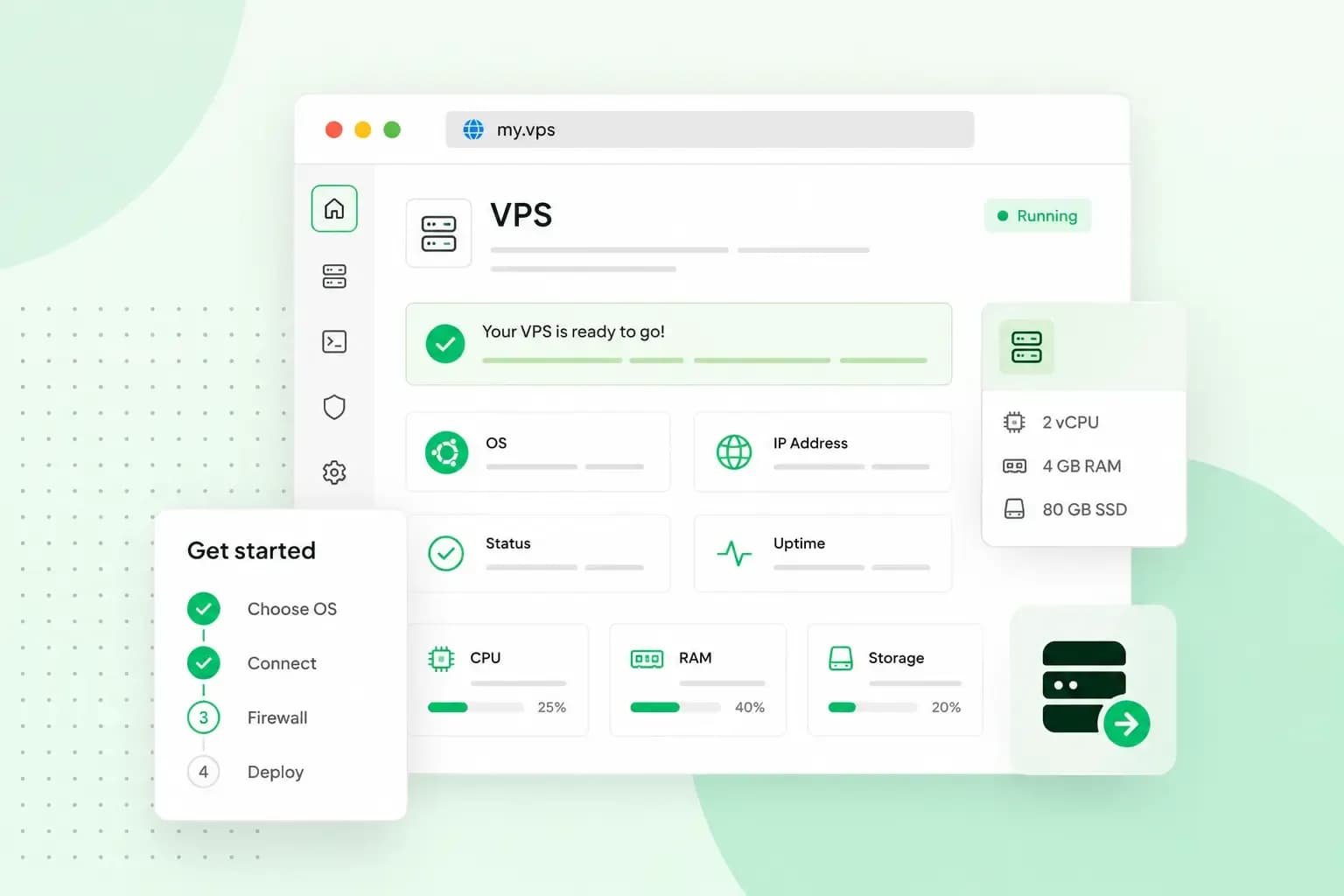
When you rent a virtual private server (VPS), you pay a provider for a server of your own. It runs on shared hardware, but its processor cores, memory and storage are reserved for you, and you control what runs on it. You pick an operating system and a plan size, place the order, then connect to the server, secure it and set it up yourself.
When renting a VPS makes sense
A VPS is worth it when shared hosting holds you back. That's usually the case when your host doesn't support the software you want to run, or when your development work needs root access. Root access gives you full administrator rights, so you can install and change anything on the server. You can also restart and reconfigure your server without affecting anyone else.
On our VPS, the vCPU cores, RAM and NVMe SSD storage you pay for can't be used up by anyone else on the same hardware. If none of this applies to your site, shared hosting is usually enough, and there's no server for you to look after.
Once it's running, you can use a VPS for all sorts of projects:
- A larger WordPress website, on Apache or Nginx with the PHP and MySQL versions your site needs.
- An online shop built on WooCommerce, the open-source shop plugin for WordPress.
- Your own proxy server or VPN server, so your traffic runs through a server you control.
- The applications you run your business on, such as a customer database, file sharing or automation tools, all on one VPS for your business.
- A game server for you and your friends, such as a Minecraft server, with your own settings and mods.
An unmanaged VPS suits you when you want full control over how it's configured, and Managed VPS when you'd rather not run a server yourself. We set up and maintain the server, and you manage your websites and applications through Plesk.
What to compare before you rent a VPS
Before you rent, go through these points with any provider, so you know what you get for your money:
- The billing period, the notice period and any setup fee, so you know what you're signing up to.
- The processor, and whether the storage is NVMe SSD. NVMe SSD storage reads and writes data fast, so your pages and files load quickly.
- The network speed, and whether your data traffic is capped or charged extra. Some providers charge for traffic over a set limit, so a busy month can cost you more.
- The operating systems on offer, including the version your software needs.
- Where the provider's data centres are, especially if you store customers' personal data on the server and need to know where it's kept.
- What support helps with on a server you run yourself, and what uptime the provider promises.
- Who manages the server, you or the provider. That decides how much of the work is yours.
- Features such as backups, and whether a server management platform such as Plesk is included.
With us, every VPS plan has NVMe SSD storage, 1 Gbit/s networking with unlimited data traffic and 99.99% uptime. Your server runs in our European data centres, which are ISO 27001 certified.
How much power your VPS needs
Each plan gives you a set amount of four resources:
- vCPU, short for virtual CPU, is the share of processor cores your server can use. Choose more cores if many visitors or tasks will use the server at the same time.
- RAM is the working memory your applications and database run in. Choose enough for both at their busiest.
- Storage is the space for your system, files and databases. Plan for growth as well as what you have today.
- Bandwidth is how fast data moves between your server and the internet. It matters when many people load your site at once.
Start with the plan that fits the load you expect now, rather than paying for room you might never use. If you're moving an existing site, look at how many visitors it gets at its busiest and how much storage it uses today. If your traffic goes up and down a lot, a CDN (content delivery network) can reduce the load on your server at busy times. It serves copies of your site's files from servers closer to your visitors.
With us, you can upgrade your VPS plan from your control panel at any time. The upgrade takes effect within minutes, with no server move and no downtime.
Linux or Windows for your VPS?
The right system depends on the software you'll run. Linux is the usual choice for websites. According to W3Techs statistics for October 2026, Unix-like systems such as Linux run 92.2% of the websites whose operating system is known.
| Linux VPS | Windows VPS | |
|---|---|---|
| Versions with us | Such as Ubuntu, Debian, AlmaLinux and CentOS | Windows Server 2022 Standard |
| How you connect to our plans | SSH, from a terminal | Remote desktop (RDP), with the familiar Windows desktop |
| Licence | Ubuntu, for example, is free to download and use | A Windows Server 2022 Standard licence, included in the monthly price of every Windows VPS plan with us |
| What our plans suit | Websites on Apache or Nginx, PHP, MySQL and WordPress | Windows and .NET applications and Microsoft apps |
Our advice: rent a Linux VPS for websites and online shops. Rent a Windows VPS when an application you need is built for Windows, such as a .NET application.
What you look after on a rented VPS
An unmanaged VPS is yours to run, so the upkeep is your job:
- Install software updates and security patches as they come out.
- Look after the user accounts, and give each user the access they need and no more.
- Make backups of your data, so you can restore it if something goes wrong.
- Keep an eye on how the server performs, and upgrade the plan when it struggles.
Our support team can help with access problems, but we can't configure or manage the server for you. With Managed VPS, the server work is ours instead.
How to rent a VPS and set it up
Steps 2 to 5 are for a Linux VPS, which you reach over SSH. On a Windows VPS, you find the IP address and login details as in step 2, then connect with Remote Desktop (RDP) instead.
If you don't have a domain yet, choose a domain name and register it before you start. You'll need a domain to put a website on your server. Depending on the domain extension, you may need to activate your order before you can use the domain.
- Choose a plan and an operating system, then place your order.
- Find your server's IP address in your control panel, along with the username and password we email you when you order. Connect to the server with an SSH client, such as PuTTY on Windows or Terminal on a Mac or Linux computer.
- Change the root password, then create your own user with admin rights for everyday use.
- Set up SSH keys, a key pair that lets you sign in without a password, and check that you can sign in as the new user with your key. Only then switch off direct root login and password login.
- Restart SSH, so the server stops accepting root and password logins.
- Update the system, then install the software you need, such as a web server, a database and a programming language.
- Point your domain to the server: in your domain's DNS settings, add or edit its A record so it points to your VPS IP address. The A record is the entry that links your domain to the IP address of your server.
A DNS change often takes a few hours and can take up to 72 hours to reach everyone. When your domain leads to your server, install an SSL certificate on it, so your site loads securely over https.
Pick Linux or Windows and the size you need. You pay monthly and can cancel at any time with no penalty, giving 15 days' notice. Your server stays active until the end of the billing period.
Choose a VPSHow much does it cost to rent a VPS?
What you pay for a VPS depends on the plan you choose and what it includes. With us, a Windows VPS plan includes the Windows Server licence in the monthly price, and Managed VPS includes the server management. Our VPS plans have no setup fee and are billed monthly. Compare what each plan includes as well as its current monthly price, which our VPS page shows.
Choose your VPS
With the operating system your software needs and a plan for the load you expect, you have what it takes to pick your server. Rent your VPS, then follow the steps above to secure it and put your site online.
Recommended reading
 VPS20 Oct 2025
What is n8n, and how do you run it on your own VPS?
Work more efficiently with n8n automation on your own VPS. Learn how to use n8n in combination with AI. VPS3 Oct 2025
What is a server?
Servers ensure that websites, online shops, and other online services run smoothly. Learn more about what a server is and how it works. VPS3 Oct 2025
Docker on a VPS: everything you need to get started
Develop and launch your next project more effectively with Docker on a VPS. Get started with these tips!