

An address book is the list of people you contact, with their names, email addresses, phone numbers and other details. An online address book keeps that list on your email provider's server instead of on one device. You can then reach the same contacts from your computer, tablet and phone, without searching old emails or scraps of paper for a number.
What does an address book in email do?
In email, the address book fills in addresses for you, so you don't have to remember them. When you type a name in a new message, your email program suggests the saved address. That's the program or app you read email in, on your computer or your phone.
You can also sort contacts into groups, such as colleagues, clients or family. In a business, each department can have its own group, which keeps a long list easy to find your way around.
What can you store in an address book?
You can store the details you need to reach someone, each in a field of its own. A typical contact holds:
- name
- email address
- phone numbers
- postal address
- company or organisation
- photo
You don't have to fill in every field. A name and an email address are enough to write to someone, and you can add the rest when you have it.
Online, offline and paper address books
An address book saved only on your computer or phone keeps your contacts on that one device. An online address book stays with your email account instead, so you can reach it wherever you sign in. If your phone already syncs its contacts with an online account, that's an online address book too.
An offline address book means something more specific, and you'll mostly meet it at work. If your office runs its email on Microsoft Exchange, Outlook can also download an offline address book. It's a copy of the company's address lists that lets you look up colleagues while you're not connected.
A paper address book is still handy for a few numbers you want to keep without a screen, such as an emergency contact. It works best as a short backup to your online list.
Why is an online address book useful?
With an online address book, losing your phone or breaking your computer doesn't cost you your contacts. You sign in on a new device and they're back. All your contacts also stay in one list, so you don't have to remember which device or old email holds a number.
How to set up your address book in our Webmail
You set up an address book by adding your contacts and sorting them into groups. You need an email account with us for this. The address book is built into our Webmail, next to your inbox and your online calendar. To add your contacts:
- Log in to Webmail and go to your contacts.
- Create a new contact.
- Enter the contact's details and save them.
- Create a group for each set of people you write to together.
- Add each contact to the groups it belongs to. One contact can be in several groups.
Webmail keeps your contacts in alphabetical order, so you find the person you need quickly. You can also sync them with the contacts app on your phone and the mail app on your computer. The sync uses CardDAV, a standard protocol for contacts. Once they sync, a contact you add on one device shows up on the others. If you'd rather not set up an app, open Webmail in your phone's browser instead, as it's made for mobile browsers.
Every one of our email plans comes with webmail, an address book, a built-in calendar and spam and virus protection.
Choose an email planHow to move your contacts between programs
You export your contacts as a file from your old email account or program, then import that file into the new one. The usual formats are CSV and vCard. vCard is a standard format for contact details that email programs and phones widely use. A CSV file is a simple table you can also open in a spreadsheet. Pick the format your new program can import.
Gmail lets you download your contacts as a CSV or vCard file. New Outlook saves its export as a CSV file and imports a CSV file under People, with Import contacts. In classic Outlook, the Import/Export wizard brings contacts in from a CSV file.
If you move your email to us, you don't need a file at all. You connect your old account to the migration tool in our Webmail, and it copies your messages and folders across, which can take up to 2 days. Your contacts move separately: export them from the old account and import them into our address book.
Keeping your contacts safe
In our Webmail, your contacts are stored in your email account, so protecting the account protects them too. To keep your email account secure, start with a password you don't use anywhere else. You can then switch on SMS alerts in Webmail, and we'll text you whenever someone logs in to your account from another country. We also back up your emails every day, and they can be restored when needed.
If you run a business, the names and email addresses in your address book can be personal data under UK GDPR, because they can identify a person directly. Keep only the contacts you need, and keep their details up to date.
Once your contacts are in one place, you can write to them from a professional email address on your own domain, such as name@yourbusiness.co.uk. They then see your business name in every email.
Recommended reading
 Email10 Nov 2025
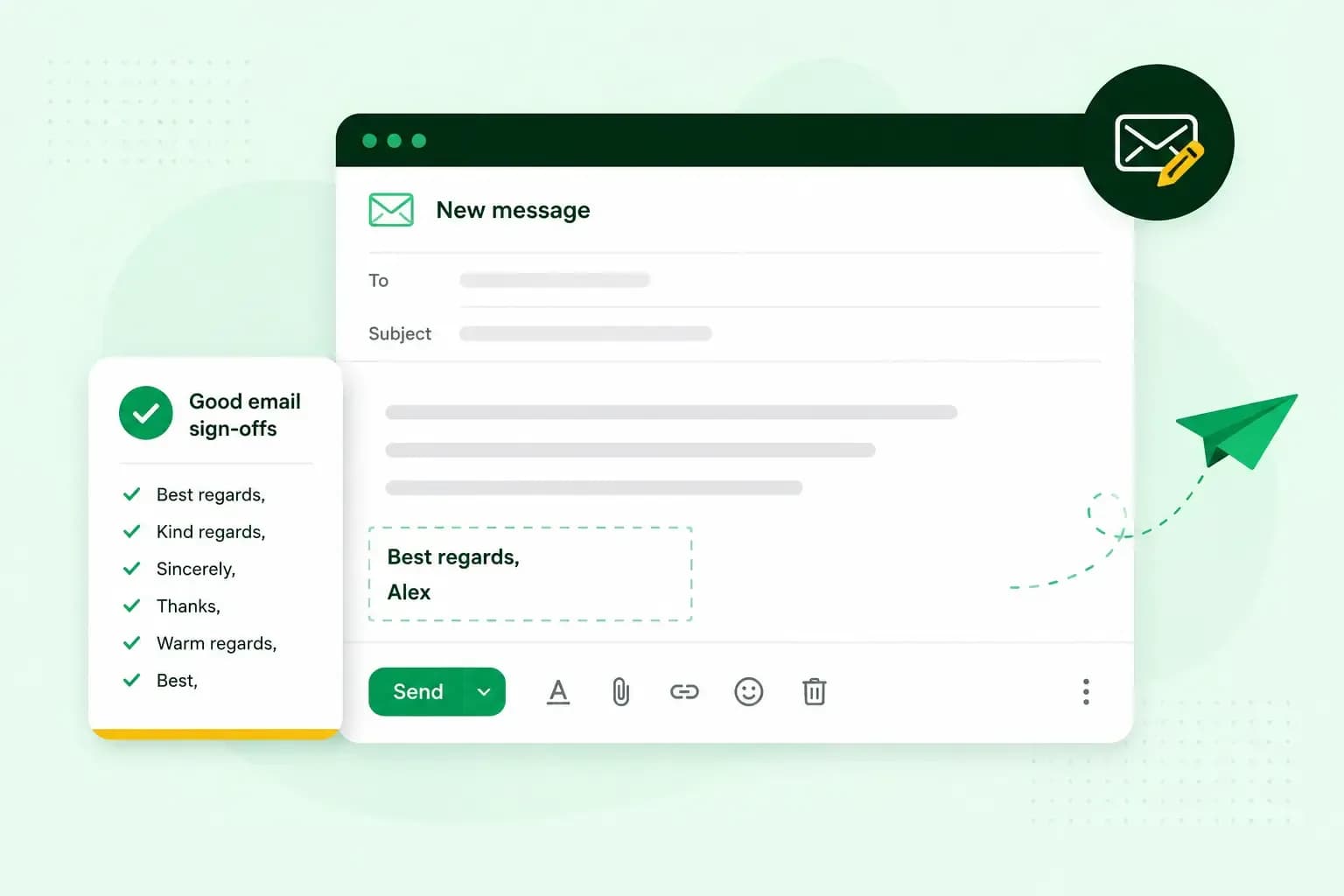
How to end an email in English
How you end an email impacts how it is perceived. We have collected the best ways to sign off emails in English.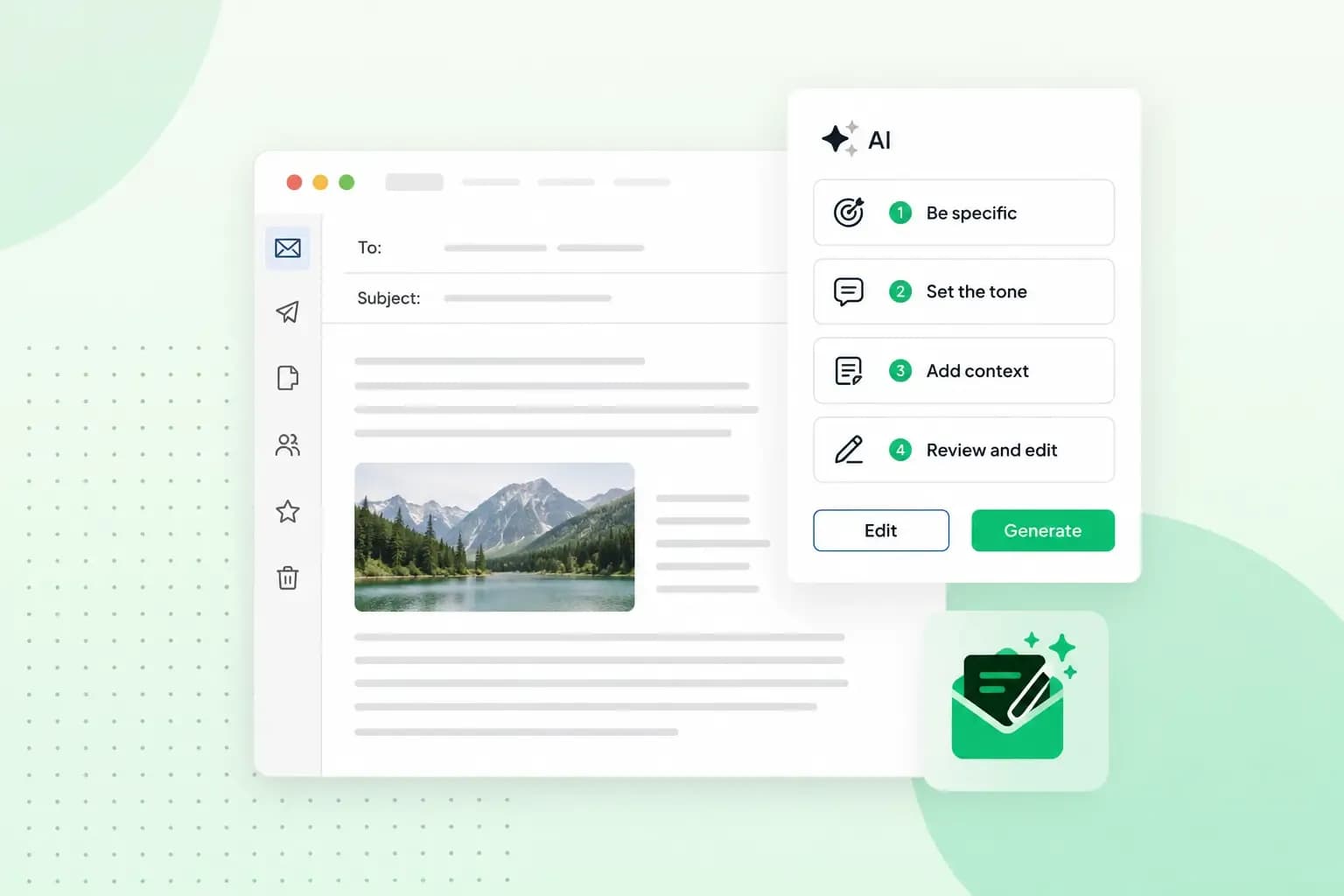 Email23 Oct 2025
How to use an AI email writer
Save time without sacrificing quality: learn how to use AI for email writing and create personalised emails effectively. Tips for crafting clear and compelling prompts.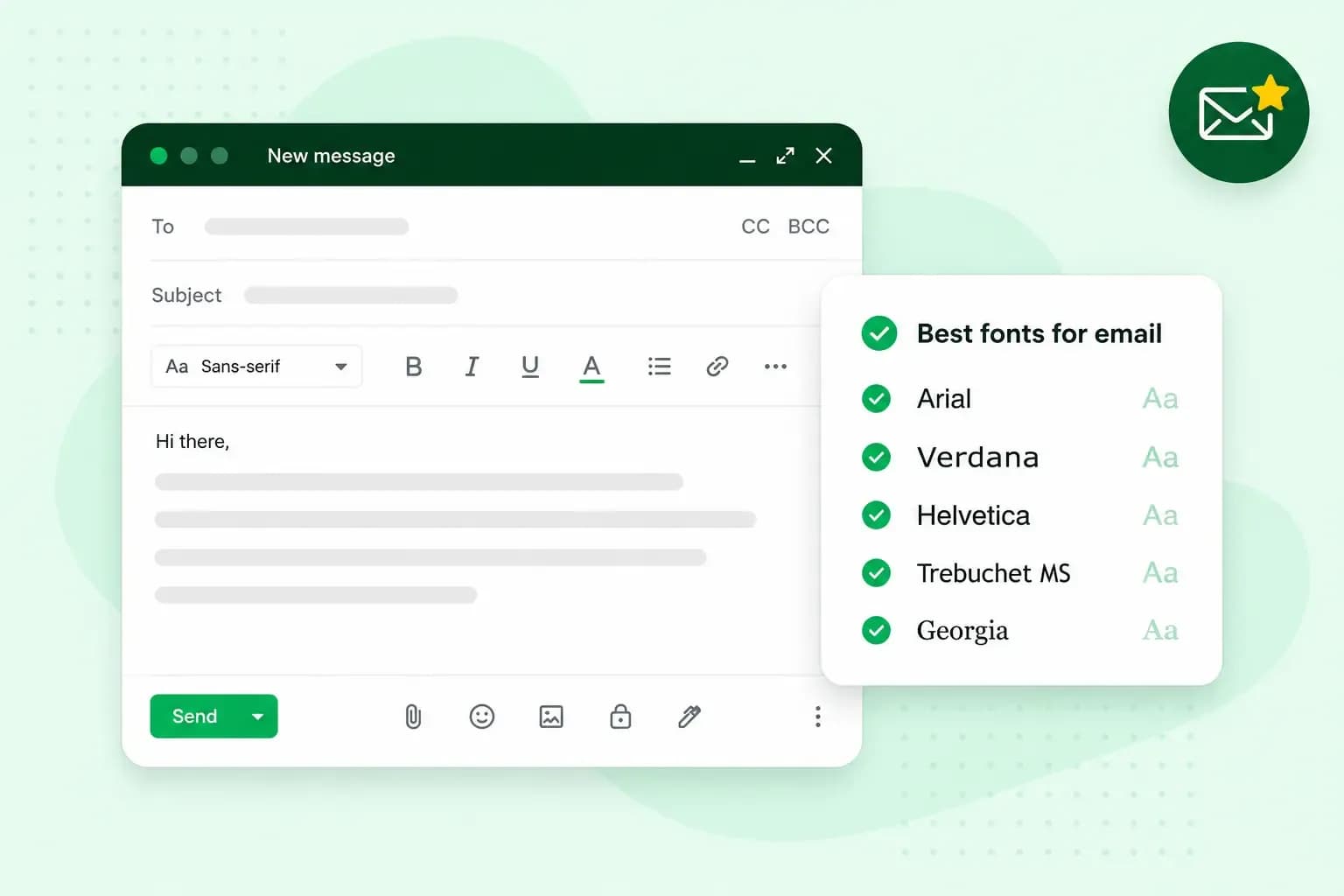 Email10 Oct 2025
What is the best font for email?
Sending the perfect email is essential. Read our tips on what you should consider when choosing the best professional font to ensure success.