

To create an email account, you first choose where your new email address lives. A free provider such as Gmail gives you an address like yourname@gmail.com with a Google Account. An address on your own domain, like hello@yourbakery.co.uk, needs a domain and an email plan. Either way, you then choose the name before the @ and set a password. After that, you can use the account in your browser, on your phone or in an email app.
Free email account or an address on your own domain?
A free account is the better choice when the address is only for personal email. For work, an address on your own domain tells customers they're dealing with a real business. It also stays the same if you ever change email provider.
| Option | Example | What you need |
|---|---|---|
| Free email account | yourname@gmail.com | An account with the provider, such as a Google Account |
| Your own domain | hello@yourbakery.co.uk | A domain and one of our email plans |
Our advice: if you'll use the address for work, choose your own domain. An invoice or a quote from a free address may look less trustworthy. On your own domain, you can add addresses such as info@ and sales@ when you need them, up to the number your plan includes.
How to create a free email account with Gmail
With Gmail, your new email address comes with a new Google Account, so you create both at once.
- Go to the sign-in page for your Google Account.
- Click Create account.
- Choose whether the account is for personal use, a child or a business.
- Pick one of the Gmail addresses Google suggests, or create your own.
- Add your birthday and gender, enter a username, then enter and confirm your password.
- Click Next. If you like, you can add and verify a phone number for the account.
- Click Next once more to carry on.
How to create an email account on your own domain
To create a custom address with us, you need a domain and one of our email plans. If you don't have a domain yet, you can register a domain with us. Both of our email plans, Email Essential and Email Unlimited, include a free domain for the first year. After that year, you pay for the domain. If your domain uses our name servers, its email already goes to our mail servers. The only thing to check is our standard SPF record: it's switched on automatically for newer domains, and if it's off, you switch it on in the DNS settings. If your domain uses another host's name servers, you set its email records at that host instead. There, keep only one MX record, pointing to our mail servers, and add an SPF record and the DKIM records our support gives you. The DKIM records usually take up to 240 minutes to start working, so wait before you test your new address.
How many addresses you can create depends on the plan you choose: our Email Essential plan, for example, includes 5 email accounts. If you're switching from a free address, our import tool in webmail handles the migration from your email provider. It copies your old emails to your new mailbox.
Choose your domain and the name before the @
An email address has two parts. After the @ comes your domain name, and that part of your email address stays the same for every address you create on it. The name before the @ is yours to choose.
A good domain is short and easy to say and spell, and our tips on finding the perfect domain name help you find one. For a UK business, the domain extension .co.uk is a good first choice. Before you decide, check if your domain name is available in our domain search, and try another extension if yours is taken.
For the name before the @, pick the format that fits who will use the address:
- Use your first name, for example
sarah@yourbakery.co.uk, if your customers know you personally. - Use your first name and surname, for example
sarah.jones@yourbakery.co.uk, if several people share the domain. - Use a role, for example
info@yourbakery.co.ukorsales@yourbakery.co.uk, if you want an address that doesn't show anyone's name.
Even with a role address, the domain itself is registered in your name. The public WHOIS is where anyone can look up a domain's registration details. For a .co.uk or .uk domain, it doesn't show your name or address unless you've given permission.
Create the account in the control panel
With us, you create each address yourself in the control panel, and if you get stuck, our help guide shows how, screen by screen. You only type the name before the @, as the domain always comes after it and can't be changed. Check the spelling of the name before you confirm it.
- Choose an email plan with enough addresses for everyone who needs one.
- Log in to our control panel.
- Add a new email account and type the part of the address that comes before the @.
- Set a password and type it again to confirm it. You'll use it to log in to webmail and to set up the account in an email app.
- Create the account, so the new address exists.
- Open your new mailbox in webmail and start sending and receiving email.
Get professional email on your own domain, with webmail, a spam filter and our mobile app.
Choose an email planHow to use your new address on your phone or computer
For an address on your own domain with us, you can read your email in three ways. Webmail works in any browser with nothing to install, and our mobile app puts your inbox on your phone. You can also set up the account in an email app you already use, such as Outlook or Apple Mail. The settings below only work for an address with us, not for a Gmail address.
We recommend IMAP because it keeps your email on the server, so your phone, your laptop and webmail all show the same messages.
- Create the email address in the control panel first.
- Add a new account in your email app. Enter your full email address as the username, and the password you set.
- Choose IMAP and enter the incoming server
imap.one.com, port993with SSL. - Enter the outgoing server
send.one.com, port587, and the same username and password. For the security setting, any of TLS, SSL or STARTTLS works, so pick the one your app offers. - Send yourself a test email to check that the account sends and receives.
Once you've settled on your domain and the names before the @, pick an email plan for your business by how many addresses your team needs.
Recommended reading
 Email6 Nov 2026
What is email spoofing? How to stop someone faking your business email address
Email spoofing is when someone forges an email's sender. See how to spot a spoofed email, what to do if it's your address and how to stop email spoofing.- Email6 Nov 2026
SPF, DKIM and DMARC explained: how to keep your emails out of spam
DMARC tells mail servers what to do with emails that fail SPF and DKIM checks. See what each record does, how to set them up and how to check they work. 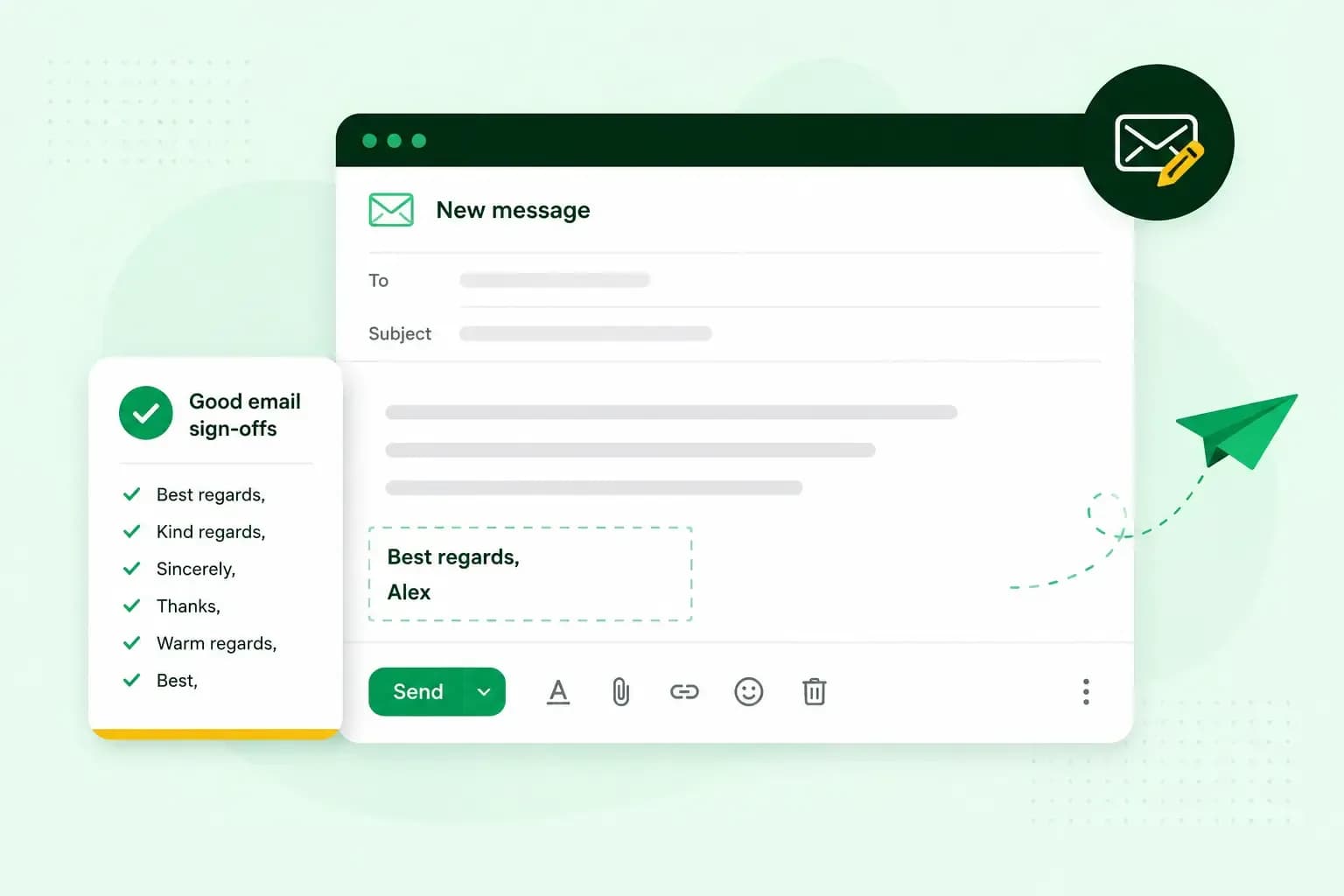 Email10 Nov 2025
How to end an email in English
How you end an email impacts how it is perceived. We have collected the best ways to sign off emails in English.